New Cycloramic Out For Free

Cycloramic Studio 360 Panorama 3.1 is out. With the latest version of Cycloramic come new features to create panoramas on iPhone and iPad. As a way to celebrate the release of the iPhone 5s, the developer is now giving users the chance to download the app for free (full price is $1.99).

Cycloramic 3.1 Free
Cycloramic 3.1 introduces increased final panorama resolution Continue reading “New Cycloramic Out For Free”

Sfera Review

Sfera is a 360 degree photo maker for iPhone, iPod Touch and iPad, emphasizing a simple approach to 360 degree photo capturing and processing. Sfera lacks some important features that are a requirement, even for 360 photo making apps, like the possibility to save 360 degree pictures as flat photos and more control over final images.

Main Features

  • High quality on/off;
  • GPS on/off;
  • Sound recording on/off;
  • In-app guide;
  • Send URL via email or share on Facebook and Twitter.

Appotography Opinion

Sfera is one of the easiest utilities to capture 360 degree images on iPhone, iPod Touch and iPad and thus especially suited for users with little experience and, likewise, little demands.

To start the capture session, you simply tap and then slowly turn clockwise, trying to follow the aid of the white dot on the line appearing in the middle of the screen. For a most accurate result, you have to keep them aligned. The progress bar on top keeps track of your advancement as you turn to take photos; when it reaches 100%, the capture session ends. It is possible to enable sound recording while shooting, for the creation of images with a soundtrack to them.

Sfera’s engine takes all photos automatically and then stitches them together. The final images are saved in the Gallery, where you can retrieve and upload them to Sfera’s web service. You can share the URL of your images on Facebook, Twitter or send it to email recipients.
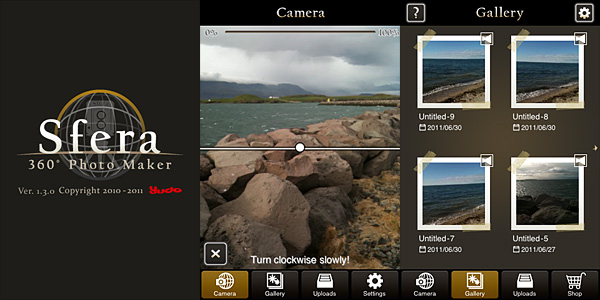
Sfera 360 photo maker by Yudo Inc. for iPhoneThe capturing process in Sfera is very straightforward and it’s easy to achieve results quickly. Since you are only presented with a 360 degree image, you don’t actually get to see how accurate and properly stitched your single shots are: possible imperfections are in such way easily disguised.

Here is a sample 360 image created in Sfera.

Proper editing in Sfera is impossible, to an extent: you cannot modify what you have captured. However, a few post processing tools are available, although exclusively as in-app purchases. A series of 7 colored filters can be obtained for $0.99 each or as a bundle for $2.99. Also available for $1.99 are contrast/brightness adjustment tools and a set of 8 very basic colored brushes plus eraser to write or draw over your images for another $0.99. In general, the in-app purchases are not worth bothering about.

The final images should also be viewable in Sfera Viewer, a separate app that can be downloaded for free from the App Store. Unfortunately, I couldn’t get the Sfera Viewer to work, because when I tried opening the .sfera file with it, I was asked to download a newer version of the app and I kept on being redirected to the App Store (and I had just downloaded the viewer from the store, so I assume there must be something wrong with it).

All in all, also given the possibilities it offers, Sfera is definitely too expensive. Considering there are so many other 360° photo makers that offer the same and more, Sfera is not the best option available for iPhone users, especially because the app does not allow to use the final images as flat panoramic photos.

Sfera is currently available in the App Store at the special price of $1.99, 62% off the regular price.

Overall

Name: Sfera
Developer: Yudo Inc.
Compatibility: iPhone (3GS, 4), iPod Touch (4th), iPad 2. iOS 4.2 or later.
Price: £2.99||$4.99||€3.99
Vote: 2/5


Sfera - Yudo Inc.

360 Panorama Review

Occipital recently released 360 Panorama in the App Store. As the name suggests, the app is a 360° panoramic photo creator, one of the many already available for iPhone. The app also runs on iPad 2 and iPod Touch 4th generation.

Main Features

  • Fully automated panorama creation process;
  • Reference grid;
  • Light indicator;
  • View panoramas in 360° or stereographic mode;
  • Retina display support;
  • Send via email or share on Twitter and Facebook (requires 360 Verse account).

Appotography Opinion

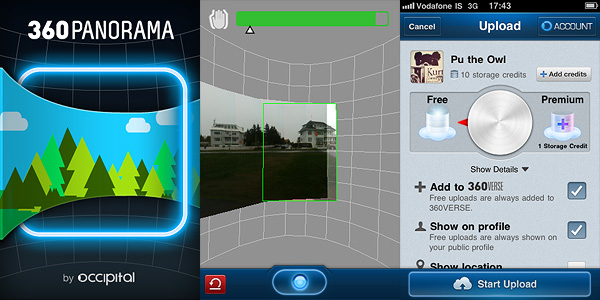
As soon as you start the 360 Panorama, you are immediately introduced to the main screen, whose most noticeable feature is a curved grid that will help you in taking straight shots to assemble your panorama. By tapping on the shutter button, you set the starting point of the panorama creation. While panning around, the app automatically takes consecutive shots to be merged at a later stage. As soon as you have enough shots, you tap again on the shutter button and let the app do the rest.

360 Panorama app by Occipital for iPhone

After the panorama is assembled, you can decide to save it to your camera roll, to send it as a flat image with email or to share it as a 360° view. To take advantage of the latter, you must create an account to 360 Verse — the portal connected to 360 Panorama — through in-app registration. The free account has only limited features and storage capacity, but if you want you can upgrade to a Pro account by purchasing credits from within 360 Panorama. Note to developers: adding an extensive and clear in-app guide to the whole ordeal would help more than a few users, I am sure.

360 Panorama has very basic options: you cannot do much to enhance your panoramic image, apart from trying to be careful when you pan. Using the automated capture feature can be all right in some instances, but most of the times it’s definitely too problematic to handle in order to take accurate shots, especially in absence of a tripod: being able to adjust angle and perspective before the shot is automatically taken is impossible sometimes. After a few unsuccessful tries, the task can become frustrating. iPhone photography should be fun, but making 360 Panorama do its work properly most of the times is not.

Especially in difficult lighting conditions (indoors, overcast weather, etc.), the app seems unable to correctly figure out proper settings on its own and therefore it messes up. The stitching is also intense in most cases (as in image below), making composites useless if not as a momentary curiosity.

Panoramic image created with 360 Panorama. Click for larger view.

As I see it, 360 Panorama is not the best choice in the App Store if you want a solid and reliable application focused on panoramic images creation. I haven’t tested 360 Panorama on iPad 2, but I assume it must be even more complicated than using it with an iPhone, given the tablet’s size and weight. Unless you intend to use a tripod, creating a decent looking panoramic image in 360 Panorama will be a task requiring too much time and patience to be fully enjoyable.

PS: As a launch promotion, you can buy 360 Panorama with a -50% discount.

Overall

Name: 360 Panorama
Developer: Occipital
Compatibility: iPhone (3GS, 4), iPod Touch (4th), iPad. iOS 4.0 or later.
Price: £1.19||$1.99||€1.59
Vote: 3/5

360 Panorama - Occipital

Panoramatic 360 Review

Panoramic photography is a technique producing images with elongated field of view. It is also commonly referred to as wide format photography. Panoramic images are usually composites of several images stitched together. These days, the stitching process is often carried out with the aid of a photo editing software.

Panoramatic 360° brings to Apple devices a tool conveniently designed to allow accurate stitching of individual images to be assembled as panoramic views.

Main Features

  • Panorama and Poster modes;
  • Exposure, contrast and vignetting correction;
  • Automated stitching;
  • Autosave and restore;
  • 360° panorama creation;
  • 3D VR visualization of 360° panorama;
  • In-app tutorial;
  • Share via email, Facebook, wi-fi, Panoramatic 360°

Appotography Opinion

Panoramatic makes the task of creating panoramic photos as easy and immediate as it can get.

You can can choose among Panorama and Poster modes. The first mode allows the user to take pictures either in landscape or in portrait orientation in order to create the final wide format image. Poster mode works in a similar manner, but images can be imported also from your albums and they don’t necessarily have to be horizontally taken.

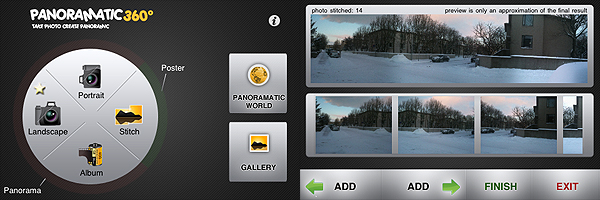
All you have to do to create your wide format views in Panoramatic is taking a series of photos following the help of the app’s visual guide. As an additional reference, you are also shown the inclination of the camera and the total number of pictures taken. The more you get used to keep an eye on these indicators, the more accurate the stitching of your photos will be. After you take the pictures, you have a preview of what your panoramic image will look like. You can improve it by deleting a few shots, by adding some others, or you can just proceed to the final rendering.

Panoramatic 360° for iPhone

You can take photos manually or use the Auto function that will help you to know when to shoot. To be honest, the Auto function is the one thing I really didn’t feel very comfortable with while using the app. If you rotate too much or too fast or even in other unfathomable circumstances, the calculations of the compass won’t be accurate enough and you won’t be able to shoot when in the right position. It may seem a paradox, but from my experience I would say you need more training to make Auto function work properly than you need to make the app do a good job when this feature is disabled. Anyway, to get the most out of Panoramatic, I suggest getting used to shooting with Auto turned off.

When you have enough photos to work with — a minimum of two is required, but how many photos to take is up to you, depending on how you want your final image to look like — you can make a few adjustments to contrast, exposure, colors and vignetting; then the app will create the composite image for you to save in your camera roll, to share, or to explore as a 360° panorama. All the rendered panoramic images are stored in the app’s gallery, where you will be able to access them at any moment.

Panoramatic 360° is not difficult to use but, differently from the greatest majority of other apps, getting used to it does require some time. All the elements in it can at first seem overwhelming and I recommend reading the tutorial before starting taking photos. Although the app works very well and in general results are quite accurate, some of Panoramatic’s features are not perfect, so you have be in the best possible conditions to expect extremely good results. For example, the picture below was taken with Panoramatic 360° with auto vignetting correction enabled. As you can see, some flaws due to vignetting are still visible on the upper part of the final image. Color correction was also enabled, but lighting conditions sometimes are hard to overcome and it’s probably not completely the app’s fault.

Panoramatic 360° for iPhone
Panoramic image generated with Panoramatic 360° - Click for larger view

Obtaining a panoramic photo and obtaining a good panoramic photo are different things entirely and it goes without saying that Panoramatic 360° can only help you in the first task. Taking the photos to be stitched together and making them actually look good together is up to you.

Overall

Name: Panoramatic 360°
Developer: floaty
Compatibility: iPhone, iPod Touch, iPad. iOS 3.1 or later.
Price: £1.19||$1.99||€1.59
Vote: 4/5

Panoramatic 360 - floaty