If you take the time to explore comments left by users in the App Store, you will notice that some of the negative remarks posted are based on groundless criticism, often triggered by lack of proper understanding of how the App Store works. Thankfully, this type of negativity is only occasional; yet, the kind of misinformation accompanying it can affect negatively a developer’s sales. For most developers with one or more apps in the top ten, it’s not a big deal: unfair negative ratings are just a drop in the ocean. For smaller scale developers or relatively less popular apps though, even a couple of negative ratings can make a huge difference, thus it would be better if people learned to use the power they are given properly.
One reason people leave negative feedback in the App Store: if they delete an app from their iDevice, when they download it again, they see all their in-app purchases are gone. Instead of asking for support, they cast their one-star rating, thinking this will serve developers right. It’s true — and not very clever — that many developers don’t take the time to write accurate guides, telling users what to do in cases like the one I mentioned. Still, even if many developers are very eager to offer support, a lot of users prefer resorting the aggressive low rating method to let them know about their discontent, rather than asking for help.
More than a few apps these days offer in-app purchases: meaning that, even in the case the app comes for free, you buy some additional feature not included with the regular version of the app. In the case of photography apps, for example, through in-app purchase you often unlock new effects, higher resolution saving, ads removal, etc. When you delete the app from your iDevice, you obviously remove all its content as well, in-app purchases included. Upon downloading the app again, you are given the app without any extra in-app content, whether you have previously bought it or not. This is when the average user gets lost and, often, rushes to cast a one-star rating.
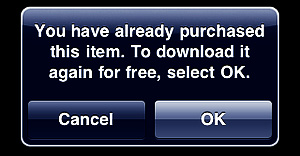
Some apps simply let you re-download your content again, charging nothing for the new downloading process: the developer has record you have already purchased that content before. At first, everything will look as it was the first time: you will not necessarily be warned that you are trying to purchase again something that you have already paid for. This might indeed be scary, but go ahead, because just before the download starts, a pop-up message will remind you that you are entitled to download the content for free, since you have already paid for it.
 Other apps have a feature called “Restore Purchases”. This may look confusing when you read it, but restoring simply re-downloads or unlocks all the content you have paid for, without having to go through the process of manually selecting several items and downloading them individually. Restore is especially useful in apps where there are multiple in-app items that can be purchased. Not all apps featuring in-app purchases include a Restore Purchases action, but some do.
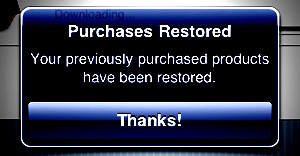
Anyhow, only non-consumable purchases – virtual items that you cannot use up – can be restored. Photography apps usually feature only this type of purchase, but other genres of apps, like freemium games, rely on consumable purchases like virtual credits, which cannot be restored.
Closing comments
It’s in your right to offer your feedback in the App Store and developers definitely appreciate it. However, always try to be fair before you give your rating and make sure you are not missing some important detail; if you have doubts or if you find yourself stuck, take some time to look for adequate information or, when possible, contact developers for support.




 Change the look of your photos with a single tap. Pixlr-o-Matic offers a collection of 25 photographic effects, 30 light overlays and 31 frames, for many combinations. Pixlr-o-Matic is also a web app. Try it for free
  Developer: Autodesk Inc.
 Light can make a difference in photo enhancement. LensFlare comes with 42 professional looking flares, which can be placed in images loaded from Camera Roll or in photos taken with the built-in camera feature. Flares range from SRL camera lens to cinematic effects. Scale and rotate flares to adjust them to photos, create images of great visual impact with just a few touches.
 Developer: BrainFeverMedia
 Add captions to photos with Phonto. More than 100 font styles are available. Phonto lets you customize your text by changing font face, size and color. Change opacity, tilt and add backgrounds for different effects. Use Phonto to add watermarks or to send personalized messages. Phonto is Instagram-friendly: it saves photos in a square format and lets you post directly to your favorite photo sharing app.
 Developer: youthhr
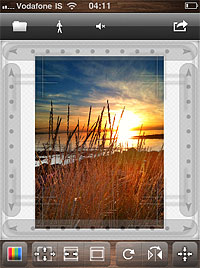 Squaready is a great companion for regulars of the 1:1 aspect ratio. Instagram users will find it easier to adapt both their landscape and portrait oriented photos to the square format. Flip and rotate, shrink and enlarge, add a colored background and send to other photography apps (Instagram, Magic Hour, Camera+, Cameramatic, and more).
 Developer: FANG Inc.
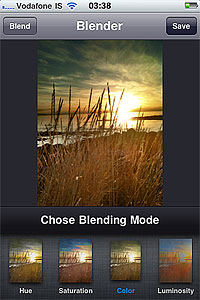 Merge two photos together to create unique images. Create unique effects and spice up photos by adding textures. Choose among 18 blending modes and adjust the opacity of each image for the desired result. Image Blender is as easy as layer blending can get.
 Developer: Johan Andersson