5+ Free Ways To Enjoy Instagram Out Of Your iPhone

That Instagram is one of the biggest phenomenons in social networking that exploded in the last months isn’t great news. Evidence of the popularity of Burbn’s photo sharing app is the increasing number of third party services based on Instagram.

Yes, Instagram is undoubtedly connected to the iPhone, but this doesn’t mean you shouldn’t have the pleasure to make use of it also in other forms and on other platforms. Here’s a list — or rather, a selection — of services that will let you have fun with Instagram for free on your computer, iPad, and so on.

With Your Browser

  • Statigram

    Statigram
    Statigram
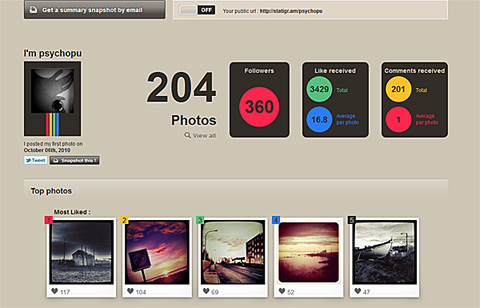
  • Statigram gives you access to all sorts of interesting stats and information about your Instagram account: from your most popular photos to your most used filters, from how you interact with your contacts to many other aspects concerning your activity.

  • Inkstagram
    Inkstagram
    Inkstagram

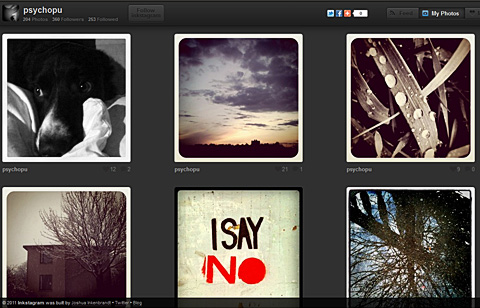
    Inkstagram is a web interface for Instagram. Connecting your Instagram account to Inkstagram, you will be able to browse photos in the popular category, from your contacts, manage your likes, comments on posts by other members and so on.

… And On Your iPad

  • Flipboard
    Flipboard
    Flipboard

    Flipboard was not specifically designed for Instagram but it does feature Instagram integration. Flipboard will let you browse in a visually appealing magazine-style manner content from Instagram, Facebook, Twitter, Flickr and much more, all at the same time.

… And Yet More.

  • Wallgram
    Wallgram
    Wallgram

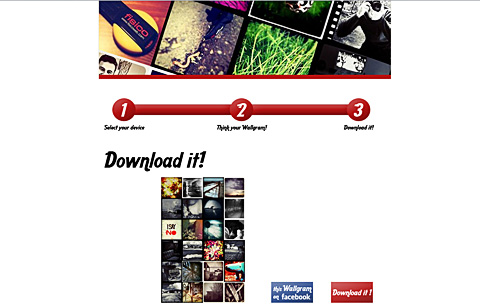
    With Wallgram you can generate and download wallpapers for your iPhone and iPad — computer and poster options coming soon — using either your recent Instagram photos or recent photos from your feed. You can also choose recent popular entries.

  • InstaBam
    Instabam
    Instabam

    Instabam lets you find Instagram public photos based on your location. You can define a distance radius for photos to be indexed. Instabam is also available on iPhone.

  • Instagram Meetups
    Instagram Meetups
    Instagram Meetups

    For the most social types out there. Join local Instagram communities, organize and take part in meetups around your area.

What are your favorites? Let us know!
Top Free Apps For Your Photography Needs Pt.2

The second part in our free photography apps series of specials — the first part is here. After all, who said you have to pay to enjoy your photography on iPhone, iPod Touch and iPad? Sometimes taking and processing photos is fun also because it’s free.

Super 8

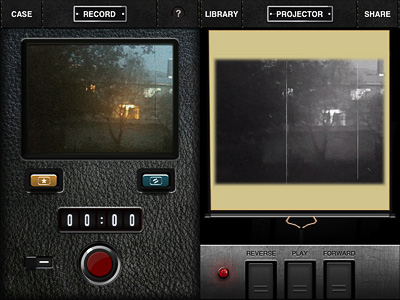
To celebrate the upcoming J.J. Abrams’s movie, Super 8, Paramount conveniently released a video processing app and  gave it away for free.

Pros: Several filters and options to take and process videos, sleek interface, in-app manual.
Cons: Not very appealing if you don’t like being forced to watch promotional material.

Photoshop Express

Adobe Photoshop is currently one of the most popular — if not THE most popular — photo editing and retouching tool in the world. Adobe brought its long expertise to mobile platforms with their Photoshop Express, top free downloaded photography app in many countries.

Pros: A little of everything, from shooting to fine tuning to adding borders and effects to sharing.
Cons: Not much flexibility for some of the features included. From Adobe, one would expect something more.

Tiny Planet Photos

See your average photos in a new light by turning them into stereographic images. Or, to say it in a simpler way, turn your photos into cute little planets. That’s what Tiny Planet Photos does.

Pros: Nice effects. If used with the right images and/or in combination with other apps, it can offer very interesting effects and truly creative, astonishing results.
Cons: Limited possibilities as a stand-alone app.

Flickr

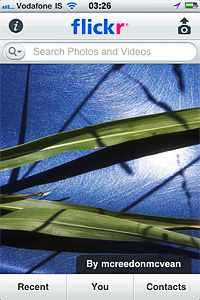
The official app to the most famous photo management and sharing service out there.

Pros: Share your photos easily, get in touch with your contacts, explore other people’s photos.
Cons: Not as manageable as the web application; some photo apps already offer basic Flickr photo sharing.

Gorillacam

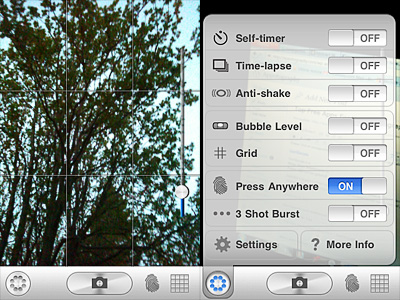
From the makers of Gorillapod. Gorillacam is a great app for those willing to take photos in the most straightforward manner. Within the same app, make use of a collection of digital tools that are often available only by using more apps at the same time.

Pros: Many helpful tools to easily take better photos: timer, anti-shake, grid, full-screen shutter button, burst mode, etc.
Cons: Developers announced they will not be releasing further updates.

And this was part 2 of our special. Hopefully, it helped some of you to discover a few new apps. If you have personal favorites that you would like to bring to our attention, feel free to comment here.

How Do I Preserve iPhone Battery?

One of the biggest problems for iPhone photographers is to save their device’s battery life. In spite of what Apple affirms about iPhone battery longevity, whoever uses iPhone camera frequently knows it is not uncommon to run out of battery at the most inappropriate moments. Sometimes, when you need to take that cool shot with your iDevice, you see your battery is gone. And you have hardly used it at all! What happened?

Here are a few tips to help you save precious iPhone battery life for when you really need it.

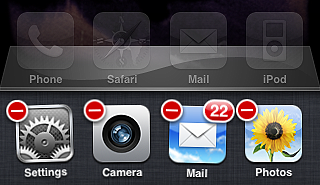
  1. Close all apps running in the background – As you probably know, iOS 4 allows multitasking. Unfortunately, most apps will keep on running in the background when you’re not aware of it, not only consuming battery, but also slowing down your iDevice’s performance. If you don’t need them, it’s advisable to kill all apps running in the background. To do it, double push quickly on the Home button, so that the multi-task bar is brought up; then hold your finger pressed on screen until a “-” sign appears on upper left corner of the application icon: by tapping on it, you will close the app.Turn off apps in the background - iPhone tips
  2. Lock your device – Locking the iPhone is something one tends to forget a lot, but it actually helps. Auto-lock may work fine for some, but it’s not the ideal option for regular camera users: the iPhone is locked at the wrong moments and you miss the right chance to take a good photo because the device is locked when you don’t need it. To avoid this, you can set the auto-lock to never and then lock the device manually when you really need it. To manually lock your iPhone, simply press the Sleep/Wake button on top right of your device.
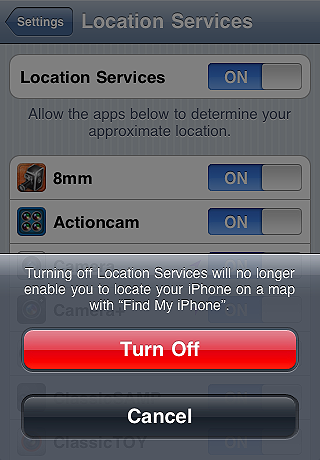
  3. Disable location services – Most apps make use of location services. However, this feature consumes a lot of battery life. To avoid this, simply turn Location Services off from your Settings.Turn off location services - iPhone tips
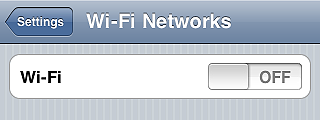
  4. Disable Wi-fi, 3G and Bluetooth – Wi-fi consumes less than 3G or Bluetooth, but it still affects your battery life greatly. If you’re not using any of these, turn all of them off from your Settings.Turn off wi-fi - iPhone tips
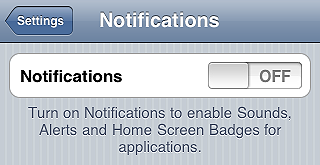
  5. Disable push notifications – Many apps, especially instant messaging apps (Instagram included), use push notifications to send alerts when new data is available. This means your device is always checking for those. If you are using apps that massively use push notifications, your battery may be affected. Turning your push notifications off, you will increase your battery lifespan and you will still be able to receive data when opening instant messaging apps.Disable push notifications - iPhone tips
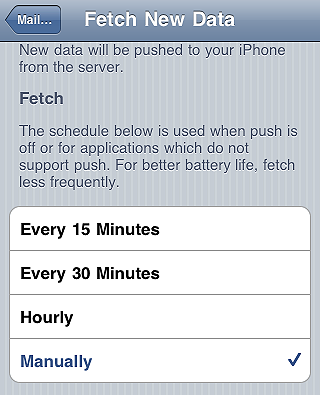
  6. Fetch data manually – If you don’t set it to manual from your settings, your iDevice will continuously look for new data at given intervals. Checking for incoming email, for instance, actually consumes a lot of battery life. Do you really need it?  You can both extend the time interval for auto-fetched data or you can go manual, so that new data is only retrieved when necessary.Fetch data manually - iPhone tips
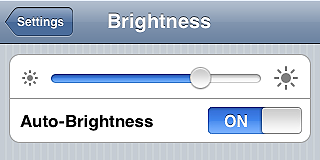
  7. Set screen brightness to auto – It goes without saying: the brighter the screen, the more battery consumed. You can decrease brightness manually from the settings, but this may not be the best choice. Auto-brightness will help you setting the screen brightness according to current lighting conditions.Set Screen Brightness to Auto - iPhone tips
  8. Use airplane mode – Unless you intend on making or receiving calls, enabling Airplane Mode will help to consume less battery in areas with low or no coverage, since iPhone uses more power and therefore it consumes more battery when coverage is bad.Set Airplane Mode on - iPhone tips
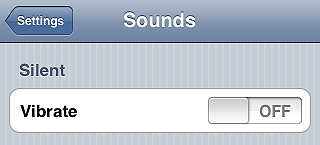
  9. Turn vibration off – Many apps, also photo apps, make use of vibration extensively. Sometimes vibration is just a gimmick and you can do without it. Try turning it off.Set vibration off - iPhone tips
  10. Run a complete charge cycle per month – Lithium batteries work better when they’re kept active. Draining your battery completely before recharging it, helps the good functioning of your iDevice, so be sure to do it once in a while.Run complete charge cycle - iPhone tips

Do you have other tips? Share them with us!

Top Free Apps For Your Photography Needs Pt.1

Free iPhone and iPad apps are sometimes overlooked. Yes, overlooked. If it’s free, it’s not as good as if you have to pay for it. This is a general assumption for more than a few users. Well, to get it straight: this isn’t always true. Some free apps can get the job done as effectively, if not better, than paid apps.

In a series of specials, we want to bring our favorite free apps to our readers’ attention.

Instagram

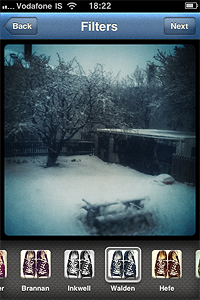
Instagram has become, thanks to its dedicated users, one of the most popular phenomena connected to iPhone photography. Instagram is a little of everything: a camera featuring a bunch of effects to spice up your photos, a tool allowing easy sharing on multiple networks, a lively community where it’s possible to meet thousands of iPhone photographers from all around the world.

Instagram Top Free Photography App For iPhone Pros: Easy photo sharing on most social networks. Some of the finest retro-looking filters available in the App Store.

Cons: Small output resolution. You need to be registered to Instagram community to use the app.

Actioncam

Actioncam is packed with many formats and filters. Shoot from 3 up to 9 pictures in a given time interval, or enjoy the creative freedom offered by manual mode.
Instagram Top Free Photography App For iPhone Pros: Use Actioncam as a full-fledged multishot camera and as a classic photobooth.
Cons: None.

Genius Scan

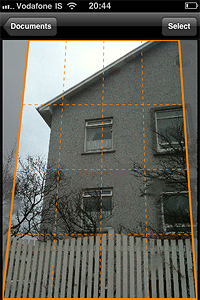
Genius Scan is a pocket scanner able to export documents both in JPG and PDF format, but this app’s possibilities go well beyond document scanning: for instance, it’s possible to use Genius Scan to straighten and adjust perspective in photos taken from wrong angles.

Genius Scan Top Free Photography App For iPhone

Pros: Very effective page detection and perspective correction.
Cons: Less features than Genius Scan+, the paid version of the app. If you need more flexibility in sharing your documents, you’ll need the full version. However, the basic features of the free release are fully functional.

Photosynth

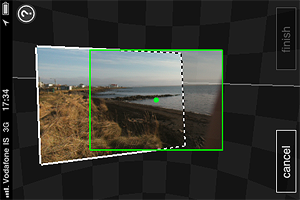
Photosynth allows both creation of interactive panoramas and of panoramic still images to be used as any other photo.
Photosynth Top Free Photography App For iPhone Pros: The capturing process is intuitive and immediate. The Auto Capture feature helps you to get yout panorama together with less effort.

Cons: Creating a panorama on Photosynth is easy, but creating a good one may be tricky, especially at first. Be sure to read the in-app guide to get the most out of Photosynth.

Dropbox

Dropbox is a service that greatly simplifies files management, allowing users to back up and share files from anywhere. Also, with Dropbox you can access files stored in your computer in any moment.
Dropbox Top Free Photography App For iPhone Pros: Easy way to back up your photos and videos on-the-go.
Cons: Need to set up a Dropbox account before you can use it. Need access to an Internet connection to save files to Dropbox.

This was part one of our brief overview. Do you have any favorite free app? Feel free to comment and let us know!

How Do I Delete Photos From My iPhone?

Deleting multiple photos from your iPhone does not seem to be exactly straightforward for many users: this is a question we are asked often by iPhone photographers. There are actually at least four methods of deleting multiple photos that are worth mentioning: the first can be done directly from the Camera Roll and is perfect when you need to delete a few dozens of images; the others require your iPhone to be connected to your computer (Windows or Mac).

Method 1: Delete photos from the iPhone Camera Roll

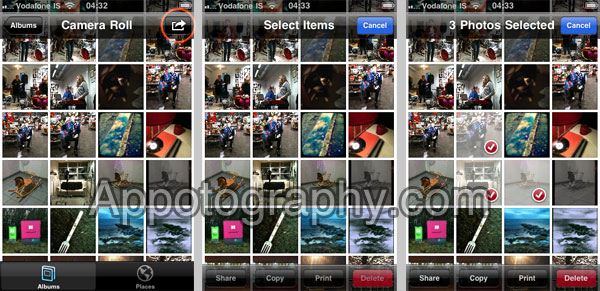
1. Launch your iPhone’s Camera Roll.
2. In the top bar, you should see a curved arrow icon – tap the icon.
3. You can now select as many photos as you want in the Camera Roll.
4. When you have selected all the photos you want to delete, tap the Delete button.

Deleting multiple photos directly from the iPhone.

Method 2: Delete photos through Itunes

Sometimes, you have so many photos in your iPhone that even the method above becomes too time-consuming. A simple way to get rid of all the photos is to delete them while your iPhone is connected to iTunes on your PC. When you transfer the photos to your PC, iTunes will ask if you want to keep the photos on your iPhone or if you want to remove them.

1. Connect the iPhone to your computer and launch iTunes
2. Go to Devices, then select your iPhone
3. Click on the Photos tab
4. Uncheck the Synch Photos option and click on Remove Photos
5. Click Apply. WARNING: This will remove all your photos!

Method 3: Windows 7 – Connect your iPhone to your computer, and access the photos directly

Simply put, use your iPhone like an external HDD.

On Windows 7 (should work also on Vista):

1. Connect the iPhone to your computer.
2. Go to My Computer, and you should see the iPhone device icon.
3. Double click on the icon,  and you should see your photos directory.
4. You can now delete or do whatever you want with the photos, as if they were on your computer HDD.

Method 4: Using Mac OS X Preview

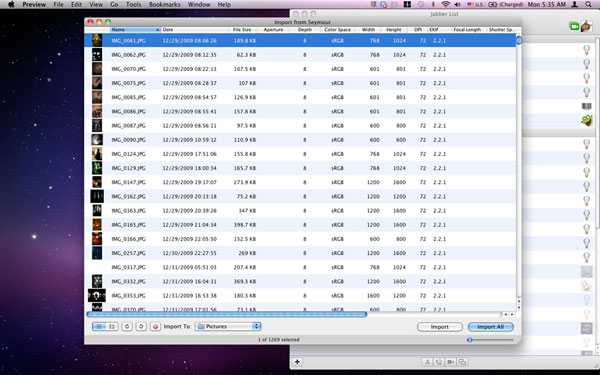
Many Mac users do not know about this, but when you connect your iPhone to your Mac, you can move, delete, and access the photos on your iPhone through Preview. The tool is actually quite powerful, and ignored by some that (reasonably) tend to use only iPhoto to access the photos on their iPhone.

1. Connect the iPhone to your Mac.
2. Open Preview, then click the File menu and select Import From [iPhone Name].
3. An easy to use window will open, where you are free to play with your photos and delete them if you need to.

Deleting iPhone photos using Preview on Mac

If you want to delete photos from your iCloud stream, please check our latest article, available here.

If you have other methods to share, please comment!

Also, if this article was helpful, do not forget to follow us on Twitter or on Facebook – it really helps us!