
One of the biggest problems for iPhone photographers is to save their device’s battery life. In spite of what Apple affirms about iPhone battery longevity, whoever uses iPhone camera frequently knows it is not uncommon to run out of battery at the most inappropriate moments. Sometimes, when you need to take that cool shot with your iDevice, you see your battery is gone. And you have hardly used it at all! What happened?
Here are a few tips to help you save precious iPhone battery life for when you really need it.
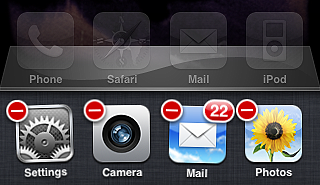
- Close all apps running in the background – As you probably know, iOS 4 allows multitasking. Unfortunately, most apps will keep on running in the background when you’re not aware of it, not only consuming battery, but also slowing down your iDevice’s performance. If you don’t need them, it’s advisable to kill all apps running in the background. To do it, double push quickly on the Home button, so that the multi-task bar is brought up; then hold your finger pressed on screen until a “-” sign appears on upper left corner of the application icon: by tapping on it, you will close the app.
- Lock your device – Locking the iPhone is something one tends to forget a lot, but it actually helps. Auto-lock may work fine for some, but it’s not the ideal option for regular camera users: the iPhone is locked at the wrong moments and you miss the right chance to take a good photo because the device is locked when you don’t need it. To avoid this, you can set the auto-lock to never and then lock the device manually when you really need it. To manually lock your iPhone, simply press the Sleep/Wake button on top right of your device.
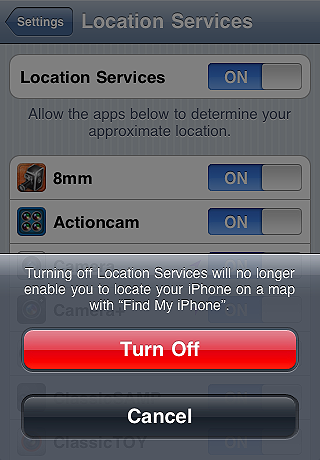
- Disable location services – Most apps make use of location services. However, this feature consumes a lot of battery life. To avoid this, simply turn Location Services off from your Settings.
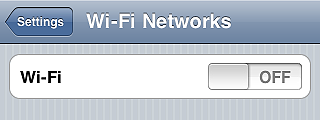
- Disable Wi-fi, 3G and Bluetooth – Wi-fi consumes less than 3G or Bluetooth, but it still affects your battery life greatly. If you’re not using any of these, turn all of them off from your Settings.
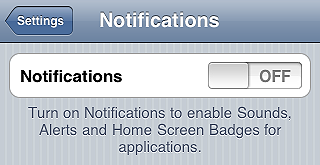
- Disable push notifications – Many apps, especially instant messaging apps (Instagram included), use push notifications to send alerts when new data is available. This means your device is always checking for those. If you are using apps that massively use push notifications, your battery may be affected. Turning your push notifications off, you will increase your battery lifespan and you will still be able to receive data when opening instant messaging apps.
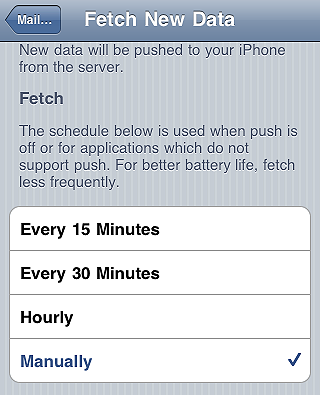
- Fetch data manually – If you don’t set it to manual from your settings, your iDevice will continuously look for new data at given intervals. Checking for incoming email, for instance, actually consumes a lot of battery life. Do you really need it? You can both extend the time interval for auto-fetched data or you can go manual, so that new data is only retrieved when necessary.
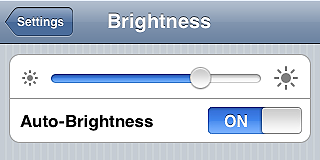
- Set screen brightness to auto – It goes without saying: the brighter the screen, the more battery consumed. You can decrease brightness manually from the settings, but this may not be the best choice. Auto-brightness will help you setting the screen brightness according to current lighting conditions.
- Use airplane mode – Unless you intend on making or receiving calls, enabling Airplane Mode will help to consume less battery in areas with low or no coverage, since iPhone uses more power and therefore it consumes more battery when coverage is bad.

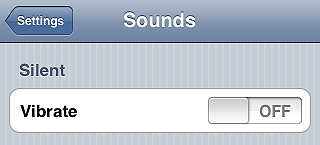
- Turn vibration off – Many apps, also photo apps, make use of vibration extensively. Sometimes vibration is just a gimmick and you can do without it. Try turning it off.
- Run a complete charge cycle per month – Lithium batteries work better when they’re kept active. Draining your battery completely before recharging it, helps the good functioning of your iDevice, so be sure to do it once in a while.
Do you have other tips? Share them with us!