Quick iPhone Tip: How to Turn Apps Ability to Access Photos Back On

I got this question in the mail and I thought I might give a public answer, in case anybody besides the person asking has the same problem:

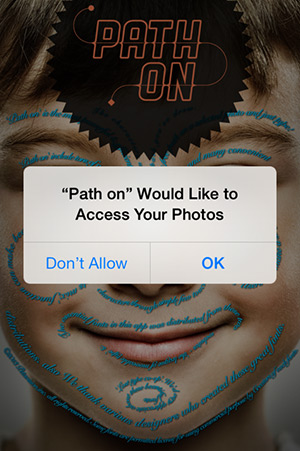
“Hello, I’m a new photo app user. I’ve downloaded some app for adding effects on my pictures and wanted to try them. I’ve been asked by one of these apps if I wanted it to access my photos and without knowing what I was supposed to select, I answered don’t allow. I didn’t know this means I can’t use the app at all. I tried doing something to fix my choice, but wasn’t able to. Can you help?”

How to Turn Apps Ability to Access Photos Back On
The person doesn’t mention any specific iPhone photo app, but many among them ask you to grant permission to access photos before you can import your pictures and start editing them. Continue reading “Quick iPhone Tip: How to Turn Apps Ability to Access Photos Back On”

The Over Font Installation Tutorial

As per Lily’s request, I will illustrate in detail how to import your fonts into Over. Like the app’s official guide briefly explains, there are different methods that you can adopt to import your fonts into Over. We’ll list three, hoping you will find at least one of them of some use.
Installing Fonts in Over
Continue reading “The Over Font Installation Tutorial”

How To Disable Genius And Make The App Store Fun Again

If you have updated your iPhone to iOS 6, you have probably noticed that, among other changes, the way you can now interact with the App Store is quite different from before. You have probably also had the chance (not) to appreciate the absolute, mind-boggling slowness of the App Store after said update. Not only connecting to the store as soon as you launch the app, but also checking your updates and searching for stuff takes so long you could go to Easter Island, make tea and come back and your screen would probably still be “loading”. The issue is caused by the Genius for apps feature that is activated by default after updating the iOS.

Genius for Apps
Do you feel that this Genius feature is actually more of a bother than something you will thoroughly enjoy using? What can I say? You have my sympathy. But now for the bright side: deactivating Genius to start browsing the App Store from within your iPhone again without enduring the longest loading times is actually very easy. Most of you must have figured out how to do it by now. However, some might be having a harder time to find the right settings, and for the users that are still struggling we have this quick guide.

So you want to deactivate Genius? All right: just follow these steps, this is how you do it. Continue reading “How To Disable Genius And Make The App Store Fun Again”

How To Create Photo Albums On The iPhone

Creating photo albums on the iPhone is actually rather simple and straightforward. However, it seems that for some users the album creation process is not very obvious. This is a very quick tip and most of you probably know about it, but hopefully readers who have been asking through email and in older posts will find it useful.

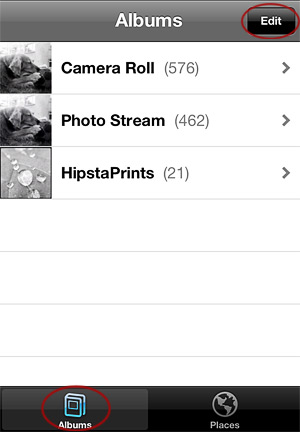
  1. Go to “Photos”. Once you’re within the app, enable the “Albums” view — if you haven’t done so already. By default, you just have the “Camera Roll” and the “Photo Stream” albums. Tap on the “Edit” button at the topmost right corner of your screen.

    How to create photo albums on the iPhone
    01. The Albums view.

    Note: since some photo apps automatically create their own albums as soon as you start taking photos with them, you might see others beside the default ones.
  2. Continue reading “How To Create Photo Albums On The iPhone”

How To Download Full Resolution Photos to Your iPhone/iPad With Dropbox

I am all for taking photos with the iPhone and iPad native cameras, so you will rarely see me using pictures taken with a DSLR to illustrate what iPhone and iPad apps can do. This is because I think using non-native photos to show what the iPhone can really do is totally pointless and deceiving. I am not a so-called pixel-peeper either, but if there is something that really bothers me is a low quality image. If the photos I can take with an app are not much to look at in terms of quality, I do not care if it features the most unique concept or one billion filters. Evident aliasing issues, jagged borders, banding, interpolated pixels: all of them usually drive me crazy and I try to avoid these deficiencies at all costs. You can understand very well then that transferring full resolution images from the computer to the iPhone and iPad can be a serious problem for people like me.

Full Resolution Images to iPhone and iPad
Continue reading “How To Download Full Resolution Photos to Your iPhone/iPad With Dropbox”

How Do I Delete Photos From My iCloud Stream?

To delete photos from your iCloud stream, you can choose among two different methods, depending on whether you want to delete all the content of your stream or just individual items contained in it.

The first method will let you delete all your photos by resetting your whole iCloud stream. To achieve this, you have to follow these simple instructions.

Resetting iCloud Stream
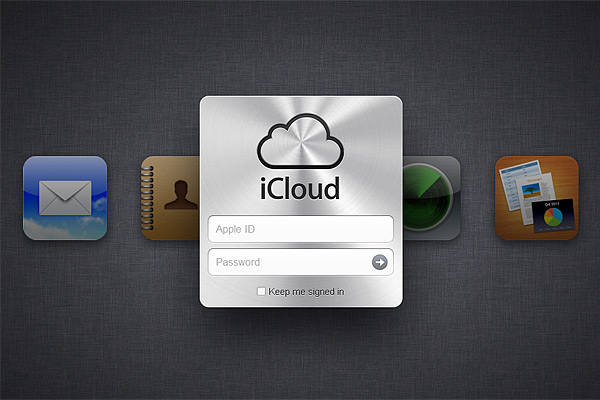
01. Log in at iCloud.com

Continue reading “How Do I Delete Photos From My iCloud Stream?”

How to Restore Purchases on iPhone and iPad

If you take the time to explore comments left by users in the App Store, you will notice that some of the negative remarks posted are based on groundless criticism, often triggered by lack of proper understanding of how the App Store works. Thankfully, this type of negativity is only occasional; yet, the kind of misinformation accompanying it can affect negatively a developer’s sales. For most developers with one or more apps in the top ten, it’s not a big deal: unfair negative ratings are just a drop in the ocean. For smaller scale developers or relatively less popular apps though, even a couple of negative ratings can make a huge difference, thus it would be better if people learned to use the power they are given properly.

One reason people leave negative feedback in the App Store: if they delete an app from their iDevice, when they download it again, they see all their in-app purchases are gone. Instead of asking for support, they cast their one-star rating, thinking this will serve developers right. It’s true — and not very clever — that many developers don’t take the time to write accurate guides, telling users what to do in cases like the one I mentioned. Still, even if many developers are very eager to offer support, a lot of users prefer resorting the aggressive low rating method to let them know about their discontent, rather than asking for help.

More than a few apps these days offer in-app purchases: meaning that, even in the case the app comes for free, you buy some additional feature not included with the regular version of the app. In the case of photography apps, for example, through in-app purchase you often unlock new effects, higher resolution saving, ads removal, etc. When you delete the app from your iDevice, you obviously remove all its content as well, in-app purchases included. Upon downloading the app again, you are given the app without any extra in-app content, whether you have previously bought it or not. This is when the average user gets lost and, often, rushes to cast a one-star rating.

Some apps simply let you re-download your content again, charging nothing for the new downloading process: the developer has record you have already purchased that content before. At first, everything will look as it was the first time: you will not necessarily be warned that you are trying to purchase again something that you have already paid for. This might indeed be scary, but go ahead, because just before the download starts, a pop-up message will remind you that you are entitled to download the content for free, since you have already paid for it.
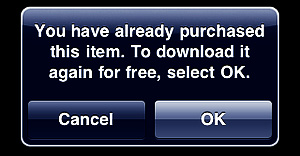
Restoring Purchases on iPhone and iPadOther apps have a feature called “Restore Purchases”. This may look confusing when you read it, but restoring simply re-downloads or unlocks all the content you have paid for, without having to go through the process of manually selecting several items and downloading them individually. Restore is especially useful in apps where there are multiple in-app items that can be purchased. Not all apps featuring in-app purchases include a Restore Purchases action, but some do.
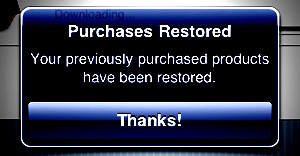
Restoring Purchases on iPhone and iPad

Anyhow, only non-consumable purchases – virtual items that you cannot use up – can be restored. Photography apps usually feature only this type of purchase, but other genres of apps, like freemium games, rely on consumable purchases like virtual credits, which cannot be restored.

Closing comments

It’s in your right to offer your feedback in the App Store and developers definitely appreciate it. However, always try to be fair before you give your rating and make sure you are not missing some important detail; if you have doubts or if you find yourself stuck, take some time to look for adequate information or, when possible, contact developers for support.

How Do I Preserve iPhone Battery?

One of the biggest problems for iPhone photographers is to save their device’s battery life. In spite of what Apple affirms about iPhone battery longevity, whoever uses iPhone camera frequently knows it is not uncommon to run out of battery at the most inappropriate moments. Sometimes, when you need to take that cool shot with your iDevice, you see your battery is gone. And you have hardly used it at all! What happened?

Here are a few tips to help you save precious iPhone battery life for when you really need it.

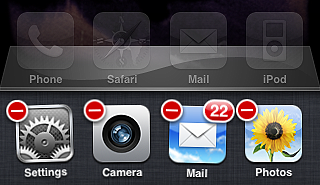
  1. Close all apps running in the background – As you probably know, iOS 4 allows multitasking. Unfortunately, most apps will keep on running in the background when you’re not aware of it, not only consuming battery, but also slowing down your iDevice’s performance. If you don’t need them, it’s advisable to kill all apps running in the background. To do it, double push quickly on the Home button, so that the multi-task bar is brought up; then hold your finger pressed on screen until a “-” sign appears on upper left corner of the application icon: by tapping on it, you will close the app.Turn off apps in the background - iPhone tips
  2. Lock your device – Locking the iPhone is something one tends to forget a lot, but it actually helps. Auto-lock may work fine for some, but it’s not the ideal option for regular camera users: the iPhone is locked at the wrong moments and you miss the right chance to take a good photo because the device is locked when you don’t need it. To avoid this, you can set the auto-lock to never and then lock the device manually when you really need it. To manually lock your iPhone, simply press the Sleep/Wake button on top right of your device.
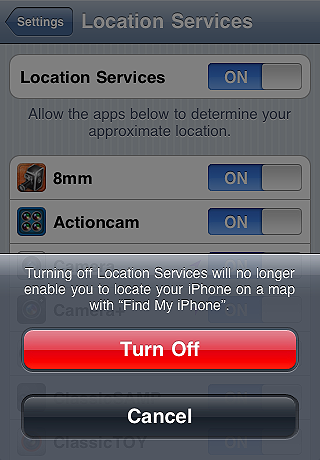
  3. Disable location services – Most apps make use of location services. However, this feature consumes a lot of battery life. To avoid this, simply turn Location Services off from your Settings.Turn off location services - iPhone tips
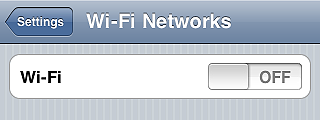
  4. Disable Wi-fi, 3G and Bluetooth – Wi-fi consumes less than 3G or Bluetooth, but it still affects your battery life greatly. If you’re not using any of these, turn all of them off from your Settings.Turn off wi-fi - iPhone tips
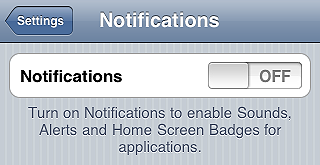
  5. Disable push notifications – Many apps, especially instant messaging apps (Instagram included), use push notifications to send alerts when new data is available. This means your device is always checking for those. If you are using apps that massively use push notifications, your battery may be affected. Turning your push notifications off, you will increase your battery lifespan and you will still be able to receive data when opening instant messaging apps.Disable push notifications - iPhone tips
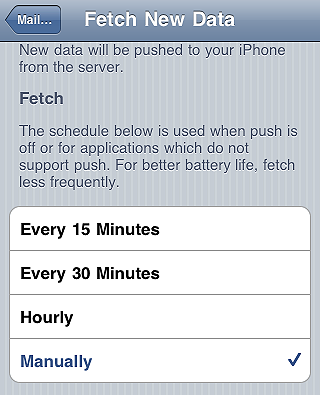
  6. Fetch data manually – If you don’t set it to manual from your settings, your iDevice will continuously look for new data at given intervals. Checking for incoming email, for instance, actually consumes a lot of battery life. Do you really need it?  You can both extend the time interval for auto-fetched data or you can go manual, so that new data is only retrieved when necessary.Fetch data manually - iPhone tips
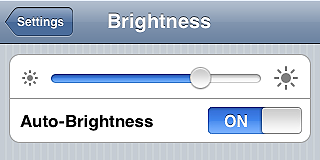
  7. Set screen brightness to auto – It goes without saying: the brighter the screen, the more battery consumed. You can decrease brightness manually from the settings, but this may not be the best choice. Auto-brightness will help you setting the screen brightness according to current lighting conditions.Set Screen Brightness to Auto - iPhone tips
  8. Use airplane mode – Unless you intend on making or receiving calls, enabling Airplane Mode will help to consume less battery in areas with low or no coverage, since iPhone uses more power and therefore it consumes more battery when coverage is bad.Set Airplane Mode on - iPhone tips
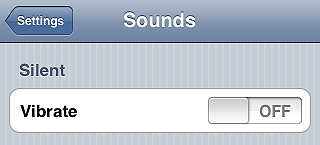
  9. Turn vibration off – Many apps, also photo apps, make use of vibration extensively. Sometimes vibration is just a gimmick and you can do without it. Try turning it off.Set vibration off - iPhone tips
  10. Run a complete charge cycle per month – Lithium batteries work better when they’re kept active. Draining your battery completely before recharging it, helps the good functioning of your iDevice, so be sure to do it once in a while.Run complete charge cycle - iPhone tips

Do you have other tips? Share them with us!