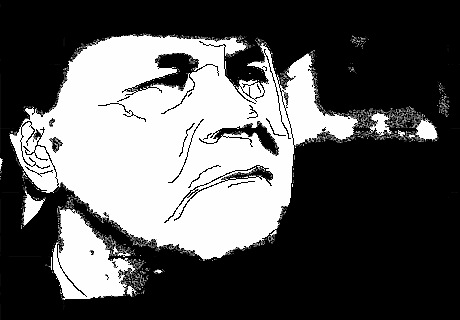
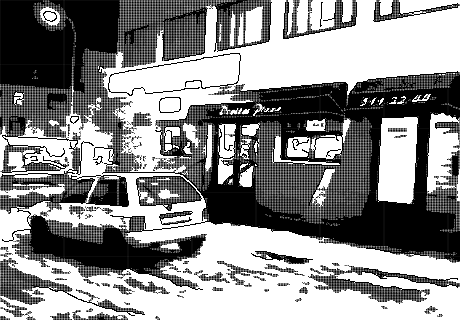
Halftone 1.6.3 is now available in the App Store. With this update, Halftone improves its overall stability. Developers at Juicy Bits took user feedback seriously enough to fulfill a few requests to enhance performance and usability of their iPhone/iPad comic panel creator.
New in version 1.6.3 of Halftone is the ‘Image Cropping‘ option, which can be switched on and off from Halftone’s settings. Cropping enables applying a square format to images loaded into the work area. Not only this gives users more creative possibilities, it also allows interaction with other apps which solely rely on square format, like Instagram.
Note that ‘Image Cropping’ must be activated from the device’s settings, not from in-app settings.
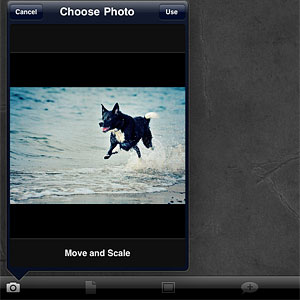
Also new in this release is the larger speech balloon’s tail area. Grabbing the tail of balloons was one of the several issues that caused some difficulty to Halftone users when creating their comic panels. Expanded touch area for balloons‘ tail allows better handling and placement of speech balloons in Halftone.
ComicBook! is a universal comics creator for iDevices that allows mixing your photos and turning them into comics, by choosing templates, applying effects and adding captions and stickers.
Main Features
Up to a resolution of 1024×768 pixels (iPad), 960×640 pixels (retina display devices), 480×320 (other);
30+ page templates;
3 halftone sizes;
4 borders;
13 caption/bubble styles;
55 stickers;
9 filters;
7 fonts;
AirPrint support;
In-app guide;
Send via email or share on Facebook, Twitter.
Appotography Opinion
To create your comic, you choose one among the available template pages and either import images stored in your device or use the built-in camera. Templates can be found in the Create menu, at the bottom of the screen. You can move, rotate, enlarge and shrink the images to adjust them to the template’s panels. On top of each panel, you will find the FX menu, containing the various effects you can apply to the imported images. There are nine different styles, some slightly customizable, ranging from sketch to black and white and Warhol-ish pop art. Halftone (small, medium, large size) can also be added.
From the same Create menu where you go to pick the template, you can also select Captions and Stickers. Captions include both speech bubbles and proper captions. Stickers represent sound effects and various other graphics to spice up your comics. By tapping on the item of your choice, you will have it appear on your comic’s page. Tapping once on the chosen item to make it active, you can move it around and affect other features: for captions and speech, you can input a text and set a font face, color and size, while you can only rotate and resize Stickers. By double-tapping, you can delete the item.
In the Create menu, you will also find the Utilities section, from which you will be able to save, upload, email or print your comics, other than read the in-app guide and access ComicBook!’s settings.
The UI of ComicBook! feels somewhat cluttered and not highly manageable; for this reason, getting things right in your creation is not as easy as it should be. Manoeuvring elements is not enough intuitive and trying to fit them in your panels can be really frustrating. The customization for text is very limited and size and colors available for fonts are few. In some instances, after you have performed an action, it’s not easy to make changes promptly.
Landscape oriented comic saved with iPad in vertical position.The same comic saved with iPad in horizontal position.
Another serious problem concerns the very disappointing saving resolution allowed in ComicBook!. Resolution is not the only limitation, anyway. I found it impossible to send, upload or save properly comics from templates in landscape orientation, as the only thing the app seems to be able to save in this case is the leftmost portion of the page. The issue can be solved by choosing portrait oriented templates or changing your device’s orientation — crazy, I know. Colors in saved comics appear to be somewhat different compared with the ones of your original photos, so beware.
Although the idea is OK, some elements in this app are definitely too similar to Halftone‘s. Hopefully, the developers submitted to the App Store just a rushed version of their ComicBook! and they will fix bugs in the coming versions and allow higher resolution saving.
EDIT – After ComicBook!’s update to 1.0.1, the issue with saving orientation is fixed. Thus we also update our overall score.
Overall
Name: ComicBook!
Developer: 3DTOPO inc.
Compatibility: iPhone, iPod Touch, iPad. iOS 4.0.2 or later.
Price: £1.49||$1.99||€1.59
Vote: 3/5
At users request, Halftone is now a universal app! Thanks to the release of version 1.6, you will be able to fully enjoy your single-panel comics creator also on iPad!
Version 1.6 of Halftone contains a few extras:
Six more paper styles!
Three more stamps!
Other changes include ability to turn off the intro screen and other various bug fixes.
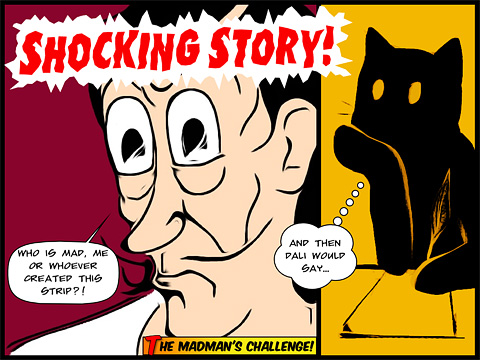
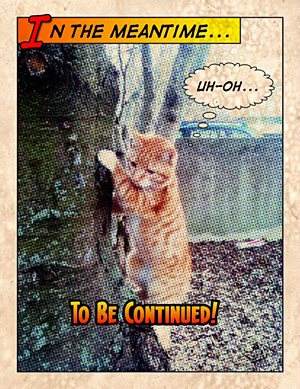
It would be nice once in a while to have characters in your photos talk like in comic strips, or if you could easily add captions to display date and time in a groovy style. Process your photos with Halftone by Juicy Bits to make them look as if they were single-panel comics.
Halftone is a graphic technique that uses the optical illusion produced by a series of dots varying in density, color and size, to suggest infinite range of tones. Halftone app for iPhone simulates effects produced by the halftone technique on your photos.
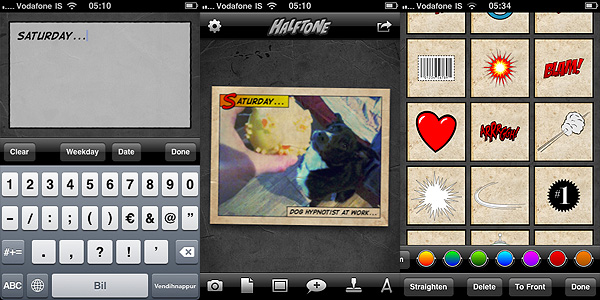
After launching Halftone, you decide to take a photo with the built-in camera or you load one from your iDevice. To process your image, you have a series of options. You can add a stressed, aged feel with paper textures. Then you can pick a layout among those available, to add one or more captions. Captions can be custom or you can simply let the app add date and credits. The next thing you can do is adding speech balloons, choosing one of the available styles (classic, square and round borders, thought, scream) and stickers. Both balloons and stickers can be customized a little: it’s possible to enlarge or shrink and to rotate them by finger pinching.
Controls are not as smooth and responsive as with other apps and personally I was frustrated at some point, because if you you are not careful you might end up having to deal with multiple useless stickers instead of just one, when all you wanted to do was rotating the first slightly.
When you are done, you can send the image via email, print it, share on Twitter and Facebook, or you can simply save it to your Camera Roll.
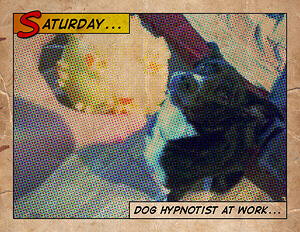
The effects, if applied wisely to photos that lend themselves to be turned into comics, can result in a few hours of amusement. Nevertheless, the overall lack of flexibility and variety remains a problem: you have partly customizable stickers, fonts, textures and more, but results are not diverse enough to grant Halftone great longevity. Although I am fully aware that talking about longevity when it’s about something that an iPhone user can get for $0.99 perhaps doesn’t make much sense.
ToonPAINT by Toon-Fx was conceived as a tool to allow even people who don’t have a knack for drawing to come up with nice looking stylized pictures. Using image processing algorithms, ToonPAINT creates for you an easy to customize sketch.
As with all apps in the same league though, you have to make sure from the start you understand the difference between actual drawing and processing an image to make it look as if it was drawn. Usually, results are much better if you know how this kind of apps work and how and when they can come in handy.
Main Features
Up to 850×565 pixels resolution (3GS);
Zoom and pan;
Restore from previous session;
Undo/redo;
Basic and advanced settings;
Integrated guide;
Share via email, Facebook, Twitter.
Appotography Opinion
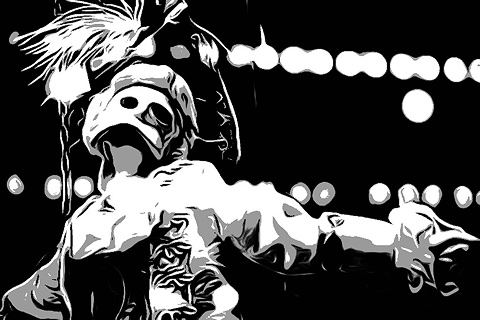
ToonPAINT is very simple to use and straightforward; yet, you have some reasonable control over your image. The effect is similar to what you would be able to achieve with a tracing tool in a vector editing software. ToonPAINT doesn’t actually turn images into vectors though; it only imitates the vector tracing style.
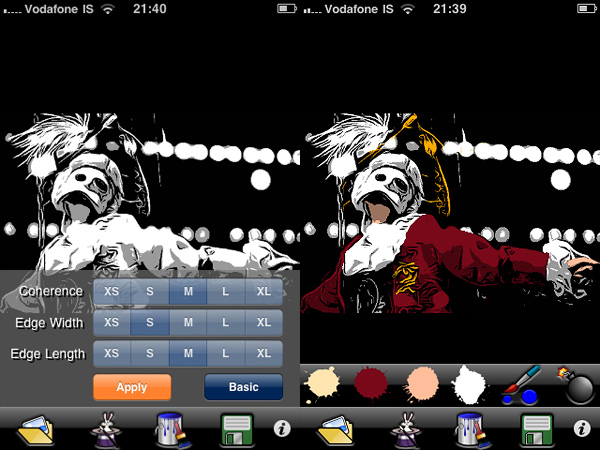
You start either with a picture you have previously taken or you take a snapshot with the built-in camera. With sliders you can adjust parameters — edges accuracy, amount of black/grey, etc. — but if you want even more control, you can switch to advanced settings and have at your disposal some more flexibility. After you apply the toon filter and your picture of choice is turned into a sketch-like image, you can proceed to apply color, if you wish. With a brush and a no-frills color-picking method, you can enrich your monochrome images. Getting the hang of the coloring process won’t be a problem, if you are already quite gifted in finger painting; it will be a bit harder if you are a total beginner, but the undo feature, with the possibility to zoom in and out and pan, will definitely help you. After you are done, you can save of share on Facebook and Twitter.
Turn photos into sketches and apply color.
At this stage, ToonPAINT is a cool little app you can use, for example, in combination with a strip creator app for developing your own instant comics. Many users in fact say they use this app especially for this purpose. However, there are a few things that could be improved even more to make ToonPAINT more functional. For example, it would be useful to have a preview in advanced settings to know exactly how your choices are actually affecting the image before applying them; a full-fledged undo command, to be used not only in the painting stage; full resolution, to make use of the images also outside your portable devices.
ToonPAINT allows the user to obtain very neat results, probably among the best on iPhone/iPod Touch/iPad. If you want a photo-to-sketch app, Toon-Fx’s app is what you need.
I’m always suspicious of apps that apply cartoonish filters to photos. In general, I don’t like the synthetically cheesy look most of these apps deliver. I will be honest – and perhaps biased – but I find most comics filters to be the closest artificial thing to motion sickness inducers, ships and cars excluded. Then why I wanted to give a try to Manga Me, you’ll ask? For three reasons: because of the word “manga” in the title, which still retains a bit of attractive sophistication compared to the word “comics”; because the screenshots didn’t make me immediately nauseous; because the developer is no less than the Chinese University of Hong Kong. And… I also like to have five minutes of idiocy once in a while.
Main Features
Maximum resolution 320 x 460 pixels;
Two different editing modes (portrait and landscape);
Three different effects.
Appotography Opinion
Manga Me wants to help artists in the production of comics with automatically generated illustrations. My dear artists, if you need this kind of help I am sorry to say you have touched the bottom. Even if it were only for a quick reference, the results obtained with Manga Me are nothing a professional should too seriously take into account.
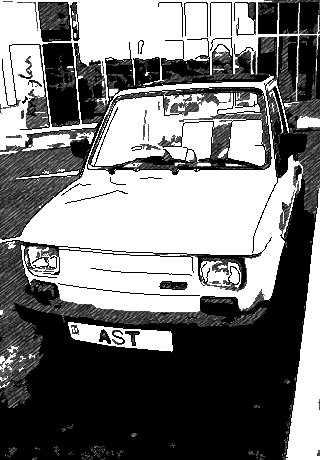
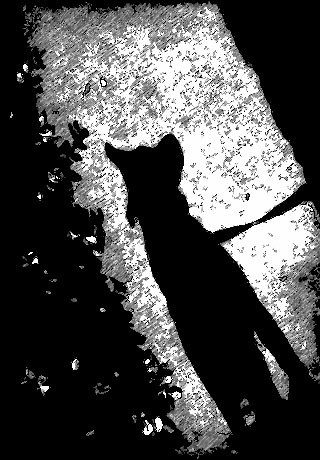
It’s not that the effects applied by Manga Me are so terrible, especially on more organic shapes where aliasing is less visible and especially if compared to other similar filters available, but it is immediately noticeable that they are not natural and that they are result of a mediocre automated process. Besides, there are many issues to fix in Manga Me before it can become functional in any way. First of all, even if the final result isn’t so atrociously bad, the output resolution makes up for it: the ridiculous 320 x 460 speaks for itself about the actual use one can make of the final images. Also, both if you choose landscape or portrait mode, the images are generated upwise. It doesn’t make any sense to have two different modes if the result is in any case an upwise picture, of course. The developers should fix this inconvenience as soon as possible. You can adjust black/white level, but obviously the clearest images are those granting better results.
Since the app is free, one can try it for having five minutes of fun, but that’s all. If you want to use this app for other purposes, as an aid for your comic art for instance, you better think about it twice.
Manga Me works both with the built-in camera and with previously taken photos.
Overall
Name: Manga Me
Developer: The Chinese University of Hong Kong, Computer Science & Engineering
Compatibility: iPhone, iPod Touch, iPad. iOS 3.1.3 or later.
Price: free!
Vote: 2/5

 Halftone 1.6.3 is now available in the App Store. With this update, Halftone improves its overall stability. Developers at Juicy Bits took user feedback seriously enough to fulfill a few requests to enhance performance and usability of their iPhone/iPad comic panel creator.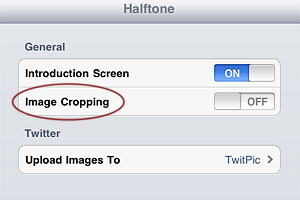
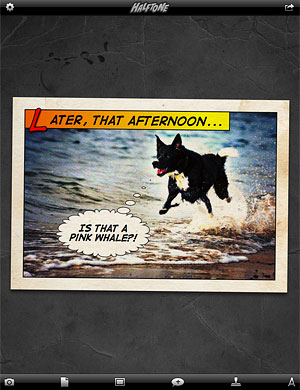 Also new in this release is the larger speech balloon’s tail area. Grabbing the tail of balloons was one of the several issues that caused some difficulty to Halftone users when creating their comic panels. Expanded touch area for balloons‘ tail allows better handling and placement of speech balloons in Halftone.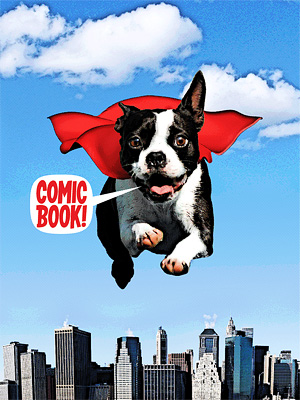
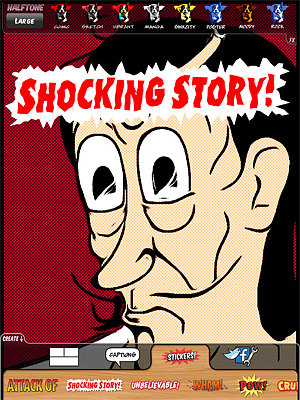
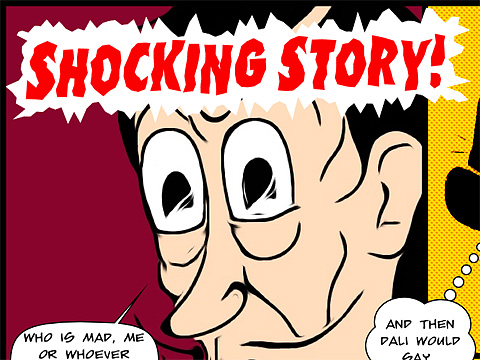


 Other changes include ability to turn off the intro screen and other various bug fixes.
 Controls are not as smooth and responsive as with other apps and personally I was frustrated at some point, because if you you are not careful you might end up having to deal with multiple useless stickers instead of just one, when all you wanted to do was rotating the first slightly.
 The effects, if applied wisely to photos that lend themselves to be turned into comics, can result in a few hours of amusement. Nevertheless, the overall lack of flexibility and variety remains a problem: you have partly customizable stickers, fonts, textures and more, but results are not diverse enough to grant Halftone great longevity. Although I am fully aware that talking about longevity when it’s about something that an iPhone user can get for $0.99 perhaps doesn’t make much sense.