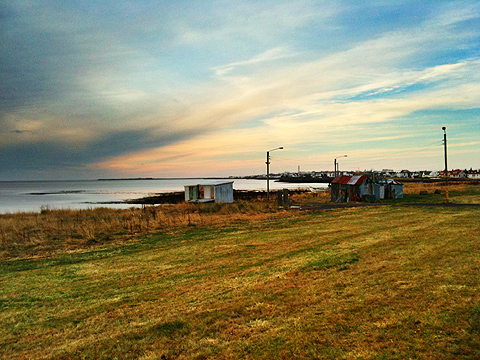
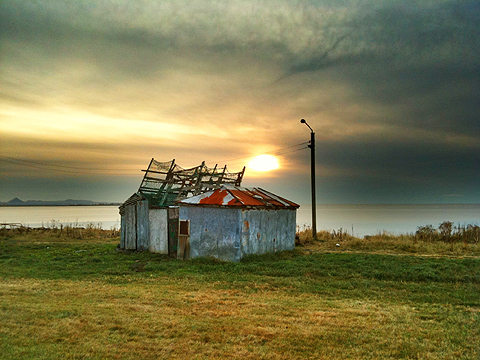
Broadening Your Image’s Dynamic Range with Snapseed 1.6.0

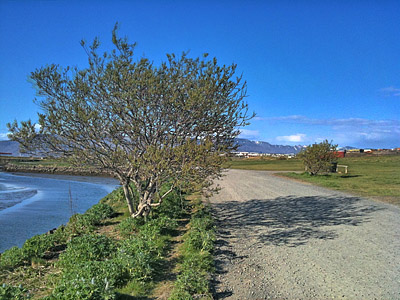
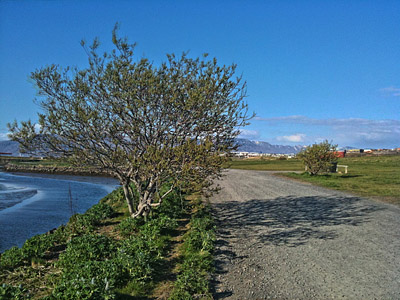
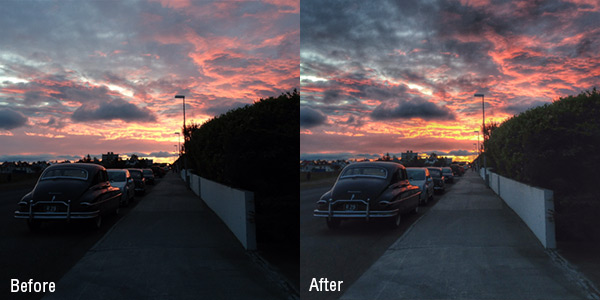
Version 1.6.0 of Snapseed introduces two new filters to process images. The latest additions are aimed at broadening the original picture’s dynamic range, not only saving from the trash bin some of your badly exposed photos, but also bringing extra interest to those that are already OK in the exposure department, but not particularly memorable when it comes to color, detail and drama.

Snapseed HDR Scape
HDR Scape is a new effect that will mainly come in handy to landscape shooters, but also to people that often take pictures in light conditions that exceed the capabilities of iPhone and iPad cameras. Continue reading “Broadening Your Image’s Dynamic Range with Snapseed 1.6.0”

TrueHDR Updated to 2.3

TrueHDR iPhoneTrueHDR 2.3 for iPhone is now available in the App Store. The latest version of Pictional’s HDR camera brings to its users new post-processing features for more control over final images. Our previous review for TrueHDR is available here.

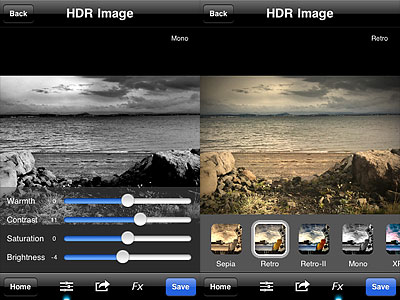
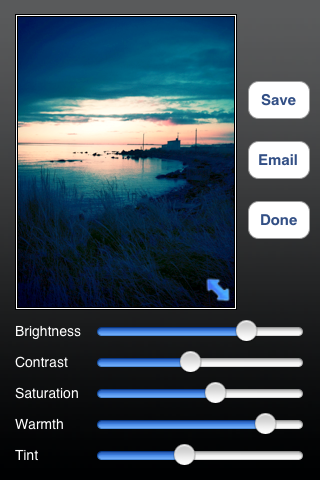
After taking the necessary shots in any mode (Auto, SemiAuto or Manual) or after loading from the device the required overexposed and underexposed photos, the software creates the HDR composite; you are then introduced to a set of editing tools which you can use to correct and balance several aspects influencing the look of HDR images. Adjustments are possible for warmth, contrast, saturation and brightness. For each of these parameters TrueHDR has a dedicated slider that can be set for the desired result.
TrueHDR iPhoneAnother new feature is the FX panel, which gives you access to seven presets to quickly change the style of your HDR images. Effects range from cross process to monochrome. All effects can be altered after applying them by switching to the editing tools panel.

Compared to other HDR apps for iPhone, TrueHDR is definitely faster, both in the capturing and in the processing stage. Moreover, TrueHDR performs better also on older devices. For beginners and for users that are looking for getting their HDR done without the hassle of going through long post-processing and unnerving rendering times, TrueHDR is a valid choice, as it is extremely easy to use and doesn’t require much tweaking. The new features add more options without taking away from the overall straightforward approach of Pictional’s app. Given the improvements of version 2.3, I update my rating for TrueHDR accordingly.

TruehDR iPhone
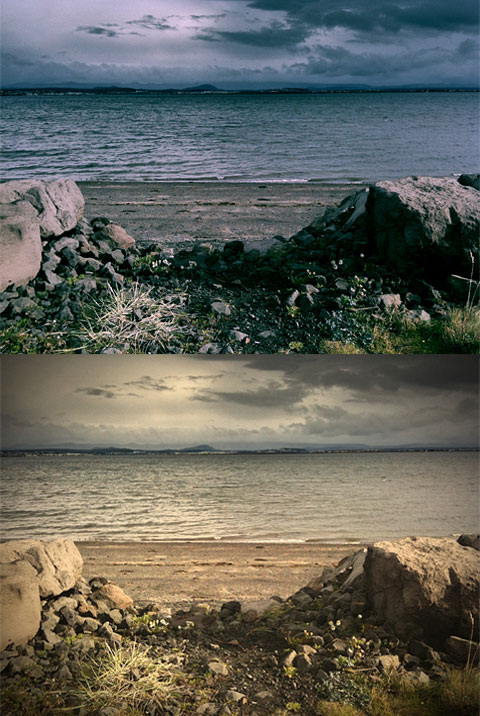
XPro (top) and Retro (bottom) effects.

TrueHDR is currently on sale in the App Store at the special price of $0.99/€0.79/£0.69.

Overall

Name: TrueHDR
Developer: Pictional LLC
Compatibility: iPhone, iPod Touch, iPad. iOS 4.1 or later.
Price: £1.19||$1.99||€1.59
Vote: 5/5

TrueHDR - Pictional LLC

TrueHDR on Sale!

TrueHDR is on sale for a limited time. The HDR camera for iPhone by Pictional will be available from the App Store at the special price of $0.99/€0.79/£0.69, 50% off the regular price tag.
TrueHDR on sale
TrueHDR creates high dynamic range images on iPhone. HDR is a useful technique used by photographers when bad lighting conditions prevent them to take satisfactory photographs. In HDR, more pictures are merged together to create a composite in which both severely overexposed and underexposed areas appear well exposed. Pictional’s app is extremely easy to use and it features different capturing modes, Auto, SemiAuto and Manual, but it’s also capable of processing shots previously taken.

Do you want to know more about TrueHDR? You will find our full iPhone review here.
TrueHDR - Pictional LLC

TrueHDR Review

What does true in TrueHDR mean? That other HDR on iPhone is fake? Not really. In the case of Pictional’s app, true may stand for straightforward or even hassle-free. TrueHDR is an extremely basic tool conceived simply to do what it says: creating well exposed images by merging shots taken with different settings.

Main Features

  • Full resolution available;
  • 4 capturing modes;
  • In-app guide;
  • Send via email or share on Facebook and Twitter.

Appotography Opinion

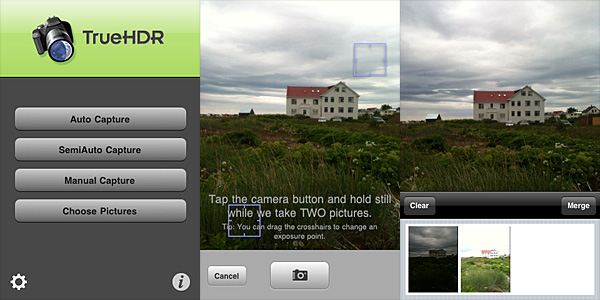
TrueHDR has four different capturing modes to create your HDR images. One mode allows to load the overexposed and underexposed shots from your iPhone, while the other three entirely rely on the built-in camera.

Auto Capture takes overexposed and underexposed photos and does all the necessary calculations on its own. All you have to do to use the Auto mode is tapping on the shutter button while keeping your iPhone steady.

TrueHDR for iPhone by Pictional.

SemiAuto Capture asks you to indicate bright and dark areas of the scene you are about to photograph by placing two individual crosshair cursors around the screen before pressing the shutter button once. TrueHDR’s engine does all the rest.

In Manual Capture, you have to press the shutter button twice: first after defining a bright area in your scene, then after doing the same for a dark area.

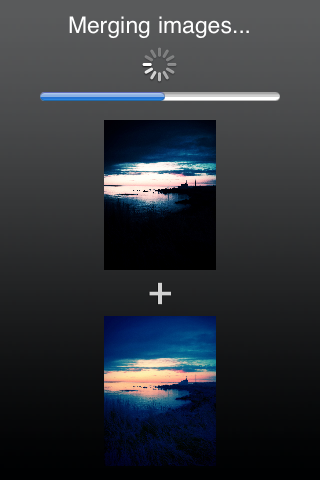
In all modes, after the camera takes the necessary shots in rapid succession, you are presented with a thumbnail view in the lower part of your screen. You can tap on the Merge button to start the post processing or Clear to start over. After the engine is done with alignment and merging, you can save or share your image.

TrueHDR for iPhone by Pictional.
Underexposed and overexposed images taken in TrueHDR.

There are no actual differences in outcome using Auto, SemiAuto or Manual Capture: the quality of the final images remains the same. Auto Capture is the easiest to handle, especially without a tripod or other stable surfaces, while Manual Capture can be extremely hard to use if you are holding your device. TrueHDR is able to figure everything on its own, thus it’s unlikely you will need to resort to using SemiAuto and Manual in most instances.

TrueHDR for iPhone by Pictional.
HDR composite in TrueHDR.

How does it all compare to other HDR on iPhone, like Pro HDR or iCamera HDR? The most noticeable disadvantage of TrueHDR versus the other two apps is the total lack of control over the final image. Whereas in both Pro HDR and iCamera HDR you can set values as saturation, brightness, white balance and contrast (in iCamera HDR you can also choose a tone mapping engine, add special effects, and adjust many other parameters), in TrueHDR you can only save  the HDR composite, without the possibility to retouch it in any way. This means you cannot disguise or minimize flaws, like presence of halo artifacts. Nevertheless, in my experience, TrueHDR proved to be much faster, both in shooting and in processing, than its rivals. Speed in itself perhaps cannot make up for the lack of options, but it shouldn’t be overlooked either, at least as far as precision and time consumption are concerned.

TrueHDR is currently available in the App Store at the special price of $0.99 (€0.79/£0.59).

Overall

Name: TrueHDR
Developer: Pictional LLC
Compatibility: iPhone, iPod Touch, iPad. iOS 4.1 or later.
Price: £1.19||$1.99||€1.59
Vote: 4/5

TrueHDR - Pictional LLC

A Brief Tone Mapping Guide To iCamera HDR

Dynamic range is the ratio between maximum and minimum light intensity (or white and black, to say it more plainly); it varies a lot depending on the medium. The human eye is a highly sophisticated instrument, able to perceive the world in its complexity more efficiently than most artificial devices. It’s a crucial problem for photographers to be able to capture a scene in all its tonal richness, overcoming the technical limitations of the camera medium.

In digital photography, tone mapping is a technique allowing to process images so that they display a wider range of tonal detail than the medium allows. This technique permits to make up for technical deficiencies of cameras, monitors, printers, etc., bringing out what seems to be either lost in the shadows or in the highlights. HDR photography heavily relies on tone mapping processing.

iCamera HDR uses three different tone mapping engines for creating HDR composites. What are the differences and when to use them? Read on to know more.

  • Tone Balancer
    Tone Balancer is a local tone mapping engine. Local means the engine processes each pixel extracting information from its surrounding area. Tone Balancer is aimed at balancing light and dark areas in pictures, so that resulting images are highly contrasted and sharp; the negative side concerns the fact the images often feature exaggerated, unreal colors, frequently in combination with intense halo artifacts. 

    iCamera HDR - Tone Balancer
    Image processed with Tone Balancer

    Adjustable parameters in Tone Balancer:
    Strength – Sets the contrast of the image;
    Local lighting – Sets the brightness of the image.

  • Tone Enhancer
    Tone Enhancer is also a local tone mapping engine, which means pixels are processed according to their local context. Differently from Tone Balancer, Tone Enhancer is more targeted at bringing out fine detail. Images processed with Tone Enhancer are not as “overdone” as those processed with Tone Balancer (their colors are especially much more realistic), but they are also prone to feature emphasized halo artifacts and noise. 

    iCamera HDR - Tone Enhancer
    Image processed with Tone Enhancer

    Adjustable parameters in Tone Enhancer:
    Strength – Sets the color saturation of the image;
    Fill Light – Reduces contrasts and lights up dark areas of the image.

  • Tone Compressor
    Tone Compressor is a global mapping engine. Global means that every pixel of the image is processed in the same way, regardless of the values of other surrounding pixels. The resulting images lack in contrast, but they are also less likely to be affected by halation and noise. Tone Compressor delivers more natural looking images, at the expenses of detail. 

    iCamera HDR - Tone Compressor
    Image processed with Tone Compressor

    Adjustable parameters in Tone Compressor:
    Strength – Sets the global contrast of the image.

Closing comments
Which among the three tone mapping engines in iCamera HDR is the best? Which among them will make photos look better? These and other similar questions are frequent among iCamera HDR users. However we look at it, there is not a general rule as to what is more proper to use to process photos in iCamera HDR. It all depends on what kind of effect you are looking for and on what photos you are going to use. The best suggestion is not to stick to a single processing, but to try for every image different solutions, knowing before starting what kind of feeling and look you want to convey.

iCamera HDR Review

The folks at Everimaging have brought to iOS devices their expertise in HDR photo editing. iCamera HDR may be a fairly recent addition to the App Store, but it’s definitely an app you shouldn’t overlook.

Following the great popularity of HDR photography, processing apps focused on this set of techniques are being frequently released on all iOS platforms. Not all of them are actual HDR processing software, and even when they are, some are not up to expectations.

For completeness, I must add the very first thing that made a strong impression on me before I had even tried iCamera HDR, was reading its App Store’s description. In the app’s page, developers state that other HDR apps “are all fake HDRs”. I’m not sure how they could come up with such a statement because, as far as I know, most HDR apps in the App Store use actual bracketing to process and produce their HDR composites, exactly just like iCamera HDR; this means that as a matter of fact they’re not fakes. On the other hand, apps like Dynamic Light, which we reviewed recently, produce fake HDR simply because they don’t process multiple shots with different exposure settings: they just alter one single shot to create HDR-like photographic effects. There is nothing wrong with it of course, but that is not HDR. However, as I said already, not all HDR apps work in this manner. iCamera HDR developers make it sound like they are the ultimate purists of HDR on the iPhone, which is sort of annoying and also not very accurate. Despite this attitude, which was a huge turnoff at the beginning, I tried iCamera HDR. And I was pleased by the results.

Main Features

  • Full resolution available;
  • Stabilizer;
  • Continuous LED flashlight (on supported devices only);
  • Save originals on/off;
  • Automatic, Manual and Single (fake HDR) modes;
  • Single photo HDR (fake HDR);
  • Three different tone mapping engines;
  • Adjustable brightness, contrast, saturation, shadows/highlights, b/w point, white balance, blur/sharpening;
  • Lens correction;
  • 27 photo effects;
  • Flip and rotate;
  • Share via email, Facebook and Flickr.

Appotography Opinion

With iCamera HDR, you can either use previously taken shots or the built-in camera. In both cases, you have the possibility to go for a proper HDR or for a fake HDR (single image processing). If you take the photos with the built-in camera, you can select among Automatic mode, in which the software determines on its own the lighting conditions, or Manual, which allows you to move around the square cursors to indicate light and dark areas of your image. In absence of tripod or other stable surfaces, the Stabilizer feature, with its three levels of intensity, can help you in taking sharper photos, resulting in more accurate HDR composites. You can take more sets of photos which you can save before getting to the post-processing stage; if you want, you can edit them when it suits you instead of doing it right away. This is particularly useful if you are not sure about some of the shots you have taken and you choose to take more for better results.

After you pick the images you want to work with, you have an extensive assortment of adjustable settings and tools to make the final outcome as good as it is possible. From the three available tone mapping engines — allowing you to try different solutions to get the most out of your shots by enhancing details and tones — to an array of other instruments which include white balancing, contrast and brightness adjusting, lens correcting and many more, you have at your disposal an exhaustive post-processing lab, especially tailored for HDR photography. Before saving, you can also apply one of the many photo effects included  in the app  to your image — colored filters, mainly.
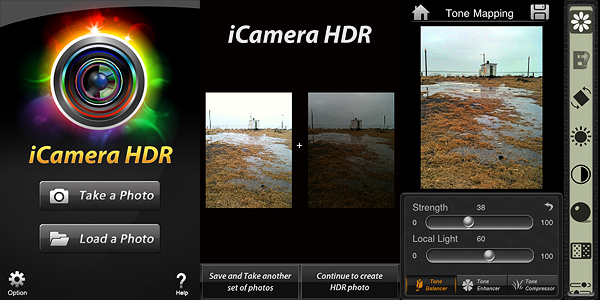
iCamera HDR by Everimaging for iPhone

iCamera HDR is a very sophisticated software that, unlike other more basic HDR apps, gives the user access to a very rich and advanced set of photographic tools for fully controlling the HDR process from the moment of shooting up to its finalization. The results obtained with iCamera HDR are excellent, also thanks to the fact the degree of flexibility and control you are given is impressive, especially for an iPhone application. The app by Everimaging is able to reduce issues that others, however good and effective, cannot correct. One of these issues is halation — that annoying bright spreading area on a photographic image, very frequently found in HDR images that make only use of two exposures instead of more, that is sometimes very hard to get rid of even for professional photographers. Comparing results obtained using the same bracketed photos — both if taken with the built-in camera and with a third party app like Bracket Mode — in some instances I noticed significant differences.
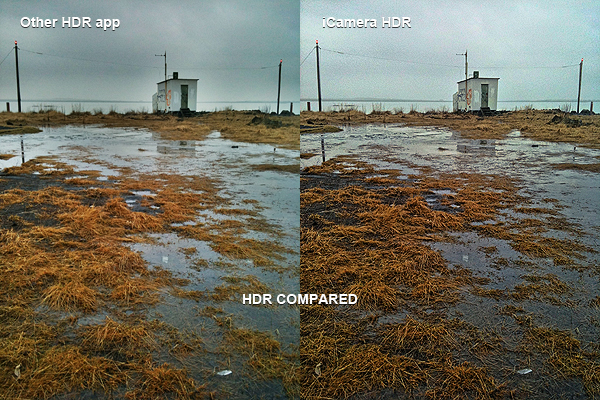
iCamera HDR by Everimaging for iPhone

Of course, on the other hand, using iCamera HDR is more time-consuming and it requires more effort than average iPhone HDR apps: the UI is clean and using the sliders to make adjustments is quite easy, but parameters are many, maybe too many for a newbie or for anybody just wanting to get the job done in a click or two. More settings mean more flexibility, but also more time to use them at their full potential. Let’s not forget speed and straightforwardness are still important aspects in iPhone photography, especially in the eyes of more casual users. On the long run, more control over your photography is definitely rewarding, but if you’re not so dedicated, then iCamera HDR is probably not the right choice.

The developers seem to be updating their product very frequently, which is always a point in favor, at least as I see it. The app is iPhone 3GS/4 and iPod Touch 4 only for now, but it was said iPad version is also in the making, so stay tuned for more to come.

Overall

Name: iCamera HDR
Developer: Everimaging
Compatibility: iPhone 3GS & 4, iPod Touch 4th. iOS 4.0 or later.
Price: £1.19||$1.99||€1.59
Vote: 5/5


iCamera HDR: All-in-One - Everimaging Ltd

Bracket Mode: A Fast Companion For Better HDR Results

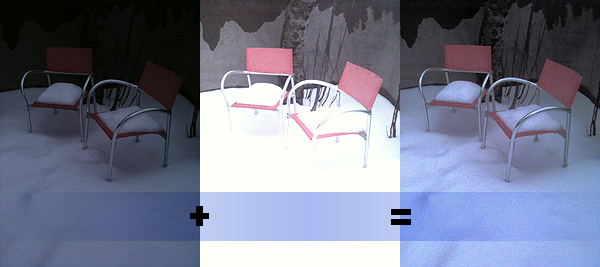
Bracketing is a technique that allows the photographer to take a series of photos of the same subject often with slightly different parameters. For example, it is possible to take several shots of the same scene with adjusted exposure to make up for bad lighting conditions. In post-processing, this allows to obtain a well-exposed single image by merging more exposures together. Today, the bracketing technique is mainly used in HDR photography, where you need a minimum of two exposures in order to generate the final HDR composite.

HDR on the iPhone is particularly popular because it’s easy and fun, but many HDR apps are very slow at taking bracketed photos. When there is no tripod available, this is particularly inconvenient and deeply affects the final outcome. Not everybody’s hands are as steady as it would be required to take separate exposures that perfectly overlap, so coming up with a good HDR image sometimes is particularly hard. How many occasions have you wasted already just because of this reason?

Bracket Mode by Cogitap Software is a tool specifically designed for the purpose of easily taking bracketed exposures to be effectively used to generate HDR composites within third party HDR apps.

Main Features

  • Full resolution available;
  • Automatic or Manual mode;
  • Auto-saving;
  • Self-timer.

Appotography Opinion

As the name suggests, Bracket Mode helps you to obtain bracketed photos in the most simple and straightforward possible way. The app itself is very basic and to the point.

Bracket Mode by Cogitap for iPhone

You can choose among two modes: Automatic and Manual. The difference between the two simply consists in the fact Manual lets you indicate dark and light areas by tapping on screen, while in Automatic you have to do nothing besides tapping on the shutter button while the software gathers all the necessary information on its own. After that, with Auto-saving feature enabled your bracketed images will be stored right away in your camera roll. Disabling Auto-saving, you have a preview of both images before saving: if the result is satisfactory you can save, otherwise you can start over. Bracket Mode IS NOT ABLE to make HDR composites; it only allows to take bracketed shots.


Bracket Mode by Cogitap for iPhone
Under-exposed + Over-exposed = HDR

The main problem with this app is that, differently from what you are able to do with bracketing on a full-fledged camera, you cannot choose to adjust exposure settings or take more than two shots to make up for possible imperfections. Even in Manual mode, you can only define dark or light areas at the moment of shooting: this definitely doesn’t really give you full control over the final HDR image. Unless lighting conditions aren’t particularly good, with just two exposures in many cases you’ll have to struggle against halation issues. It must be said though that in any case HDR apps won’t let you merge together more than two exposures — but with a greater number of exposures and thus more available choices perhaps you’d still have a little more control.

Why picking Bracket Mode AND another app to merge the photos instead of directly picking an HDR app without the hassle of paying for, downloading and using two apps? As I said from the very beginning, because Bracket Mode is faster. This may look like a secondary aspect, but it can make a great difference in some instances.

In the case you have arms of steel or a tripod of some sorts, you probably won’t need to resort to using a tool like Bracket Mode for your iPhone HDR; in other cases, it all depends on what your priorities are. But if you use HDR extensively on your iPhone, Bracket Mode will make everything much easier.

Overall

Name: Bracket Mode
Developer: Cogitap Software
Compatibility: iPhone 3GS & 4, iPod Touch 4th, iPad 2. iOS 4.2 or later.
Price: £1.19||$1.99||€1.59
Vote: 4/5

Bracket Mode - Cogitap Software

Pro HDR Review

Once I read in a comment posted in some photography poll about HDR vs Black & White stylized photos, “I prefer B&W: why would anybody like a photo that looks like you’ve been rubbing vomit on it?”. Apart from considerations about the poll in itself, which was in my opinion kind of flawed at its core and sort of nonsensical, I kind of agree that most HDR photography is very much like the result of some sickening spewing. HDR photographers tend to overdo, to overload their photos, ultimately making them look very ugly. But HDR in itself is not the devil. In its original form HDR is a technique that permits to overtake some serious difficulties caused by limitations in the actual medium – the camera.

Sometimes you see postcards with amazing colors in shops, photos where every detail is very neat and clear and the colors are so vivid. You’ve probably wondered how much effort does it take to take shots like those. Well, sometimes what you see is not done in camera, but it is the result of a smart post-processing which, very often, involves HDR.

HDR, or high dynamic range imaging, is nowadays a technique that digital photographers know well and use very frequently. It basically consists in taking more shots of the same subject, each with altered parameters, and then merging them. Usually a couple of shots, one under-exposed and the other over-exposed, are enough. There are all sorts of tools and facilitation that have become very common over the years to help the photographers to obtain HDR images with no effort at all. Apple users also have their own available in the App Store.

Let’s see what Pro HDR for iPhone is capable of.

Main Features

  • Full resolution available;
  • Adjustable brightness, contrast, saturation, warmth and tint;
  • Vibration on/off;
  • Share via email.

Appotography Opinion

The app offers three different typologies of HDR processing. The manual and the automatic are similar: both work with the built-in camera and the effect is applied right after taking the photos. The automatic HDR is probably the easiest one, as it only requires the user to keep the camera in a still position – though some very slight movement doesn’t cause much bother – while the app analyzes the light conditions and automatically takes both over- and under-exposed shots. The manual mode is similar, but the user is required to tap on the screen for locating light and dark areas. This allows more control over the final results, but it doesn’t actually make much difference from automatic mode, most of the times. The library mode permits to use photos from the camera roll, but of course you have to have both the under-exposed and the over-exposed versions, and both photos must be of the same resolution to be recognized.

Pro HDR iPhone

Pro HDR iPhone

Pro HDR iPhone

Pro HDR iPhone

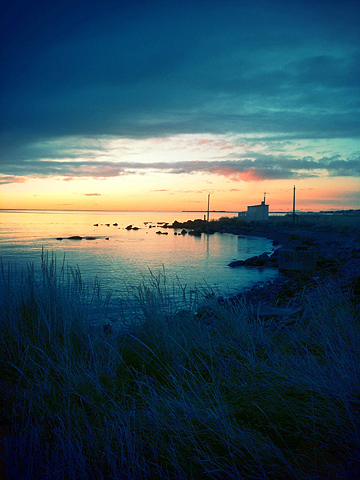
Adjusting the parameters after the shots are processed will let you come up with very nice-looking results, sometimes even better than what you’d expect from a mere iPhone shot. You can then save or send the photo via email.

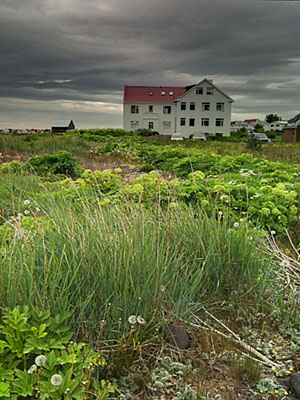
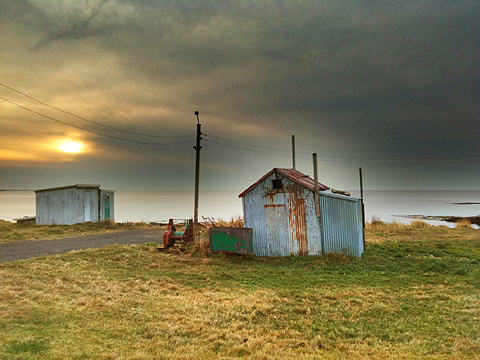
Here are a few exampls of shots taken with Pro HDR in somewhat overcast weather conditions:

Pro HDR iPhone

Pro HDR iPhone

Pro HDR iPhone

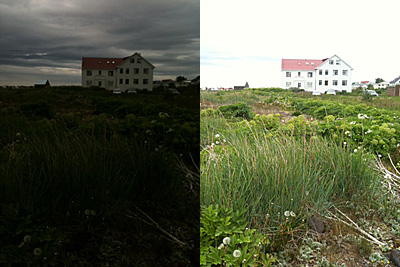
Normally, using the default camera, you’d end with very dark photographs where no detail is clearly visible and the colors are very dull. As you can see, Pro HDR really makes a difference here, as it lets you have perfectly exposed photos even in the less inviting weather conditions.

Pro HDR, if used wisely, is one of those apps that can actually help you improve your photos. This app is a must-have for any iPhone photographer!

Overall

Name: Pro HDR
Developer: eyes apps LLC
Compatibility: iPhone, iPod Touch. iOS 4.0 or later.
Price: £1.19||$1.99||€1.59
Vote: 5/5
Pro HDR - eyeApps LLC