There are so many resources for photographers on the Internet, but finding a clear guide is not as simple as it seems, especially if you are not willing to browse dozens of websites for hours, looking for the right answer to your question. When you are starting off, all you want is a reliable guide that will speak to you in clear language, that will provide examples that make you understand where you stand and what you need to do to advance.
Photo Academy for iPhone offers in an extremely easy to browse container clear overviews, suggestions and tips that can help total beginners get the hang of the rules to make the most of their camera — it goes without saying that, since every camera is slightly different, getting to know it by reading the manual is always recommended.
Aspyre’s app is neatly organized into sections that can be accessed by tapping on their respective icons from the main screen. The core sections for learning are “How to” and “Photo 101”.

The “How to” section contains a series of tips arranged into categories: Animals, People, Travel, Sports. A Macro category is also available through in-app purchase. For each category there are several subcategories covering specific areas of interest. For example, in the People category you will find, among the others, useful tips on portrait, group, candid photography; in Animals, you will find suggestions to capture zoo animals, pets, wildlife, and more. There are a variety of topics which the user can explore to learn more about techniques and ideas for taking good photos in special given circumstances. For each examined case, the app offers advice regarding camera settings, required equipment, lighting, and so on. Visual examples give a more accurate idea of what following every technique can produce.
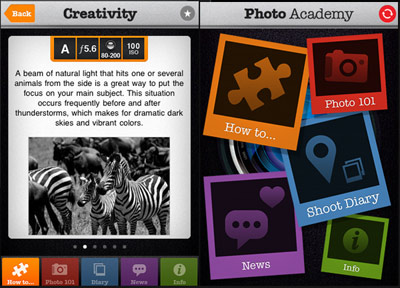 “Photo 101” covers extensively the basics of photography, explaining with very simple language all the crucial aspects of camera settings, composition, ideal workflow from shooting to editing. Going back and forth among passages, users can proceed at their desired pace, more comfortably than they could achieve while reading the average ebook.
Photo Academy readers are greatly encouraged to suggest new topics to the app’s developer: if you want to know about subjects not included in the current version of the app, feel free to use the suggest feature.
You can follow Photo Academy’s general directions to learn step by step in a scale from easier to harder. Moreover, you are aware of your learning progress using the “Photo Diary” feature, which allows to index photos loaded from the device as reference as you learn. The Photo Diary is designed to keep track of each entry by date, time and location. From the Photo Diary, you can share photos on Twitter, Facebook and send them to email contacts.
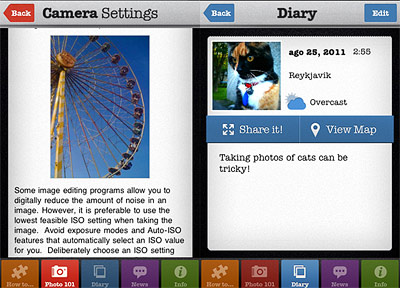 The apparent simplicity of Photo Academy is a huge advantage to the content assimilation. The absence of complications in navigating through the sections makes in fact very understandable what to do and where to look, so that the user never feels lost and frustrated.
For the amount of information provided and for its price tag, Photo Academy is a good companion for starters. An iPad version would be nice. Hopefully in the future.
Photo Academy for iPhone is available from the App Store at the price of $2.99/€2.39/£1.99.


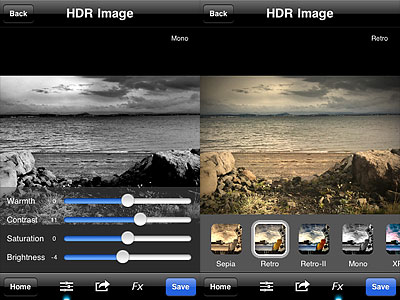 Another new feature is the FX panel, which gives you access to seven presets to quickly change the style of your HDR images. Effects range from cross process to monochrome. All effects can be altered after applying them by switching to the editing tools panel.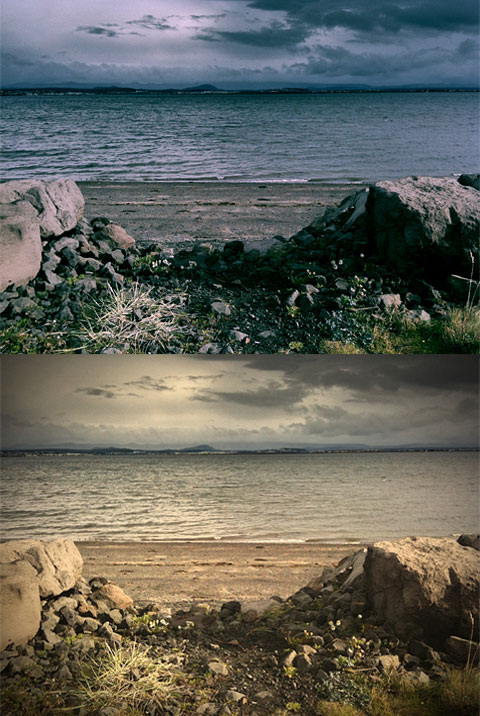
 8mm HD is capable of producing 720p videos and it is compatible both with iPad and iPad 2. As the iPhone version, the HD edition comes with several vintage filters and effects to give videos a pleasing analog look. Filters range from dusty black and white to slightly desaturated color, with the possibility of choosing matching frames and other extras for more believable results.
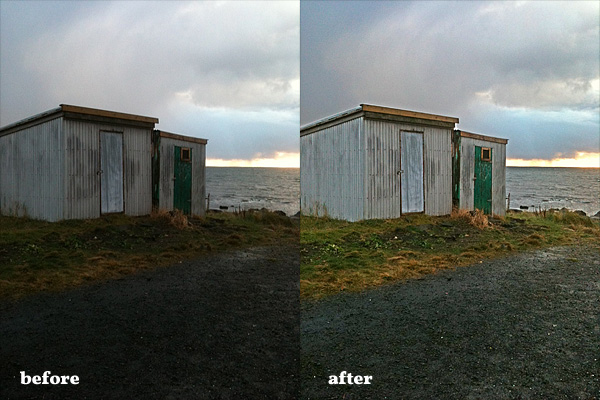
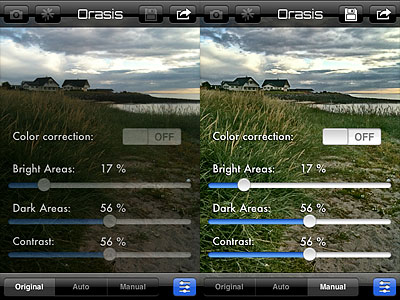 The only thing that looks a bit off in Orasis is the color correction. In photos I have used for testing, colors are always closer to the original scene with the correction turned off, while turning the feature on often gave me a slight color cast (blue or magenta, mainly).
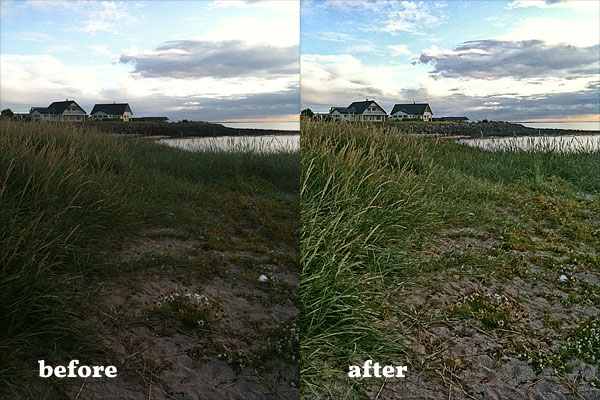 Orasis is very different from fake HDR, as its results look definitely more natural than those provided by most apps imitating HDR effects with a single shot. In general, most photos edited in Orasis are greatly enhanced; at the same time, enhancements are subtle enough not to make photos look overly processed and unreal. Also worth mentioning the fact Orasis doesn’t increase digital noise and it doesn’t perform destructive sharpening on photos. Given both the extreme simplicity of this app and its impressive results, Orasis is a great tool to help you fix issues with badly exposed photos. Don’t expect miracles from the app though: your perception is still better at “seeing” reality than your iPhone.
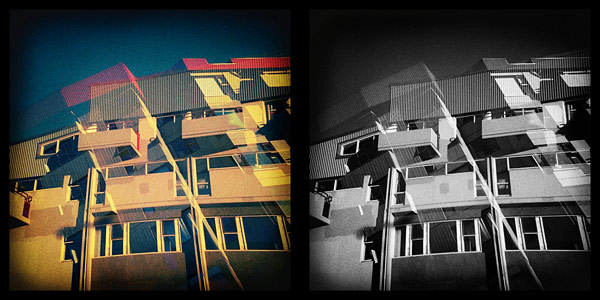
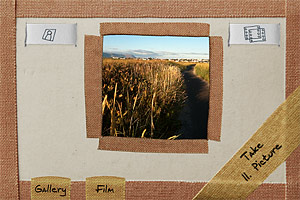 Pinhole HD features three types of film: color, expired color and black and white. From the Film menu, you can choose your desired effect before taking pictures. You can turn on and off the double exposure with a swiping motion of your finger over the slide button located on the top right of the main screen. Using the button on top left of the screen, resolution (small, medium and high) can be set in the same way. If you decide to take a double exposure, you are requested to tap twice on the shutter button. You do not have time limitations, but you cannot change film from the first exposure to the next. Development takes place in background, so you can keep on shooting while your photos are being processed.
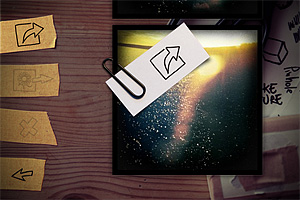 All the photos you take are saved to the Gallery, from which in any moment you can decide to make basic adjustments, like changing film type and frame, enabling lens distortion (low or high, to simulate a wide angle effect) and balancing blending in double exposures. Default values for these parameters can be changed from iPhone’s Settings. Once you are satisfied with your image, you can save it to Camera Roll, send it to Facebook or share it with your email contacts. In the new HD version, it’s possible to select more photos at once to delete, share or save them with a single tap. Differently from Pinhole Camera, Pinhole HD lets you process photos stored in the Camera Roll, not only those taken with the built-in camera.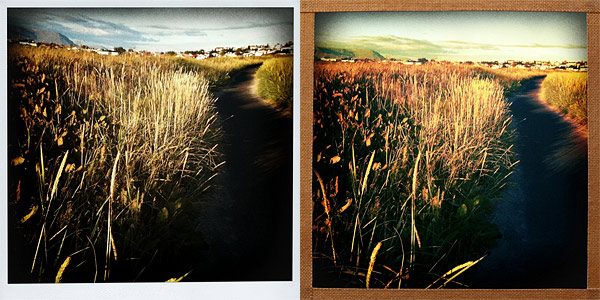
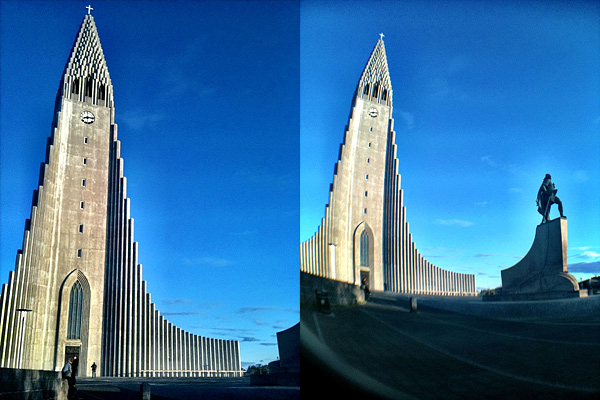
 The only issue with the wide angle is that, depending on the camera phone you are using, the edge of the lens may end in your photo together with the rest of the scene. It is nothing you cannot crop out of the picture (or remove with the help of apps like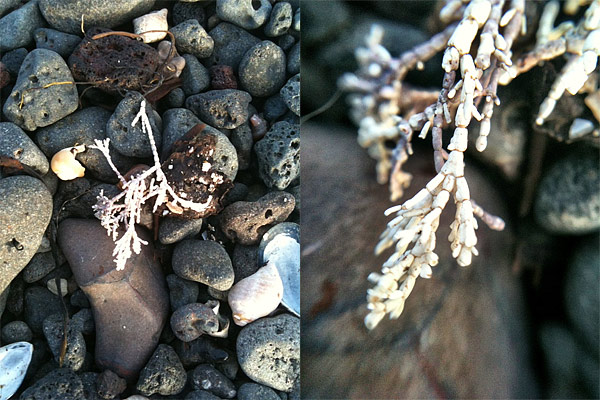
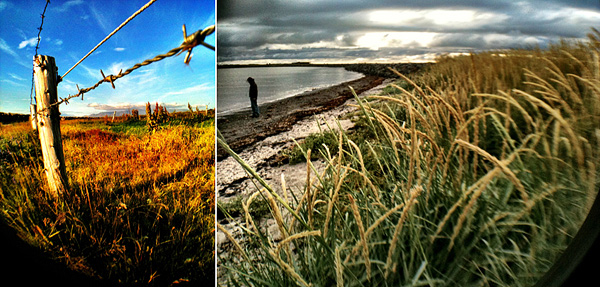
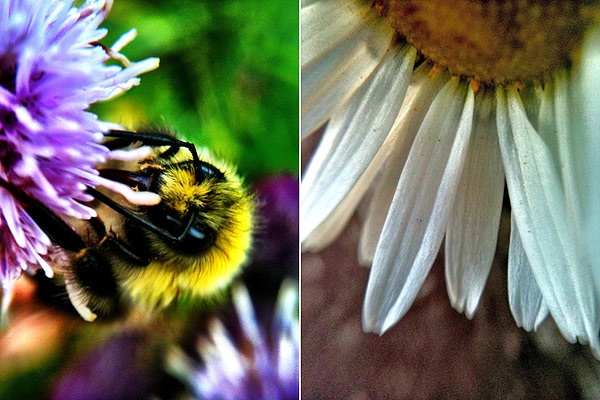 From the same kit is the fisheye lens. Honestly, I’m not a great fan of fisheye photography, mostly because I think the fisheye is a difficult lens to handle properly. You have to find the right subjects and conditions to make a fisheye photo spectacular, while most people just think using this type of lens is an end in itself. For this reason, most fisheye photos mean absolutely nothing beyond the effect provided by the lens. I have no problems admitting I am not a gifted fisheye user. A fisheye is not only hard to handle, but also hard to manufacture. Needless to say that, for its strong character, imitating the effect of the lens digitally often produces lame results.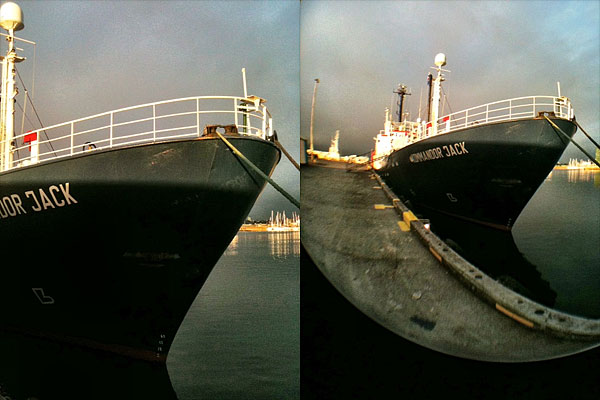
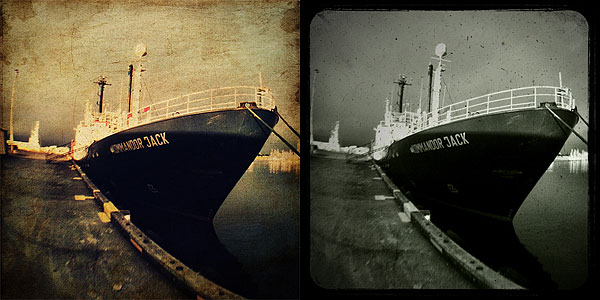
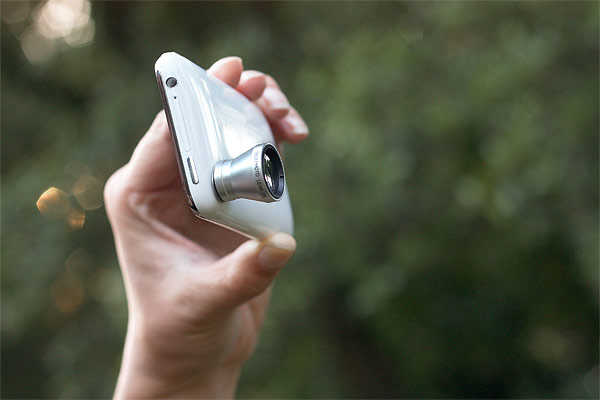 Besides magnification, the telephoto’s most noticeable feature is a slight blur around the borders, which sort of conveys a tilt-shift look in some instances. The effect can be pleasantly surprising, if applied to the right subject and in combination with the right idea. I find the blur adds to images a charming analog toy camera touch that is much more convincing than similar effects you can apply in post-processing with specialized applications. With the scene you will be aiming at, camera movements are also magnified with the lens on, so the best way to minimize blur is to use a stable surface or a tripod to support the camera. In any case, if you want images to be less blurry, do not try to hold the iPhone or other camera while a 30 km/h wind is blowing, as I did…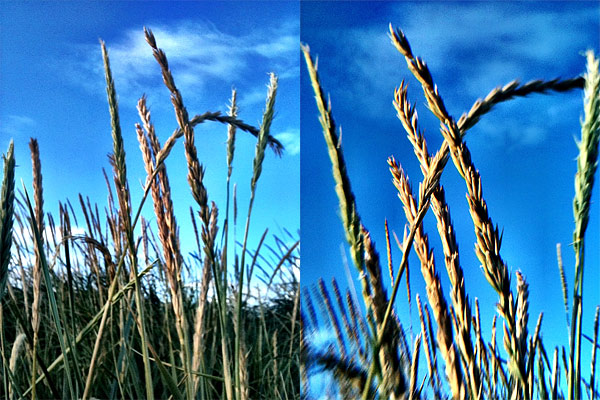
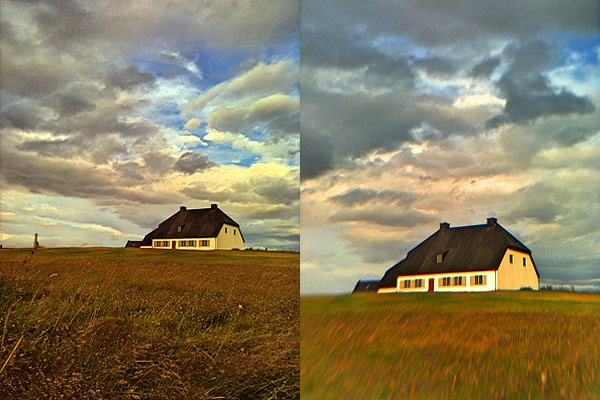 The results lend themselves to many creative possibilities which is up to you to explore. I am quite enthralled by the suggestions evoked by images captured with the telephoto lens on.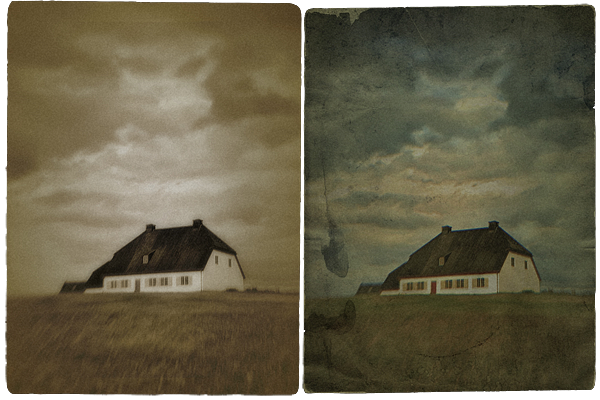
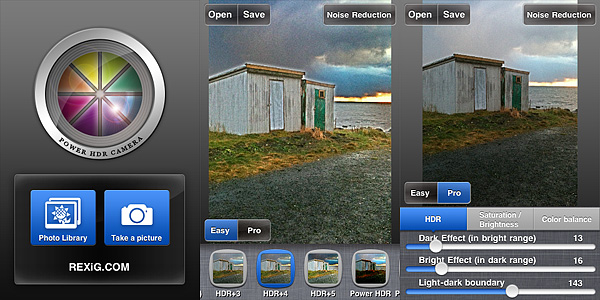 For a quick enhancement of badly exposed photos, the Easy mode offers 23 presets which can be applied to images with a single tap. Presets can be found in the bottom part of the screen, and by swiping with the finger you can scroll and choose among them. For a more thorough processing and for more control, you can switch to Pro mode. Pro mode lets you adjust individual settings which affect the overall look of the image, like bright and dark intensity, saturation and contrast, and color balancing.