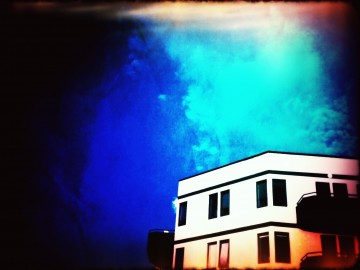
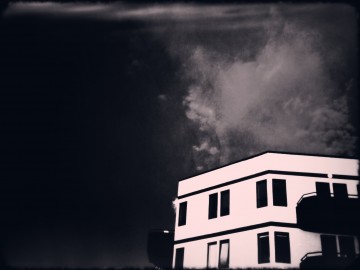
iPhone Photography Tutorials #7 – How To Turn One or More Photos into Minimal Illustrations

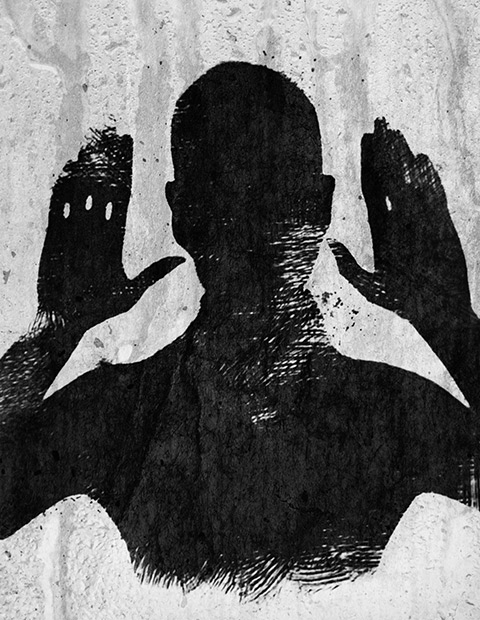
I was preparing another image for one of my series and for this purpose I was taking several pictures to choose from among those the ones I would need for it. However, as it often happens, at some point I took another path and I created something different from what I was planning. I like minimal images, but I honestly have little ability for them. The partner in crime says mine is horror vacui, and probably he is right. Anyway, this wasn’t conceived as a minimal picture, but it became one.

Apps needed:
ProCamera
Leonardo
iColorama S
Plastic Bullet
Modern Grunge
Handy Photo
Infinicam Continue reading “iPhone Photography Tutorials #7 – How To Turn One or More Photos into Minimal Illustrations”

iPhone Photography Ttutorials #2 – Painterly Aged Photo Effect

Antique monochrome photos have an incredible charm. Most of them not only have a strangely surreal and almost ghostly feel, but also a beautiful painterly quality: for a long time, the influence of painting over photography was very strong and photographers often tried to imitate stylistic principles followed by painters.

With just a few easy steps, I intend on demonstrating how to achieve the evocative feel of aged photos on your iPhone. This is just one of the many processes you can follow.

Apps needed: iCamera HDR, Iris Photo Suite, Plastic Bullet. Optional: Bracket Mode.

1. Take two bracketed exposures of a landscape of your choice. Daylight photos featuring skies with significant detail (huge, fluffy clouds, etc.) will work better. You can either take your exposures directly within iCamera HDR or use Bracket Mode, whatever makes you feel more comfortable. If you already have photos you want to use, jump to step 2. If you have the HDR composite, go to step 3;
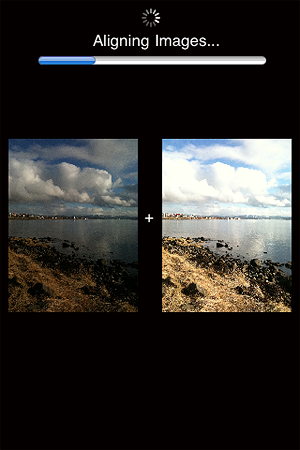
2. Merge the exposures in iCamera HDR, choosing Tone Balancer. Adjust the parameters to obtain rich, neatly contrasted details, without exaggerating with overblown brightness, and then save;
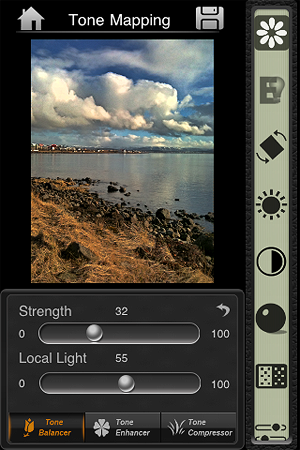
3. Open your saved HDR picture in Iris Photo Suite. Tap on the layers icon  -> One Touch -> Grunge. For this example, I picked Noise, but you can go for one of the other effects, if it suits your photo better. Leave the value to around 100 or little less, so the effect enhances the contrast of your image. Apply and save;
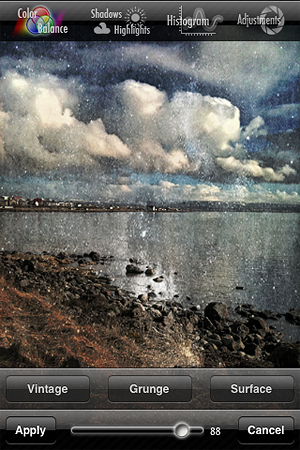
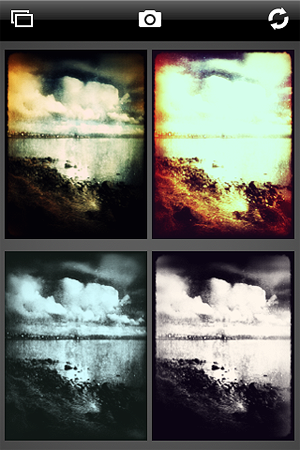
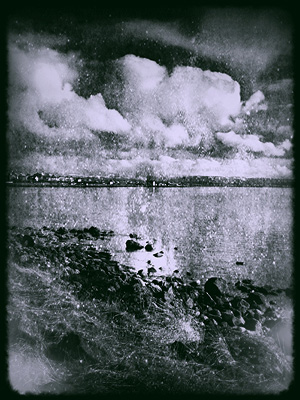
4. Load the image you just saved on Plastic Bullet. Our aim is to have our final image look like an old, aged picture; Plastic Bullet’s monochromes are particularly convincing for our purpose. Generate random styles by pressing on the refresh button until you obtain something that has the right balance of blur and brightness: we want the picture to look old and deteriorated but we want at the same time to preserve as much detail as it is possible. I decided to go for a dark silver tone with a thick border. When you find a style you like, save to your camera roll and you’re done!
And here is our final result:

Plastic Bullet: Turn Your Photos Into Dreamy Images

What a lot of users love about toy cameras resides in the unforseen quality of the results one can accomplish with them. Some people love the unexpected, what is impossible to reproduce just with mastery of the technique. All the fancy leaks and crazy color shifts, the blurry and somewhat cheap looks: those are some of the effects toy cameras are so good at achieving and iPhone users love to be able to reproduce these days with the various applications the App Store has to offer.

Plastic Bullet by Red Giant Software promises to bring the unexpected variety of toy cameras to your Apple device. Does it live up to the promise?

Main Features

  • Full resolution available;
  • Great assortment of final effects;
  • Possibility to share the photos on Facebook and Flickr.

Appotography Opinion

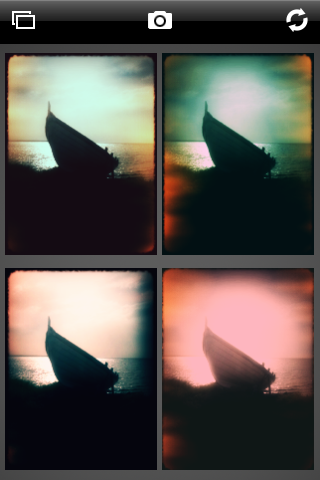
With Plastic Bullet you can either take a photo with the built-in camera or load a previously taken photo from the camera roll. Making it work is very simple and doesn’t require any effort to get used to. You are presented with four thumbnails representing four random final results: if you like any of them you choose and save it; if you don’t you press the refresh button until you have something that pleases you. The easiness and immediacy of use are two of the strongest points of this app and something that has to be taken into account. The results, although actually not greatly different the one from the other in most cases, grant enough choice to the user .

Plastic Bullet iPhone

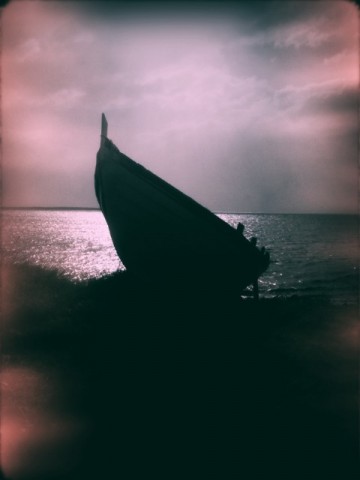
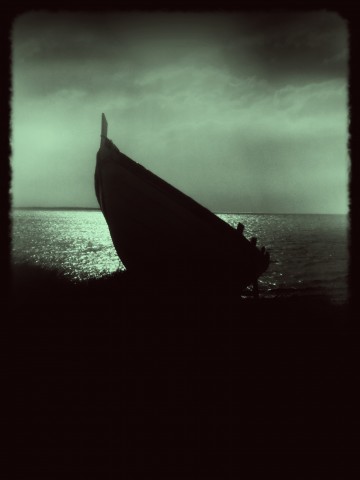
These are examples of what you can achieve using Plastic Bullet to edit your photos:

Plastic Bullet iPhone

Plastic Bullet iPhone

Plastic Bullet iPhone

Plastic Bullet iPhone

Plastic Bullet is a very nice addition to the family of toy cameras available in the App Store. With just a couple of taps you can truly turn your photos into something different and pleasing to the eye.

Overall

Name: Plastic Bullet
Developer: Red Giant
Compatibility: iPhone, iPod Touch, iPad. iOS 3.0 or later.
Price: £1.19||$1.99||€1.59
Vote: 4/5

Plastic Bullet Camera - Red Giant Software