iPhone Photography Tutorials #7 – How To Turn One or More Photos into Minimal Illustrations

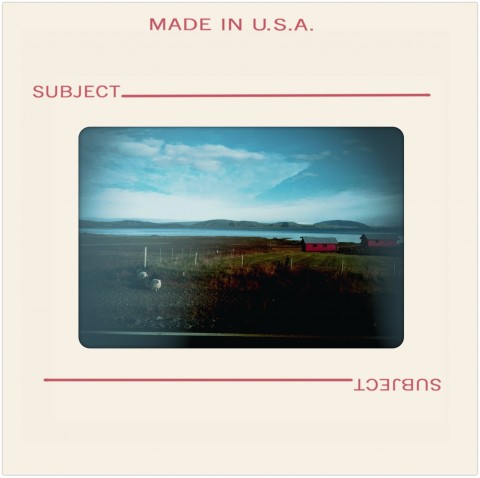
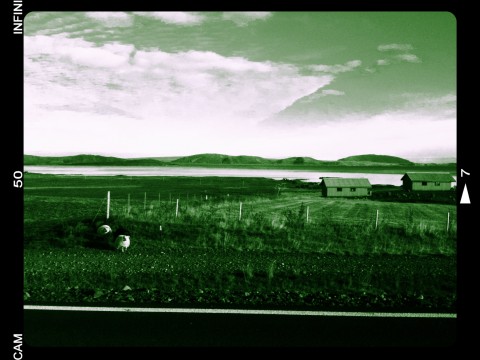
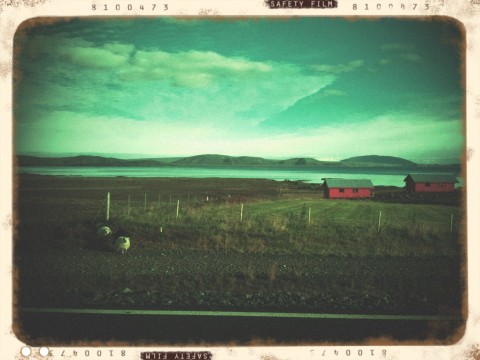
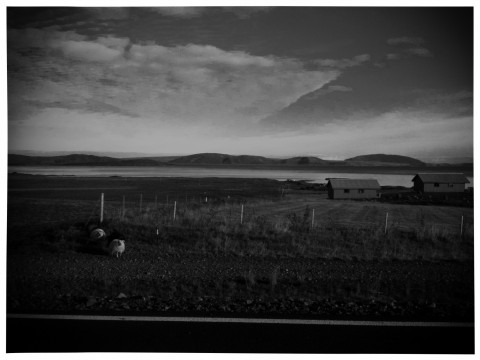
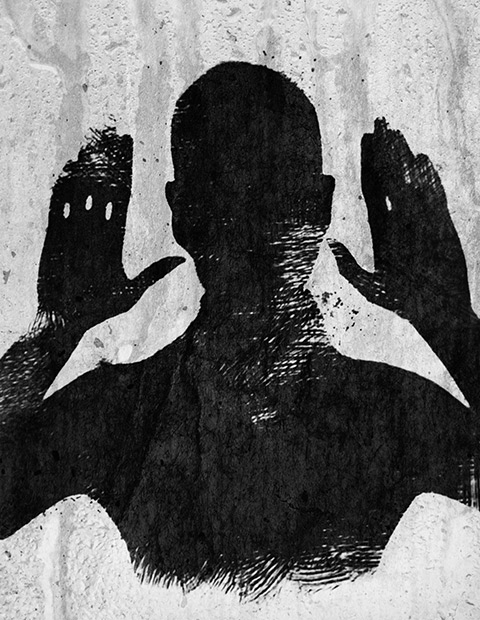
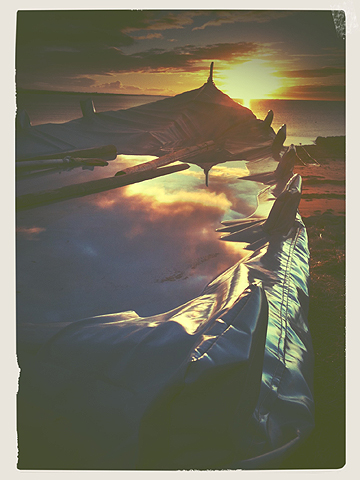
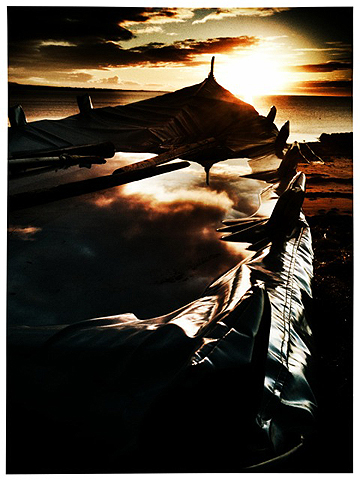
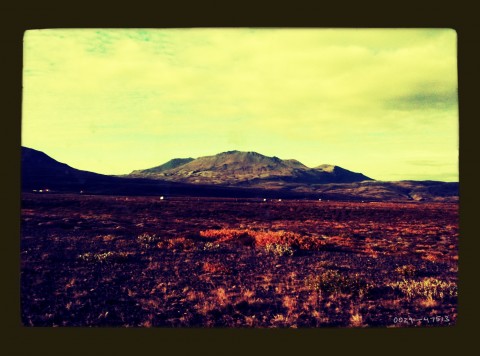
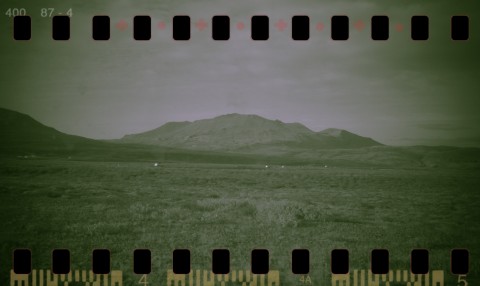
I was preparing another image for one of my series and for this purpose I was taking several pictures to choose from among those the ones I would need for it. However, as it often happens, at some point I took another path and I created something different from what I was planning. I like minimal images, but I honestly have little ability for them. The partner in crime says mine is horror vacui, and probably he is right. Anyway, this wasn’t conceived as a minimal picture, but it became one.

Apps needed:
ProCamera
Leonardo
iColorama S
Plastic Bullet
Modern Grunge
Handy Photo
Infinicam Continue reading “iPhone Photography Tutorials #7 – How To Turn One or More Photos into Minimal Illustrations”

When Apps Take Over: The Genesis of Moons

Some days you are applying yourself to a specific project and everything you come up with looks invariably wrong. It’s not that your image will look bad per se, but the feeling is things are just not what you are after, and you cannot understand when and how you took a wrong turn. It’s like with trying to fix a spoiled recipe (cookery is another serious business and an art in its own right): if the dough is not rising and you cannot figure out why, it’s time to take a break and focus on something else. Gardening or knitting perhaps—good luck with these two.

M00n
M00N

Some time ago I started a series of pictures with thematic and visual affinity. At some point I got stuck and couldn’t go on Continue reading “When Apps Take Over: The Genesis of Moons”

iPhone Photography Tutorials #3 – Create A Little Post-Apocalyptic Scenery

The film industry, and Hollywood in particular, have filled our imagination for years using post-apocalyptic visions of submerged cities in ruins and all that jazz. To achieve the effect in a sumptuous Hollywood-style would take too much money, I am afraid. Anyhow, with little effort and simple means, you too can recreate on the iPhone your own little post-doomsday scenery.

This effect works great on bold architectural details, like the top of bell towers, skyscrapers or other buildings, but it can be applied successfully to a number of other objects, so feel free to experiment.

Apps I used: WaterMyPhoto, Cameramatic, Infinicam.

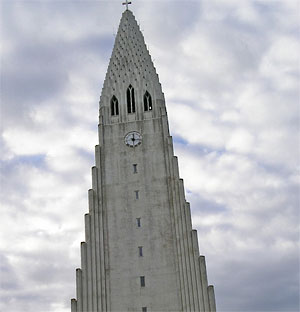
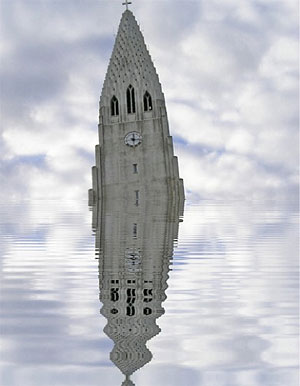
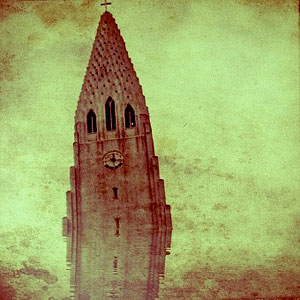
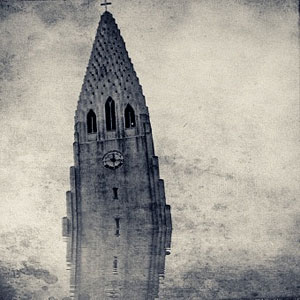
  1. I choose an average photo of the Hallgrímskirkja, a local church with an impressive and unique bell tower. The photo is slightly tilted. I load the photo into WaterMyPhoto (->Photo Album). For quickness’ sake I choose this app, mainly because it’s so simple to use and you don’t have to make other adjustments apart from selecting the area of the image you want reflected. Unfortunately, the app only saves at very small resolution (a less than satisfactory 390×502 pixels). The app is free, but it displays ads. If you care to remove them, you can purchase the in-app remove ads feature for $0.99. I adjust the photo, making sure I am keeping the cross on top of the tower into the frame (I like that detail) and tap on the Crop button to confirm. After the app generates the water reflection, all I have to do is saving (->Done Editing->Save Photo).
    Choosing the Photo
    Choosing the photo.

    Applying Water Reflection
    Applying the water reflection effect.
  2. I open the image in Cameramatic. I adjust the image to the square cropping tool and from the Light Box, I tap on the monkey wrench button to access the edit area. From filters, I select a monochrome filter. In this case I picked Retrochrome (Filter->B&W->Retrochrome), but anything balanced, not too contrasted or faded, would have worked. Then I apply a frame (Frame->Texture->Grunge Paper 03). I save to Light Box and then to Camera Roll by tapping on the “+” sign.

    Add Texture
    Turning into monochrome and adding texture.
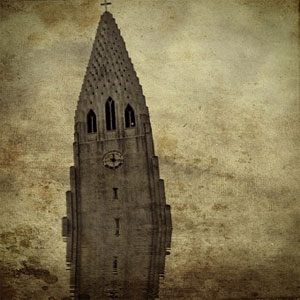
  3. I open the photo in Infinicam because I know it has some lovely hazy effect. Autochrome, which is one of the presets that come with the app, is my personal choice. Since I like the hazy look, which makes the texture and reflection look subtler, but I don’t think the reddish hue fits the mood I am trying to convey, I apply another filter: this time it’s one of my own presets (whose code is DJX-63A0), which turns the image into a more appropriate sepia. All I have left to do is saving.
    Applying Autochrome
    Applying haze with Autochrome.

    Turning Into Sepia
    Turning the photo into sepia.

This is what I did in this very specific case. There are many other ways to achieve the same overall result. For example, you could choose other tools to apply your favorite textures and borders, to fix exposure or to tilt your subject further, for a more dramatic effect. You could go either for an uncropped image or for a different format than square, which I used here. It all depends on what makes you more comfortable or what pleases your eye.

Infinicam Codes pt.4

Here we are again with more codes for Infinicam users! This time we are sharing some really cool codes sent to us by Pepjin.

Gitane: 5ND-ZRP4
Proust: RW7-XFR1
Delirium: PP7-K8WC
Radiola: AF9-P7HC

We selected a few codes among the ones sent to us; they were all great, it was a very difficult choice. Thanks again to Pepjin for sharing them! We hope you’ll enjoy them as much as we did!

Remember that you can send your own codes too: [email protected].

Infinicam Codes pt. 3

One of our readers, Emmy, sent an impressive amount of style codes for Infinicam. We tried them all and selected three of these codes that we liked in particular way. It’s a swell selection, so thanks again to Emmy! Enjoy!

OGN-5H01
SX2-UE98
B4x-TI62

Remember that if you want, you can submit your own codes too. Just send us an email here: [email protected].

Infinicam Codes pt. 2

Three new Infinicam codes for your photos: very different styles for very different tastes and needs! Have fun with them!

F4Z-BNQ5

IEO-NPC4

AXI-WAXG

Remember to send us your own style codes if you have some you like in particular! Share your favorite styles with other users by sending your codes to us: [email protected]! We will publish the best codes on Appotography!

Infinicam Codes pt. 1

For Infinicam users out there, we are willing to share a few style codes that we liked in particular way. Feel free to use them on your photos!

TWA-PRCA
NPC-ZS37
SNF-BZYG

We will be posting a lot more, so check them out!

If you have your own codes and want to see them published here, please send them to our email address: [email protected] .

Infinicam: Time To Randomize Your Camera!

We know about Nevercenter thanks to their CameraBag app. We are now presented with a new photo app whose potential goes far beyond that of CameraBag. However, Infinicam is not an enhanced version of CameraBag. Like its predecessor, it features filters imitating analog cameras and films, but the way the filters are generated is totally different.

Main Features

  • Full resolution available;
  • 18 film-style borders;
  • Wide range of photographic filters;
  • Possibility to save preferred the automatically generated styles;
  • Cropping tool;
  • Camera history;
  • iOS retina-display support;
  • Possibility to share styles with friends.

Appotography Opinion

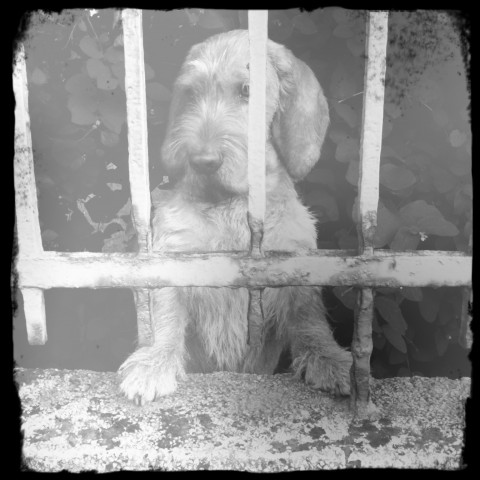
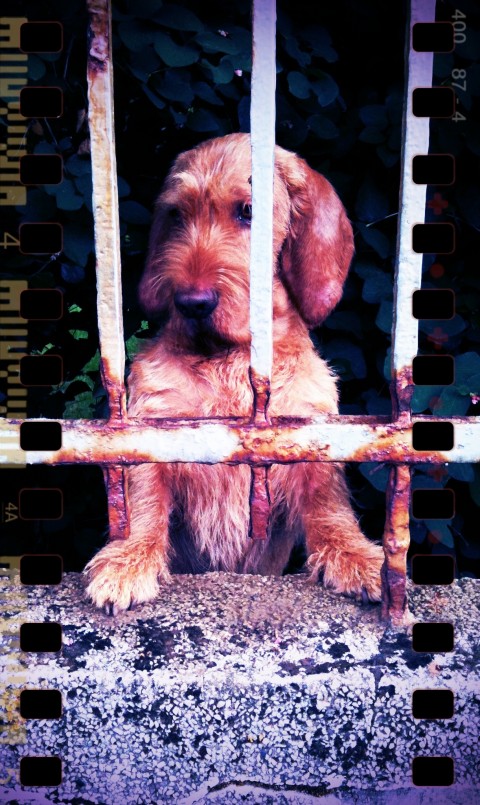
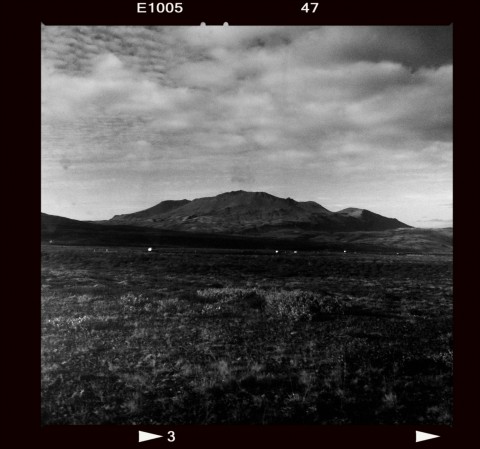
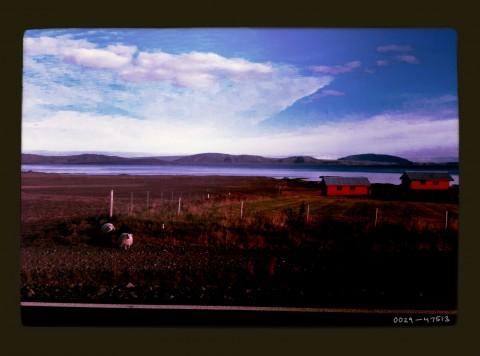
As the name implies, Infinicam offers the user an endless series of combinations to edit photos, previously taken or on the spot. Tapping on the “Press for new camera” button, a new style is instantly generated through  complex algorithms. Each style is identified with a seven digits code which can be saved for further use or manually entered when needed. The filters are neat and some of them truly deliver the feel of shots by analog cameras. Endless effects, I said: is it really true? Well, the variety of automatically generated effects is impressive, but most of the styles look very similar. Also, we are not great fans of  borders with credits and apps names stamped all over them, as they make the edited photos more like something obtained using a free app. From a paid app, this is not very “stylish”.

Here are some examples of what you can achieve:
Infinicam iPhone

Infinicam iPhone

Infinicam iPhone

Infinicam iPhone

Infinicam iPhone

Unless you create a huge library of previously used and faved filters – or acquire them in exchanges with other users or through download – you won’t have great freedom of choice and customization. For those who are more focused in obtaining extremely predictable results, Infinicam is definitely not the right choice. Infinicam will mainly please perhaps those who have already tried many other apps and are looking for something different, or those who are fans of the unexpected results that can be obtained through apps allowing a great degree of randomization.

Overall

Name: Infinicam
Developer: Nevercenter Ltd. Co.
Compatibility: iPhone, iPod Touch, iPad. iOS 2.0 or later.
Price: £1.19||$1.99||€1.59
Vote: 4/5


Infinicam - Nevercenter Ltd. Co.