AstroClip: iPhone 4’s Best Stargazing Friend

How many committed stargazers are there? Among those, there are also many iPhone users with a passion for photography. If you are into both astronomy and iPhone photography, an ongoing project on Kickstarter will perhaps interest you: AstroClip will help you taking photographs of the starry sky directly on your iPhone 4.

AstroClip is a special iPhone 4 mount to fit all telescopes with a 1.25″ wide eyepiece — which is to say, most telescopes, since 1.25″ is the most popular size for eyepiece barrels. The body of the mount, in black or white color, is made of rigid plastic material and features three screws to allow perfect fit to the telescope’s eyepiece. AstroClip is minimally designed and sturdy enough to keep the iPhone steady while taking photos at night. Using AstroClip, you won’t need other camera equipment to take photos of the moon with your telescope (it goes without saying: you have to have a telescope to use AstroClip).


With a pledge of $25 or more, the project backers will get an AstroClip mount in the color of their choice, while by pledging $40 or more they will get a limited Kickstarter edition AstroClip in red color and a T-Shirt. For higher pledges, there are more extras available.

The goal is to raise $15,000 by September 3, 2011. The funds will be used to start the production, which will employ quality injection molding. Matthew Geyster, the project starter, points out that AstroClip will be entirely manufactured in the US. For now, AstroClip is only designed to work with iPhone 4. However, if pledging will be successful, it’s likely AstroClip’s compatibility will be extended also to upcoming iPhone models.

If you want to know more on AstroClip, please visit the project’s page on Kickstarter.
BoothClub Review

BoothClub is a new photo booth for iPhone that comes with an assortment of effects and themed skins. If anybody thought photo booths are a thing of the past, the iPhone proved them wrong. Photo booths are indeed enjoying great popularity in their new pocket format.

Main Features

  • 2692 x 520 pixels resolution;
  • 3 border styles;
  • 10 effects (+6 more with in-app purchase);
  • Front camera support (on enabled devices);
  • AirPrint support (on enabled devices);
  • Security switch;
  • Send via email or share on Facebook and Twitter.

Appotography Opinion

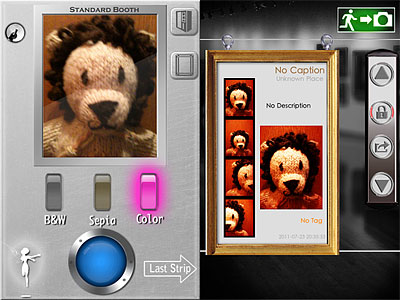
BoothClub comes with two different sets of themed effects and two booth skins. The Standard Booth includes 3 basic effects, color, black and white and sepia. The Fantasy Booth features 7 effects (red, orange, golden, yellow, cyan, blue, violet), characterized by oversaturation and colored vignetting, to match different situations and moods.

BoothClub for iPhoneA collection of 6 additional special effects are available with the Memory Booth (in-app purchase: $0.99/€0.79/£0.69). Memory effects revolve around a general vintage look, but they are quite varied and range from high contrast black and white to aged paper. From the in-app settings, it’s possible to choose a border style among black, white and gray.


BoothClub for iPhoneTo take pictures, you simply point the camera at your subject (being a photo booth, at yourself, for example) and press the shutter button. BoothClub automatically takes four shots. You cannot set timer or shoot manually, which in some instance can be not very convenient. You can review the last strip of photos taken with the chosen booth after taking it. All strips are saved in the app’s vault. From the vault, strips can be deleted, shared, printed, emailed or, simply, saved to Camera Roll.

Switching from front to rear camera is enabled on supported devices, and so is using the AirPrint option. As I said, a security feature is also available, allowing to input a code to protect photos once they are saved in the app’s gallery. The code can be changed and security can be disabled.

Even without purchasing the extras, BoothClub has a decent selection of effects, especially for a photo booth app. Although not all effects are great in any situation, especially indoors, there is enough to have some fun and try different looks. The interface feels a little confusing at first, especially because each skin has buttons and switches placed differently. Anyway, getting used to BoothClub doesn’t take too much effort. The app offers tips to learn about some of its most obscure features, like the security switch, but even where available, help is not exhaustive. In general, the app feels a bit less intuitive than it could have been.

Overall

Name: BoothClub
Developer: Glowing Butterfly Inc.
Compatibility: iPhone, iPod Touch, iPad. iOS 4.0 or later.
Price: £0.69||$0.99||€0.79
Vote: 3/5

BoothClub - Glowing Butterfly Inc.

King Camera & Iris Photo Suite for iPad on Sale!

Two special offers in the App Store not to be overlooked: King Camera and Iris Photo Suite for iPad are currently on sale! Whereas multi-purpose cameras are often weak either in camera or in editing features, King Camera is capable of handling both aspects of image crafting. As for Iris Photo Suite, this app is what many users described as one of the best Photoshop replacements for iDevices.

King Camera & Iris Photo Suite on Sale!

Both apps are available at the special price of $0.99/€0.79/£0.69 for a limited time.

iPhone Photography Tutorials #3 – Create A Little Post-Apocalyptic Scenery

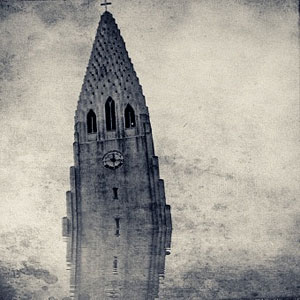
The film industry, and Hollywood in particular, have filled our imagination for years using post-apocalyptic visions of submerged cities in ruins and all that jazz. To achieve the effect in a sumptuous Hollywood-style would take too much money, I am afraid. Anyhow, with little effort and simple means, you too can recreate on the iPhone your own little post-doomsday scenery.

This effect works great on bold architectural details, like the top of bell towers, skyscrapers or other buildings, but it can be applied successfully to a number of other objects, so feel free to experiment.

Apps I used: WaterMyPhoto, Cameramatic, Infinicam.

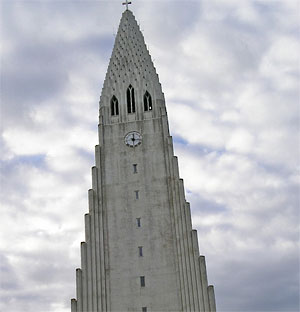
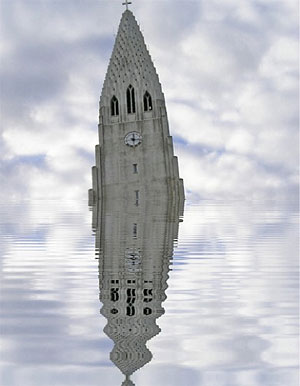
  1. I choose an average photo of the Hallgrímskirkja, a local church with an impressive and unique bell tower. The photo is slightly tilted. I load the photo into WaterMyPhoto (->Photo Album). For quickness’ sake I choose this app, mainly because it’s so simple to use and you don’t have to make other adjustments apart from selecting the area of the image you want reflected. Unfortunately, the app only saves at very small resolution (a less than satisfactory 390×502 pixels). The app is free, but it displays ads. If you care to remove them, you can purchase the in-app remove ads feature for $0.99. I adjust the photo, making sure I am keeping the cross on top of the tower into the frame (I like that detail) and tap on the Crop button to confirm. After the app generates the water reflection, all I have to do is saving (->Done Editing->Save Photo).
    Choosing the Photo
    Choosing the photo.

    Applying Water Reflection
    Applying the water reflection effect.
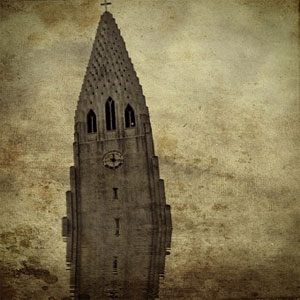
  2. I open the image in Cameramatic. I adjust the image to the square cropping tool and from the Light Box, I tap on the monkey wrench button to access the edit area. From filters, I select a monochrome filter. In this case I picked Retrochrome (Filter->B&W->Retrochrome), but anything balanced, not too contrasted or faded, would have worked. Then I apply a frame (Frame->Texture->Grunge Paper 03). I save to Light Box and then to Camera Roll by tapping on the “+” sign.

    Add Texture
    Turning into monochrome and adding texture.
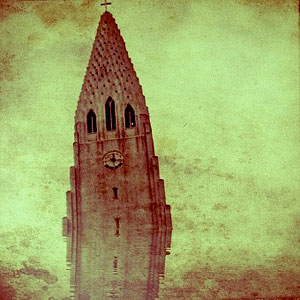
  3. I open the photo in Infinicam because I know it has some lovely hazy effect. Autochrome, which is one of the presets that come with the app, is my personal choice. Since I like the hazy look, which makes the texture and reflection look subtler, but I don’t think the reddish hue fits the mood I am trying to convey, I apply another filter: this time it’s one of my own presets (whose code is DJX-63A0), which turns the image into a more appropriate sepia. All I have left to do is saving.
    Applying Autochrome
    Applying haze with Autochrome.

    Turning Into Sepia
    Turning the photo into sepia.

This is what I did in this very specific case. There are many other ways to achieve the same overall result. For example, you could choose other tools to apply your favorite textures and borders, to fix exposure or to tilt your subject further, for a more dramatic effect. You could go either for an uncropped image or for a different format than square, which I used here. It all depends on what makes you more comfortable or what pleases your eye.

Appotography in Top 10 iPhoneography Blogs!

Top 10 iPhoneography Blogs on Blogs.comGreat news everybody! Appotography was included in Blogs.com’s “Top 10 iPhone Photo (iPhoneography) Blogs”!

Although Appotography is a relatively new voice in the world of iPhone photography on the web, this sign of appreciation gives us great encouragement. We hope to improve further our online service and to keep on delivering good quality content. In the same way, we hope that users will keep on supporting us, by interacting with us or by simply reading what we have to say.

We have a sincere passion for this new and very often overlooked form of photographic expression and we are sure all our readers share the same feelings about it.

The staff at Appotography.com would like to thank Blogs.com for the special recognition. A sincere thanks goes also to all the readers, to commenters and app developers that, even when only occasionally, stopped by and took the time to read, either just out of curiosity or to offer precious feedback.


FX Photo Studio on Sale!

FX Photo Studio iPhone by MacPhunFX Photo Studio is currently on sale in the App Store at 50% off the original price tag. This special offer comes shortly after the major update to  version 4.0, an update which introduced many new filters, masking tool and several other features to MacPhun’s best-known photo app for iPhone.

FX Photo Studio iPhone on Sale

FX Photo Studio for iPhone is now available at the special price of $0.99/€0.79/£0.69.

PhotoForge2 Updated to 2.1.1

PhotoForge2 2.1.1 is out. Here are the details on the latest release of the universal photo editor by GhostBird Software. PhotoForge2 iPhone/iPad GhostBird Software

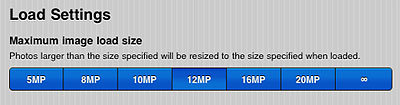
  • Auto-resizing – When images that are too big are loaded into the app, auto-resizing is activated. This prevents memory issues that can lead to the app crashing when it’s not possible to handle images in their original size. While loading large images does not represent a huge problem for iPhone 4 and iPad 2 users, for 3G/3Gs and iPad users it can cause serious malfunctioning. Auto-resizing is only activated in the case images too big to handle are loaded into the app. PhotoForge2 iPhone/iPad by GhostBird SoftwareIt’s possible to edit maximum image loading size from in-app settings (PhotoForge logo -> Settings -> Load Settings).
  • Better performance – Reduction of memory usage with textures, vignette, frames and Pop! Cam operations. This should prevent crashes when large images are being processed.
  • RAW support improved – Fixed issue that caused images in RAW format to load only in a low resolution preview in some instances. Metadata for RAW is also improved.
  • Set default IPTC info to photos – This addresses the issue of entering the same information several times for the same photo.
  • View EXIF metadata from each photo info screen.
  • Mailing list signup – It’s now possible to sign up for receiving updates, tutorials, contests, and other news from in-app settings (Photoforge logo -> Sign up for newsletter).
  • Uploader now always displays default titles and descriptions.
  • Other fixes – Hangs with uploading to Dropbox and with Pop!Cam in-app purchase dialogue (with in-app purchases disabled) are now fixed.

PhotoForge2 is still available at the special price of $1.99/£1.49/€1.59 in the App Store.

Halftone Updated to 1.6.3

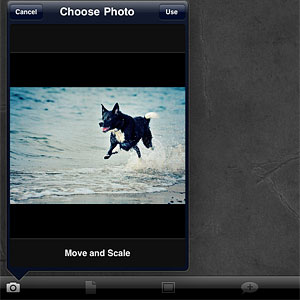
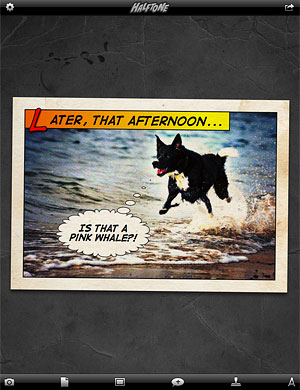
Halftone Juicy Bits iPhone/iPadHalftone 1.6.3 is now available in the App Store. With this update, Halftone improves its overall stability. Developers at Juicy Bits took user feedback seriously enough to fulfill a few requests to enhance performance and usability of their iPhone/iPad comic panel creator.

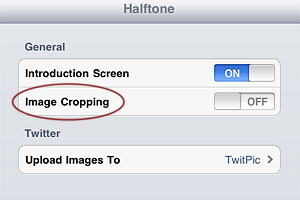
New in version 1.6.3 of Halftone is the ‘Image Cropping‘ option, which can be switched on and off from Halftone’s settings. Cropping enables applying a square format to images loaded into the work area. Not only this gives users more creative possibilities,  it also allows interaction with other apps which solely rely on square format, like Instagram.

Halftone Juicy Bits iphone/iPad
Note that ‘Image Cropping’ must be activated from the device’s settings, not from in-app settings.

Halftone by Juicy Bits iPhone/iPadAlso new in this release is the larger speech balloon’s tail area. Grabbing the tail of balloons was one of the several issues that caused some difficulty to Halftone users when creating their comic panels. Expanded touch area for balloons‘ tail allows better handling and placement of speech balloons in Halftone.

FX Photo Studio 4.0 Is Out!

FX Photo Studio for iPhoneFX Photo Studio version 4.0 is now available in the App Store. The long-awaited update renews MacPhun’s photo editing app by adding several new features and by revamping old ones with improvements to their overall performance, losing nothing of the app’s original ease of use.

What’s new in version 4.0:

  • 7 new effects;
  • Masking tool;
  • Improved performance (up to 2x faster);
  • Square format cropping;
  • Centering in Tilt-shift and Radial Blur;
  • In-app camera enhancement;
  • Restore in-app purchases;
  • New import/export options.

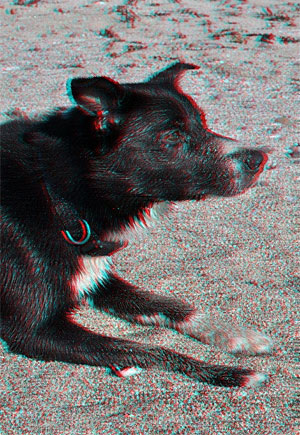
A number of new effects were added to the already extensive collection of FX Photo Studio, bringing the app’s total to 194. With version 4.0, you are given 6 brand new cross process effects, which were developed in collaboration with professional photographers. A special 3D effect is also part of this update.

FX Photo Studio 4.0 iPhone
The new 3D effect.

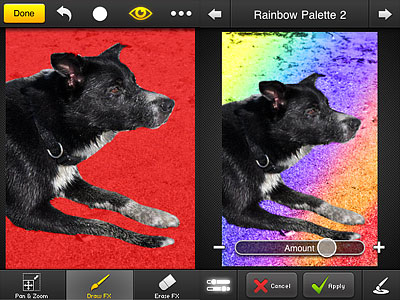
The highlight of version 4.0 is, without a doubt, the masking tool. Masking allows to apply effects selectively on images. In FX Photo Studio, you can add selectively as many effects as you wish in a row. There are four types of brush that can be used to paint over images, varying in opacity and border hardness. By zooming and panning using your fingers, painting over photos can be done quite comfortably. It’s either possible to enable mask view or disable it while painting. The ‘invert mask’ lets you easily switch among masked and unmasked areas.

FX Photo Studio 4.0 iPhone

Very cleverly, FX Photo Studio saves your previous mask, so that you can apply a series of effects exactly where you want to. The only drawback concerning masking is the lack of a resize function for the brush. It’s possible to make up for this by zooming in, but on finer detail it may still be problematic.

FX Photo Studio 4.0 for iPhone
Effects applied selectively using masking.

It’s now possible to import photos directly from any Facebook account. Other than sharing them via the previously available options, edited photos can now be printed right away by taking advantage of iPhone’s AirPrint (requires iOS 4.2 or later) or they can be sent directly to Instagram.

The developer of FX Photo Studio revealed that a print-on-demand feature is in the works, so check out for future updates.

Given the new features, significantly expanding FX Photo Studio’s possibilities, I am revising the previous rating for MacPhun’s app, which now gets a well-deserved full score.

Overall

Name: FX Photo Studio
Developer: MacPhun
Compatibility: iPhone, iPod Touch. iOS 3.0 or later.
Price: £1.49||$1.99||€1.59
Vote: 5/5

FX Photo Studio - MacPhun LLC

Lithogram Review

Lithogram emulates the looks of halftone lithography on iPhone. Kuviz’s app takes its name from the lithography technique, in which a drawing is delineated with wax or other water repellent substance on a smooth surface, like that of a stone (in ancient Greek, the word lithos means stone) or of a metal plate. After proper treatment, ink spread on the surface will only adhere to the water repellent substance, which forms the positive part of the image. By pressing the inked surface on paper sheets, a series of prints can be obtained. Lithography was for a long time one of the most widely used printing techniques.

Main Features

  • Up to 1280×960 (photo), 426×320 (video) pixels resolution;
  • Video recording available;
  • 6 paper textures;
  • 6 halftone styles;
  • Send via email.

Appotography Opinion

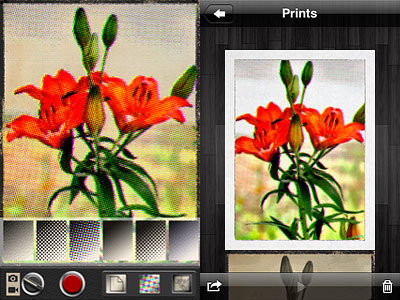
Lithogram allows both photo and video taking. The app uses a a real-time preview to let users see how effects and textures affect what the camera is capturing. It’s also possible to load photos from the Camera Roll, by tapping on the small picture icon appearing at the top of the screen. Saved photos and videos are stored in the Prints gallery. From there, you can delete, save to Camera Roll or email photos and videos.

Lithogram by Kuviz for iPhoneThere are in total 6 paper textures and 6 halftone styles to choose from. Halftone, which includes both color and monochrome effects, applies different patterns (dots, diamonds, crosshatch and lines) to still images and videos. Papers not only add texture and, in a few instances, a border, but also color presets for giving different tints to monochrome effects.
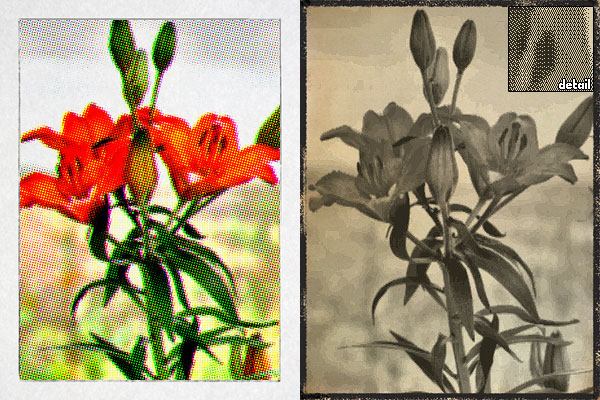
The effects, however not many, are nicely done, especially if you look at the edited photos at their actual resolution. No significant detail is lost. The effects work best on images with good contrast and predominant subjects, like close-up shots.

Lithogram by Kuviz for iPhone
Different combinations of textures and halftones.

There is a problem when sending images created with Lithogram via email directly from within the app: the files are not read as images but as videos. It’s not a big deal, honestly, as you can ignore the fact the computer tries to open them using Quick Time by default. Still, it might be confusing. If you save to Camera Roll and email the images from there, nothing weird happens.

The greatest problem with Lithogram is the saving resolution. The maximum allowed for still images is 1280×960 pixels, while for videos it’s a very disappointing 426×320 pixels. Photos loaded from your device are saved at the same resolution of those taken with Lithogram’s built-in camera, so beware. This is partly justified by the real-time feature. However, we know that other apps like Lumière use the real-time quite successfully even with high resolution saving. Given this is version 1.0 of Kuviz’s app, I am confident improvements will be made with future updates.

Lithogram is currently on sale and downloadable at the special price of $0.99 (€0.79/£0.69)!

Overall

Name: Lithogram
Developer: Kuviz
Compatibility: iPhone (3GS, 4), iPod Touch (4th), iPad 2. iOS 4.1 or later.
Price: £1.49||$1.99||€1.59
Vote: 3/5

Lithogram - Kuviz