How I Did It – iPhoneography Process Study #1 – The Message

I called the following iPhone image “The Message”. It’s a montage of several separate elements, processed multiple times and assembled together. Some simple sketching was done for it as well. I realized only after completing it, that in this piece I expressed some of my admiration for Odilon Redon‘s works. However, the surreal photo montage has a cheeky modern twist to it and Redon would probably find it too mundane… Even though Redon’s illustrations are certainly some of the finest examples of symbolist art so I am not really suggesting we can compare the two, I think I managed to infuse some “mystery” and personal idiosyncrasy into it. I won’t go into subject matter explanations, so I hope you get a “feeling” for it without useless dissertations.
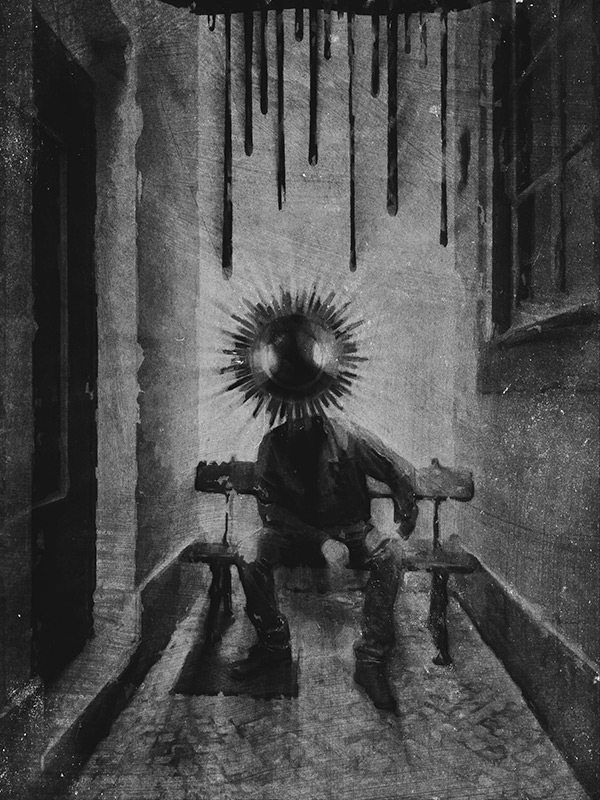
The Message
Apps used: Camera+, Sketch Club, Handy Photo, Photoshop Touch, Moku Hanga, Portrait Painter, Glaze, Image Blender, Mextures, Rays, Film Lab, Vsco Cam.

Even though the partner in crime is not happy with having cameras pointed at him, he kindly let me take a photo of him in a totally tiny, narrow, deserted dead-end alley, where a bench was curiously placed on the dead end’s side (you gotta love Lisbon’s absurd urban configuration). Even though nobody was in sight and as far as I know the place could have been abandoned for years, going in to take a photo felt very much like intruding. I wanted to use the image badly, but I promised the model not to make it an environmental portrait of some sort… I had to change the original image more than just a little for achieving this.

Now, for how got I there… Continue reading “How I Did It – iPhoneography Process Study #1 – The Message”
iPhone Photography Tutorials #1 – Easy Dramatic Black and White In The Film Noir Style

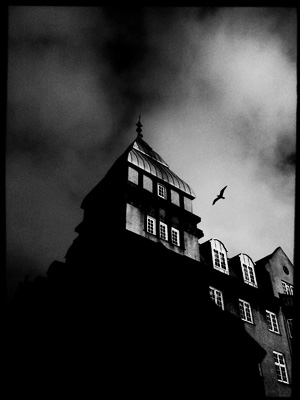
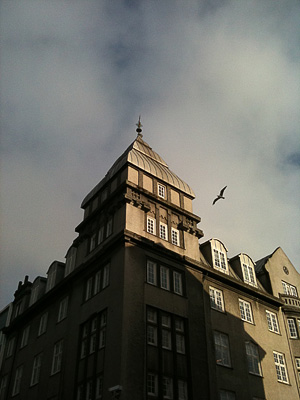
I’ve been asked how I achieve a dramatic black and white look on photos taken with the iPhone. I have more than a way to do it, but today I am sharing one among the processes I follow.

Sometimes you take a photo, especially of some architectural detail or building, and it looks all right at the moment of shooting; then you take a look at your photo moments later and you realize it’s sort of forgettable. The light isn’t as great as you remembered it and the final picture has too much noise; perhaps the colors aren’t stunning either. Something tells you though that you still have some use for that shot, a detail perhaps, the shadow casting, a suggestive angle, and so on. How to improve this kind of photos, adding to them a dramatic twist in the style of old school film noir?

Apps needed: Film Lab, DXP.

1. Choose your average building photo, the one that didn’t turn out as you would have liked but that for some reason you still think has some potential. The photo can be taken simply with iPhone’s native camera, but you can use also shots taken with HDR apps or fake HDR apps, like Dynamic Light;

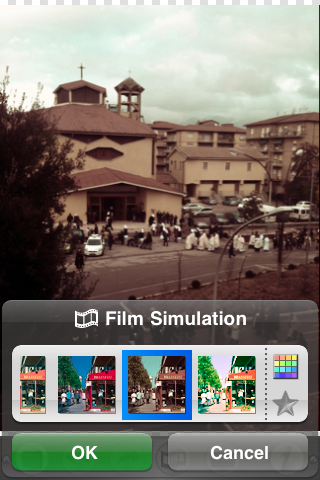
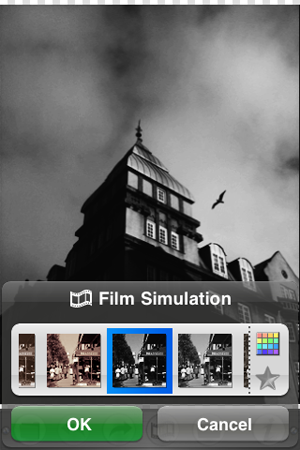
2. Open Film Lab. Choose Film Simulation -> Vintage -> Daguerreotype – High Contrast -> OK. This filter not only will turn the photo in a black and white with character, but will also enhance contrasts, bringing out the grain of iPhone shots taken in so-so lighting conditions. Adding the grain digitally usually doesn’t look very natural, so I always try to avoid it;

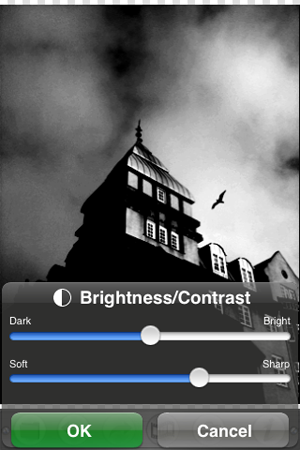
3. Still in Film Lab, go to Tool Box -> Brightness/Contrast. Increase contrast even more, so that dark areas look almost pitch black but light areas are still quite evident. Press OK and save when you are done;

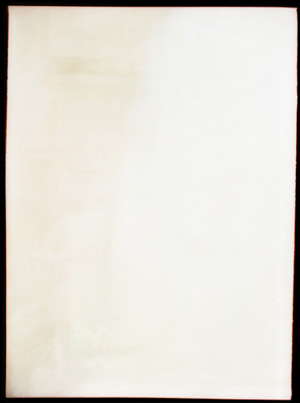
4. Browse the Internet for some vintage looking black — or at any rate very dark — frame on white background, something that will give a flair to your photo without making it look extremely dirty or scratched. There are many textures you can use for free and/or in the Creative Commons on sites like Deviantart or Flickr — but there are many others besides these two. When you find something that suits your taste, save it. It doesn’t have to be a black and white frame, you can desaturate later;

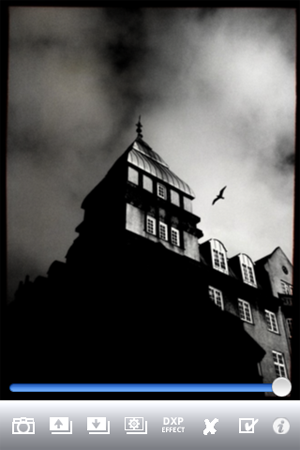
5. Open DXP -> Load from Album. Choose your edited black and white image. Load From Album again and choose your frame. Make sure that in the Settings “fit to first image size” is selected, otherwise DXP will crop the image in the case the second picture is of a different size than the first. Tap on DXP Effect -> Multiply. Move the slider knob to 100%, towards the end of the slider;

6. In the case you are working with a colored frame, tap on Effects -> B&W. This will turn your final image to B&W and will also merge both layers. Save to Album.

7. If after merging the photo with the frame you want to further adjust contrast and brightness, you can go back to Film Lab and repeat step 3 till you like the final result.

That’s it! Pretty easy, uh?

Film Lab: A Great Film Simulator For Your iPhone Photography

Some of you have probably tried RetroCamera in its free or paid version at some point and thought, “what a nice app, too bad they didn’t provide higher resolution”. Yes, too bad.

Film Lab, an application by the same developer of RetroCamera, partly solves the issues with the previous app, as it does provide hi-res saving. It doesn’t provide other features included in the RetroCamera app though, like textures and borders, but it offers more variety in the film simulation area.

Main Features

  • Up to a resolution of 3200 pixels;
  • Film simulation: 350+ filters available;
  • Color operation: 18 operations available (multiply, invert, screen, overlay, etc.);
  • Restores previous session;
  • Tooltip  on/off;
  • Brightness and contrast adjustment;
  • Hue and saturation adjustment;
  • Blur and sharpness regulation;
  • Undo/redo.

Appotography Opinion

Film Lab is one of our favorite photography apps. Not only it features a wide collection of filters, but also one of the best. We are particularly pleased with sepia and black and white film simulation offered by Film Lab. Your photos won’t look like it happens with many other apps simply as color images converted in black and white, they will actually retain the feel of photos shot in black and white film. Since the list of available filters to choose from is so long, they are conveniently arranged by style and color (vintage, sepia, etc.) or by brand (AGFA, Ilford, Kodak, Daguerreotype, etc.). It is also possible to create a list of favorite or recently used  filters for quicker use. The interface is quite clear and easy to figure out, and if you make mistakes or change your mind while editing your picture, you can always undo. Film Lab works both with the camera and with photos stored in the camera roll.

Film Lab iPhone

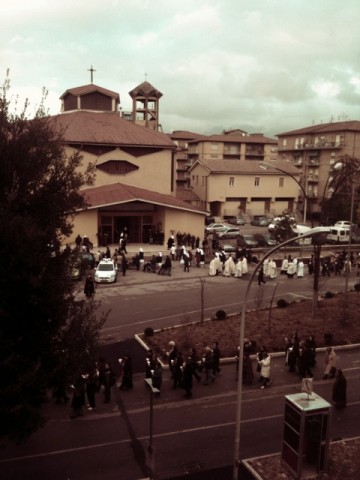
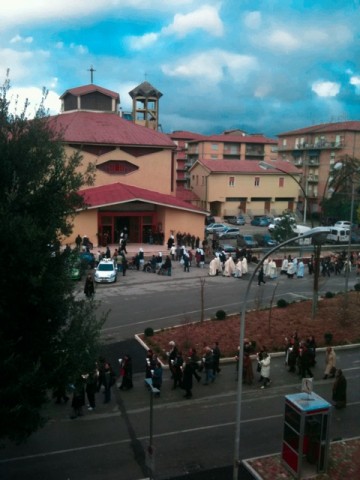
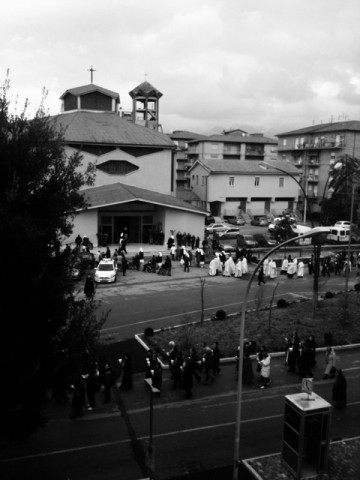
Here are just a few examples of what you can do. We are choosing filters at random to show the different effects. To obtain more original results, you can filter your photos as many times as you like.

Film Lab iPhone

Film Lab iPhone

Film Lab iPhone

Film Lab iPhone

Film Lab iPhone

In Appotography opinion, Film Lab is a must have app for iPhone photography lovers.

Overall

Name: Film Lab
Developer: CLBITZ Ubiquitous Communications Inc.
Compatibility: iPhone, iPod Touch, iPad. iOS 3.1.3 or later.
Price: £0.59||$0.99||€0.79
Vote: 5/5

FILM LAB - CLBITZ Ubiquitous Communications Inc.