Dynamic Light Updated to 1.6

Mediachance released Dynamic Light 1.6. Six new photographic filters were added with this new version, bringing the total to twenty-four effects to process your iPhone photos.

To help you improve the your pictures without losing in realism, Mediachance introduced Realistic Sky and Realistic Skin. They will selectively lower the effect on sky and skin respectively.

Realistic Sky

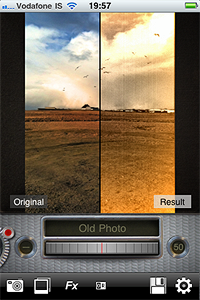
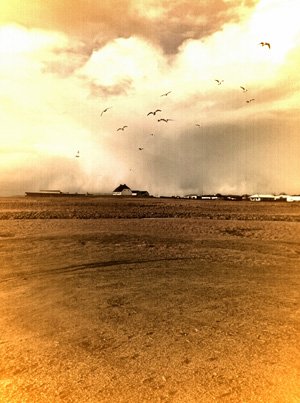
To please users more interested in obtaining highly stylized photos, Dynamic Light now offers four new effects. Old Photo, Motion, Relief, and Urban Art were also added to version 1.6.

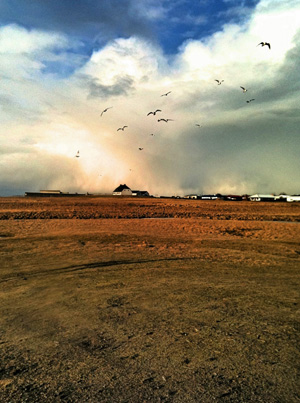
Old Photo

Other improvements of the latest release concern camera bug fixes.

Istagram 1.6: New Filter Added

Instagram update to version 1.6 improves Burbn’s app performance and introduces a new filter, Brannan.

  • Added new filter Brannan;
  • Performance and stability fixes for memory usage and camera on iOS4+;
  • Speed up network requests.

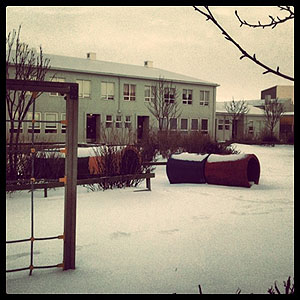
Here is a sample photo with Brannan filter applied.

Brannan, although not radically different from some effects already included in previous releases of Instagram, introduces to the app a variation to warm toned filters, like Earlybird or Hefe.

AutoPainter Review

What would have Van Gogh, Cezanne and Benson thought if somebody told them that several decades later they would be lending their artistic skills to just anybody with an iPhone?

Nobody knows. And honestly… Whatever. The genius of these artists is so immense that it wouldn’t make a great difference to them, even if they were alive today.

Mediachance give all iPhone, iPod Touch and iPad users the illusion of becoming a nouveau Vincent in a couple of minutes, with their AutoPainter, a portable version of their desktop application Dynamic Auto Painter.

Main Features

  • 1280 x 960 pixels resolution (3GS);
  • 4 artistic filters.

Appotography Opinion

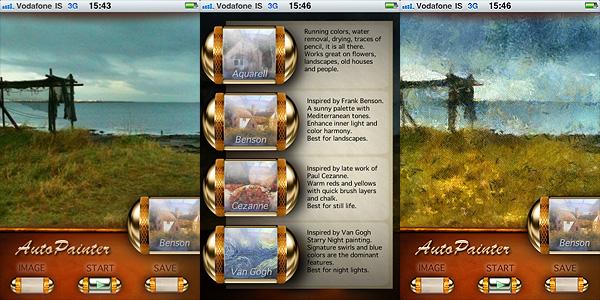
AutoPainter includes four artistic filters (Aquarell, Benson, Cezanne, Van Gogh) which you can easily use to process your photos to turn them into strikingly beautiful little works of art. All you have to do is choosing a photo from your camera roll or take one with the built-in camera, select your favorite filter and tap on the start button. It’s easy as that. You don’t have to adjust settings, move sliders, and so on.

AutoPainter app by Mediachance for iPhone

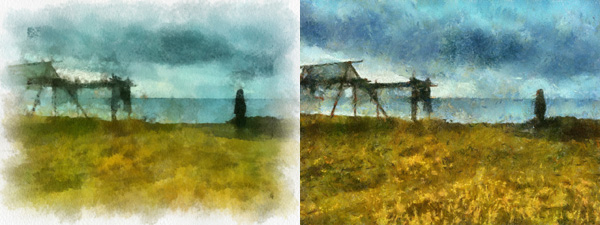
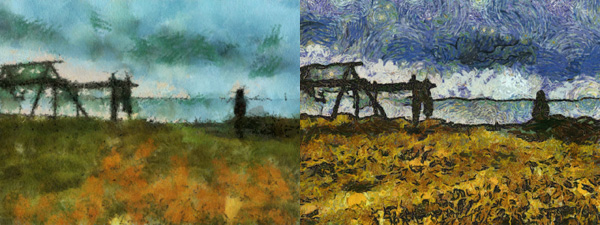
The artistic effects applied, simulating paint strokes and canvases, according to the style of choice, are very nicely rendered. Actually, they are among the best you will be able to find on iPhone in their genre, I think. The processing takes some time, but the fact you can watch how your picture is affected step by step is kind of entertaining, at first at least. This app, at least in its current version, will be a little disappointing for those wishing for a full resolution. On 3GS, which is what I used to test it, I was able to obtain a 1280 x 960 resolution. If this is it, it can be improved, definitely.

AutoPainter app by Mediachance for iPhone
Aquarell and Benson filters.
Cezanne and Van Gogh filters.

I said the filters are well done, but they do not work great on all photos. Sometimes the engine will be unable to make out some important details, so don’t be offended if after editing that portrait of your fiancée you love so much, she ends up with a huge yellow swirl on her forehead. Overall, better exposed and clearer photos are those that are able to give you better results.

Overall

Name: AutoPainter
Developer: Mediachance
Compatibility: iPhone, iPod Touch, iPad. iOS 4.0 or later.
Price: £1.19||$1.99||€1.59
Vote: 3/5

AutoPainter - Mediachance

ColorSplash 1.6

Pocket Pixels released version 1.6 of their ColorSplash. This update brings a few improvements and more stability to ColorSplash for the joy of its users.

What’s new in version 1.6?

  • Better quality and higher resolution of images displayed during editing;
  • AirPrint support for wireless printing enabled (iOS 4.2 required);
  • Preserved metadata in saved images (iOS 4.2 required);
  • Improvements to the handling of high resolution images;
  • Various bug fixes and performance improvements.

iSupr8 Is Now 1.3

Version 1.3 of iSupr8, the popular 8mm simulation app for Apple device, has just hit App Store’s shelves. What’s new in this latest release?

  • iSupr8 community launched;
  • New Tru8 processing engine;
  • Proper video metadata saved;
  • Sharing of geo-tagged video powered by Snapr;
  • Video uploading with location services off now enabled;
  • Various improvements and bug fixes.

iSupr8 - MEA Mobile

eBook Magic: Create Photo Books On Your iPad

If you have tried before to put together an eBook with your own photos from scratch, you know that, unless you have experience or you like to tweak, the creation process can be kind of mind-boggling. There are several simplified eBook creators, often available for download from online print-on-demand services. The problem with most of them is they heavily rely on premade templates that are often not customizable to go with your requirements.

With eBook Magic, Evergreen Ruby takes advantage of the excellent qualities of the iPad, offering users the possibility to use their photos to create personalized photographic ebooks. With eBook Magic,  you can create photo books, which you can share or print, using photos saved in your iPad or imported from Flickr and Facebook accounts.

Main Features

  • Possibility to create photo albums, books and documents;
  • Landscape, portrait or square book formats;
  • 100+ page templates;
  • Customizable photo and text borders;
  • Customizable page backgrounds;
  • Printing guidelines on/off;
  • Import photos from your device, Facebook or Flickr;
  • Fit photos to templates by zooming in/out;
  • Add text by typing or copy and paste from existing documents;
  • Manage font face, size, color, style and alignment;
  • Share to iBooks or email as PDF file.

Appotography Opinion

The app was especially thought as a photo book/photo album creator, but it is also possible to use it more simply as a more generic eBook creator. As other eBook software, eBook Magic was designed to be used also by beginners with no previous experience of eBook authoring.

When you start the app you can add a new project to your gallery by tapping on the plus sign. As soon as you open your newly created project, you can choose right away a title for your work. Next step is picking a format among those available: you can go for landscape or portrait oriented books or you can choose the square format. The size assortment is quite satisfactory, but since there is no universal standard when it comes to book dimensions, especially in the case you want to print at a later stage, make sure your choice is compatible with your printing options. You do not have to worry too much about these details at first though: you can make changes at any time.

To assemble your book, you can import images from your iPad, from your Facebook and from your Flickr. For every single page you can set a background and  use different templates, in order to conveniently arrange your photos. It’s also possible to add text, both imported from external documents — by copying and pasting — and written directly from within the app. Images can have colored borders and be adjusted to the templates by pinching to enlarge and shrink them. You cannot rotate, flip or edit the images in any other way though, so be sure to use only photos that are 100% ready for use.
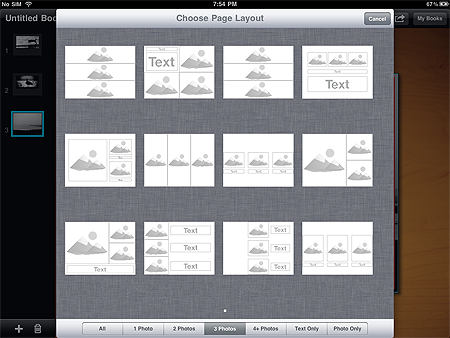
Proceeding on a page by page basis allows easy reviewing of your work. You can make changes and rearrange the pages order as you see fit in any moment. It’s not possible to switch from a template to another after the page is created: if you want to change template, you have to create a new page. Using the “Set to default” feature, you can adopt your custom settings for the whole ebook instead of repeating the same process for each page individually.

To have an idea of how your project is actually proceeding, you can generate a PDF preview. The easily accessible preview is especially handy to know at any stage of your creation process what are the details that need to be changed, how your photos will look on your final ebook, and so on.
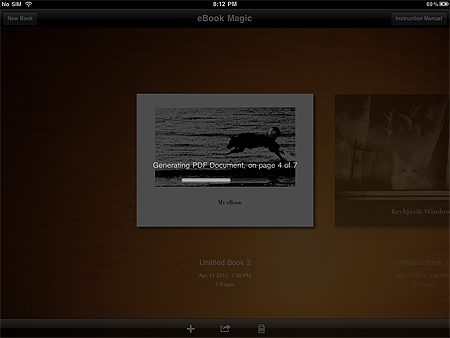
There are a few details about this app that in my opinion would be worth changing or improving. First of all, the fact some customizable elements aren’t really that customizable. The lack of possibility to handpick colors for backgrounds and for fonts is one of the aspects I am referring to. For instance, I noticed that the black color you can choose from the color panel doesn’t really appear to be pure black, so it didn’t go well as a background with the photos I had selected. I could have tried creating a black image to use as a background instead, but having to resort to this workaround just for selecting colors seemed kind of ridiculous. I’m not even sure if this solution would have worked or not.

Also, this app is crash prone for me. I tested it on iPad, so it could be things work smoothly for iPad 2 users. Apparently, working with high resolution photos (2500+ pixels, 300 dpi images) easily triggers memory issues, causing the app to crash after just a few minutes; this happened to me especially while adjusting text on pages containing both text and photos.

Finally, ready-to-use templates inevitably cause trouble with cropping. You can zoom in and out to adjust the cropping a little, but making it work all right inside the templates, if you have photos that are cropped to the millimeter, is very hard — if not impossible sometimes, especially in pages that are supposed to contain more than one photo.

Still, it must be said  this app definitely brings value to iPad users that are into photography.

eBook Magic is a fantastic app that, thanks to an uncluttered interface, great ease of use and fair customizability, will undoubtedly please those wanting to make use in a more practical way of their photography. eBook Magic is a valid alternative to many ebook creators like those you can download or access through several online print-on-demand services. From what I could see, this app is even better than those eBook creators, because to a certain extent it allows more flexibility.

However, remember that full customization isn’t possible with eBook Magic, so it’s not advisable to completely rely on this app for creating professional eBooks.

Overall

Name: eBook Magic
Developer: Evergreen Ruby LLC
Compatibility: iPad. iOS 3.2 or later.
Price: £1.79||$2.99||€2.39
Vote: 4/5


eBook Magic - Evergreen Ruby LLC

TTV Camera: At This Stage, Nothing More Than A Nice Idea

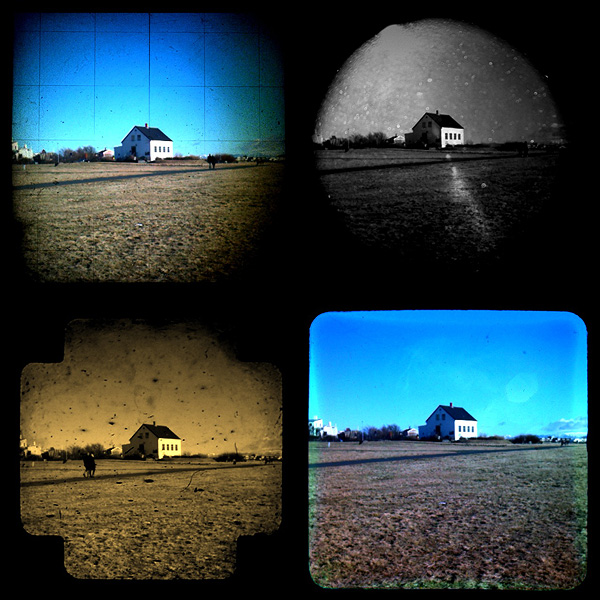
Through the viewfinder photography, or more simply TtV, is a photographic technique which consists in shooting photos with a camera through the viewfinder of another camera. Very often the top camera, the one used for taking the actual photo, is a digital one, while the preferred surrogate viewfinder, the one of the bottom camera, belongs to a twin-lens reflex (TLR) camera. The two cameras are usually connected together through a contraption made of cardboard boxes, plastic or plumbing tubes and other materials. Because of the angle of the TLR camera, pictures taken with this technique are mirrored and need to be rotated in order to be used, especially in presence of lettering. Also, since the format of the bottom TLR camera and that of the top camera differ, the first being usually square, some cropping is required in post-processing.

TtV photography is characterized by intense framing, vignetting and presence of imperfections like dust, scratches or unexpected blurred areas. This photographic technique, allowing unique combination of old and new to obtain sometimes extremely stylized results, has become fairly popular with the advent of digital photography.

Main Features

  • Up to 640 x 640 pixels resolution;
  • Real-time processing;
  • 15 effects;
  • B&W and Sepia toning on/off;
  • Switch between back and front facing camera.

Appotography Opinion

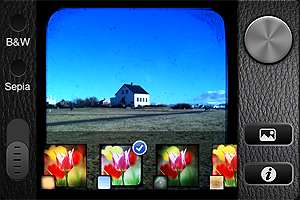
TtV Camera by Taplayer tries to bring to the iPhone the look and feel of Through the Viewfinder photography. What TtV Camera does, basically, is to stick a colored TtV texture on top of what you see through your viewfinder. The effects are all ready-to-use, you don’t have to make any adjustments. The app is as basic as it can get, with no sharing options or other extra features whatsoever.

You open the app and point the camera at your subject of choice. From the menu appearing at the bottom,  you select your effect among the fifteen available. Everything works in real time, so you have a precise idea of the effect that’s going to be applied before tapping on the shutter button. By tapping on the B&W or Sepia buttons, you can apply the same effects but with a desaturated or Sepia toning. When you are pleased with what is shown in the preview, you simply tap on the shutter button and your image is directly saved to the Camera Roll.

TtV Camera app by Taplayer for iPhone

The effects of Taplayer’s app are all right, especially some of them, but the fact the output resolution is so small greatly limits the usefulness of the pictures taken with TtV Camera. On their site, developers state the small resolution is at this stage necessary to make the real-time processing work smoothly. This may be true, but of course it doesn’t change the fact such resolution deeply affects the value of this app, especially if you compare it to other photography apps which provide convincing TtV look and higher resolution. Also, a recent release was supposed to fix an issue with rotated images. It’s true that the saved images are OK when they are saved now, but if you try sending them via email from the Camera Roll, for some reason they still appear to be rotated by 90 degrees.

TtV Camera app by Taplayer for iPhone

A few final words must be spent on the textures used in the TtV camera app: I could easily recognize some TTV textures released through Creative Commons under non-commercial license among those included in this app. After contacting the owners of the textures, I have gathered developers didn’t ask for permission to use the textures within their commercial app and they couldn’t be bothered crediting in any way the creators of the textures, either.

I don’t think I have to stress the fact this is a highly improper behavior which should be opposed — but sadly, there is little to be done about it these days. Especially from the developer of a photography app whose purpose is to make use of somebody else’s efforts extensively as it happens with TtV camera, this is totally unacceptable. In this case, I could recognize the textures right away, but I am sure there are many other developers doing the same and happily getting away with it. I don’t know how this specific matter will be settled and frankly it’s not my role to do more than reporting an improper use.

Licensing anything under Creative Commons doesn’t automatically mean the material is free to use for anybody under any circumstance. Non-commercial use means you cannot redistribute the material for a profit, unless of course you acquire a special permission to do so by the rights holder. Attribution is also necessary unless otherwise specified. I suggest to developers to carefully take a look at what different Creative Commons licenses imply before releasing their products.

Overall

Name: TTV Camera
Developer: Taplayer
Compatibility: iPhone, iPod Touch, iPad. iOS 4.0 or later.
Price: £0.59||$0.99||€0.79
Vote: 2/5

TtV Camera - Taplayer

iWatermark: Easy Universal Watermarking App

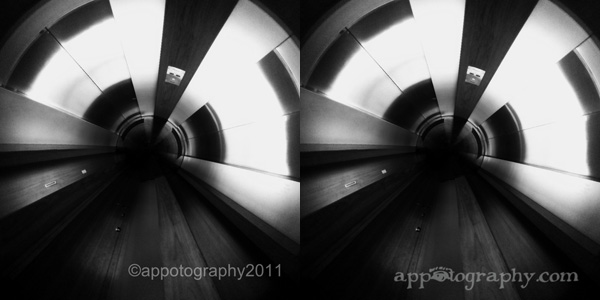
Call me naive, but I am not too fond of the notion of watermarking photos. It’s merely a problem with aesthetics, nothing intrinsic.  Photos with huge watermarks on them make me want to gouge my eyes out — but that’s probably my problem only. This doesn’t mean I can deny the usefulness or the necessity of watermarks, especially in times when everybody assumes that, just because it’s available over the Internet, any photo is free for anybody to use without even giving credit to the photographer. Alas, watermarks are one of the few weapons still available to discourage dishonest Internet users to take advantage of your creations. Again, nothing wrong with it: after all, painters have been signing their artworks for a long time now and nobody has complained so far.

Being able to watermark photos relying entirely on devices like iPhone/iPad is a concern of many users willing to protect their work, especially if intended for Internet sharing. Plum Amazing offers with their iWatermark a tool that will come in handy to anybody in need to put a signature or other recognizable mark on their photography, in order to prevent misuse and other unpleasant surprises.

Main Features

  • Create personalized text and graphic watermarks;
  • Move, resize and rotate ;
  • Adjust color and opacity;
  • 10+ available fonts;
  • Add watermarks to multiple photos at once;
  • Create QR watermarks;
  • Save custom watermarks;
  • Integrated guide;
  • Share via email, Twitter, Facebook.

Appotography Opinion

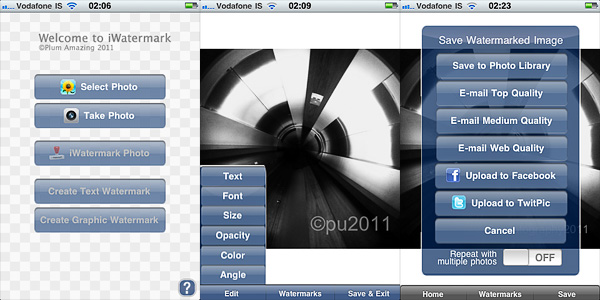
In iWatermark, it’s possible to work with photos stored in the Camera Roll, but it is also possible to use the built-in camera. The user can both create a text watermark or use graphic elements to attach to the photo. Using the app is quite easy for those who have some experience with more complex photo editing utilities. For others, using the app might require a little more effort, but a clear and extensive in-app guide was included to help beginners.

iWatermark app by Plum Amazing for iPhone

Some of the most common fonts come with the app, providing a certain degree of customization. It’s not a rich collection perhaps, but to make up for this lack of variety, it’s possible to switch from text watermark to graphic watermark creation; the latter allows to import external graphics like transparent png files to be used as watermarks. In the case of text, it’s possible to change color, opacity, size and angle of the watermark both by pinching and rotating with your fingers on screen and by moving sliders knobs for each parameter; you have access to the same parameters also for graphic watermarks, apart from the color value. You can freely move the watermark to find the more convenient placement over the base image.

In iWatermark you can also create QR (also known as Quick Response codes, bi-dimensional codes containing information of various nature) watermarks, which these days can be read by many scanning devices, Apple iPhone included — there are several  apps to decode QR codes in the App Store too.

One of the most interesting features of iWatermark, besides its full usability on multiple platforms, is the possibility to use your own graphics. Several other apps offer text watermarking, more or less as iWatermark does. But not as many offer to import custom graphics that can easily be used as pre-made logos.
iWatermark app by Plum Amazing for iPhone

What I would probably improve in this app is the selection of included fonts. Also, I would give the user the opportunity to disable the sample watermarks, which are many but frankly not very usable — who would want to attach a Tchaikovsky or a Mahatma Gandhi signature to their photos anyway? Or at least I would arrange the watermarks into separate lists, to access the custom watermarks more quickly.

Overall, iWatermark is an app that I feel like recommending: it definitely makes watermarking more accessible, quick and less frustrating.

Overall

Name: iWatermark
Developer: Plum Amazing
Compatibility: iPhone, iPod Touch, iPad. iOS 3.1.2 or later.
Price: £0.59||$0.99||€0.79
Vote: 4/5

iWatermark - Plum Amazing

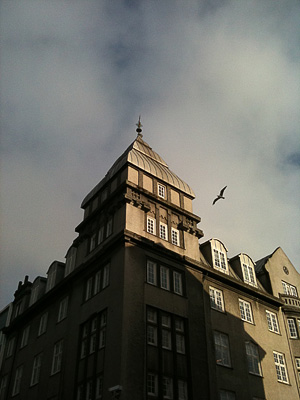
iPhone Photography Tutorials #1 – Easy Dramatic Black and White In The Film Noir Style

I’ve been asked how I achieve a dramatic black and white look on photos taken with the iPhone. I have more than a way to do it, but today I am sharing one among the processes I follow.

Sometimes you take a photo, especially of some architectural detail or building, and it looks all right at the moment of shooting; then you take a look at your photo moments later and you realize it’s sort of forgettable. The light isn’t as great as you remembered it and the final picture has too much noise; perhaps the colors aren’t stunning either. Something tells you though that you still have some use for that shot, a detail perhaps, the shadow casting, a suggestive angle, and so on. How to improve this kind of photos, adding to them a dramatic twist in the style of old school film noir?

Apps needed: Film Lab, DXP.

1. Choose your average building photo, the one that didn’t turn out as you would have liked but that for some reason you still think has some potential. The photo can be taken simply with iPhone’s native camera, but you can use also shots taken with HDR apps or fake HDR apps, like Dynamic Light;

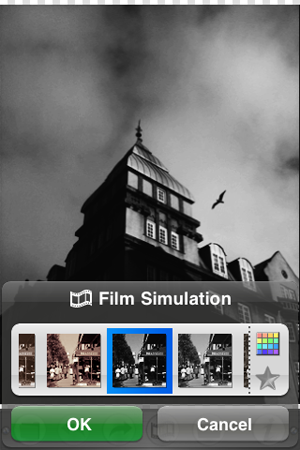
2. Open Film Lab. Choose Film Simulation -> Vintage -> Daguerreotype – High Contrast -> OK. This filter not only will turn the photo in a black and white with character, but will also enhance contrasts, bringing out the grain of iPhone shots taken in so-so lighting conditions. Adding the grain digitally usually doesn’t look very natural, so I always try to avoid it;

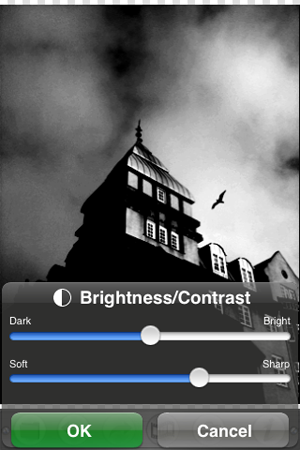
3. Still in Film Lab, go to Tool Box -> Brightness/Contrast. Increase contrast even more, so that dark areas look almost pitch black but light areas are still quite evident. Press OK and save when you are done;

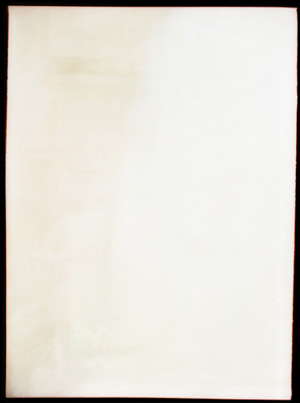
4. Browse the Internet for some vintage looking black — or at any rate very dark — frame on white background, something that will give a flair to your photo without making it look extremely dirty or scratched. There are many textures you can use for free and/or in the Creative Commons on sites like Deviantart or Flickr — but there are many others besides these two. When you find something that suits your taste, save it. It doesn’t have to be a black and white frame, you can desaturate later;

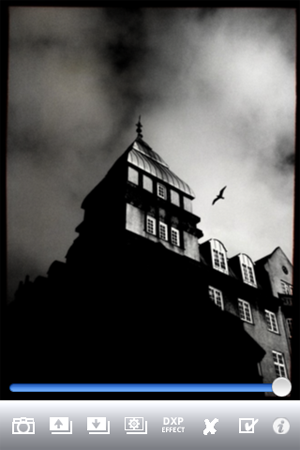
5. Open DXP -> Load from Album. Choose your edited black and white image. Load From Album again and choose your frame. Make sure that in the Settings “fit to first image size” is selected, otherwise DXP will crop the image in the case the second picture is of a different size than the first. Tap on DXP Effect -> Multiply. Move the slider knob to 100%, towards the end of the slider;

6. In the case you are working with a colored frame, tap on Effects -> B&W. This will turn your final image to B&W and will also merge both layers. Save to Album.

7. If after merging the photo with the frame you want to further adjust contrast and brightness, you can go back to Film Lab and repeat step 3 till you like the final result.

That’s it! Pretty easy, uh?

Phoster 1.1: New Templates and More

Phoster was updated to 1.1.0. The new release adds more customizability and extras. Here is what’s new:

  • New design;
  • New icon;
  • Bookmark favorite template;
  • Movable text;
  • Adjustable text font;
  • More text color options available;
  • Five new templates.

Phoster is more fun than ever: now you can move around your text and place it anywhere, pick one of the several available font faces and choose among a wider color palette to make your posters and invitation cards unique.

Five templates were also added to the already rich app’s collection. You can also bookmark your favorite template styles for browsing quickly through them.