How Do I Delete Photos From My iPhone?

Deleting multiple photos from your iPhone does not seem to be exactly straightforward for many users: this is a question we are asked often by iPhone photographers. There are actually at least four methods of deleting multiple photos that are worth mentioning: the first can be done directly from the Camera Roll and is perfect when you need to delete a few dozens of images; the others require your iPhone to be connected to your computer (Windows or Mac).

Method 1: Delete photos from the iPhone Camera Roll

1. Launch your iPhone’s Camera Roll.
2. In the top bar, you should see a curved arrow icon – tap the icon.
3. You can now select as many photos as you want in the Camera Roll.
4. When you have selected all the photos you want to delete, tap the Delete button.
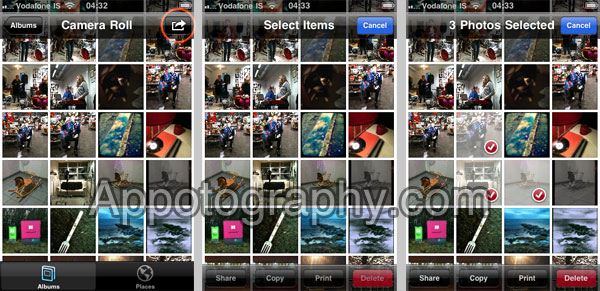
Deleting multiple photos directly from the iPhone.

Method 2: Delete photos through Itunes

Sometimes, you have so many photos in your iPhone that even the method above becomes too time-consuming. A simple way to get rid of all the photos is to delete them while your iPhone is connected to iTunes on your PC. When you transfer the photos to your PC, iTunes will ask if you want to keep the photos on your iPhone or if you want to remove them.

1. Connect the iPhone to your computer and launch iTunes
2. Go to Devices, then select your iPhone
3. Click on the Photos tab
4. Uncheck the Synch Photos option and click on Remove Photos
5. Click Apply. WARNING: This will remove all your photos!

Method 3: Windows 7 – Connect your iPhone to your computer, and access the photos directly

Simply put, use your iPhone like an external HDD.

On Windows 7 (should work also on Vista):

1. Connect the iPhone to your computer.
2. Go to My Computer, and you should see the iPhone device icon.
3. Double click on the icon,  and you should see your photos directory.
4. You can now delete or do whatever you want with the photos, as if they were on your computer HDD.

Method 4: Using Mac OS X Preview

Many Mac users do not know about this, but when you connect your iPhone to your Mac, you can move, delete, and access the photos on your iPhone through Preview. The tool is actually quite powerful, and ignored by some that (reasonably) tend to use only iPhoto to access the photos on their iPhone.

1. Connect the iPhone to your Mac.
2. Open Preview, then click the File menu and select Import From [iPhone Name].
3. An easy to use window will open, where you are free to play with your photos and delete them if you need to.
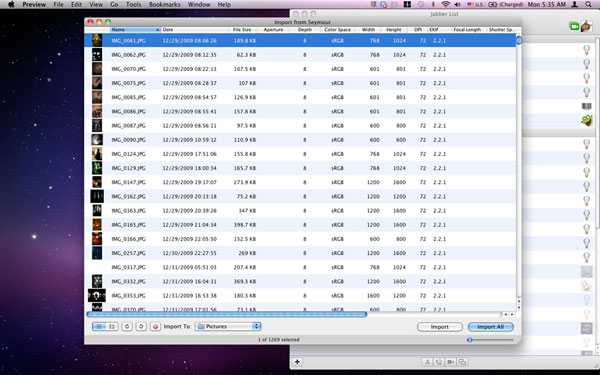
Deleting iPhone photos using Preview on Mac

If you want to delete photos from your iCloud stream, please check our latest article, available here.

If you have other methods to share, please comment!

Also, if this article was helpful, do not forget to follow us on Twitter or on Facebook – it really helps us!
Cameramatic 1.2.3 And Other Updates

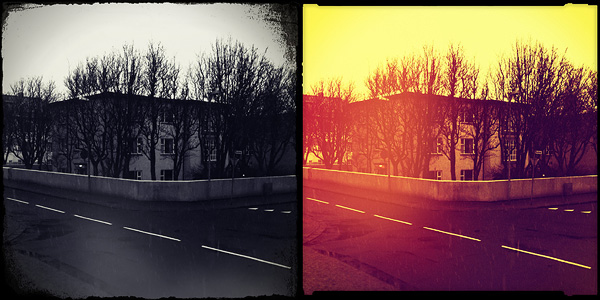
Cameramatic version 1.2.3 introduces a bunch of new filters and frames for your photos  and some other interesting features.

Here’s what’s new in detail:

  • Added 3 new filters: Retro Pop (Standard), Silverchrome (B&W), Limechrome (B&W);
  • B&W Smoky is now B&W Expired Film;
  • Added 2 new frames: Black 05, Rough 01;
  • Added 2 new light leak styles;
  • Enabled front-facing camera (on supported devices only);
  • Removed photo album button from camera interface — import photos from within Light Box;
  • Fixed minor bugs.
Cameramatic app by youthhr for iPhone.
New combinations? Yes, please.

Other noteworthy updates: iCamera HDR (2.1), PictureShow (3.1.1)

ToonPAINT, TtV Camera, PocketBooth Updates And More

A few updates were released in the last hours for apps we have reviewed on Appotography.

ToonPAINT 2.1:

  • New smoothing system;
  • New Photo and Paint color pickers;
  • Auto Color feature is now ToonColor;
  • Alpha Brush feature is now Photo Brush;
  • New preferences window to toggle Classic Zoom added;
  • Various bug fixes.

TtV Camera 2.2:

  • Added library feature for photo management;
  • Share via email;
  • Delete photos;
  • Export to photo album;
  • Double tap for full screen preview;
  • Switch flashlight (iPhone 4 only);
  • Improved video preview performance (from 12fps to 30fps);
  • Enhanced effects;
  • New icon.

PocketBooth 1.3:

  • New 1975 setting;
  • Added EXIF data;
  • Twitpic for posting to Twitter;
  • Various bug fixes.

Other noteworthy updates: iLabeler (1.1.0), Xprocess (1.1.1).

GIFVid Review

As probably all of you already know, GIF (which stands for Graphics Interchange Format) is a widely used image format which, for its characteristics, is especially suited for web use. It was introduced back in 1987 by CompuServe, a subsidiary of AOL, one of the major online service providers in the US. GIF is a compressed format which supports a palette of up to 256 colors per image, which is incompatible with requirements of high quality photography. However, GIF supports animation, which is another reason behind its popularity.

Sharing animated GIF images on the web, on social networks especially, has become a hugely widespread pastime, but creating the files from scratch, using image editing software not specifically designed for this purpose, can require more effort than one would expect.

With their GIFVid, developers Eiji Nishidai (of Toy Camera Analogcolor fame) and Tomonaga Tokuyama brought to the App Store a tool for easy creation of lightweight animated GIF using the Apple iPhone or the iPod Touch (both latest generations).

Main Features

  • 240 x 240 pixels resolution;
  • Choose GIF quality (from 16 to 256 colors);
  • Change FPS rate;
  • Watermark on/off;
  • Dithering on/off;
  • Share on Facebook, Twitter, Tumblr or send via email.

Appotography Opinion

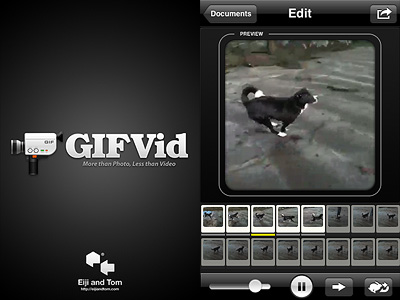
GIFVid allows animated GIF creation both by taking individual still frames and by recording short videos. In the first case, you set the time interval between shots and tap on the start button: the app will shoot as many photos as you need, until you stop it by tapping on the End button. In the second case, you simply record a video as with any other video recording app. In order to extract still frames, you can set a time interval between frames or choose the Manual mode. A third option for the creation of your animations consists in loading videos stored in your Camera Roll.

GIFVid app for iPhone and iPod Touch

GIFVid gives you several options. First of all, from the Settings you can choose file quality (from Low, featuring 16 colors only, to Best, the maximum allowed by the format with 256 colors), you can enable dithering (intentionally distributed noise to prevent pattern issues in images) and you can disable the app’s watermark. Other features you can play with concern animation frame rate, speed and direction. Last but not least, you can edit your animation by selecting and deselecting frames and by dragging and dropping them individually.

Once you are done, you can share your creation by email or by uploading it to Facebook, Twitter and Tumblr. In any case, every animation is saved within the app so that you can access each project whenever you want and make changes as you see fit.

GIFVid app for iPhone and iPod Touch
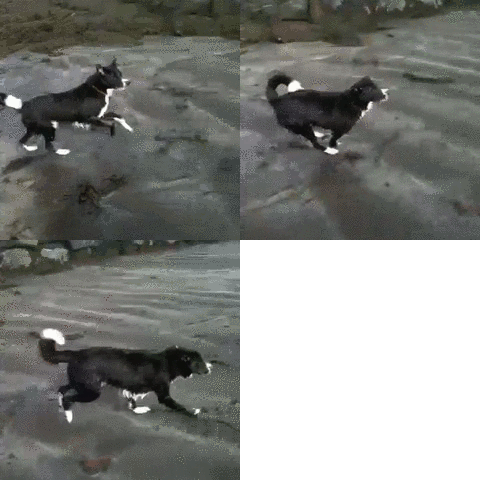
Animated GIF 12.5 fps, 256 colors.

Thanks to the lucky and functional combination format/sharing, GIFVid succeeds in giving iPhone casual and creative users alike the right balance between amusement and ease of use. As I said, GIF animations are all the rage on the web and this GIFVid makes everything about the process going from their creation to their sharing as easy as it can get. Of course, compared to videos, animated GIFs have a very limited scope of employ and for this reason perhaps some may find GIFVid a bit pricey for its possibilities.

Overall

Name: GIFVid
Developer: Eiji and Tom
Compatibility: iPhone (3GS, 4), iPod Touch (4). iOS 4.1 or later.
Price: £1.79||$2.99||€2.39
Vote: 4/5

GIFVid - Eiji Nishidai

Genius Scan+, AutoPainter And Other Updates

A few of the apps we have reviewed were updated since our last entries.

Genius Scan+ introduced with the recent updates very interesting features. Improvements to document quality were also made:

  • Higher PDF quality;
  • Choose file size when exporting;
  • Export scans to Twitter;
  • Upload PDFs to Evernote;
  • Interface in Spanish and Italian (in addition to English, French and German);
  • Faster start-up;
  • Choose default PDF page size and orientation;
  • Choose default image enhancement;
  • Crash fixes;
  • Translation fixes.

The free edition of Genius Scan was also updated, so check it out.

AutoPainter has also undergone some relevant changes.

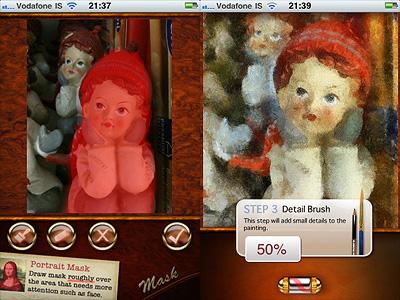
  • Portrait Mask feature added: improved realism, especially on portraits;
  • Keep All Camera Images added: save your original images to your album;
  • Performance improvements.
The New Portrait Mask feature, applied with Benson effect.

Other noteworthy updates in the course of the last hours: Silent Film Director (2.1), TiltShift Generator (1.41).

Camer8: A Classic Super 8 Camera On Your iPhone

Super 8, introduced in 1965 by Kodak as a format accessible to everybody for its low costs and ease of use, is right now experiencing a huge revival: not only in its actual analog form, but also through its many digital imitations.

With Camer8 (formerly Super 8), Booom! intended to bring to iPhone, iPod Touch and iPad the authentic feel of old Super 8 home movies.

Main Features

  • Show video up to HD resolution;
  • Two filters with three intensity levels for each (light, medium, heavy);
  • Recording limit on/off;
  • 12 or 18 FPS.

Appotography Opinion

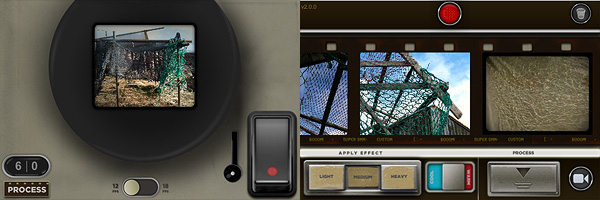
Camer8 lets you process videos taken from within the app — not external videos. Before recording your video, you have to choose among 12 or 18 FPS (Frames Per Second, the number of still frames displayed per second). You can set either of those as a default from your device settings. In general, given the phenomenon of persistence of vision in relation to human mind, the briefer the interval between still images, the smoother the perceived movement. Original Super 8 worked at 18 FPS; the most widely used standard for film is 24 FPS, although today there are many other popular formats (25, 30, etc.).

Camer8 app for iPhone by Booom

To record a video, you either keep the trigger button pressed or you tap on the latch, which will keep the trigger pressed in your stead. In both cases, a large viewfinder is brought up and you have a clear view of what you’re actually recording. You have a default time limit of sixty seconds per recording session, which is a lot better than the previous twenty-second limit of the first releases of Camer8; if it weren’t enough, this can be disabled or changed from Settings. Enabling recording time restrictions can be seen as a way to bring back the limitations of the original medium, although Super 8 allowed a much longer continuous filming time (a little more than three minutes per reel).

The recorded material is sent right away to the Camer8 Process Lab, a gallery where all unprocessed videos are stored. The filters add a colored layer of a warm golden color or of a cobalt blue over the clips, other than some dirt, scratches and dark framing. The intensity of the filters varies a little depending on whether you choose light, medium or heavy processing. Overall, the filters are quite good. You can filter the same video clip over and over, choosing warm or cold effect and different intensity every time. Rendering times are perfectly in the norm; to make things easier you can add to the processing queue several items at once — in this case, be careful because the app may crash if too many items are added. Processed videos are saved directly to your Camera Roll.

Compared to other video processing apps in the same league, Camer8 lacks some useful features, especially in the sharing department and, from my experience,  it’s also crash-prone. The effects, however good, are not as eye-catching as the ones of this app’s direct competitor, iSupr8. Still, Camer8 is a fairly decent app and a valuable addition to your collection, especially after the last update which fixed some of its major issues.

Overall

Name: Camer8
Developer: Booom!
Compatibility: iPhone 3GS-4, iPod Touch, iPad 2. iOS 4.1 or later.
Price: £0.59||$0.99||€0.79
Vote: 4/5

Camer8 - Bits of Cat Software

iSupr8 and iCamera HDR Updates

iSupr8 and iCamera HDR were updated respectively to version 1.4 and version 2.0.

What’s new in iSupr8:

  • iPad2 Support;
  • AirPlay support;
  • Browse and share videos on iSupr8 community;
  • Enabled location service off on video uploading;
  • Corrected GeoTagging for Northern hemisphere;
  • Improvement on video metadata;
  • General performance improvements.

What’s new in iCamera HDR:

  • Substantial improvements to the tone mapping algorith, for producing significantly better images;
  • Minor bug fixes.

iPhone Photography Ttutorials #2 – Painterly Aged Photo Effect

Antique monochrome photos have an incredible charm. Most of them not only have a strangely surreal and almost ghostly feel, but also a beautiful painterly quality: for a long time, the influence of painting over photography was very strong and photographers often tried to imitate stylistic principles followed by painters.

With just a few easy steps, I intend on demonstrating how to achieve the evocative feel of aged photos on your iPhone. This is just one of the many processes you can follow.

Apps needed: iCamera HDR, Iris Photo Suite, Plastic Bullet. Optional: Bracket Mode.

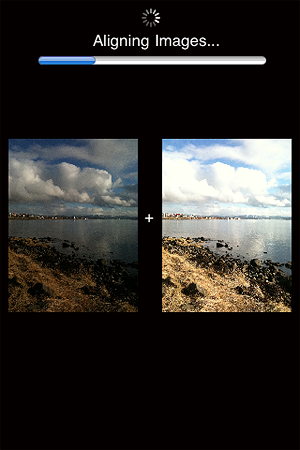
1. Take two bracketed exposures of a landscape of your choice. Daylight photos featuring skies with significant detail (huge, fluffy clouds, etc.) will work better. You can either take your exposures directly within iCamera HDR or use Bracket Mode, whatever makes you feel more comfortable. If you already have photos you want to use, jump to step 2. If you have the HDR composite, go to step 3;

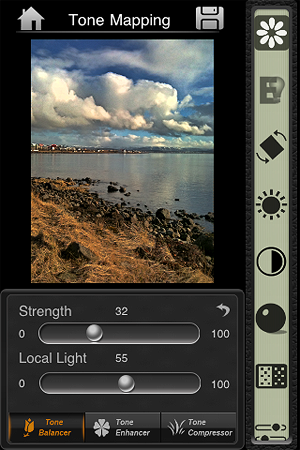
2. Merge the exposures in iCamera HDR, choosing Tone Balancer. Adjust the parameters to obtain rich, neatly contrasted details, without exaggerating with overblown brightness, and then save;

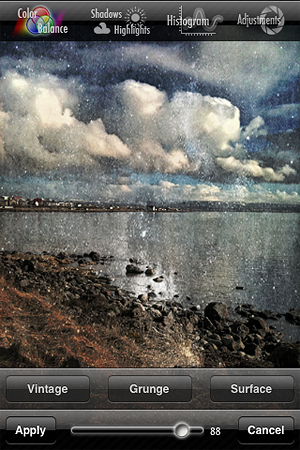
3. Open your saved HDR picture in Iris Photo Suite. Tap on the layers icon  -> One Touch -> Grunge. For this example, I picked Noise, but you can go for one of the other effects, if it suits your photo better. Leave the value to around 100 or little less, so the effect enhances the contrast of your image. Apply and save;

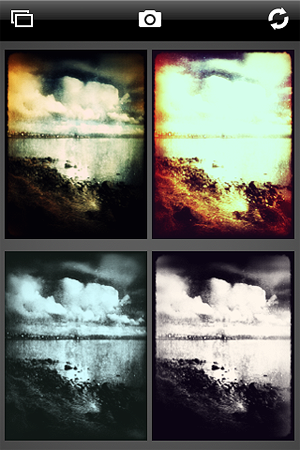
4. Load the image you just saved on Plastic Bullet. Our aim is to have our final image look like an old, aged picture; Plastic Bullet’s monochromes are particularly convincing for our purpose. Generate random styles by pressing on the refresh button until you obtain something that has the right balance of blur and brightness: we want the picture to look old and deteriorated but we want at the same time to preserve as much detail as it is possible. I decided to go for a dark silver tone with a thick border. When you find a style you like, save to your camera roll and you’re done!

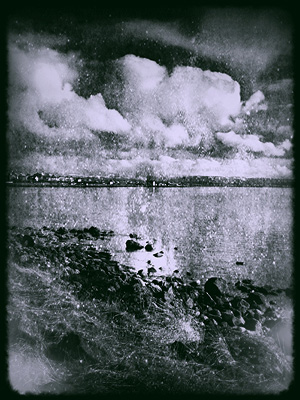
And here is our final result:

PictureShow, TiltShift, ShakeItPhoto And Other Updates

PictureShow by Graf got a substantial update and it’s now version 3.1. What’s new in the latest release?

  • Eight new presets;
  • Missing frame and noise styles are back;
  • Lens kit support on iPod 4 over iOS 4.3.1
  • Added Reset All button;
  • Added High Quality Preview option;
  • Minor bugs fixes.

TiltShift by Michael Krause is now version 2.3. The new features concern the resolution of saved images.

You can now have the possibility to save a half size or full size photo whatever the resolution or filter type is. The maximum output resolution was increased to 16 megapixels on the iPhone 4 and to 18 megapixels on the iPad 2.

Finally, Banana Camera’s ShakeItPhoto‘s latest update to version 2.0 adds the new Polaroid frame to the classic instant one previously included in the app.

Other minor updates in the last hours are for the following apps we have reviewed in the past: Lo-mob (v. 1.4.58), Panoramatic 360 (v. 4.4.1), Instagram (v. 1.6.1).

Silent Film Director Review

Once upon a time, MacPhun released a video editing app called Vintage Video Maker, a nice but perhaps a little overlooked video utility to turn videos into old looking footage. This story has an happy ending: Vintage Video Maker was recently upgraded and its name was changed to Silent Film Director. With enhanced features, a newly designed UI and more stability than its predecessor, Silent Film Director is what you need for giving your plain videos a beautiful vintage flavor.

Main Features

  • Up to HD video resolution;
  • Six vintage film styles;
  • Add custom soundtrack;
  • Accelerate or slow down footage;
  • Crop video clips;
  • Add title cards and transitions;
  • Share via email, Facebook, YouTube.

Appotography Opinion

As I said, Silent Film Director allows users  to process their videos in a delightful retro style. MacPhun’s app is more than that though: it also allows basic video editing, which includes cropping, adding transitions, title cards, and custom soundtracks.

Silent Film Director is available in two versions: one called Standard, that is basically what you get with your initial purchase, and the Pro one, which requires an additional in-app purchase (£0.59||$0.99||€0.79).

The Standard version mainly allows video post-processing. You can record the video from within the app or load it from the camera roll. You can also import external videos to your device through iTunes and ftp connection.

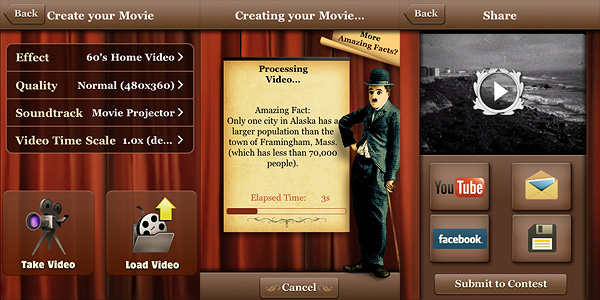
Silent Film Director App for iPhone by Macphun

Six different styles are available for giving your videos a believable vintage look. Choices range from the dusty and scratchy black and white of 20’s films to the washed-out and overly saturated lo-fi style of 70’s home movies. All the effects are very well-done. Other than applying filters, you can choose a soundtrack from the app’s limited selection, from your iPod or from your computer  — and of course, you can choose to keep the original audio of your video. As a bonus, you can also alter the video’s speed, decreasing or increasing it.

Rendering times are very fast compared to other apps, even on older devices — thumbs up to developers for the amazing improvement from the older Vintage Video Maker app. After you generate your processed video, you can either save it, mail it or share it on Facebook and Youtube.

The Pro version lets the user create more complex projects than Standard mode. It’s in fact possible to add more video clips to a single project and to enrich it with photos, transitions, and titles; by dragging and dropping each element independently and by cropping segments of footage, you have a portable editing studio at your fingertips. When your project is complete, you can proceed to the post-processing stage and then you finally save.

For the quality of the effects, for the features included, for the clear and stylish interface and for the overall experience, Silent Film Director deserves a full score. If you’re into all things vintage, this is one of the apps you must have in your collection.

Overall

Name: Silent Film Director
Developer: MacPhun
Compatibility: iPhone, iPod Touch, iPad. iOS 4.2 or later.
Price: £0.59||$0.99||€0.79
Vote: 5/5

Silent Film Director - MacPhun LLC