GoPano Micro: 360-degree Videos for iPhone 4

It is not a mystery that iPhone-related projects on KickStarter are always very popular. Anyhow, the success of GoPano Micro (KickStarter page here), a lens for iPhone 4 that will let users take panoramic videos at 360 degrees, is still remarkable. With less than 48 hours left to the end of the fundraising, more than 2500 backers have pledged to the project, for a grand total of nearly $160,000: 8 times the prefixed $20,000 goal.
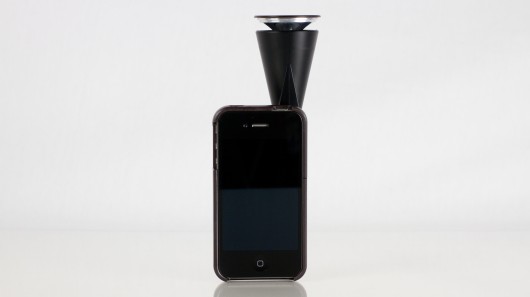
 

KickStarter's fundraising has been a huge success for this special lens for iPhone 4

As usual for KickStarter projects, people pledging to the project will get some rewards; in this case, if you pledge $50 or more, you will be sent a GoPano Micro as soon as it becomes available, for less than the planned retail price of $80, according to EyeSee360, the company producing the lens and specialized in producing tools for panoramic imaging. The physical product must still be produced, so it will take a while before backers can get their hands on their lens.

As interesting and cool as the idea might seem, GoPano Micro has also its drawbacks. Once you have taken a video with your iPhone 4 equipped with the custom lens, the data must be uploaded to EyeSee360’s website for processing and sharing with the world through their 360-degree video player; a viewer app will also be available for iOS platforms. At this point, it is not clear if GoPano Micro will allow some export feature (for example, what if I want to extract a traditional single point of view video from the overall 360-degree video?). A video in the project’s page and following speculation seem to point to the fact that it will be possible to export the video in some player-independent format.

Another issue is obviously the final output resolution; since the 360-degree data must be compressed into the iPhone 4’s camera input, the single point of view video will be in lower resolution and quality than a normal video taken with an iPhone 4.
Magic Hour Review

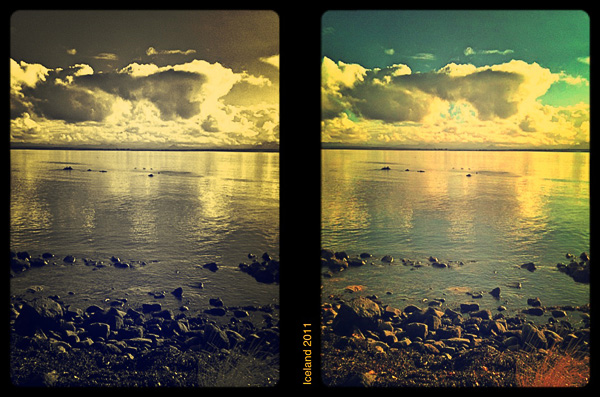
Magic hour, better known in photography as golden hour, is a term used by cinematographers to describe the first and last hour of sunlight of the day. The magic resides in the fact during these hours the quality of light is  warm and diffuse and shadows are longer but less harsh, thus producing the best photographic effects. The term is used loosely to indicate a precise hour, so it would be more correct to consider it as a variable period of time in which the light acquires its special quality. In fact, changing seasons and latitudes, the golden hour can extend its magical properties to up to several hours daily. In places like Iceland, for instance, it’s possible to experience some of the longest and most extraordinary golden hours possible.

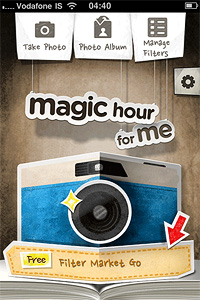
Magic Hour is now also a photo app by Kiwiple: take photos, create and add custom effects, share them with the world.

Main Features

  • Up to 640 x 640 pixels resolution;
  • Full screen shutter button;
  • Exposure control;
  • Square format;
  • 40+ filter presets;
  • Adjust curves, saturation, brightness, contrast;
  • 8 vignetting styles;
  • 20+ textures;
  • 12 frames;
  • Save and share custom filters;
  • Share via Dropbox and on Facebook, Twitter, Flickr, Tumblr, Foursquare, Cyworld, me2day.

Appotography Opinion

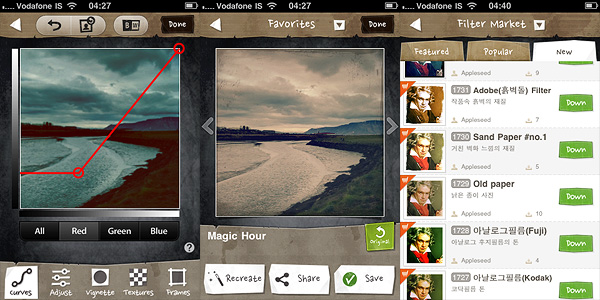
Magic Hour combines the features of a camera and those of a simple but effective filter making utility. You can take your photos and edit them right away using one of the presets coming with the app. If you’re a little more adventurous, you can create your own filter by playing with various settings as brightness, contrast, curves and by adding vignetting, textures and borders. After your filter creation is complete, you can add name and description to it and share it on the Filter Market.

Magic Hour app for iPhone by Kiwiple

The Filter Market is definitely the most interesting feature in Magic Hour. You can browse through filters created by other users and download them for free to expand your collection. Filter exchange is something many other apps could offer — but as a matter of fact, they don’t or, if they do, the process to acquire new effects is extremely convoluted or, at any rate, not very user friendly. Magic Hour makes filter sharing incredibly easy and fun.

Magic Hour app for iPhone by Kiwiple

The rich presets collection would probably be enough to justify the purchase, but the developer added the possibility to create customized filters by retouching curves, saturation, brightness and contrast and by adding vignetting, textures and frames; if these were not enough, there is the Filter Market to spice  things up. Magic Hour makes taking and editing photos fun and accessible for all photo enthusiasts, including newbies.

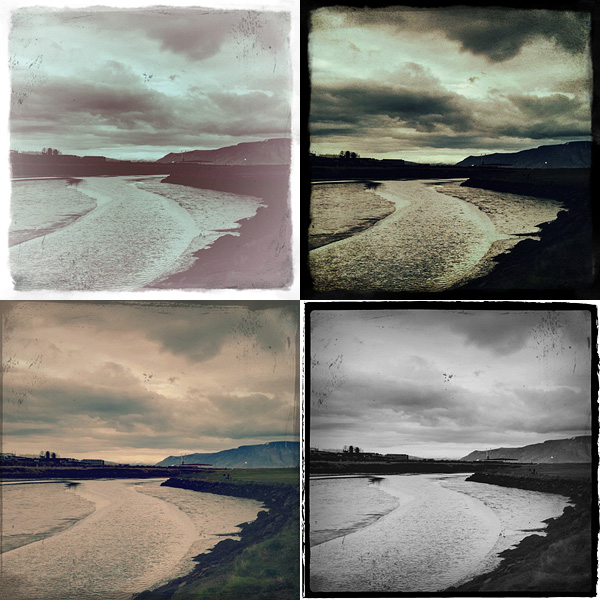
Examples of presets applied to the same photo in Magic Hour for iPhone.

The only serious problem with Magic Hour is the output resolution: too small with its mere 640×640 pixels. I was seriously disappointed when I saw the final resolution of the saved images. Unlike other users, I am not bothered by apps using exclusively the square format and the resolution issue is the only drawback to a better rating. Give us higher resolution and we will give you a full score.

Overall

Name: Magic Hour
Developer: Kiwiple
Compatibility: iPhone (3GS, 4), iPod Touch (4th), iPad 2. iOS 4.0 or later.
Price: £1.19||$1.99||€1.59
Vote: 4/5

Magic Hour - Camera & Unlimited Filter - Kiwiple

How Do I Preserve iPhone Battery?

One of the biggest problems for iPhone photographers is to save their device’s battery life. In spite of what Apple affirms about iPhone battery longevity, whoever uses iPhone camera frequently knows it is not uncommon to run out of battery at the most inappropriate moments. Sometimes, when you need to take that cool shot with your iDevice, you see your battery is gone. And you have hardly used it at all! What happened?

Here are a few tips to help you save precious iPhone battery life for when you really need it.

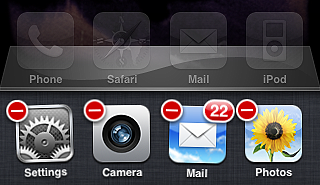
  1. Close all apps running in the background – As you probably know, iOS 4 allows multitasking. Unfortunately, most apps will keep on running in the background when you’re not aware of it, not only consuming battery, but also slowing down your iDevice’s performance. If you don’t need them, it’s advisable to kill all apps running in the background. To do it, double push quickly on the Home button, so that the multi-task bar is brought up; then hold your finger pressed on screen until a “-” sign appears on upper left corner of the application icon: by tapping on it, you will close the app.Turn off apps in the background - iPhone tips
  2. Lock your device – Locking the iPhone is something one tends to forget a lot, but it actually helps. Auto-lock may work fine for some, but it’s not the ideal option for regular camera users: the iPhone is locked at the wrong moments and you miss the right chance to take a good photo because the device is locked when you don’t need it. To avoid this, you can set the auto-lock to never and then lock the device manually when you really need it. To manually lock your iPhone, simply press the Sleep/Wake button on top right of your device.
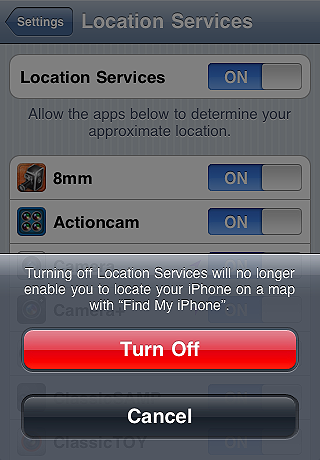
  3. Disable location services – Most apps make use of location services. However, this feature consumes a lot of battery life. To avoid this, simply turn Location Services off from your Settings.Turn off location services - iPhone tips
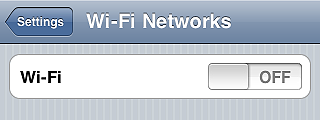
  4. Disable Wi-fi, 3G and Bluetooth – Wi-fi consumes less than 3G or Bluetooth, but it still affects your battery life greatly. If you’re not using any of these, turn all of them off from your Settings.Turn off wi-fi - iPhone tips
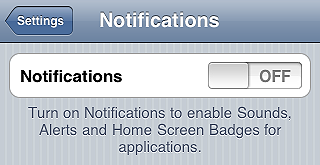
  5. Disable push notifications – Many apps, especially instant messaging apps (Instagram included), use push notifications to send alerts when new data is available. This means your device is always checking for those. If you are using apps that massively use push notifications, your battery may be affected. Turning your push notifications off, you will increase your battery lifespan and you will still be able to receive data when opening instant messaging apps.Disable push notifications - iPhone tips
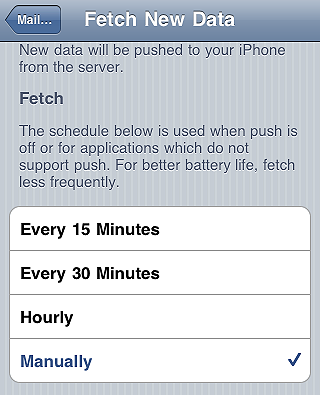
  6. Fetch data manually – If you don’t set it to manual from your settings, your iDevice will continuously look for new data at given intervals. Checking for incoming email, for instance, actually consumes a lot of battery life. Do you really need it?  You can both extend the time interval for auto-fetched data or you can go manual, so that new data is only retrieved when necessary.Fetch data manually - iPhone tips
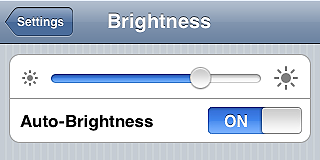
  7. Set screen brightness to auto – It goes without saying: the brighter the screen, the more battery consumed. You can decrease brightness manually from the settings, but this may not be the best choice. Auto-brightness will help you setting the screen brightness according to current lighting conditions.Set Screen Brightness to Auto - iPhone tips
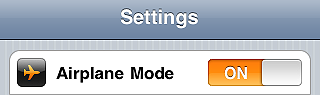
  8. Use airplane mode – Unless you intend on making or receiving calls, enabling Airplane Mode will help to consume less battery in areas with low or no coverage, since iPhone uses more power and therefore it consumes more battery when coverage is bad.Set Airplane Mode on - iPhone tips
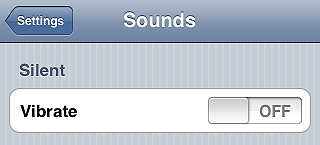
  9. Turn vibration off – Many apps, also photo apps, make use of vibration extensively. Sometimes vibration is just a gimmick and you can do without it. Try turning it off.Set vibration off - iPhone tips
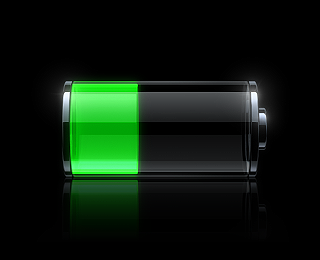
  10. Run a complete charge cycle per month – Lithium batteries work better when they’re kept active. Draining your battery completely before recharging it, helps the good functioning of your iDevice, so be sure to do it once in a while.Run complete charge cycle - iPhone tips

Do you have other tips? Share them with us!

Lumière 1.1 Update

We reviewed Lumière by nebulus design for the iPhone just after its initial release. Just recently an update was released. Here is what’s new in version 1.1:

  • New filters: TV lines, Newspaper Print, Magazine Print;
  • Optimized engine and controls;
  • Adjust filter with the newly introduced effect slider;
  • Set focus by tapping;
  • Set exposure by double tapping;
  • Choose among different resolutions (1024×768, 1600×1200, 2048×1536);
  • Better stability in photo sharing;
  • Detailed in-app guide;
  • Bug fixes.

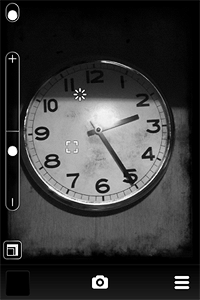
Lumière by nebulus design for iPhone

Even though you can now select resolution — still no full resolution for iPhone 4 users — and a few filters were added in version 1.1, the overall quality of the effects seem to be unchanged from the first release. Also, I have experienced a few slowdowns and the app crashed on me a few times, especially after pressing the shutter button and when trying to send higher resolution images via email.

Lumière by nebulus design for iPhone
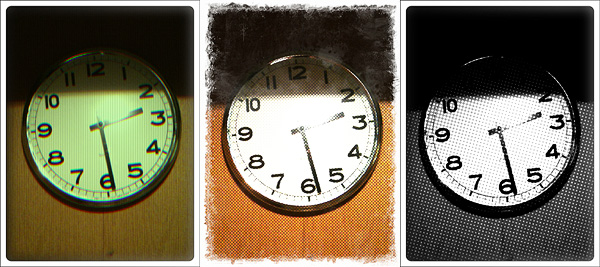
Lumière newly introduced effects tested on iPhone.

Still, it’s good to see the developer is eager to get feedback from users, therefore I am looking forward to further improvements.

Lumiere - nebulus design

Camera Genius Review

There are many options in the App Store to replace iPhone’s native camera, but how many among them are actually do-it-all? One app is excellent for taking photos, but it doesn’t take videos; another takes both but you cannot apply processing; a third allows processing but it doesn’t allow sharing. And so on and so forth.

Camera Genius by CodeGoo is one of these multi-purpose cameras meant to effectively replace the native app, throwing in more features in order to let users take, edit and share their photos and videos, all by opening a single app.

Main Features

  • Full resolution available;
  • Take both photos and videos (on supported devices);
  • Up to 6x digital zoom;
  • Exposure control;
  • Full-screen shutter button;
  • Timer and sound capture;
  • Stabilizer and burst mode shooting;
  • Grid on/off;
  • Crop photos;
  • 40+ filters;
  • 14 borders;
  • In-app manual;
  • Share via email, Facebook, Twitter, Flickr, Picasa, Mobileme, Tumblr.

Appotography Opinion

The developers conceived Camera Genius as a multi-purpose camera able to give iPhone photographers all sorts of features, commonly available only to those using several different apps at the same time. The intention is commendable: who wouldn’t love to have things made as easy as they could get?

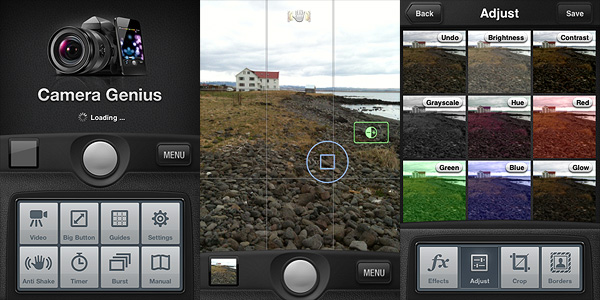
Camera Genius, which comes with two different skins — the default light grey and a greenish alternative one — allows video and photo taking, a rarity among photographic apps. It also allows processing and sharing of previously taken shots.

Camera Genius by CodeGoo for iPhone

The camera is optimized to help you take the best photos with the littlest effort. The UI is clear, uncluttered and it works quite smoothly — although the app did crash on me a few times when I was playing with exposure controls. Among the features of Camera Genius, you have anti-shake, timer, full-screen shutter button, burst mode. The in-app manual will help you getting the hang of it quite easily.

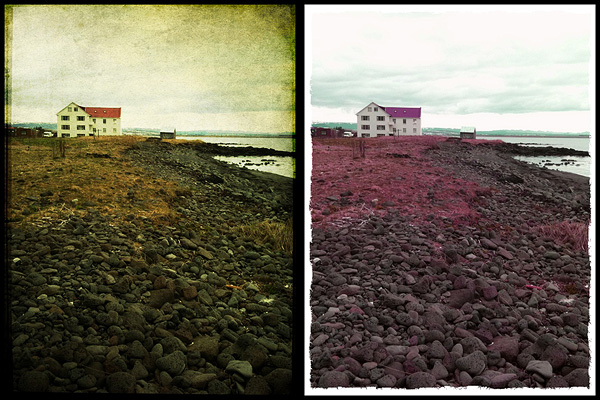
The effects are all right. I am very much against the idea of having ready-to-use filter/border combinations; thankfully not all effects merge the two together: there are borders and filters you can use independently. I said effects are just all right. In fact, there are more than a few apps out there whose same effects — black and white, 70’s, sepia, lomo, etc. — are by far more convincing and better looking. The selection is OK: it’s the quality and the customization that doesn’t really stand out. Not to forget, you cannot process videos, at least for the present moment.

Camera Genius by CodeGoo for iPhone

Is Camera Genius a good substitute for the native camera app? Yes, it is. It takes photos and videos and it has some extra features, like stabilizer, burst mode and exposure control, that are definitely an upgrade from iPhone’s native app. Taking photos can sometimes be a hassle for iDevice aficionados: Camera Genius, with its many tools, greatly improves the overall experience.

Will Camera Genius replace all my photo apps, so that I can only use one? This, I think, depends on what kind of use you intend to make of your photos: if you just take a few sparse snapshots or if you’re just into sharing your instant memories with your friends on Facebook, Twitter and so on, Camera Genius has good chances to become your ultimate app. However, if you’re more creative and you like to experiment or if you intend to convey feelings and atmospheres with your photography, I highly doubt Camera Genius is the app for you. Even in this case, a bunch of CodeGoo’s app features will perhaps come in handy now and then, but as far as editing and post processing are concerned, what Camera Genius offers is just a little above mediocrity.

Overall

Name: Camera Genius
Developer: CodeGoo
Compatibility: iPhone, iPod Touch (4th), iPad 2. iOS 4.0 or later.
Price: £0.59||$0.99||€0.79
Vote: 4/5

Camera Genius - CodeGoo

TouchRetouch Review

A cat entering the frame at the moment of shooting, an overlooked detail, a shadow or spot in the wrong place, something unexpectedly breaking the harmony of the composition: they’re all examples of how even to the greatest professionals can now and then end up with a few unsatisfying photos.

TouchRetouch by Adva-Soft for the iPhone provides users with a set of tools to remove undesired objects and details from photos. Sometimes it doesn’t take much to save a regretful photo from damnation, with the right instruments.

Main Features

  • Full resolution available;
  • Finger move hint;
  • Undo/redo;
  • Zoom in/out;
  • In-app tutorial;
  • Share on Facebook, Twitter, Picasa, Flickr.

Appotography Opinion

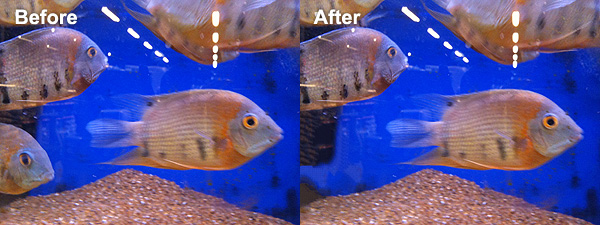
Let’s imagine I have a photo I like of my friend’s amazing fish tank, but for some reason there is one fish that materialized in the bottom corner at the last second that annoys the hell out of me. I don’t know why, I just don’t want that stupid fish to be there. Why don’t I take another photo? Maybe I just can’t, for a reason or another. Do I have to keep the photo as it is? Seems like it, but I don’t really like the idea. Then what can I do?

I open TouchRetouch.

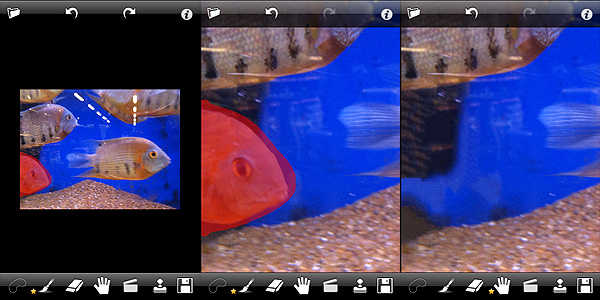
First of all, I load into the workspace the fish tank photo. I have a few options to fix the problem.

I can use the brush tool to paint a mask over the less than desired object I intend on removing. By moving the photo around with the hand tool and by pinching to zoom in and out, I can do it quickly and easily. If I make mistakes, I can undo as many times as I need or I can adjust the masked area using the eraser tool. Another method to create the mask and achieve the same result is by using the lasso.

Finally, there is the clone stamp tool, which allows sampling pixels to paint over a given area. I can set the clone stamp size, opacity and direction for better results. The clone stamp is particularly useful with patterned surfaces, like walls or paving, for example.

TouchRetouch app by Adva-Soft for iPhone

In the specific case, I said I used a photo I had taken previously, but I could have also taken a photo with the built-in camera. In both cases, the process is exactly the same.

TouchRetouch app by Adva-Soft for iPhone

TouchRetouch is one of these must-have apps that you will inevitably find yourself using, eventually. Adva-Soft’s app will definitely add value to your collection.

If you want to see how the app works before buying, why not getting TouchRetouch Free?

Overall

Name: TouchRetouch
Developer: Adva-Soft
Compatibility: iPhone, iPod Touch, iPad. iOS 3.1 or later.
Price: £0.59||$0.99||€0.79
Vote: 5/5

TouchRetouch - Adva-Soft

PhotoToolbox Review

Are you tired of using the same effects all the time on your iPhone? Do you want to make your own filters? Do you want something different but you do not have any ideas? Do you think you could use some help from random effect generation?

If any of the above is true, perhaps developers at Sun Inlet Labo have something for you: their PhotoToolbox allows you to fully customize your filters or to have them randomly generated by the app. PhotoToolbox is a good option when you don’t want to rely exclusively on pre-made filters for your iPhone photography.

Main Features

  • Full resolution available;
  • Angle lock on/off;
  • Full-screen shutter button on/off;
  • Geotagging on/off;
  • Undo/redo;
  • Random filter;
  • Save and import/export custom filters.

Appotography Opinion

PhotoToolbox can be used either with the built-in camera or with photos stored in your device. While shooting, a square indicator will help you in taking straight photos by turning yellow when the device is being held vertically. Tapping on the Angle Lock Button, you will be able to enable automatic shooting when the device is held at a given angle. This feature is especially useful if you are taking self-portraits. Another feature you can enable for easier shooting is the Full-screen shutter button that, as the name suggests, will turn the whole iPhone screen into a shutter button.

PhotoToolbox app for iPhone by Sun Inlet Labo.

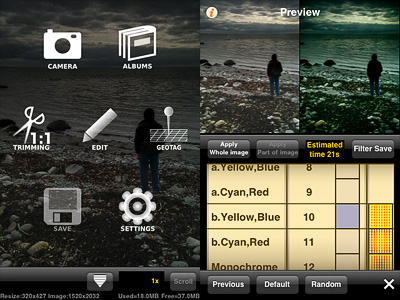
Once you have your photo, you can apply post-processing. By tapping on the Filters icon, you have access to several parameters that you can adjust by scrolling different wheels individually. The first wheel sets the parameter (Brightness, Contrast, Saturation, Hue, Vignette, Blur, etc.), while the others influence intensity and affected area. From the Preference screen, you can choose to enable or disable any of the app’s variables or you can set their overall strength. By combining variables together, you can create highly personalized presets, which you can save and reuse later. Thanks to the preview, you can know how your changes are going to affect your pictures at all times. PhotoToolbox also allows importing and exporting presets.

PhotoToolbox app for iPhone by Sun Inlet Labo.
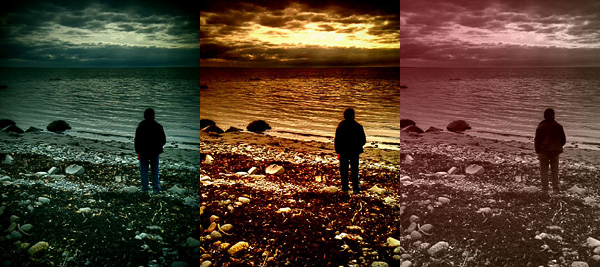
Examples of custom filters in PhotoToolbox.

With the exception of borders — an extra not included in Sun Inlet Labo’s app — PhotoToolbox is a bit like Infinicam, both in the way you can generate almost endless effects and in the way you can save them for further use. The difference with Infinicam, which only allows random generation, resides in the fact you can actually create your filters from scratch in PhotoToolbox. This in my opinion truly makes a difference, but it is also the greatest obstacle to full enjoyment of this app. PhotoToolbox is not a perfect app: first of all, it requires time to be used at its full potential. The effects you can achieve are many, but getting to know and mastering all the features is definitely not a cinch. The initial difficulties might drive more than a few users away.

I can definitely see myself using PhotoToolbox as often — if not more — as I am using Infinicam. It would be nice though to make the Import/Export filter more user-friendly and straightforward: as it is now, it’s somewhat clumsy.

PhotoToolbox is one of the most interesting things I have seen in the Photography category of the App Store in some time. If you have patience and you like to tweak, you should try it. I am confident it will be rewarding.

Overall

Name: PhotoToolbox
Developer: Sun Inlet Labo.
Compatibility: iPhone, iPod Touch, iPad. iOS 4.1 or later.
Price: £1.19||$1.99||€1.59
Vote: 4/5

PhotoToolbox - Sun Inlet Labo.

HalfCamera Review

Half-frame cameras, also known as split-frame or single frame, are cameras using an 18x24mm format on regular 35mm film. Exposure orientation on these devices is vertical, whereas it is horizontal on average 35mm cameras. Half-frame cameras allow taking twice the number of exposures that would normally fit onto a roll of film. Each exposure taken with split-frame devices occupies on film half the space than that of devices using the standard format.

The technology used by split-frame cameras was originally developed for being used in movies, thus the definition half-frame — as opposed to standard — is only applied to still cameras.

Not only thanks to the fact they allowed taking double the amount of pictures than standard devices using the same film, but also thanks to their compact and stylish design, half-frame cameras enjoyed a great popularity, especially during the 60’s. While not as popular as before, they’re far from being extinct. Half-frame cameras are still in production up to this day.

HalfCamera brings to the iPhone the fun of authentic split-frame cameras.

Main Features

  • Up to 1208 x 800 pixels (3GS);
  • 12 effects;
  • 12 border styles;
  • Viewfinder grid on/off;
  • Flash on/off (on supported devices only);
  • Switch between rear and front camera (on supported devices only);
  • Share on Twitter and Facebook.

Appotography Opinion

With HalfCamera by B1VISUALEFFECTS, it’s possible to create diptychs, applying effects, frames and text. It’s possible to both import photos from your device and use the built-in camera.

HalfCamera by B1VISUALEFFECTS

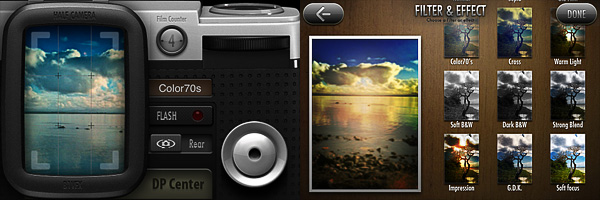
You take each shot separately, choosing a filter among twelve available. The effects, definitely not overdone, cover a variety of styles, from classic black and white to cross process. Shots are stored in the app’s DP Center in batches of twelve, simulating film, which means you can take up to twelve shots in succession before HalfCamera switches to the next batch. Single photos are also saved to your Camera Roll.

At any moment, you can retake any of the shots in a batch. On the other hand, if you choose to apply a filter when taking the photo, you cannot change it later from the DP Center: by choosing a new filter from the Filters & Effects screen, you will have your photo filtered twice and this may not be intuitive at all at first. You can choose any consecutive couple of pictures in the film batch for your diptych creation.

After you pick your two photos, by tapping on the Printing button, you’re introduced to the text editor, which you can use to input text of your choice to the inner border of your diptych. After that, all you have to do is picking a frame among the twelve available — ranging from classic film to grungy borders — and save.

HalfCamera by B1VISUALEFFECTS

If you decide to load the photos from your device, the process is more or less the same. You load your photo, adjust it to the frame by pinching and zooming, choose a filter, add text if you wish, choose a border and then save or share your image.

HalfCamera by B1VISUALEFFECTS

The UI of HalfCamera is very polished and appealing, although understanding how the whole process leading to the final picture works in the very beginning may be perceived as very chaotic. Also, getting used to the notion of working with bundles of shots and in couples may be confusing at first. However, final images are very pretty and this probably is the strongest point of this app: it invites the user to make the most out of it. The idea behind HalfCamera retains some of the unique charm of actual split-frame devices, lending itself to a series of creative uses that is up to the photographer to discover.

Overall

Name: HalfCamera
Developer: B1VISUALEFFECTS
Compatibility: iPhone, iPod Touch, iPad. iOS 4.0 or later.
Price: £0.59||$0.99||€0.79
Vote: 4/5

HalfCamera - B1VISUALEFFECTS Co.,Ltd

Top Free Apps For Your Photography Needs Pt.1

Free iPhone and iPad apps are sometimes overlooked. Yes, overlooked. If it’s free, it’s not as good as if you have to pay for it. This is a general assumption for more than a few users. Well, to get it straight: this isn’t always true. Some free apps can get the job done as effectively, if not better, than paid apps.

In a series of specials, we want to bring our favorite free apps to our readers’ attention.

Instagram

Instagram has become, thanks to its dedicated users, one of the most popular phenomena connected to iPhone photography. Instagram is a little of everything: a camera featuring a bunch of effects to spice up your photos, a tool allowing easy sharing on multiple networks, a lively community where it’s possible to meet thousands of iPhone photographers from all around the world.

Instagram Top Free Photography App For iPhone Pros: Easy photo sharing on most social networks. Some of the finest retro-looking filters available in the App Store.

Cons: Small output resolution. You need to be registered to Instagram community to use the app.

Actioncam

Actioncam is packed with many formats and filters. Shoot from 3 up to 9 pictures in a given time interval, or enjoy the creative freedom offered by manual mode.
Instagram Top Free Photography App For iPhone Pros: Use Actioncam as a full-fledged multishot camera and as a classic photobooth.
Cons: None.

Genius Scan

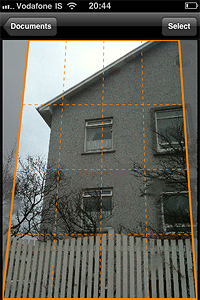
Genius Scan is a pocket scanner able to export documents both in JPG and PDF format, but this app’s possibilities go well beyond document scanning: for instance, it’s possible to use Genius Scan to straighten and adjust perspective in photos taken from wrong angles.

Genius Scan Top Free Photography App For iPhone

Pros: Very effective page detection and perspective correction.
Cons: Less features than Genius Scan+, the paid version of the app. If you need more flexibility in sharing your documents, you’ll need the full version. However, the basic features of the free release are fully functional.

Photosynth

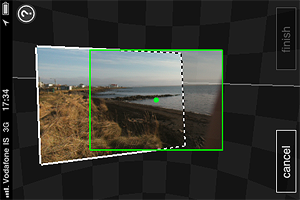
Photosynth allows both creation of interactive panoramas and of panoramic still images to be used as any other photo.
Photosynth Top Free Photography App For iPhone Pros: The capturing process is intuitive and immediate. The Auto Capture feature helps you to get yout panorama together with less effort.

Cons: Creating a panorama on Photosynth is easy, but creating a good one may be tricky, especially at first. Be sure to read the in-app guide to get the most out of Photosynth.

Dropbox

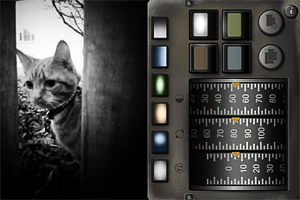
Dropbox is a service that greatly simplifies files management, allowing users to back up and share files from anywhere. Also, with Dropbox you can access files stored in your computer in any moment.
Dropbox Top Free Photography App For iPhone Pros: Easy way to back up your photos and videos on-the-go.

Cons: Need to set up a Dropbox account before you can use it. Need access to an Internet connection to save files to Dropbox.

This was part one of our brief overview. Do you have any favorite free app? Feel free to comment and let us know!

Noir Photo Review

Film noir is a denomination associated with crime films from the 40’s and 50’s. Although the term is commonly identified with Hollywood’s production, examples of film noir can be found before and after the aforementioned two decades and outside Hollywood. As a matter of fact, many of the most renown film noir directors were émigrés, especially from Austria, Germany and Eastern Europe, who arrived in America in the late 20’s and 30’s as a consequence of the political turmoil preceding World War II. You have probably heard of Josef von Sternberg, Fritz Lang, Michael Curtiz, Otto Preminger, Billy Wilder and, of course, Alfred Hitchcock. These are just a few of the most representative names that come to mind speaking of film noir.

Categorization of film noir is nothing but a vague notion and in some cases, cinema critics and historians have contrasting opinions. Even if we accept the point of view of those that consider film noir a genre on its own, there is no such thing as common ground when it comes to style and motifs. However, most examples of film noir are characterized by well-defined stylistic traits, first of all the extreme use of low-key lighting and the highly eloquent use of black and white.

Red Giant‘s Noir Photo takes inspiration both for its name and for its idea from film noir’s highly stylized looks. There are those taking snapshots just for fun and those wanting their photos to convey a feeling or tell a story. Noir Photo will delight the latter group.

Main Features

  • Full resolution available;
  • Six presets;
  • Adjustable contrast and exposure;
  • Adjustable vignetting;
  • Save custom presets;
  • In-app guide.

Appotography Opinion

Given the expertise of Red Giant, it’s not a surprise the UI of Noir Photo works so smoothly and everything is so simple and user-friendly. The app presents a very straightforward approach to photo editing: in a single screen, you have access to all the necessary features. A concise in-app guide is included for reference.

Noir Photo universal app by Red Giant Software

You upload a photo from your device. As a starting point, you have six presets ready for use. If you prefer, you can make your own presets by setting each parameter according to your personal need.  The app not only allows quick conversion of pictures into rich black and white monochrome, but also easy relighting, which is particularly important for granting photos a highly stylized, expressive effect.

The three dials representing three different parameters, with values ranging from 0 to 100, are at the core of Noir magic: Contrast, Inner and Outer Exposure. Each of these settings will influence your picture’s lighting. By playing with their values, you can have your photo look like average black and white or extremely contrasted and highly dramatic.

Vignetting is another crucial element in Noir Photo. Vignetting changes when you adjust Inner and Outer Exposure values, but it’s by pinching to enlarge and contract it or by moving it around that you actually affect the photo. The four available color tints are the final touch to widen the possible combinations and the effects you can achieve. The preview lets you know in every moment how your photo will look like.

Noir Photo universal app by Red Giant Software

It’s undeniable that Noir Photo’s developer’s expertise shows in the app’s incredible sleekness and in its well-balanced consistency. The interface not only is conceived to allow immediate use, but, as I said before, it actually works very smoothly. What one could object is the fact options are not many, especially for the app’s price tag. Some more freedom in choosing tints or in arranging more light sources, for instance, would increase the app’s value.

Overall

Name: Noir Photo
Developer: Red Giant
Compatibility: iPhone, iPod Touch, iPad. iOS 4.0 or later.
Price: £1.79||$2.99||€2.39
Vote: 4/5

Noir Photo - Red Giant Software