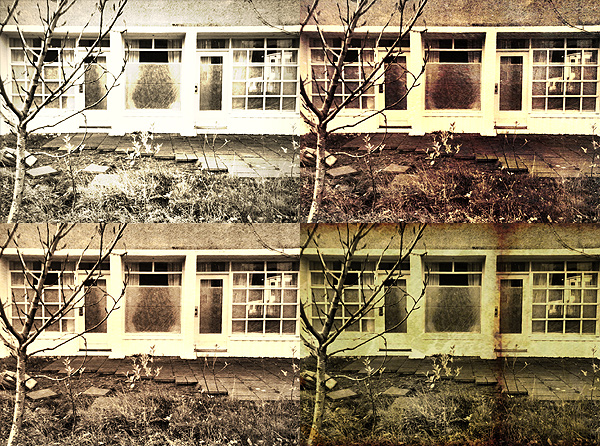
Attaching text to your photos should be one of the simplest features, but have you actually tried doing it? Very few apps let you do something as easy as this and most of them are not that groovy. How frustrating is it?
Good news is Labelbox by Stepcase finally allows you to take get this feature for free. The bad news is there are still improvements to be made in order to fully enjoy this app.
Main Features
Up to 960 x 720 pixels (3GS);
9 free styles (4 more available with in-app purchase);
Upload to Steply or share via Facebook, Twitter, Tumblr, Sina Weibo, e-mail.
Appotography Opinion
Labelbox enables users to apply labels on their pictures in a fun and easy way. You have nine styles to begin with that come with the initial download, but you can purchase a few more by in-app purchase for $0.99 or €0.79. The app’s styles include fancy and multicolored stripy designs or more neutral and all-purpose labelling tapes.
After you take or open your photo, all you have to do is swiping your finger over it in any direction and orientation. The blank label in your style of choice will appear immediately and you’ll be able to input your text by using the default keyboard. If you make mistakes or if you want to start over, you simply shake the device and the previous changes will be reset. When you are done, you can save, send your picture to your friends using email, or share it by connecting to one of the supported networks – Facebook, Twitter, Tumblr, Sina Weibo. If you have a Steply account, you can upload it to their community.
Labelbox is a cute little tool that goes along with some of the latest lo-fi photo trends, which include fakearoids and, more in general, instant photography revival. Labelbox is a cool power-up for your iPhone photography and since it is free, you have nothing to lose.
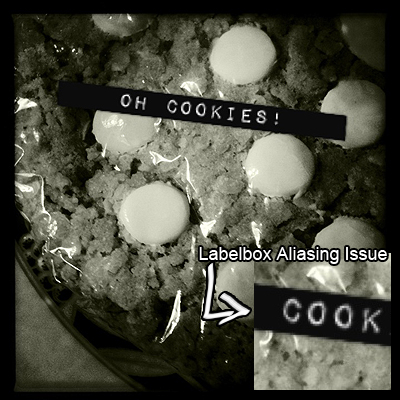
A couple of complaints one could have concern the final resolution of the photos, a mere 960 x 720 pixels on 3GS on which I have tested it — definitely not much — and the quality of the label applied – an annoying aliasing is clearly noticeable especially on some of the styles. If you plan to use the photos on iPhone/iPod Touch screen only, these issues will hardly affect you; however, if you plan on using the images more extensively, you’ll think about it twice. We hope future updates will at least solve the aliasing problem.
Panoramic photography is a technique producing images with elongated field of view. It is also commonly referred to as wide format photography. Panoramic images are usually composites of several images stitched together. These days, the stitching process is often carried out with the aid of a photo editing software.
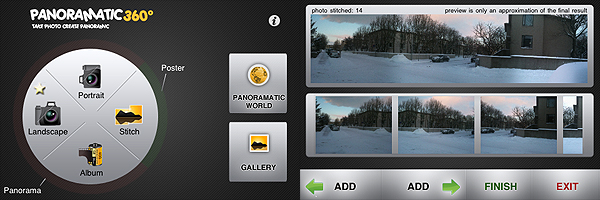
Panoramatic 360° brings to Apple devices a tool conveniently designed to allow accurate stitching of individual images to be assembled as panoramic views.
Main Features
Panorama and Poster modes;
Exposure, contrast and vignetting correction;
Automated stitching;
Autosave and restore;
360° panorama creation;
3D VR visualization of 360° panorama;
In-app tutorial;
Share via email, Facebook, wi-fi, Panoramatic 360°
Appotography Opinion
Panoramatic makes the task of creating panoramic photos as easy and immediate as it can get.
You can can choose among Panorama and Poster modes. The first mode allows the user to take pictures either in landscape or in portrait orientation in order to create the final wide format image. Poster mode works in a similar manner, but images can be imported also from your albums and they don’t necessarily have to be horizontally taken.
All you have to do to create your wide format views in Panoramatic is taking a series of photos following the help of the app’s visual guide. As an additional reference, you are also shown the inclination of the camera and the total number of pictures taken. The more you get used to keep an eye on these indicators, the more accurate the stitching of your photos will be. After you take the pictures, you have a preview of what your panoramic image will look like. You can improve it by deleting a few shots, by adding some others, or you can just proceed to the final rendering.
You can take photos manually or use the Auto function that will help you to know when to shoot. To be honest, the Auto function is the one thing I really didn’t feel very comfortable with while using the app. If you rotate too much or too fast or even in other unfathomable circumstances, the calculations of the compass won’t be accurate enough and you won’t be able to shoot when in the right position. It may seem a paradox, but from my experience I would say you need more training to make Auto function work properly than you need to make the app do a good job when this feature is disabled. Anyway, to get the most out of Panoramatic, I suggest getting used to shooting with Auto turned off.
When you have enough photos to work with — a minimum of two is required, but how many photos to take is up to you, depending on how you want your final image to look like — you can make a few adjustments to contrast, exposure, colors and vignetting; then the app will create the composite image for you to save in your camera roll, to share, or to explore as a 360° panorama. All the rendered panoramic images are stored in the app’s gallery, where you will be able to access them at any moment.
Panoramatic 360° is not difficult to use but, differently from the greatest majority of other apps, getting used to it does require some time. All the elements in it can at first seem overwhelming and I recommend reading the tutorial before starting taking photos. Although the app works very well and in general results are quite accurate, some of Panoramatic’s features are not perfect, so you have be in the best possible conditions to expect extremely good results. For example, the picture below was taken with Panoramatic 360° with auto vignetting correction enabled. As you can see, some flaws due to vignetting are still visible on the upper part of the final image. Color correction was also enabled, but lighting conditions sometimes are hard to overcome and it’s probably not completely the app’s fault.
Panoramic image generated with Panoramatic 360° - Click for larger view
Obtaining a panoramic photo and obtaining a good panoramic photo are different things entirely and it goes without saying that Panoramatic 360° can only help you in the first task. Taking the photos to be stitched together and making them actually look good together is up to you.
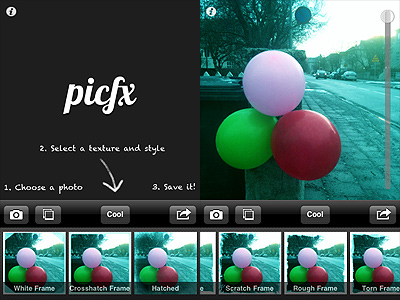
Picfx by ActiveDevelopment is another of these apps that will appeal iPhone photographers who like to use several apps at the same time to process a single photo. What Picfx does is mainly adding grungy textures to your original pictures, to give them a dirty and decayed look. Which means: if you’re not interested in the grungy style, Picfx is definitely not for you.
Main Features
Up to 1366×1366 pixels (3GS);
Square format;
27 textures;
13 filters;
Share via email, Facebook, Twitter and Tumblr.
Appotography Opinion
Picfx is a recent addition to the App Store. ActiveDevelopment’s app allows to process photos both loaded from the camera roll and taken from within the app, using the built-in camera feature. Once there is a photo to process, all the user has to do is choosing among the available filters and among the textures, adjusting the opacity of each one of them to suit the image. Adding several levels of filtering is possible without saving. Sharing options include Facebook, Twitter and Tumblr.
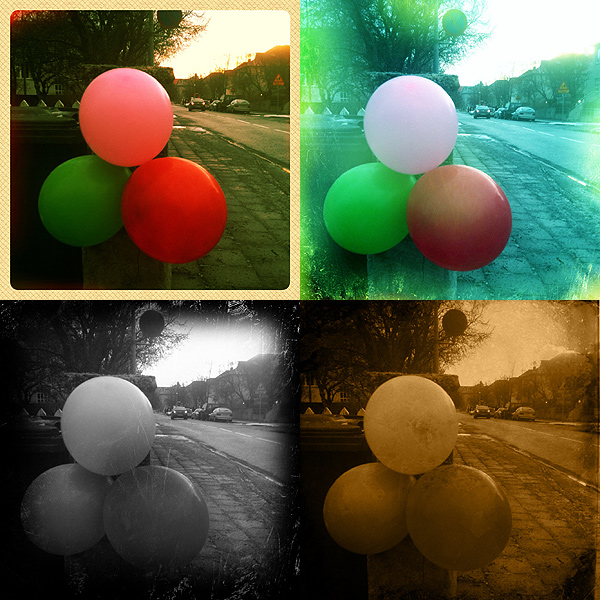
Filters, varying from oversaturation to black and white, affect not only the original image but also the texture that is applied on it. Most of the textures included in the app’s selection are conceived to add stains, scratches and corrosion to the photos.
Picfx only allows basic processing. The filters to enhance tones and saturation are fairly well done, although most of them will only slightly affect the photos; the textures — also including a few smudged and old style frames — are not varied and versatile enough to grant endless use; customization of each texture only consists in adjusting its opacity. Some of the textures require patience to look convincing on pictures with no previous processing. In favor of Picfx I have to say you can filter over and over again, and multiple filtering in succession definitely expands possibilities.
As a stand-alone app, I doubt Picfx can stand out in any way, especially given its current very limited features. In combo with other apps, Picfx can still be an acceptable enhancement to your collection.
Some developers, conveniently for them, take an easier path than their colleagues: instead of trying to create something that is completely original or new, they simply take this and that from other apps and reshuffle it a bit to make it seem they are releasing something more valuable than it probably is. Since many users like to try several different options at the same time and other people usually follow the general trend, this approach can sometimes prove very successful, as in the case of iDarkroom, which right now appears to be selling quite well in many App Stores worldwide.
Main Features
Full resolution available;
20 color filters;
11 paper textures;
13 light leaks/bokeh;
4 noise effects;
7 borders;
Share with email, Twitter, Facebook.
Appotography Opinion
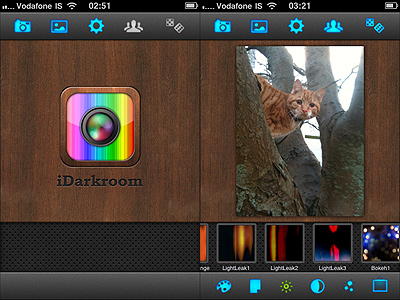
At first glance, iDarkroom contains enough filters and effects to please almost any average user; it is also very easy to use. By choosing among its assortment of effects, that range from colored filters to vignetting and borders, iDarkroom lets you process your photos with minimum effort. The app works both with built-in camera and with camera roll, and you can share via email, Facebook and Twitter. In case you’re short of ideas, you have the random effect generator that will pick effects for you and return different combinations.
Déjà vu?
Comparing Maple Studio’s app to FX Photo Studio or to Picture Show, which are more or less capable of offering the same, it seems evident iDarkroom simply is not on their same level. Especially when compared to Picture Show, iDarkroom bears an uncanny resemblance in the way it works and in the choice of effects.
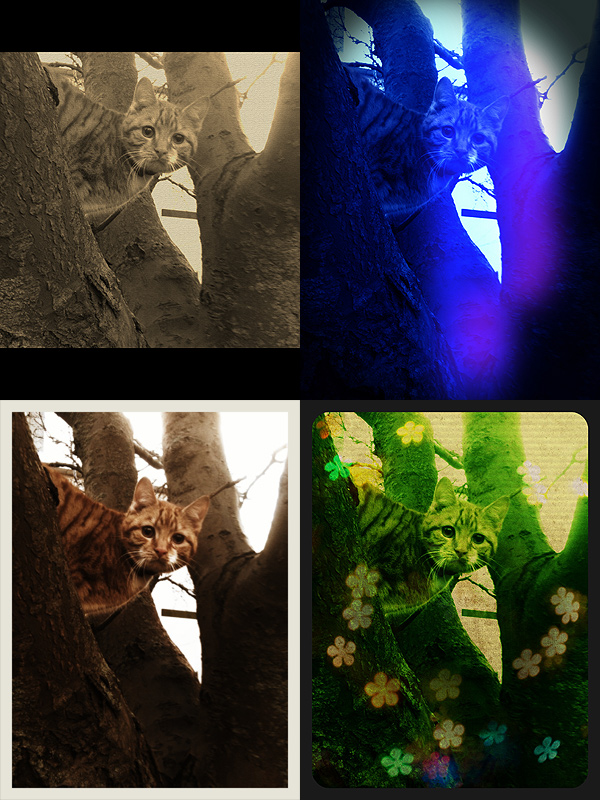
Some randomly generated effects with iDarkroom.
The color filters look remarkable, but other effects, like the textures, the light leaks, the noise or the vignetting, are not always as good-looking. The only department where perhaps iDarkroom does better than Picture Show is the simpler UI, probably mostly because it has less features than its direct rival — but mind, in ease of use it cannot beat FX Photo Studio. In any case, both Picture Show and FX Photo Studio have so much more to offer in terms of quality and quantity. In iDarkroom you have much less possibility to customize, to adjust filters, to play with each parameter’s values. iDarkroom tries to give you what both FX Photo Studio and Picture Show give you — it even has a randomizer button like Picture Show’s — but processed photos are just not as convincing to me as those I processed with the other two apps I mentioned. To me there is not much more I can do with iDarkroom after I apply the color filters. For example, the bokeh and the textures look so-so and, also considering the flexibility you are given, their number after a few uses feels kind of limited. Definitely, the less effects are involved, the better the results you can obtain with iDarkroom. Again, maybe I’m too picky and what you will see will appeal to you, but to me iDarkroom by Maple Studio looks like a watered-down and less versatile version of other renown iPhone/iPad photography tools. This doesn’t mean the app is bad; it simply means that there are some better choices available.
All things considered, my suggestion would be: if you want the same features and functionalities and you value your photos enough, get FX Photo Studio or Picture Show.
Overall
Name: iDarkroom
Developer: Maple Studio
Compatibility: iPhone, iPod Touch, iPad. iOS 3.0 or later.
Price: £0.59||$0.99||€0.79
Vote: 3/5
Personally, most of the times I like to choose carefully when I use photos and textures together. I prefer using something more highly customizable and make sure the final effect is as I want it to be. Even on the iPhone or iPad, I tend to rely on one or multiple textures I choose myself, rather than on presets that I cannot modify. However, you probably know that for a reason or another sometimes you cannot go and look for the perfect texture: this is when apps loaded with ready to use textures especially come in handy.
Sometimes a texture, if chosen well, is enough to make a boring picture special. Old Picture gives its users this ability with just one simple click.
Main Features
Full resolution available;
50 textures;
Share with email.
Appotography Opinion
Old Picture provides users with a collection of textures to turn their photos into old-looking images. All the app does is to stick a more or less grungy layer on the photo. You cannot adjust intensity of the effect or colors or anything else. Once you find a texture you like, you save the image. There are fifty different textures available, divided into five sets of ten textures each. Honestly, although the final outcome is fair enough — better than anything you could come up with some other paid-for app that basically does the same, at any rate — the textures are not varied and I don’t really get according to what criteria they are arranged — if there is a criterion in their arrangement at all. It seems to me most are slightly different versions of the same texture. Chances are you’ll end picking a texture at random most of the times, because you won’t be bothered to browse through the whole gallery, since in any case there is not a significant difference in style and look among textures.
A few nice effects but not enough variety.
Anyway, the final result is OK and the output quality too, and let’s not forget the app is free: isn’t that enough? Is there really anything to complain about, you’ll wonder? Well, yes, I do have a complaint: Old Picture has issue you cannot really ignore if you’re going to download it to actually use it. It concerns photo orientation: Old Picture, up to this moment, doesn’t support portrait, it only supports landscape orientation. In the case of portrait-oriented photos, you’ll have to rotate the images with the aid of some other app and save them again. You know, this can be a real bother, especially if you take mainly portrait oriented photos.
As I said, although not even remotely perfect, Old Picture is an all right photo app and on top of that it is free, so if you think you have some use for its grungy effects, you can download it right away. It might be a useful extension in your collection.
Overall
Name: Old Picture
Developer: Orbit Sofware
Compatibility: iPhone, iPod Touch, iPad. iOS 4.0 or later.
Price: free!
Vote: 3/5
Premade filters, however good, are not everybody’s cup of tea. Some photographers don’t like at all the notion of applying ready-to-use filters, such as those offered by the greatest majority of iPhone apps that dramatically change the looks of their original photos; some others cannot be bothered to apply effects over and over just to get close to the initial result they wanted to achieve.
Photo Style is especially conceived to please these photographers, but it can be a handy processing instrument also to others.
Main Features
Full resolution available;
Adjust shadows, highlights, midtones;
Adjust tint and saturation;
Crop and rotate;
Save presets.
Appotography Opinion
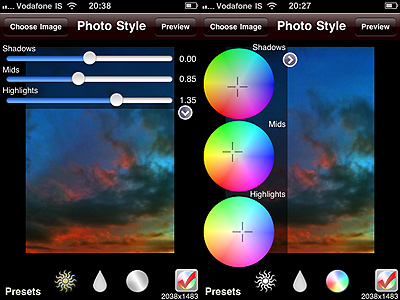
Along the same lines of other famous apps like Mill Colour, Photo Style presents the user with basic tools to alter photos in their essential components. You have just a few presets which you can use at first, but you can enlarge the collection by saving your own presets for later use.
You load the image into the work area. By tapping three times you can rotate the image by 90 degrees; you can crop it; you can apply a preset. If no preset suits you, by playing with sliders and color wheels, you can create custom effects, which you can also name and save. At this point you are done and you can proceed to save the photo to the camera roll.
Alterations can be made to single parameters of the image, since shadows, midtones and highlights are handled separately. You can switch on/off the unfiltered image at any time for reference. However, for a full preview that also includes any cropping, you have to rely on the “Preview” button, leading to a screen from where no changes can be applied — but you can always go back to editing if you need to make further adjustments or, in the case you want to start over, you can reset. From the preview area you can also save.
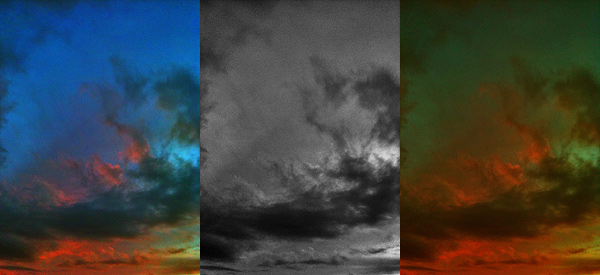
Photo Style is a little no-frills app that operates at the core of photo editing. You don’t necessarily need to have dozens of filters from the beginning, because by playing with values of individual aspects of your photos, such as shadows/highlights or tint adjustment, you can create your own. Photo Style won’t probably please much people that are more into heavy post-processing or fancy effects, but will perhaps make a difference in the app collection of users willing to have a little more control over their photos.
Overall
Name: Photo Style
Developer: Chris Clogg
Compatibility: iPhone, iPod Touch, iPad. iOS 4.2 or later.
Price: £0.59||$0.99||€0.79
Vote: 4/5
Bringing action to your photography sometimes is not the easiest task. Shooting multiple exposures and showing them in sequence is one of the tricks that allows static images to convey the feeling of motion to the viewer. Differently from animation, which is at its core founded on the same principles, this kind of photography still conveys the original idea of stillness which is proper of photographs.
ClassicSAMP by misskiwi will help you in bringing action to your iPhone photos by providing you with a neat collection of effects and colored filters in the toycam style, a stylish and easy interface and just the right amount of customizability for an app of its kind.
Main Features
Full resolution available (but check review for in-depth resolution description);
6 camera effects;
14 film simulations;
Set shooting speed;
Share via email and Facebook.
Appotography Opinion
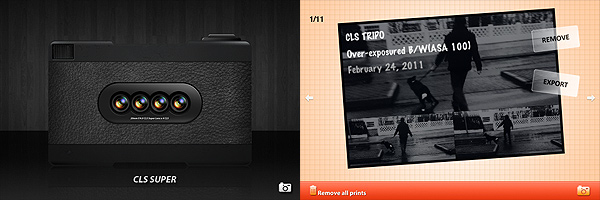
ClassicSAMP is an app that brings together the features of a multi-shot with those of misskiwi’s ClassicTOY camera. The app offers a rich variety of options in the assortment both of formats and filters. You have six different cameras — from two to nine shots — and many films covering a range of possibilities which include classic and high contrast black and white, sepia, overly saturated and lomo-like colors, overexposed, etc. Randomly generated light leaks are a cool extra to reinforce the toycam feel of this app.
The films and some of the cameras featured in this app are also included in ClassicTOY, so if you have ClassicTOY already and you are not especially into multi-shots, you won’t gain much from getting ClassicSAMP as well.
After choosing your camera and film, you can also adjust the shooting speed. If you want more freedom in composing your photo without being forced to follow the timer’s limitations, you can decide to select the manual mode, which allows you to press the shutter button for each separate shot.
From what I could see, the app doesn’t have any major issue, and in fact it is quite fun and pleasing to use, but I found the way resolution is handled a little confusing. You can choose to save your photos at small, medium or high resolution, but formats differ slightly depending on the effect applied. I tested the app on 3GS: with both the CLS TRIPO and with the CLS POP effects I found the resolution of processed photos to be once saved unusual, to say the least. While applying all the other effects on 3GS gives you images at 960×640, 1200×800 and 2048×1366 pixels, the aforementioned effects save respectively at 960×642, 1200×801 (TRIPO) and 1200×798 (POP), 2048×1368 (TRIPO) and 2049×1368 (POP). The fact the difference is one or two pixels only made me think maybe it wasn’t intentional. This issue is perhaps not too interesting in practice, but I still found it to be quite… unexpected. Thus I thought about sharing my experience.
ClassicSAMP works quite well for multi-shot photography purposes. The effects are nicely done, processing times are very reasonable and, although being familiar with other apps by the same developer probably made things easier for me to understand right away, the UI of this app is quite intuitive even to a newbie.
Even if personally I am not very passionate about multi-shot cams, I think ClassicSAMP is an app that will please fans of the genre and those who are willing to take advantage of this kind of photography for their creative projects.
Fixed the menu when adding a page to the current document;
Wifi sharing starts up very quickly even with a lot of documents;
Fixed image attachements in emails;
Fixed export of documents with special characters in title;
Removed error when uploading documents to Google Docs under certain conditions;
Fixed several small issues with Evernote: notebook choice is now respected, description text is added to the note, removes upload error which appeared under certain conditions;
Improved performance by migrating documents to a new format.
Warning: Genius Scan might take a while to migrate documents to the new format after this update. In return, better responsiveness of the UI will be allowed.

 Instagram got updated to version 1.5 and here is what’s new in its latest release: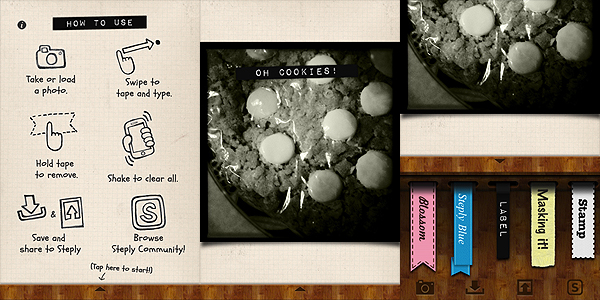


 PictureShow updated to version 3.0. Some interesting new features were added with the latest release. Here’s what you’ll find: