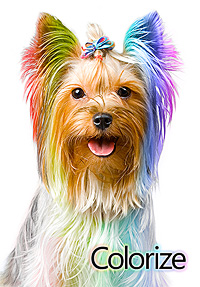
Colorize‘s Yorkie, with its intense psychedelic hairdo, seems to know the coloring business well: Widgetize’s app for iPhone is so easy to use it’s almost ridiculous. Honestly, if all photography apps were so simple, we would be spending more time taking and editing photos and less trying to learn how to use apps to take and edit photos.
Main Features
Full resolution available;
Two painting modes (Recolor and Desaturate);
Restore from previous sessions;
Zoom in/out;
Color picker;
Adjustable brush size and hardness;
In-app guide.
Appotography Opinion
In Colorize you can both selectively recolor and desaturate your images. The process to achieve the desired result is simple. You load a photo from your device or take one with the built-in camera; after that you are introduced to the app’s Main Panel. At the bottom of the Main Panel there is a set of tools: the recolor and desaturate brushes, the eraser and the color picker. For better control, the tools panel can be hidden when not required and it can be brought back again by dragging it with the finger.
Depending on which effect you want to accomplish, you can either choose the desaturate or the recolor brush. For both brushes, it’s possible to adjust size and hardness playing with sliders in the tools panel. The recolor brush only sets the color of your object and it doesn’t affect other parameters as brightness, contrast and overall saturation. With the color picker selected, you can quickly switch between colors to be applied to your image. All you are required to do is painting with your finger over the areas you want either to recolor or desaturate. By finger-pinching, you can zoom in and out for a more refined result; by using the undo function and the eraser, you can easily correct mistakes. It’s also possible to compare the original with your edited image.
Colorize - The recoloring process.
All your projects are saved in the app’s gallery. This way, not only you can go back to keep on working on them, but you can also make changes at any moment.
Colorize does its work well and quickly. The UI works flawlessly and in general, for the simple task of selectively desaturating and recoloring photos, Widgetize’s app for iPhone is a pleasure to use.
More than a few other apps do the same as well and some of them even offer additional features. However, if you need an app exclusively focused on selective desaturation/recoloring, Colorize is really great.
Occipital recently released 360 Panorama in the App Store. As the name suggests, the app is a 360° panoramic photo creator, one of the many already available for iPhone. The app also runs on iPad 2 and iPod Touch 4th generation.
Main Features
Fully automated panorama creation process;
Reference grid;
Light indicator;
View panoramas in 360° or stereographic mode;
Retina display support;
Send via email or share on Twitter and Facebook (requires 360 Verse account).
Appotography Opinion
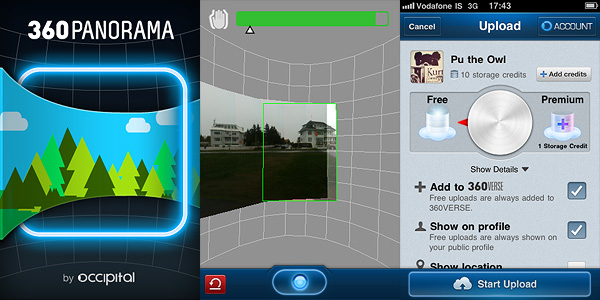
As soon as you start the 360 Panorama, you are immediately introduced to the main screen, whose most noticeable feature is a curved grid that will help you in taking straight shots to assemble your panorama. By tapping on the shutter button, you set the starting point of the panorama creation. While panning around, the app automatically takes consecutive shots to be merged at a later stage. As soon as you have enough shots, you tap again on the shutter button and let the app do the rest.
After the panorama is assembled, you can decide to save it to your camera roll, to send it as a flat image with email or to share it as a 360° view. To take advantage of the latter, you must create an account to 360 Verse — the portal connected to 360 Panorama — through in-app registration. The free account has only limited features and storage capacity, but if you want you can upgrade to a Pro account by purchasing credits from within 360 Panorama. Note to developers: adding an extensive and clear in-app guide to the whole ordeal would help more than a few users, I am sure.
360 Panorama has very basic options: you cannot do much to enhance your panoramic image, apart from trying to be careful when you pan. Using the automated capture feature can be all right in some instances, but most of the times it’s definitely too problematic to handle in order to take accurate shots, especially in absence of a tripod: being able to adjust angle and perspective before the shot is automatically taken is impossible sometimes. After a few unsuccessful tries, the task can become frustrating. iPhone photography should be fun, but making 360 Panorama do its work properly most of the times is not.
Especially in difficult lighting conditions (indoors, overcast weather, etc.), the app seems unable to correctly figure out proper settings on its own and therefore it messes up. The stitching is also intense in most cases (as in image below), making composites useless if not as a momentary curiosity.
Panoramic image created with 360 Panorama. Click for larger view.
As I see it, 360 Panorama is not the best choice in the App Store if you want a solid and reliable application focused on panoramic images creation. I haven’t tested 360 Panorama on iPad 2, but I assume it must be even more complicated than using it with an iPhone, given the tablet’s size and weight. Unless you intend to use a tripod, creating a decent looking panoramic image in 360 Panorama will be a task requiring too much time and patience to be fully enjoyable.
PS: As a launch promotion, you can buy 360 Panorama with a -50% discount.
AutoPainter II “The Illustrators” is the second instalment in the AutoPainter app series. The effects included in Autopainter II are themed after classic illustration techniques, differently from AutoPainter that was more focused on painting styles inspired by famous artists – Cezanne, Van Gogh, etc.
Main Features
1280 x 960 pixels resolution (3GS);
Portrait masking for enhanced detail;
4 artistic filters.
Appotography Opinion
AutoPainter II “The Illustrators” features four more artistic filters for processing your photos. Although they are sold as a separate app, the new filters (Chalk, Book, Felt Tip, Water Ink) basically represent an expansion to the first AutoPainter. Reason why I feel it would have been more convenient for the user to be able to access them from within a single app. For example, it would have made more sense to sell the new filters as an additional pack, available through in-app purchase.
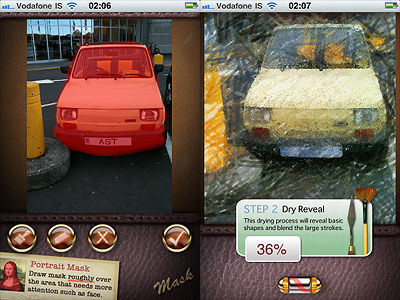
The UI of AutoPainter II is exactly the same as AutoPainter, the only difference with the first instalment being, as I mentioned, the available styles you can choose from. Applying filters is a cinch. Rendering times are fair and you can watch the engine as it processes your photo for fun. You can pick the photo to process from your camera roll or take one with the built-in camera; then all you have to do is selecting a filter among those available and tap on the start button. For better results, especially on portraits, developers added the portrait mask feature, allowing to finger-paint a mask over areas of your image where you’d expect details to be better defined.
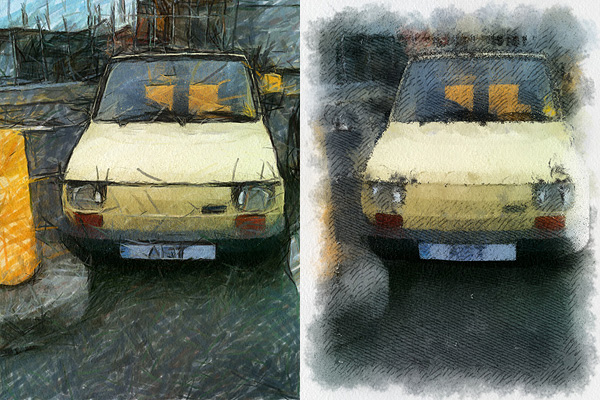
Felt Tip and Book filters.
As with the previous AutoPainter app, one cannot deny the quality of the filters. Too bad for the final resolution. Too bad that the filters, however pretty, don’t work that well on most photos, too. It took me some time to find a photo that wouldn’t lose significant detail after processing. The masking feature doesn’t dramatically enhance the final result: the render engine is still unable to catch relevant elements in most photos. That’s why I think overall AutoPainter works better on landscape photography, which most of the times looks all right even when only its essential elements are caught, or on extreme close-ups.
Overall
Name: AutoPainter II
Developer: Mediachance
Compatibility: iPhone, iPod Touch, iPad. iOS 4.0 or later.
Price: £0.59||$0.99||€0.79
Vote: 3/5
PhotoForge2 is a universal app that comes as an upgrade to the previous PhotoForge editing and painting application for iPhone and iPod Touch. PhotoForge was already a very comprehensive app, allowing sophisticated photo editing before other apps also added similar tools. For instance, working with curves was a rarity at first, therefore PhotoForge was regarded by many users as the ideal replacement of famous desktop editing software on iPhone.
The new PhotoForge2 contains most of the elements that were already included in its predecessor, adding at the same time much more.
Main Features
Full resolution available;
Crop and resize;
25 adjustable filters (more available with in-app purchase);
Send via email or share with Twitter, Flickr, Facebook, Drop Box, Picasa, Tumblr, FTP.
Appotography Opinion
In PhotoForge2, you can start a project either with a shot taken with the built-in camera or with any image from your iDevice. All your projects are stored in the project list and you can go back to any of them at any moment. Projects you are working on are automatically saved.
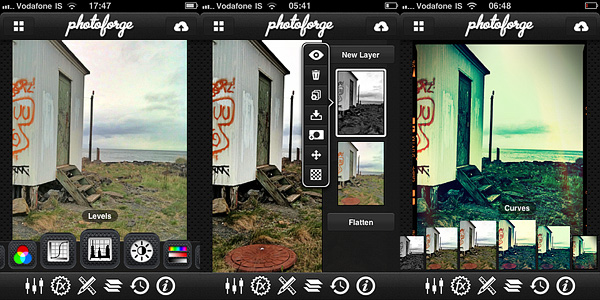
You can edit your photos using Adjustments, FX, Tools and Layers. The visual history feature will let you undo unnecessary edits. While editing, you can zoom and pan as it pleases you by finger-pinching on the photo or you can examine the photo at its full resolution by double tapping.
Adjustments includes a series of instruments that affect your photo at its core: Curves, Channel Mixer, Levels, Brightness/Contrast, Exposure, White Balance, Noise Reduction, Sharpen, etc. These are the tools you will be using the most if you’re used to work with full-fledged photo editing software.
Tools let you resize your photos, crop them (different aspect ratio and free cropping are both available), and add frames and textures. You have more than ten textures and eight borders that come with your initial purchase, but you can expand your collection by purchasing the Pop! Cam expansion.
Pop! Cam is available through the FX section (the in-app purchase is $1.99). As the name clearly states, FX contains a collection of various ready-to-use effects, much simpler to handle than editing using Adjustments. With a simple tap, you can turn your photo into black and white, add a 3D effect, add blur to the image, and so on. Pop! Cam contains additional effects (film simulation, different lenses, etc.), other than more borders and textures. It also contains a randomizer function, for randomly applying styles to your pictures. Before you buy, you are allowed to see Pop! Cam in action and try all its features.
Layers permits fully functional enhancement of your photos using layers: you can import multiple photos from your device, add masks, change blending modes, and more. Layer support is definitely one of the most interesting features in PhotoForge2 and one of the things that, alone, is worth the app’s purchase.
Among the aspects I find more interesting is that once your photo has effects added to it, you can filter it over. This means, for example, that if you add a border to your photo at first and the border doesn’t quite mix with the feel of the filtered image, you can re-filter both as a flattened image and have them blend beautifully. In other apps either you cannot filter over a border because it always remains on a separate layer — unless you save and re-open the image — or, if you can, you get a so-so looking image.
Different results obtained with PhotoForge 2 on iPhone.
Rendering times in PhotoForge2 are perhaps not that great on older iPhone models. Even to simply adjust brightness and contrast takes more than it does with other apps, where rendering is immediate.
What struck me as an atypical choice, to say the least, is the total absence of camera features. Editing a photo can be OK in most cases, but starting your work with a better image helps, too. PhotoForge2 is not exclusively a post-processing app: as a matter of fact, it allows taking photos; yet, developers did not spend time improving the built-in camera. The former PhotoForge was the same, but it definitely was a less complete application. Anyway, this is just a consideration and it won’t affect the general opinion I have of PhotoForge2, in case you’re wondering.
If you are looking for the closest thing to a complete editing photo app currently available for your iDevice, PhotoForge2 is a must-have: the number of features is impressive, making it a very comprehensive app, especially for iPhone — there are just a few others options, especially on iPad/iPad 2. It must be said though that the price of PhotoForge2, in-app expansions excluded, will be a turnoff for more than a few users, I am sure.
PhotoForge2 is on sale: you can get it now at the special price of $2.99.
First of all, I want to commend the developer for the attention paid to user feedback. I hope the willingness demonstrated up to this point will help the app getting better and better.
I also want to notify that previously observed aliasing issues concerning a few of the borders have now been fixed. Previous memory issues, especially those occurring when sharing photos via email from the in-app gallery, were also fixed in the new release.
But here is what’s new in Lumière 1.2 in detail:
Improved resolution: Lumière now supports full resolution saving;
Switch between High Quality (HQ) and Speed Quality (SQ);
Added three new filters: Orange Crush, Negative Colour and Negative BW;
Settings autosave: your settings are automatically saved upon exiting Lumière;
Improved startup times;
Bug fixes.
Some of the filters in this app are quite charming; up to the previous release, especially due to resolution limitations, one couldn’t actually make use of them outside of iDevices. The enabled full resolution feature will very likely please more than a few users.
New filters: Negative BW and Orange Crush.
If you’re into real-time processing in combination with vintage photo effects, Lumière is, also for the customer service provided, among the best options available in the App Store right now.
Are you tired of using the same effects all the time on your iPhone? Do you want to make your own filters? Do you want something different but you do not have any ideas? Do you think you could use some help from random effect generation?
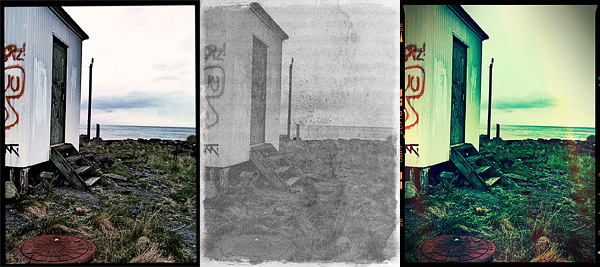
If any of the above is true, perhaps developers at Sun Inlet Labo have something for you: their PhotoToolbox allows you to fully customize your filters or to have them randomly generated by the app. PhotoToolbox is a good option when you don’t want to rely exclusively on pre-made filters for your iPhone photography.
Main Features
Full resolution available;
Angle lock on/off;
Full-screen shutter button on/off;
Geotagging on/off;
Undo/redo;
Random filter;
Save and import/export custom filters.
Appotography Opinion
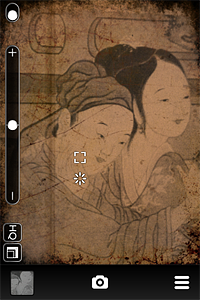
PhotoToolbox can be used either with the built-in camera or with photos stored in your device. While shooting, a square indicator will help you in taking straight photos by turning yellow when the device is being held vertically. Tapping on the Angle Lock Button, you will be able to enable automatic shooting when the device is held at a given angle. This feature is especially useful if you are taking self-portraits. Another feature you can enable for easier shooting is the Full-screen shutter button that, as the name suggests, will turn the whole iPhone screen into a shutter button.
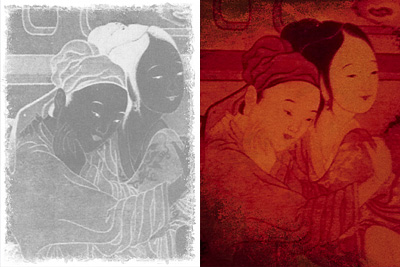
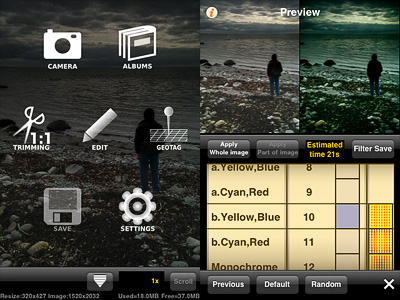
Once you have your photo, you can apply post-processing. By tapping on the Filters icon, you have access to several parameters that you can adjust by scrolling different wheels individually. The first wheel sets the parameter (Brightness, Contrast, Saturation, Hue, Vignette, Blur, etc.), while the others influence intensity and affected area. From the Preference screen, you can choose to enable or disable any of the app’s variables or you can set their overall strength. By combining variables together, you can create highly personalized presets, which you can save and reuse later. Thanks to the preview, you can know how your changes are going to affect your pictures at all times. PhotoToolbox also allows importing and exporting presets.
Examples of custom filters in PhotoToolbox.
With the exception of borders — an extra not included in Sun Inlet Labo’s app — PhotoToolbox is a bit like Infinicam, both in the way you can generate almost endless effects and in the way you can save them for further use. The difference with Infinicam, which only allows random generation, resides in the fact you can actually create your filters from scratch in PhotoToolbox. This in my opinion truly makes a difference, but it is also the greatest obstacle to full enjoyment of this app. PhotoToolbox is not a perfect app: first of all, it requires time to be used at its full potential. The effects you can achieve are many, but getting to know and mastering all the features is definitely not a cinch. The initial difficulties might drive more than a few users away.
I can definitely see myself using PhotoToolbox as often — if not more — as I am using Infinicam. It would be nice though to make the Import/Export filter more user-friendly and straightforward: as it is now, it’s somewhat clumsy.
PhotoToolbox is one of the most interesting things I have seen in the Photography category of the App Store in some time. If you have patience and you like to tweak, you should try it. I am confident it will be rewarding.
Overall
Name: PhotoToolbox
Developer: Sun Inlet Labo.
Compatibility: iPhone, iPod Touch, iPad. iOS 4.1 or later.
Price: £1.19||$1.99||€1.59
Vote: 4/5
Film noir is a denomination associated with crime films from the 40’s and 50’s. Although the term is commonly identified with Hollywood’s production, examples of film noir can be found before and after the aforementioned two decades and outside Hollywood. As a matter of fact, many of the most renown film noir directors were émigrés, especially from Austria, Germany and Eastern Europe, who arrived in America in the late 20’s and 30’s as a consequence of the political turmoil preceding World War II. You have probably heard of Josef von Sternberg, Fritz Lang, Michael Curtiz, Otto Preminger, Billy Wilder and, of course, Alfred Hitchcock. These are just a few of the most representative names that come to mind speaking of film noir.
Categorization of film noir is nothing but a vague notion and in some cases, cinema critics and historians have contrasting opinions. Even if we accept the point of view of those that consider film noir a genre on its own, there is no such thing as common ground when it comes to style and motifs. However, most examples of film noir are characterized by well-defined stylistic traits, first of all the extreme use of low-key lighting and the highly eloquent use of black and white.
Red Giant‘s Noir Photo takes inspiration both for its name and for its idea from film noir’s highly stylized looks. There are those taking snapshots just for fun and those wanting their photos to convey a feeling or tell a story. Noir Photo will delight the latter group.
Main Features
Full resolution available;
Six presets;
Adjustable contrast and exposure;
Adjustable vignetting;
Save custom presets;
In-app guide.
Appotography Opinion
Given the expertise of Red Giant, it’s not a surprise the UI of Noir Photo works so smoothly and everything is so simple and user-friendly. The app presents a very straightforward approach to photo editing: in a single screen, you have access to all the necessary features. A concise in-app guide is included for reference.
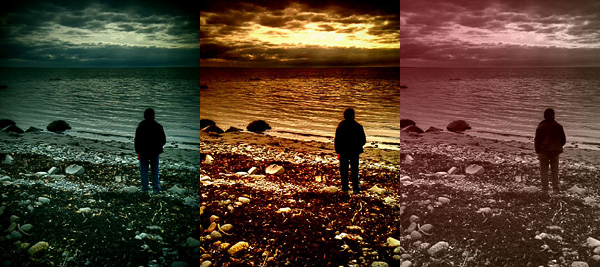
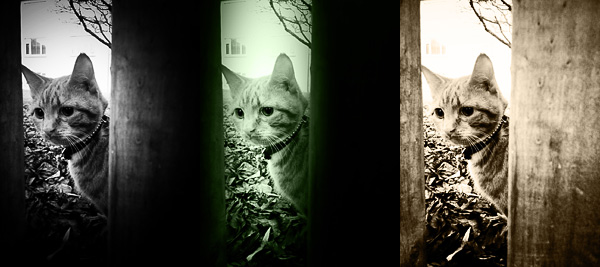
You upload a photo from your device. As a starting point, you have six presets ready for use. If you prefer, you can make your own presets by setting each parameter according to your personal need. The app not only allows quick conversion of pictures into rich black and white monochrome, but also easy relighting, which is particularly important for granting photos a highly stylized, expressive effect.
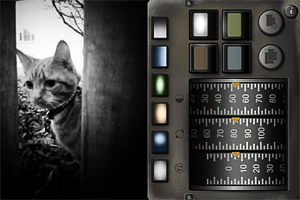
The three dials representing three different parameters, with values ranging from 0 to 100, are at the core of Noir magic: Contrast, Inner and Outer Exposure. Each of these settings will influence your picture’s lighting. By playing with their values, you can have your photo look like average black and white or extremely contrasted and highly dramatic.
Vignetting is another crucial element in Noir Photo. Vignetting changes when you adjust Inner and Outer Exposure values, but it’s by pinching to enlarge and contract it or by moving it around that you actually affect the photo. The four available color tints are the final touch to widen the possible combinations and the effects you can achieve. The preview lets you know in every moment how your photo will look like.
It’s undeniable that Noir Photo’s developer’s expertise shows in the app’s incredible sleekness and in its well-balanced consistency. The interface not only is conceived to allow immediate use, but, as I said before, it actually works very smoothly. What one could object is the fact options are not many, especially for the app’s price tag. Some more freedom in choosing tints or in arranging more light sources, for instance, would increase the app’s value.
Overall
Name: Noir Photo
Developer: Red Giant
Compatibility: iPhone, iPod Touch, iPad. iOS 4.0 or later.
Price: £1.79||$2.99||€2.39
Vote: 4/5
Super 8, introduced in 1965 by Kodak as a format accessible to everybody for its low costs and ease of use, is right now experiencing a huge revival: not only in its actual analog form, but also through its many digital imitations.
With Camer8 (formerly Super 8), Booom! intended to bring to iPhone, iPod Touch and iPad the authentic feel of old Super 8 home movies.
Main Features
Show video up to HD resolution;
Two filters with three intensity levels for each (light, medium, heavy);
Recording limit on/off;
12 or 18 FPS.
Appotography Opinion
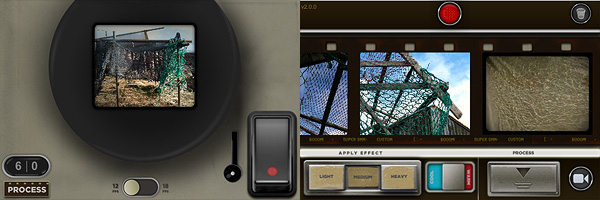
Camer8 lets you process videos taken from within the app — not external videos. Before recording your video, you have to choose among 12 or 18 FPS (Frames Per Second, the number of still frames displayed per second). You can set either of those as a default from your device settings. In general, given the phenomenon of persistence of vision in relation to human mind, the briefer the interval between still images, the smoother the perceived movement. Original Super 8 worked at 18 FPS; the most widely used standard for film is 24 FPS, although today there are many other popular formats (25, 30, etc.).
To record a video, you either keep the trigger button pressed or you tap on the latch, which will keep the trigger pressed in your stead. In both cases, a large viewfinder is brought up and you have a clear view of what you’re actually recording. You have a default time limit of sixty seconds per recording session, which is a lot better than the previous twenty-second limit of the first releases of Camer8; if it weren’t enough, this can be disabled or changed from Settings. Enabling recording time restrictions can be seen as a way to bring back the limitations of the original medium, although Super 8 allowed a much longer continuous filming time (a little more than three minutes per reel).
The recorded material is sent right away to the Camer8 Process Lab, a gallery where all unprocessed videos are stored. The filters add a colored layer of a warm golden color or of a cobalt blue over the clips, other than some dirt, scratches and dark framing. The intensity of the filters varies a little depending on whether you choose light, medium or heavy processing. Overall, the filters are quite good. You can filter the same video clip over and over, choosing warm or cold effect and different intensity every time. Rendering times are perfectly in the norm; to make things easier you can add to the processing queue several items at once — in this case, be careful because the app may crash if too many items are added. Processed videos are saved directly to your Camera Roll.
Compared to other video processing apps in the same league, Camer8 lacks some useful features, especially in the sharing department and, from my experience, it’s also crash-prone. The effects, however good, are not as eye-catching as the ones of this app’s direct competitor, iSupr8. Still, Camer8 is a fairly decent app and a valuable addition to your collection, especially after the last update which fixed some of its major issues.
What would have Van Gogh, Cezanne and Benson thought if somebody told them that several decades later they would be lending their artistic skills to just anybody with an iPhone?
Nobody knows. And honestly… Whatever. The genius of these artists is so immense that it wouldn’t make a great difference to them, even if they were alive today.
Mediachance give all iPhone, iPod Touch and iPad users the illusion of becoming a nouveau Vincent in a couple of minutes, with their AutoPainter, a portable version of their desktop application Dynamic Auto Painter.
Main Features
1280 x 960 pixels resolution (3GS);
4 artistic filters.
Appotography Opinion
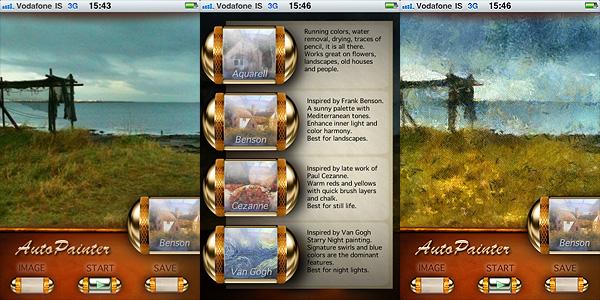
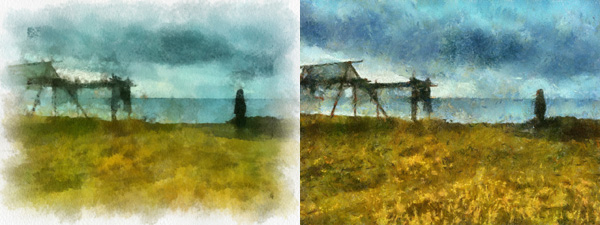
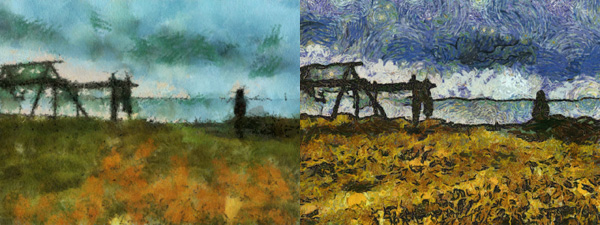
AutoPainter includes four artistic filters (Aquarell, Benson, Cezanne, Van Gogh) which you can easily use to process your photos to turn them into strikingly beautiful little works of art. All you have to do is choosing a photo from your camera roll or take one with the built-in camera, select your favorite filter and tap on the start button. It’s easy as that. You don’t have to adjust settings, move sliders, and so on.
The artistic effects applied, simulating paint strokes and canvases, according to the style of choice, are very nicely rendered. Actually, they are among the best you will be able to find on iPhone in their genre, I think. The processing takes some time, but the fact you can watch how your picture is affected step by step is kind of entertaining, at first at least. This app, at least in its current version, will be a little disappointing for those wishing for a full resolution. On 3GS, which is what I used to test it, I was able to obtain a 1280 x 960 resolution. If this is it, it can be improved, definitely.
Aquarell and Benson filters.Cezanne and Van Gogh filters.
I said the filters are well done, but they do not work great on all photos. Sometimes the engine will be unable to make out some important details, so don’t be offended if after editing that portrait of your fiancée you love so much, she ends up with a huge yellow swirl on her forehead. Overall, better exposed and clearer photos are those that are able to give you better results.
If you have tried before to put together an eBook with your own photos from scratch, you know that, unless you have experience or you like to tweak, the creation process can be kind of mind-boggling. There are several simplified eBook creators, often available for download from online print-on-demand services. The problem with most of them is they heavily rely on premade templates that are often not customizable to go with your requirements.
With eBook Magic, Evergreen Ruby takes advantage of the excellent qualities of the iPad, offering users the possibility to use their photos to create personalized photographic ebooks. With eBook Magic, you can create photo books, which you can share or print, using photos saved in your iPad or imported from Flickr and Facebook accounts.
Main Features
Possibility to create photo albums, books and documents;
Landscape, portrait or square book formats;
100+ page templates;
Customizable photo and text borders;
Customizable page backgrounds;
Printing guidelines on/off;
Import photos from your device, Facebook or Flickr;
Fit photos to templates by zooming in/out;
Add text by typing or copy and paste from existing documents;
Manage font face, size, color, style and alignment;
Share to iBooks or email as PDF file.
Appotography Opinion
The app was especially thought as a photo book/photo album creator, but it is also possible to use it more simply as a more generic eBook creator. As other eBook software, eBook Magic was designed to be used also by beginners with no previous experience of eBook authoring.
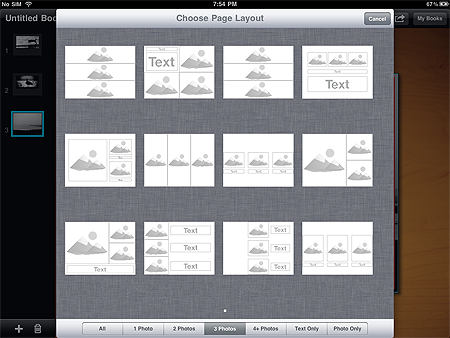
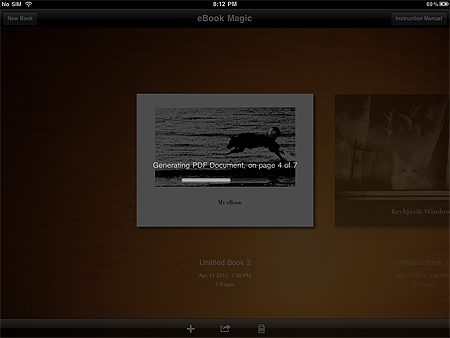
When you start the app you can add a new project to your gallery by tapping on the plus sign. As soon as you open your newly created project, you can choose right away a title for your work. Next step is picking a format among those available: you can go for landscape or portrait oriented books or you can choose the square format. The size assortment is quite satisfactory, but since there is no universal standard when it comes to book dimensions, especially in the case you want to print at a later stage, make sure your choice is compatible with your printing options. You do not have to worry too much about these details at first though: you can make changes at any time.
To assemble your book, you can import images from your iPad, from your Facebook and from your Flickr. For every single page you can set a background and use different templates, in order to conveniently arrange your photos. It’s also possible to add text, both imported from external documents — by copying and pasting — and written directly from within the app. Images can have colored borders and be adjusted to the templates by pinching to enlarge and shrink them. You cannot rotate, flip or edit the images in any other way though, so be sure to use only photos that are 100% ready for use.
Proceeding on a page by page basis allows easy reviewing of your work. You can make changes and rearrange the pages order as you see fit in any moment. It’s not possible to switch from a template to another after the page is created: if you want to change template, you have to create a new page. Using the “Set to default” feature, you can adopt your custom settings for the whole ebook instead of repeating the same process for each page individually.
To have an idea of how your project is actually proceeding, you can generate a PDF preview. The easily accessible preview is especially handy to know at any stage of your creation process what are the details that need to be changed, how your photos will look on your final ebook, and so on.
There are a few details about this app that in my opinion would be worth changing or improving. First of all, the fact some customizable elements aren’t really that customizable. The lack of possibility to handpick colors for backgrounds and for fonts is one of the aspects I am referring to. For instance, I noticed that the black color you can choose from the color panel doesn’t really appear to be pure black, so it didn’t go well as a background with the photos I had selected. I could have tried creating a black image to use as a background instead, but having to resort to this workaround just for selecting colors seemed kind of ridiculous. I’m not even sure if this solution would have worked or not.
Also, this app is crash prone for me. I tested it on iPad, so it could be things work smoothly for iPad 2 users. Apparently, working with high resolution photos (2500+ pixels, 300 dpi images) easily triggers memory issues, causing the app to crash after just a few minutes; this happened to me especially while adjusting text on pages containing both text and photos.
Finally, ready-to-use templates inevitably cause trouble with cropping. You can zoom in and out to adjust the cropping a little, but making it work all right inside the templates, if you have photos that are cropped to the millimeter, is very hard — if not impossible sometimes, especially in pages that are supposed to contain more than one photo.
Still, it must be said this app definitely brings value to iPad users that are into photography.
eBook Magic is a fantastic app that, thanks to an uncluttered interface, great ease of use and fair customizability, will undoubtedly please those wanting to make use in a more practical way of their photography. eBook Magic is a valid alternative to many ebook creators like those you can download or access through several online print-on-demand services. From what I could see, this app is even better than those eBook creators, because to a certain extent it allows more flexibility.
However, remember that full customization isn’t possible with eBook Magic, so it’s not advisable to completely rely on this app for creating professional eBooks.

 In Colorize you can both selectively recolor and desaturate your images. The process to achieve the desired result is simple. You load a photo from your device or take one with the built-in camera; after that you are introduced to the app’s Main Panel. At the bottom of the Main Panel there is a set of tools: the recolor and desaturate brushes, the eraser and the color picker. For better control, the tools panel can be hidden when not required and it can be brought back again by dragging it with the finger.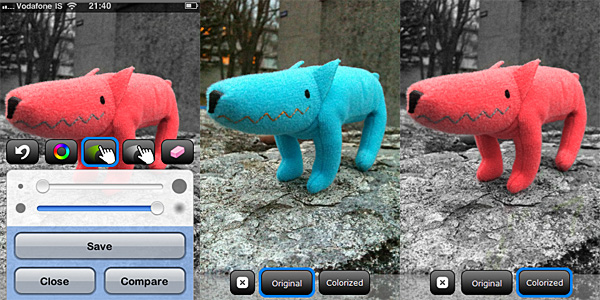


 Adjustments includes a series of instruments that affect your photo at its core: Curves, Channel Mixer, Levels, Brightness/Contrast, Exposure, White Balance, Noise Reduction, Sharpen, etc. These are the tools you will be using the most if you’re used to work with full-fledged photo editing software.