Although Appotography is a relatively new voice in the world of iPhone photography on the web, this sign of appreciation gives us great encouragement. We hope to improve further our online service and to keep on delivering good quality content. In the same way, we hope that users will keep on supporting us, by interacting with us or by simply reading what we have to say.
We have a sincere passion for this new and very often overlooked form of photographic expression and we are sure all our readers share the same feelings about it.
The staff at Appotography.com would like to thank Blogs.com for the special recognition. A sincere thanks goes also to all the readers, to commenters and app developers that, even when only occasionally, stopped by and took the time to read, either just out of curiosity or to offer precious feedback.
I have already said something about the way the developers of Hipstamatic handled their new Terms Of Services — and in the end their users — in a previous post, “Hipstamatic: Why Companies Can’t Be Your Friend”. For those that do not have time to read, the answer to the question is that these people are there just for the money. There is nothing wrong with it, but their promise of being your friends (almost hippie friends, judging from their Facebook posts) is contradicted by the way they write their Terms of Service. In brief, those using Hipstamatic public services accept to give away ownership of their photos to Hipstamatic, which can also resell them to third parties if they want to. And no, this is not a necessity: Flickr and Google+ both have licenses that do not allow them to resell your stuff to others. The reason why a lot of young companies opt for Terms of Service that are so empowering for them is that they give them less reason to fear legal issues with their user base, and they give them property over enormous amounts of assets: owning millions of photos can boost the value of your company enormously, especially if image search engines will get smarter as many expect over the next years.
The way the new “Family” Album feature in Hipstamatic was released, in my eyes, just confirms Hipstamatic’s way of doing business. Since the release of the feature, a lot of users have asked us how to delete photos in public albums. These users even tried asking Hipstamatic’s customer service, and the poor guy answering them said he can just collect the feedback and give no answers for the time being. Currently, there is no delete feature in Hipstamatic to allow deletion of photos in public albums (edit: the option was finally added, but the rest of this article still applies 100%). You can delete a photo locally, but you cannot remove it from the album “on the air”. And even if Hipstamatic decided to give you this feature, remember that your photos will forever remain in the public domain. So, if somebody downloaded a copy of it, or grabbed a screenshot of it, they are free to use it however they want.
When you share a photo using Hipstmatic’s Family Albums, you have a choice between two different Creative Commons licenses for your photo. Well, a few points must be made clear for you:
Once you have released something with a Creative Commons license, the license cannot be revoked, ever. Flickr allows you to change the license on your photos after you have released them as Creative Commons (but Flickr offers you also licenses where you always remain the only owner of your photos), but theoretically that is not legally acceptable. From the official website of the Creative Commons organization (you can find the FAQ here):
What if I change my mind?
Creative Commons licenses are non-revocable. This means that you cannot stop someone, who has obtained your work under a Creative Commons license, from using the work according to that license. You can stop distributing your work under a Creative Commons license at any time you wish; but this will not withdraw any copies of your work that already exist under a Creative Commons license from circulation, be they verbatim copies, copies included in collective works and/or adaptations of your work. So you need to think carefully when choosing a Creative Commons license to make sure that you are happy for people to be using your work consistent with the terms of the license, even if you later stop distributing your work.
CC licenses come in different flavors. Hipstamatic, being your best hipster buddies, also select by default for you the most permissive Creative Commons license of the two they make available, the Standard License. This allows anybody to use your photos for whatever they want, including derivative works and commercial use as long as they give credits to the original author. According to the Creative Commons website, “This is the most accommodating of licenses offered. Recommended for maximum dissemination and use of licensed materials.”. The other license in Hipstamatic, the one NOT selected by default, is Attribution-NonCommercial-NoDerivs License, the most restrictive CC license, only “allowing others to download your works and share them with others as long as they credit you, but they can’t change them in any way or use them commercially”. So, if you want to make sure people do not make money off your photos or use them for their beautiful derivative works, you must manually select this second option in Hipstamatic when uploading your photo. But remember: in both cases the license cannot be legally revoked, ever.
Regardless of the CC license you select, the company behind Hipstamatic always keeps the rights on your photos, as outlined in their Terms of Service. Which basically gives Hipstamatic the permission to exploit your photos in any way or format, forever, and resell them to third parties.
In the end, remember that even if Hipstamatic implements the delete functionality for their “Family” Albums (kinda misleading name, as one of our readers pointed out) your photos will still keep the Creative Commons license you have selected.
FX Photo Studio is currently on sale in the App Store at 50% off the original price tag. This special offer comes shortly after the major update to version 4.0, an update which introduced many new filters, masking tool and several other features to MacPhun’s best-known photo app for iPhone.
FX Photo Studio for iPhone is now available at the special price of $0.99/€0.79/£0.69.
PhotoForge2 2.1.1 is out. Here are the details on the latest release of the universal photo editor by GhostBird Software.
Auto-resizing – When images that are too big are loaded into the app, auto-resizing is activated. This prevents memory issues that can lead to the app crashing when it’s not possible to handle images in their original size. While loading large images does not represent a huge problem for iPhone 4 and iPad 2 users, for 3G/3Gs and iPad users it can cause serious malfunctioning. Auto-resizing is only activated in the case images too big to handle are loaded into the app. It’s possible to edit maximum image loading size from in-app settings (PhotoForge logo -> Settings -> Load Settings).
Better performance – Reduction of memory usage with textures, vignette, frames and Pop! Cam operations. This should prevent crashes when large images are being processed.
RAW support improved – Fixed issue that caused images in RAW format to load only in a low resolution preview in some instances. Metadata for RAW is also improved.
Set default IPTC info to photos – This addresses the issue of entering the same information several times for the same photo.
View EXIF metadata from each photo info screen.
Mailing list signup – It’s now possible to sign up for receiving updates, tutorials, contests, and other news from in-app settings (Photoforge logo -> Sign up for newsletter).
Uploader now always displays default titles and descriptions.
Other fixes – Hangs with uploading to Dropbox and with Pop!Cam in-app purchase dialogue (with in-app purchases disabled) are now fixed.
PhotoForge2 is still available at the special price of $1.99/£1.49/€1.59 in the App Store.
Halftone 1.6.3 is now available in the App Store. With this update, Halftone improves its overall stability. Developers at Juicy Bits took user feedback seriously enough to fulfill a few requests to enhance performance and usability of their iPhone/iPad comic panel creator.
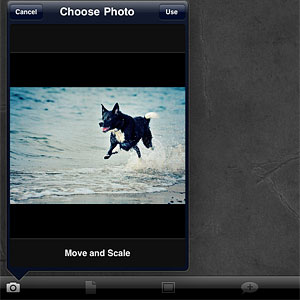
New in version 1.6.3 of Halftone is the ‘Image Cropping‘ option, which can be switched on and off from Halftone’s settings. Cropping enables applying a square format to images loaded into the work area. Not only this gives users more creative possibilities, it also allows interaction with other apps which solely rely on square format, like Instagram.
Note that ‘Image Cropping’ must be activated from the device’s settings, not from in-app settings.
Also new in this release is the larger speech balloon’s tail area. Grabbing the tail of balloons was one of the several issues that caused some difficulty to Halftone users when creating their comic panels. Expanded touch area for balloons‘ tail allows better handling and placement of speech balloons in Halftone.
FX Photo Studio version 4.0 is now available in the App Store. The long-awaited update renews MacPhun’s photo editing app by adding several new features and by revamping old ones with improvements to their overall performance, losing nothing of the app’s original ease of use.
What’s new in version 4.0:
7 new effects;
Masking tool;
Improved performance (up to 2x faster);
Square format cropping;
Centering in Tilt-shift and Radial Blur;
In-app camera enhancement;
Restore in-app purchases;
New import/export options.
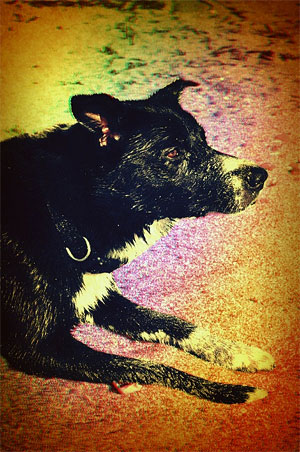
A number of new effects were added to the already extensive collection of FX Photo Studio, bringing the app’s total to 194. With version 4.0, you are given 6 brand new cross process effects, which were developed in collaboration with professional photographers. A special 3D effect is also part of this update.
The new 3D effect.
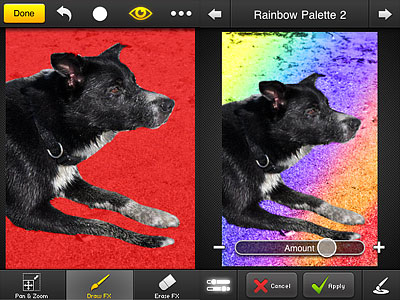
The highlight of version 4.0 is, without a doubt, the masking tool. Masking allows to apply effects selectively on images. In FX Photo Studio, you can add selectively as many effects as you wish in a row. There are four types of brush that can be used to paint over images, varying in opacity and border hardness. By zooming and panning using your fingers, painting over photos can be done quite comfortably. It’s either possible to enable mask view or disable it while painting. The ‘invert mask’ lets you easily switch among masked and unmasked areas.
Very cleverly, FX Photo Studio saves your previous mask, so that you can apply a series of effects exactly where you want to. The only drawback concerning masking is the lack of a resize function for the brush. It’s possible to make up for this by zooming in, but on finer detail it may still be problematic.
Effects applied selectively using masking.
It’s now possible to import photos directly from any Facebook account. Other than sharing them via the previously available options, edited photos can now be printed right away by taking advantage of iPhone’s AirPrint (requires iOS 4.2 or later) or they can be sent directly to Instagram.
The developer of FX Photo Studio revealed that a print-on-demand feature is in the works, so check out for future updates.
Given the new features, significantly expanding FX Photo Studio’s possibilities, I am revising the previous rating for MacPhun’s app, which now gets a well-deserved full score.
Overall
Name: FX Photo Studio
Developer: MacPhun
Compatibility: iPhone, iPod Touch. iOS 3.0 or later.
Price: £1.49||$1.99||€1.59
Vote: 5/5
Lithogram emulates the looks of halftone lithography on iPhone. Kuviz’s app takes its name from the lithography technique, in which a drawing is delineated with wax or other water repellent substance on a smooth surface, like that of a stone (in ancient Greek, the word lithos means stone) or of a metal plate. After proper treatment, ink spread on the surface will only adhere to the water repellent substance, which forms the positive part of the image. By pressing the inked surface on paper sheets, a series of prints can be obtained. Lithography was for a long time one of the most widely used printing techniques.
Main Features
Up to 1280×960 (photo), 426×320 (video) pixels resolution;
Video recording available;
6 paper textures;
6 halftone styles;
Send via email.
Appotography Opinion
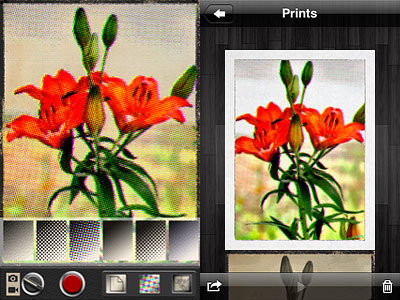
Lithogram allows both photo and video taking. The app uses a a real-time preview to let users see how effects and textures affect what the camera is capturing. It’s also possible to load photos from the Camera Roll, by tapping on the small picture icon appearing at the top of the screen. Saved photos and videos are stored in the Prints gallery. From there, you can delete, save to Camera Roll or email photos and videos.
There are in total 6 paper textures and 6 halftone styles to choose from. Halftone, which includes both color and monochrome effects, applies different patterns (dots, diamonds, crosshatch and lines) to still images and videos. Papers not only add texture and, in a few instances, a border, but also color presets for giving different tints to monochrome effects.
The effects, however not many, are nicely done, especially if you look at the edited photos at their actual resolution. No significant detail is lost. The effects work best on images with good contrast and predominant subjects, like close-up shots.
Different combinations of textures and halftones.
There is a problem when sending images created with Lithogram via email directly from within the app: the files are not read as images but as videos. It’s not a big deal, honestly, as you can ignore the fact the computer tries to open them using Quick Time by default. Still, it might be confusing. If you save to Camera Roll and email the images from there, nothing weird happens.
The greatest problem with Lithogram is the saving resolution. The maximum allowed for still images is 1280×960 pixels, while for videos it’s a very disappointing 426×320 pixels. Photos loaded from your device are saved at the same resolution of those taken with Lithogram’s built-in camera, so beware. This is partly justified by the real-time feature. However, we know that other apps like Lumière use the real-time quite successfully even with high resolution saving. Given this is version 1.0 of Kuviz’s app, I am confident improvements will be made with future updates.
Lithogram is currently on sale and downloadable at the special price of $0.99 (€0.79/£0.69)!
iSupr8 2.0 is out. New features and a few extras are part of the latest major update for this iPhone and iPad video maker which simulates the look of the old Super 8 format (our full review can be found here). Let’s see what’s new in version 2.0 in detail.
First of all, iSupr8 now offers more editing options. There are four new film simulations that you can purchase (each for $0.99/€0.79/£0.69) + an extra film coming for free with version 2.0:
Prime-X B&W – Low contrast black and white with subtle sepia tint, for a suggestive and timeless look.
PenneMaker B&W – High contrast black and white inspired by the rough and extreme documentary style of the 60’s.
VibraChrome 40 – Warm color effect with red hue in shadows, especially suited for sunny days.
SuprCrome 40 – Slightly desaturated color effect with a touch of magenta.
Levi’s Film Workshop (free) – Color effect with a bold indigo hue for emphasizing blues.
Every effect has adjustable settings which are accessible by tapping on the ‘preview’ thumbnail in the app’s development area. You can set vignette, noise, flicker and scratch strength, disable/enable audio, film burn and frame. Your customized settings can be saved as presets.
Among other new features, a revamped design, a selection of FPS rates (12, 18, 24) and improved sharing and community integration (make sure though you have read the Terms of Service and you agree with them before you share via iSupr8 community).
It’s also possible to choose a camera case among the ones available. Currently there are two choices, the standard black case and the special Levi’s themed edition case.
Last but not least, as mentioned above, iSupr8 is currently free in the App Store for a limited time, thanks to Levi’s Film Workshop sponsorship.
Simply B&W does exactly what its name states: it turns photos into black and white. Given the overabundance of black and white converters in the App Store, Simply B&W can easily go unnoticed. As a matter of fact, although I am mostly devoted to black and white photography, I had overlooked this app myself. However, as far as the value of Simply B&W is concerned, I am quite sure iPhone black and white hardcore enthusiasts will enjoy this app quite a bit.
Main Features
Full resolution available;
Black or white border on/off;
Color filters;
Adjust brightness and contrast;
Send via email.
Appotography Opinion
Simply B&W is very essential in its features and straightforward in its workflow. You load your a photo from your iPhone and the photo is instantly converted into average black and white. All you have to do to is setting brightness and contrast values and applying colored filters to your photo, in order to make the important elements stand out.
Colored filters are what mostly affect the look of your black and white photo, since the way the final image will look like depends primarily on color channel settings. By applying a color filter, you pass the color which the filter is named after and block all the others. Filters available in Simply B&W are red, green, blue, yellow and orange, which is, basically, all you need in photography to produce good looking black and white.
Other than that, from the main page, you can go to the app’s settings and enable or disable the border feature (enables/disables a plain black or white border, not adjustable).
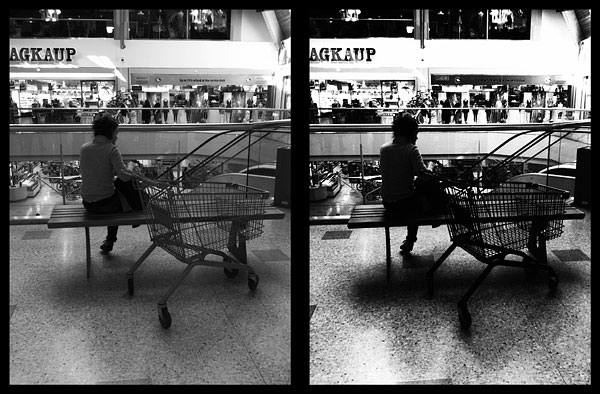
Black border with no filter (left), blue filter + high contrast (right)
What I like about Simply B&W is its minimal approach. You spend a few seconds adjusting just the crucial settings and forget about all the rest. Simply B&W produces high quality, classy black and white. Caring more about editing than about actually taking photos can be detrimental. More than anything else, Simply B&W is a reminder that a good photo is the starting point to any decent looking post-processing.
The developer of Simply B&W kindly provided a promo code for reviewing purposes.
Overall
Name: Simply B&W
Developer: Mr. B. Ware
Compatibility: iPhone, iPod Touch, iPad. iOS 4.0 or later.
Price: £0.59||$0.99||€0.79
Vote: 4/5
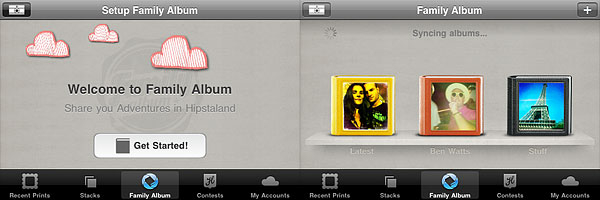
Hipstamatic 220 presents: Family Album – Share Your Adventures in Hipstaland.
Now you can create your own personalized albums and share them with friends and other Hipstamatic users. As soon as your prints are developed, you can select the “Send to Family Album” option to share them via this new feature.
There are three types of available albums that you can choose from:
Shared Album‘s purpose is making it easier to share and have instant access to Hipstaprints of your friends and contacts. For example, you can create more shared albums to share content with different people.
In Photo Album you can collect Hipstaprints you like: they can be your own, your friends’ and other Hipstamatic users’ as well.
Magic Album can contain all sort of content, relating to people, things and places.
For each album type, you can set a name, add tags and specify other details, like a defined period of time and shooting location, so that you can keep track of everything and have your shared prints or prints you like neatly organized.
Through the main Family Album screen, you can browse all your shared prints, together with featured albums and latest uploads. Albums you create can be deleted at any time, while prints you have shared are not deleted with albums.
Set up your Family Album in Hipstamatic.
Lastly, you can now upload your prints to Twitter, Facebook and Tumblr at the same time.

 Great news everybody! Appotography was included in Blogs.com’s “Top 10 iPhone Photo (iPhoneography) Blogs”!
 FX Photo Studio

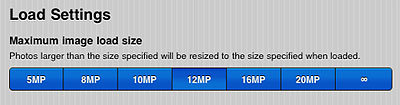 It’s possible to edit maximum image loading size from in-app settings (PhotoForge logo -> Settings -> Load Settings).
 Halftone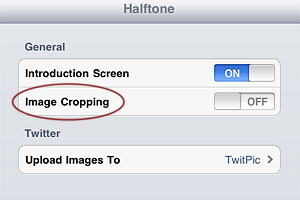
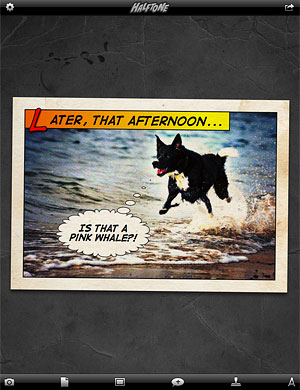 Also new in this release is the larger speech balloon’s tail area. Grabbing the tail of balloons was one of the several issues that caused some difficulty to Halftone users when creating their comic panels. Expanded touch area for balloons‘ tail allows better handling and placement of speech balloons in Halftone.
 FX Photo Studio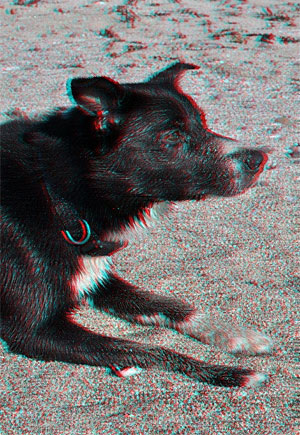

 There are in total 6 paper textures and 6 halftone styles to choose from. Halftone, which includes both color and monochrome effects, applies different patterns (dots, diamonds, crosshatch and lines) to still images and videos. Papers not only add texture and, in a few instances, a border, but also color presets for giving different tints to monochrome effects.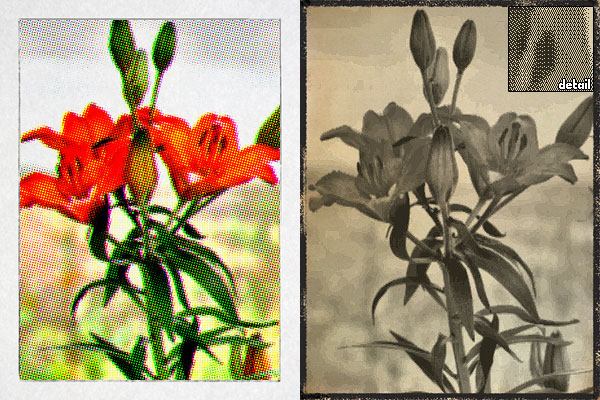

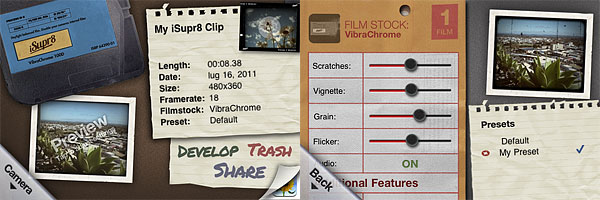 Every effect has adjustable settings which are accessible by tapping on the ‘preview’ thumbnail in the app’s development area. You can set vignette, noise, flicker and scratch strength, disable/enable audio, film burn and frame. Your customized settings can be saved as presets.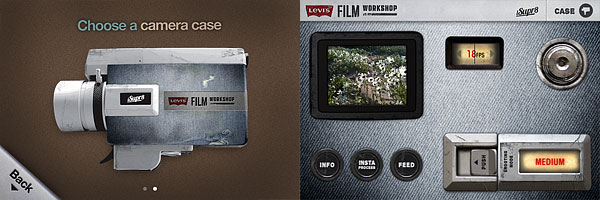
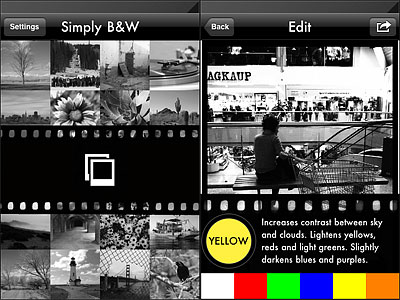 Colored filters are what mostly affect the look of your black and white photo, since the way the final image will look like depends primarily on color channel settings. By applying a color filter, you pass the color which the filter is named after and block all the others. Filters available in Simply B&W are red, green, blue, yellow and orange, which is, basically, all you need in photography to produce good looking black and white.