
Before the HD came, there once was a sweet little iPhone app called Pinhole Camera. Pinhole Camera brought the feeling of original pinholes, with their attractive lo-fi look, to Apple devices. In spite of the good idea and even if the app in general looked very nice and polished, there were some serious resolution limitations in Pinhole Camera that prevented many users from enjoying it as they wished. Pinhole HD is a new and improved version of Pinhole Camera: the pinhole camera app for iPhone now offers bigger output resoulution and more features.
Main Features
- Full resolution available;
- Square format;
- Double exposure on/off;
- Three different films (color, expired color, b&w);
- 3 frame styles;
- Set lens distortion;
- Share the photos via Facebook or email.
Appotography Opinion
Pinhole HD works almost exactly like Pinhole Camera; the only difference is that you have more options and a higher resolution available. The UI is also the same: if you are used to the previous Pinhole app, you won’t have any problem using the HD version.
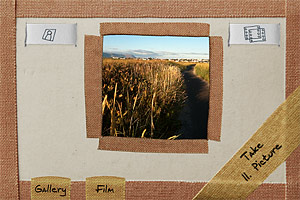 Pinhole HD features three types of film: color, expired color and black and white. From the Film menu, you can choose your desired effect before taking pictures. You can turn on and off the double exposure with a swiping motion of your finger over the slide button located on the top right of the main screen. Using the button on top left of the screen, resolution (small, medium and high) can be set in the same way. If you decide to take a double exposure, you are requested to tap twice on the shutter button. You do not have time limitations, but you cannot change film from the first exposure to the next. Development takes place in background, so you can keep on shooting while your photos are being processed.
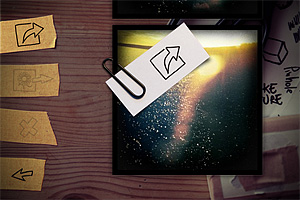 All the photos you take are saved to the Gallery, from which in any moment you can decide to make basic adjustments, like changing film type and frame, enabling lens distortion (low or high, to simulate a wide angle effect) and balancing blending in double exposures. Default values for these parameters can be changed from iPhone’s Settings. Once you are satisfied with your image, you can save it to Camera Roll, send it to Facebook or share it with your email contacts. In the new HD version, it’s possible to select more photos at once to delete, share or save them with a single tap. Differently from Pinhole Camera, Pinhole HD lets you process photos stored in the Camera Roll, not only those taken with the built-in camera.
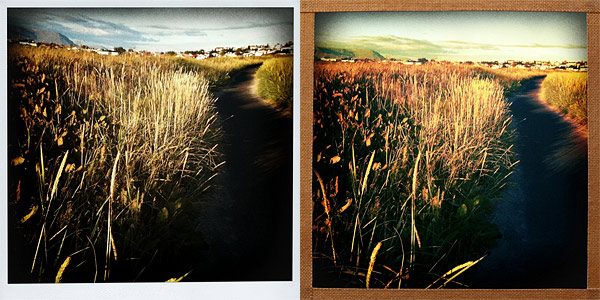
Processing times in Pinhole HD are slower compared to average. Also, please note that when you close Pinhole HD, your settings are always reset. For example, if you pick the higher resolution available and then exit the app, the next time you will open it, the resolution will be set again to a default medium. To avoid surprises, be sure to check your settings every time you open the app.
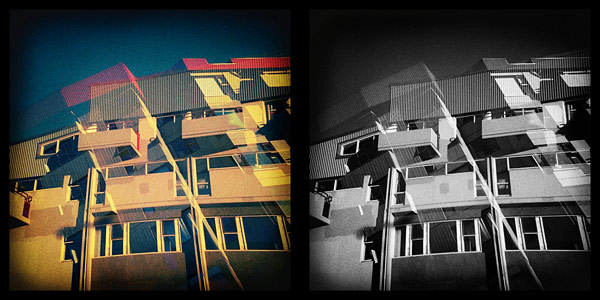
Pinhole HD is a more solid and better-rounded edition of the former Pinhole Camera app for iPhone. Effects are as good as in the previous version; the idea behind the app, original but straightforward, is still refreshingly pleasing. All in all, Pinhole HD is very easy and fun to use.
Overall
Name: Pinhole HD
Developer: Martin Kosdy
Compatibility: iPhone, iPod Touch (4th), iPad 2. iOS 4.1 or later.
Price: £0.59||$0.99||€0.79
Vote: 4/5

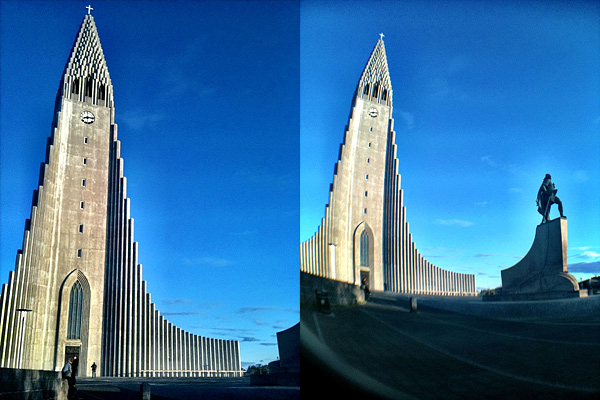
 The only issue with the wide angle is that, depending on the camera phone you are using, the edge of the lens may end in your photo together with the rest of the scene. It is nothing you cannot crop out of the picture (or remove with the help of apps like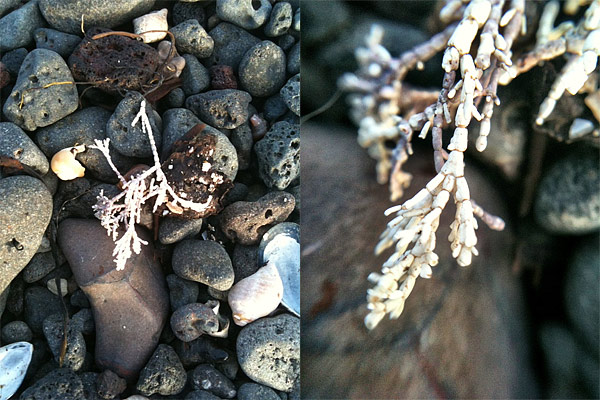
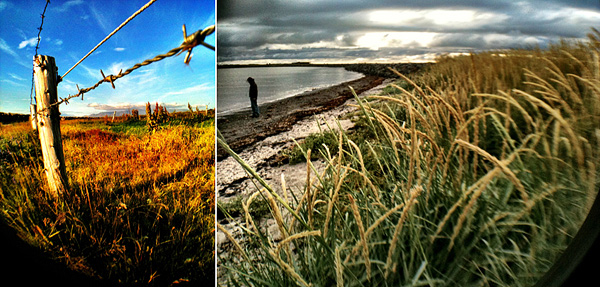
 From the same kit is the fisheye lens. Honestly, I’m not a great fan of fisheye photography, mostly because I think the fisheye is a difficult lens to handle properly. You have to find the right subjects and conditions to make a fisheye photo spectacular, while most people just think using this type of lens is an end in itself. For this reason, most fisheye photos mean absolutely nothing beyond the effect provided by the lens. I have no problems admitting I am not a gifted fisheye user. A fisheye is not only hard to handle, but also hard to manufacture. Needless to say that, for its strong character, imitating the effect of the lens digitally often produces lame results.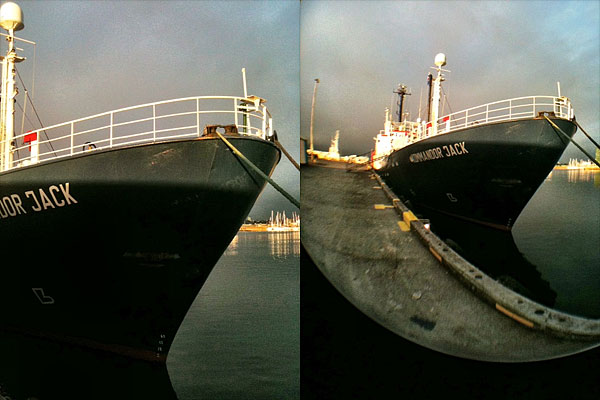
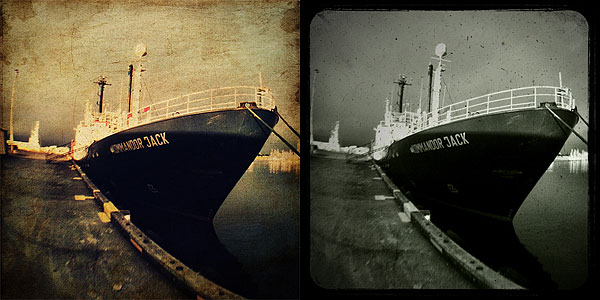
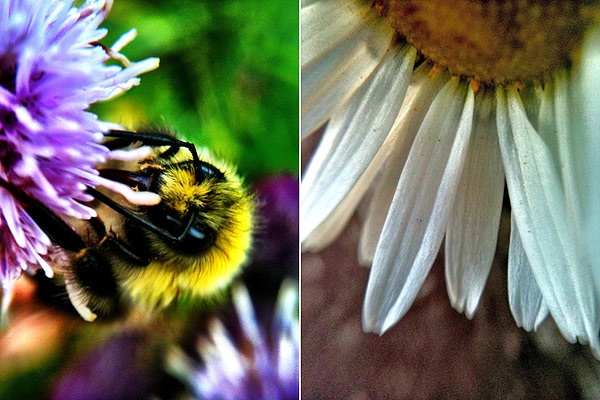
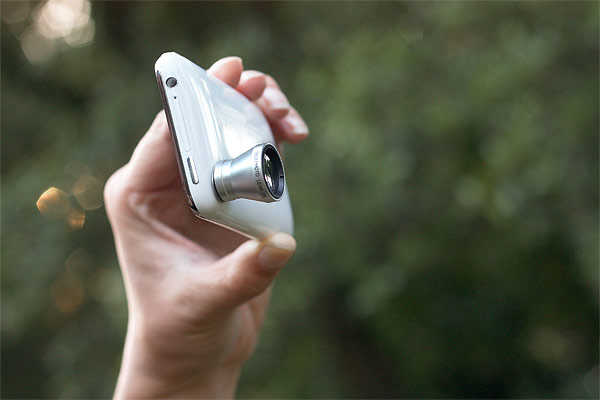 Besides magnification, the telephoto’s most noticeable feature is a slight blur around the borders, which sort of conveys a tilt-shift look in some instances. The effect can be pleasantly surprising, if applied to the right subject and in combination with the right idea. I find the blur adds to images a charming analog toy camera touch that is much more convincing than similar effects you can apply in post-processing with specialized applications. With the scene you will be aiming at, camera movements are also magnified with the lens on, so the best way to minimize blur is to use a stable surface or a tripod to support the camera. In any case, if you want images to be less blurry, do not try to hold the iPhone or other camera while a 30 km/h wind is blowing, as I did…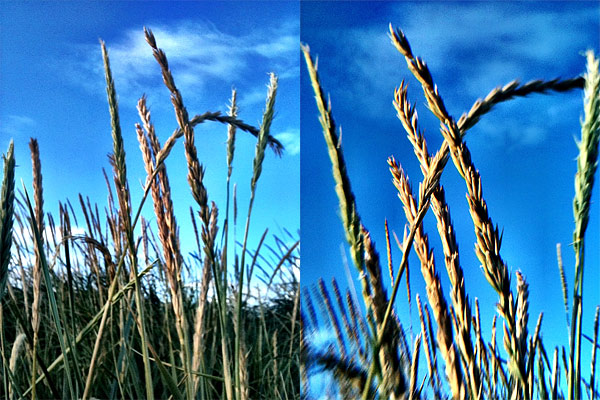
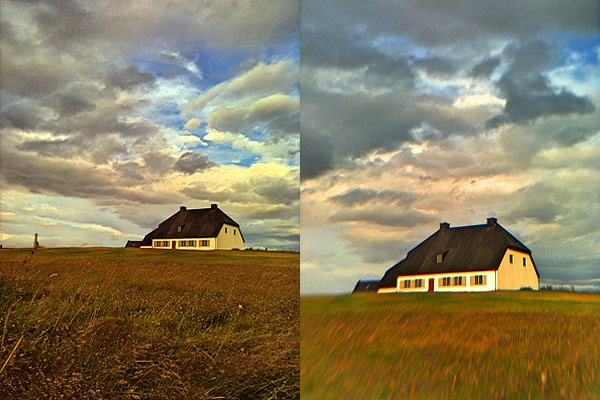 The results lend themselves to many creative possibilities which is up to you to explore. I am quite enthralled by the suggestions evoked by images captured with the telephoto lens on.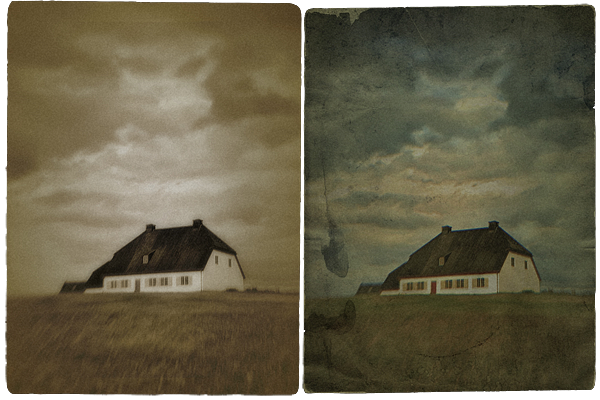
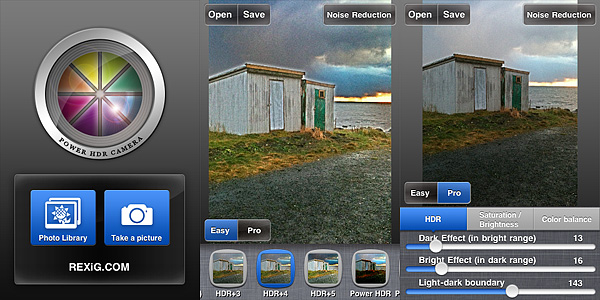 For a quick enhancement of badly exposed photos, the Easy mode offers 23 presets which can be applied to images with a single tap. Presets can be found in the bottom part of the screen, and by swiping with the finger you can scroll and choose among them. For a more thorough processing and for more control, you can switch to Pro mode. Pro mode lets you adjust individual settings which affect the overall look of the image, like bright and dark intensity, saturation and contrast, and color balancing.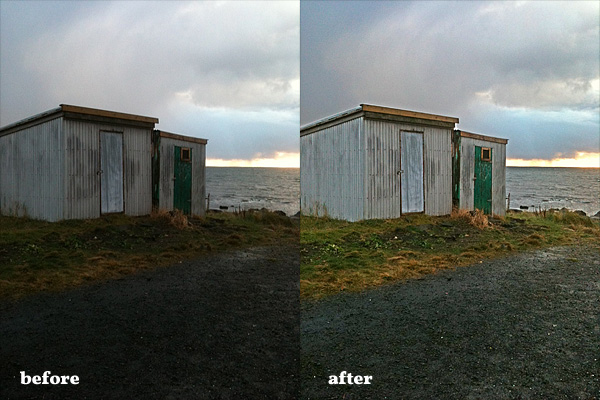
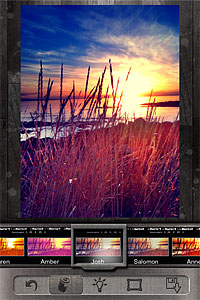 Change the look of your photos with a single tap. Pixlr-o-Matic offers a collection of 25 photographic effects, 30 light overlays and 31 frames, for many combinations. Pixlr-o-Matic is also a web app. Try it for free
 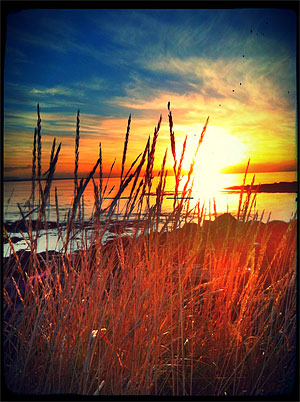 Developer: Autodesk Inc.
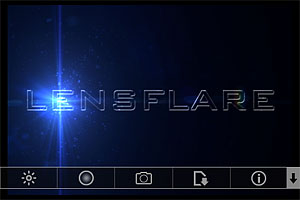 Light can make a difference in photo enhancement. LensFlare comes with 42 professional looking flares, which can be placed in images loaded from Camera Roll or in photos taken with the built-in camera feature. Flares range from SRL camera lens to cinematic effects. Scale and rotate flares to adjust them to photos, create images of great visual impact with just a few touches.
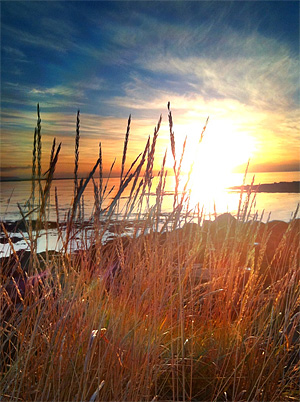 Developer: BrainFeverMedia
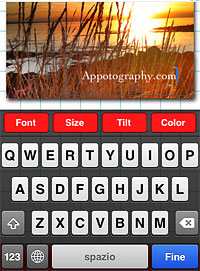 Add captions to photos with Phonto. More than 100 font styles are available. Phonto lets you customize your text by changing font face, size and color. Change opacity, tilt and add backgrounds for different effects. Use Phonto to add watermarks or to send personalized messages. Phonto is Instagram-friendly: it saves photos in a square format and lets you post directly to your favorite photo sharing app.
 Developer: youthhr
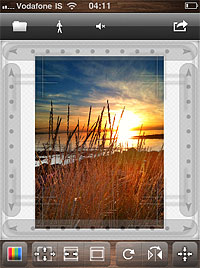 Squaready is a great companion for regulars of the 1:1 aspect ratio. Instagram users will find it easier to adapt both their landscape and portrait oriented photos to the square format. Flip and rotate, shrink and enlarge, add a colored background and send to other photography apps (Instagram, Magic Hour, Camera+, Cameramatic, and more).
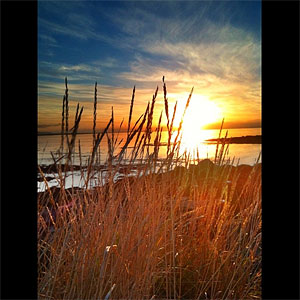 Developer: FANG Inc.
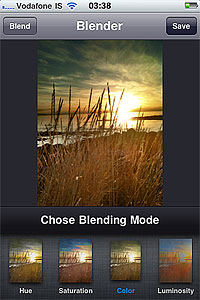 Merge two photos together to create unique images. Create unique effects and spice up photos by adding textures. Choose among 18 blending modes and adjust the opacity of each image for the desired result. Image Blender is as easy as layer blending can get.
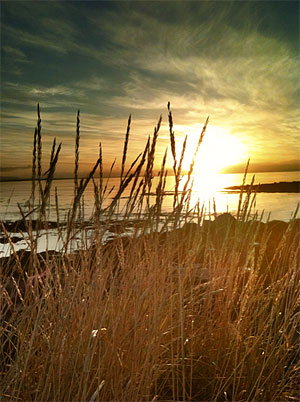 Developer: Johan Andersson
 Camera+ 2.3 introduces a new feature: captions. Captions are a simple and fun way to add text to your photos.
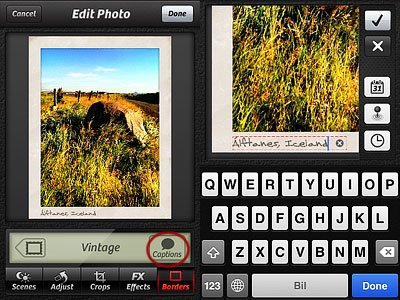 As you can see from the images below, each border style comes with matching styled captions, varying in fonts and colors. Alignment, font, size and color of captions are not editable.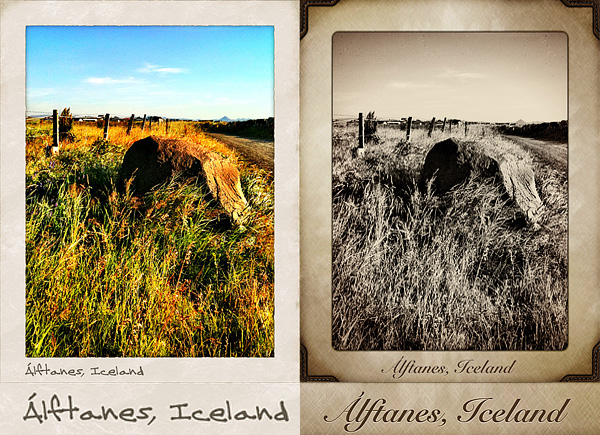
 The launch of version 2.0 is approaching and developers revealed it will bring major changes to some of the core features of King Camera, plus new effects and other upgrades. In the meantime, there is more than enough within the current release to have fun with your photos: King Camera’s recent updates greatly improved both the app’s speed and general performance.

 The most notable feature added in version 1.1 is the fullscreen editing. By tapping on the uppermost right corner of the tool panel (on the dotted corner), it’s now possible to enlarge the work area. This is especially useful when better control on finer detail is required, as it allows more accurate placement of the ellipse affecting the vignette’s adjustment.
 Other enhancements in Noir Photo 1.1 include: higher editing resolution and preservation of photo metadata, so that original information is not lost upon saving.