Magic Hour Updated to 1.3

Magic Hour 1.3 is now available in the App Store. The new version of Kiwiple’s photo editing and filter creator application for iPhone introduces new features for more fun and possibilities.

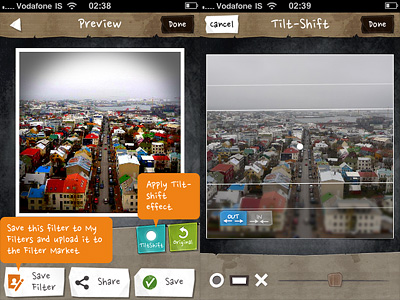
The biggest addition in this release is the brand new TiltShift effect, for turning photos into fake miniature images.

Magic Hour by Kiwiple for iPhone

Tilt shift simulation can be applied to photos edited in Magic Hour after adjusting other settings, just before saving. This means, you will not find the tilt shift option among Magic Hour’s presets or in the Filter Market, but you will be able to add it after the rest of you editing is done. There are two blur modes that you can choose from: radial and linear. Other than that, you can decide if the blur must be applied inwards or outwards. A slider allows easy resizing of the effect. In combination with other filters and/or with vignetting added, Magic Hour’s tilt shift effect looks pretty neat.

Magic Hour for iPhone by Kiwiple - Tilt shift
Colorful Reykjavik! Apply a fake miniature effect to your photos in Magic Hour.

Other changes in version 1.3 include a digital zoom feature for the camera mode and a fix for Facebook and Posterous sharing bug.

Photo Toaster & Grungetastic On Sale!

Photo Toaster and Grungetastic are currently on sale! You can get these two apps from the App Store for $0.99 (£0.59/€0.79), with a 50% discount on their original price tag.

Photo Toaster & Grungetastic on sale!

Photo Toaster is a universal photo editing app, especially good for quick and easy processing. It offers iPhone and iPad photographers a collection of ready-to-use presets and it also allows the creation of personalized effects.

Grungetastic comes with several grungy presets, for giving photos a dirty, old, distressed look. The app includes a rich collection of textures and borders, which you can adjust to your photos to create your custom effects.

PS: the offer is valid only for the iPhone version of Grungetastic.


Bleach Bypass Free!

Bleach Bypass by FotosynBleach Bypass, the skip bleach filter suite by Fotosyn for iPhone is currently free for dowload in the App Store!

Bleach Bypass contains a collection of 8 filters, ranging from basic high contrast and desaturated skip bleach process look to gentler tinted effects. The app also allows vignetting and adding three types of border for a final touch.
Bleach Bypass for iPhone FreeIf you have not tried Fotosyn’s photo application yet, you can do it now for free. The offer is valid for a limited time only.

Color Burst™ Review

Color Burst™ is a selective desaturation utility for iPhone. Though the idea at the core of Smart Solution’s app is the same as the one of almost all other color splash apps in the App Store — how many of them are there, by the way? –, Color Burst™ has some significant flaw that makes it not enjoyable and user-friendly.

Main Features

  • Full resolution available;
  • 3 painting modes (color, hue, gray);
  • 3 hues to recolor photos;
  • 4 brush sizes;
  • Invert;
  • Pan and zoom;
  • Undo.

Appotography Opinion

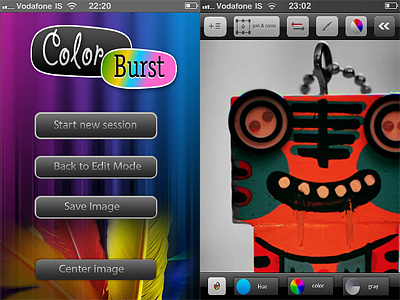
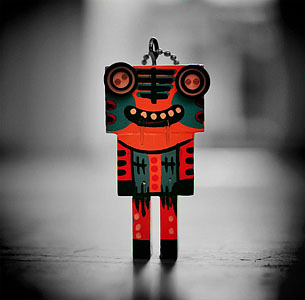
Color Burst™ allows applying color splashing on photos from your iPhone. From the main screen, you load your photo to the edit panel and select one among the three available painting modes (Color, Hue or Gray): Gray desaturates areas of your image you select by finger painting over them, while Color brings the original colors back.

Other than these two methods, you can choose Hue, which lets you apply a new hue to your photo. It looks like right now you only have three basic hues to choose from: red, green and blue. This is so silly that it is almost surreal; at any rate, I couldn’t find a color picker or any other way to select any other hue other than these three.

Color Burst™ for iPhoneUsing a special button, you can invert colored and black and white areas with one tap. If you make mistakes, you can undo. For more control, you can pan and zoom and, from the main screen, you can reset your image’s position by placing it back at the center of the edit panel. In border mode, you enable a mask preview for a better idea of what areas you are affecting while painting.

Color Burst™ for iPhoneWith no doubt, Color Burst™ has some serious issues. Compared to other selective desaturation apps we have reviewed (like, for example, Colorize and ColorSplash, both easy and fun to use), Color Burst™ is probably the less intuitive, stable and flexible. UI and features are elementary, tools available are few, adjustments you can make are very limited. Using this app feels so awkward, especially finger painting doesn’t feel comfortable and accurate enough on larger images and without the ability to freely resize your brush. The lack of tips or in-app manual doesn’t help, especially if you have not tried other similar apps before. Since I have tried Color Burst™ on 3GS only, I cannot say how much better it can get on iPhone 4. Anyhow, in my experience, this app is also crash prone. Considering you cannot restore from previous sessions, it’s not unlikely you’ll have to start over if anything happens while editing.

As I see it, Color Burst™  is definitely not even remotely the best option if you simply want to add, change or remove color selectively from your images.

Color Burst™ is currently on sale: you can download it for free for a limited time.

Overall

Name: Color Burst™
Developer: Smart Solutions
Compatibility: iPhone, iPod Touch, iPad. iOS 3.0 or later.
Price: £0.59||$0.99||€0.79
Vote: 2/5

ComicBook! - 3DTOPO Inc.

ComicBook! Review

ComicBook! is a universal comics creator for iDevices that allows mixing your photos and turning them into comics, by choosing templates, applying effects and adding captions and stickers.

Main Features

  • Up to a resolution of 1024×768 pixels (iPad), 960×640 pixels (retina display devices), 480×320 (other);
  • 30+ page templates;
  • 3 halftone sizes;
  • 4 borders;
  • 13 caption/bubble styles;
  • 55 stickers;
  • 9 filters;
  • 7 fonts;
  • AirPrint support;
  • In-app guide;
  • Send via email or share on Facebook, Twitter.

Appotography Opinion

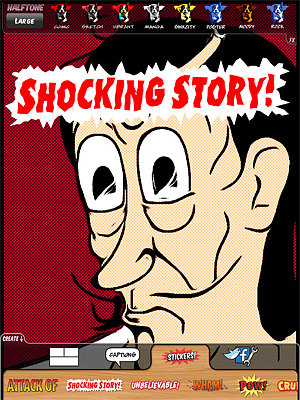
To create your comic, you choose one among the available template pages and either import images stored in your device or use the built-in camera. Templates can be found in the Create menu, at the bottom of the screen. You can move, rotate, enlarge and shrink the images to adjust them to the template’s panels. On top of each panel, you will find the FX menu, containing the various effects you can apply to the imported images. There are nine different styles, some slightly customizable, ranging from sketch to black and white and Warhol-ish pop art. Halftone (small, medium, large size) can also be added.
ComicBook! by 3DTOPO for iPhone and iPad
From the same Create menu where you go to pick the template, you can also select Captions and Stickers. Captions include both speech bubbles and proper captions. Stickers represent sound effects and various other graphics to spice up your comics. By tapping on the item of your choice, you will have it appear on your comic’s page. Tapping once on the chosen item to make it active, you can move it around and affect other features: for captions and speech, you can input a text and set a font face, color and size, while you can only rotate and resize Stickers. By double-tapping, you can delete the item.
ComicBook! by 3DTOPO for iPhone and iPad
In the Create menu, you will also find the Utilities section, from which you will be able to save, upload, email or print your comics, other than read the in-app guide and access ComicBook!’s settings.

The UI of ComicBook! feels somewhat cluttered and not highly manageable; for this reason, getting things right in your creation is not as easy as it should be. Manoeuvring elements is not enough intuitive and trying to fit them in your panels can be really frustrating. The customization for text is very limited and size and colors available for fonts are few. In some instances, after you have performed an action, it’s not easy to make changes promptly.

ComicBook! by 3DTOPO for iPhone and iPad
Landscape oriented comic saved with iPad in vertical position.
ComicBook! by 3DTOPO for iPhone and iPad
The same comic saved with iPad in horizontal position.

Another serious problem concerns the very disappointing saving resolution allowed in ComicBook!. Resolution is not the only limitation, anyway. I found it impossible to send, upload or save properly comics from templates in landscape orientation, as the only thing the app seems to be able to save in this case is the leftmost portion of the page. The issue can be solved by choosing portrait oriented templates or changing your device’s orientation — crazy, I know. Colors in saved comics appear to be somewhat different compared with the ones of your original photos, so beware.

Although the idea is OK, some elements in this app are definitely too similar to Halftone‘s. Hopefully, the developers submitted to the App Store just a rushed version of their ComicBook! and they will fix bugs in the coming versions and allow higher resolution saving.

EDIT – After ComicBook!’s update to 1.0.1, the issue with saving orientation is fixed. Thus we also update our overall score.

Overall

Name: ComicBook!
Developer: 3DTOPO inc.
Compatibility: iPhone, iPod Touch, iPad. iOS 4.0.2 or later.
Price: £1.49||$1.99||€1.59
Vote: 3/5

ComicBook! - 3DTOPO Inc.

How to Restore Purchases on iPhone and iPad

If you take the time to explore comments left by users in the App Store, you will notice that some of the negative remarks posted are based on groundless criticism, often triggered by lack of proper understanding of how the App Store works. Thankfully, this type of negativity is only occasional; yet, the kind of misinformation accompanying it can affect negatively a developer’s sales. For most developers with one or more apps in the top ten, it’s not a big deal: unfair negative ratings are just a drop in the ocean. For smaller scale developers or relatively less popular apps though, even a couple of negative ratings can make a huge difference, thus it would be better if people learned to use the power they are given properly.

One reason people leave negative feedback in the App Store: if they delete an app from their iDevice, when they download it again, they see all their in-app purchases are gone. Instead of asking for support, they cast their one-star rating, thinking this will serve developers right. It’s true — and not very clever — that many developers don’t take the time to write accurate guides, telling users what to do in cases like the one I mentioned. Still, even if many developers are very eager to offer support, a lot of users prefer resorting the aggressive low rating method to let them know about their discontent, rather than asking for help.

More than a few apps these days offer in-app purchases: meaning that, even in the case the app comes for free, you buy some additional feature not included with the regular version of the app. In the case of photography apps, for example, through in-app purchase you often unlock new effects, higher resolution saving, ads removal, etc. When you delete the app from your iDevice, you obviously remove all its content as well, in-app purchases included. Upon downloading the app again, you are given the app without any extra in-app content, whether you have previously bought it or not. This is when the average user gets lost and, often, rushes to cast a one-star rating.

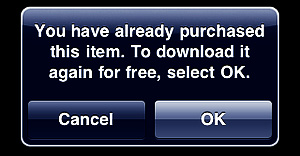
Some apps simply let you re-download your content again, charging nothing for the new downloading process: the developer has record you have already purchased that content before. At first, everything will look as it was the first time: you will not necessarily be warned that you are trying to purchase again something that you have already paid for. This might indeed be scary, but go ahead, because just before the download starts, a pop-up message will remind you that you are entitled to download the content for free, since you have already paid for it.
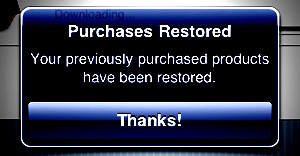
Restoring Purchases on iPhone and iPadOther apps have a feature called “Restore Purchases”. This may look confusing when you read it, but restoring simply re-downloads or unlocks all the content you have paid for, without having to go through the process of manually selecting several items and downloading them individually. Restore is especially useful in apps where there are multiple in-app items that can be purchased. Not all apps featuring in-app purchases include a Restore Purchases action, but some do.
Restoring Purchases on iPhone and iPad

Anyhow, only non-consumable purchases – virtual items that you cannot use up – can be restored. Photography apps usually feature only this type of purchase, but other genres of apps, like freemium games, rely on consumable purchases like virtual credits, which cannot be restored.

Closing comments

It’s in your right to offer your feedback in the App Store and developers definitely appreciate it. However, always try to be fair before you give your rating and make sure you are not missing some important detail; if you have doubts or if you find yourself stuck, take some time to look for adequate information or, when possible, contact developers for support.

Hipstamatic Releases New FreePak

A new Hipstamatic FreePak is available in the HipstaMart.

The new pack, Cowboys & Aliens, which has a strong Space Western inspiration to it and clearly plays with commonplace motifs of the genre (if you wish, you can have some fun guessing the source behind each item’s name), comes with two lenses and a camera case.

Hipstamatic Cowboys & Aliens FreePak

The Steambox camera case mixes a hybrid design of high-tech brass details with organic elements.

Hipstamatic Cowboys & Aliens FreePak
Libatique 73 and Matty ALN + Ina's 69

The lenses are very different the one from the other. Matty ALN conveys a retro sci-fi feel with its neon green-yellowish overlay and intense hot pink flare around the borders, as mimicking an iris; Libatique 73 features a very subdued selective sepia toning and vignetting for a vintage look vaguely imitating, according to the lens’ description, old calotypes. Libatique 73 is definitely the better rounded and more versatile addition in the Cowboys & Alien pack, whereas Matty ALN is more of a less usual effect with a relatively limited scope.


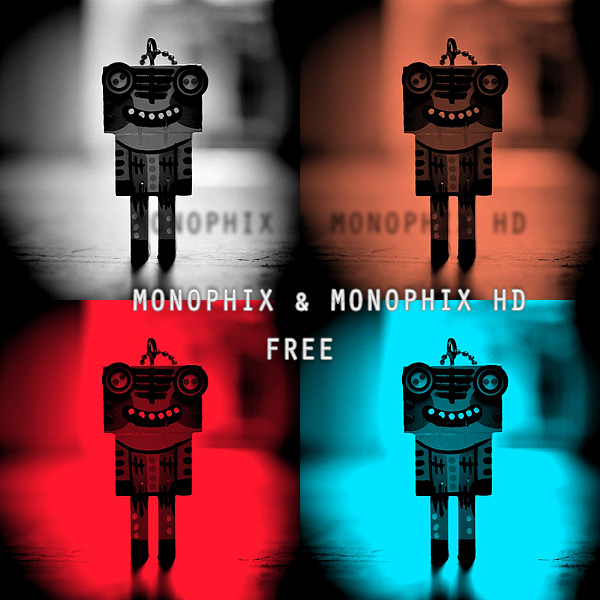
MonoPhix & MonoPhix HD Free!

A new ongoing offer currently in the App Store: MonoPhix is now free!

MonoPhix is a simple but effective monochrome converter for iPhone and iPod Touch. Not only MonoPhix turns your photos into monochromatic images and allows applying a tint to them, but it also features tools for opacity manipulation to create vintage-like desaturated effects.

To learn more, read our full review of MonoPhix for iPhone here.

MonoPhix and MonoPhix HD Free
iPad users will be glad to know that MonoPhix HD, the iPad version of Monophix, is also free to download right now!

Iris Photo Suite Review

Iris Photo Suite is a highly sophisticated collection of tools for iPhone photographers. It comes with a rich set of ready-to-use effects, great for beginners looking for a quick retouch, and with more specialized instruments, for users requiring proper control over the editing process.

Main Features

  • Full resolution available;
  • Adjust brightness, contrast, saturation and temperature;
  • Levels editor;
  • Shadows/highlights editor;
  • Color balance editor;
  • Layers support;
  • Blur/sharpness adjustment;
  • Noise reduction;
  • Selective desaturation;
  • Crop;
  • Rotate, mirror and flip;
  • Add watermark;
  • 70+ effects;
  • Restore from previous session;
  • Undo/redo;
  • Send via email or send to Facebook and Twitter.

Appotography Opinion

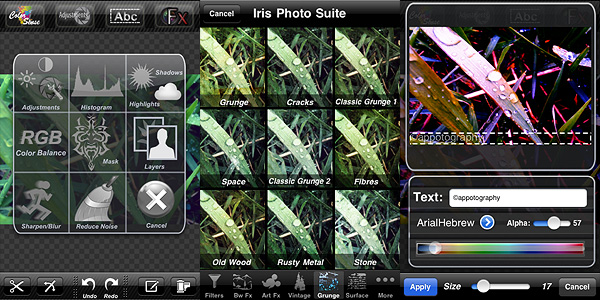
Iris Photo Suite provides you with several adjustment tools: you can set brightness, contrast and white balance, play with shadows and highlights, define color balance, examine your photo’s histogram and adjust levels. You can use layers and masks to create complex effects or for more refined results. Iris also includes crop and rotate tools, watermark editor, with fairly good font customization (over 100 styles, plus size, color and opacity control), and Color Sense, a selective desaturation/recolor feature, to remove and switch colors in areas of your images.

Iris Photo Suite for iPhoneAdditionally, a wide selection of effects is also available, ranging from black and white to artistic filters and from frames to textures. The effects are grouped into eight different categories (Art, Vintage, Grunge, BW, etc.). For each, you can set the strength with a slider and choose to apply it on the whole photo or only selectively with a mask.

Iris Photo Suite for iPhoneEven though the app is quite user-friendly (most actions are performed simply by dragging the sliders’ knobs and you always have a clear preview of what’s going on), some features are not easy to figure out from the very beginning. Layers management and masking can be hard to get used to at first, not for the actual difficulty in controlling them, but rather for learning how they exactly work.

Iris Photo Suite for iPhoneIris Photo Suite is one of the most complete apps for photographic enhancement and editing available in the App Store. Although recently some competitors (PhotoForge2 and Filterstorm, in special way) added functionalities that Iris lacks, this app is still a more than valid aid to iPhone photographers.

The iPad version of Iris Photo Suite is also available in the App Store.

Overall

Name: Iris Photo Suite
Developer: Pranav Kapoor
Compatibility: iPhone, iPod Touch, iPad. iOS 4.2 or later.
Price: £1.19||$1.99||€1.59
Vote: 5/5

Iris Photo Suite - Pranav Kapoor

Click! Review

Even if most of us will never require to take a shot while handcuffed, being able to use the iPhone camera also one-handedly may at some point come, well, in handy.

Click! by Room1337 gives you a series of tools to help you taking photos using one hand only. This may sound a little specific, but is it really so?

Main Features

  • Full resolution available;
  • Fullscreen shutter button;
  • Set focus and exposure separately;
  • Self-timer;
  • 5x digital zoom;
  • Anti-shake;
  • Level indicator;
  • Uses rear and front camera (only on supported devices);
  • Flash on/off (only on supported devices);
  • In-app guide;
  • Send via email or share on Facebook, Twitter and Flickr.

Appotography Opinion

In Click!, you can zoom in and out by tapping and holding and then dragging the zoom slider’s lever. Zooming works both horizontally and vertically for better control and the zoom level is always visible on top of the screen. A couple of level indicators, which you can calibrate from the Info section, will help you avoiding crooked photos.
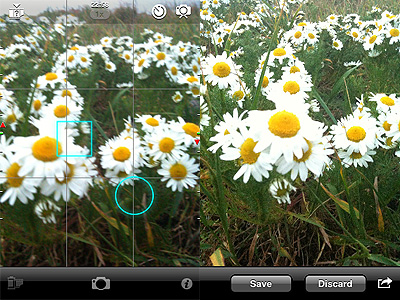
Click! by Room1337 for iPhoneTo set focus and exposure, you can either double tap to enable both cursors at the same time or you can tap and hold once for focus and tap and hold twice for exposure. By dragging the cursors around the screen area, you determine each parameter’s value.

Self-timer can be enabled to take difficult photos or self-portraits. Two modes are available: countdown, which sets a delay time before shooting, and  interval, which activates burst shooting mode. As a further aid, the anti-shake feature can be activated as well. In this way, the app will not start shooting until the camera is being held steady.

Click! by Room1337 for iPhone

With Click!’s Preview Mode on, you are given the opportunity discard each photo before saving or sending it to email recipients and social networks (does not work with burst mode activated). If Preview Mode is deactivated, you can send your photos after they are saved by accessing the Camera Roll from within the app. However, for some reason, when I tried this feature, the preview was not working properly — photos were always sent correctly though.

While features in Click! are not necessarily unique, the way they are used in this app is definitely interesting. Most apps assume you can at all times use both hands, at least to perform some secondary action; Click! assumes you could use two hands, if you liked, but using them both is not necessary: from opening the app to sending photos, all can be done single-handedly and easily.

If anything, taking photos with Click! is a tad too easy: several times I happened to trigger the shutter, when I was only trying to enable some other feature or to adjust focus and exposure. Most certainly, taking photos with Click! is simple, but getting to take them well is not quite as simple.

As primary app, Click! may result limited, especially in comparison to well-rounded multi-purpose cameras for iPhone — that often include most of Room1337 app’s features. Still, as a support for your iPhone photography, especially in peculiar instances, Click! can be truly useful.

Click! is currently on sale. It is now available in the App Store at the special launch price of $0.99 for a few days only.

Overall

Name: Click!
Developer: Room1337
Compatibility: iPhone, iPod Touch (4th), iPad 2. iOS 3.1 or later.
Price: £0.59||$0.99||€0.79
Vote: 4/5


Click! - Room1337