ComicBook! is a universal comics creator for iDevices that allows mixing your photos and turning them into comics, by choosing templates, applying effects and adding captions and stickers.
Main Features
- Up to a resolution of 1024×768 pixels (iPad), 960×640 pixels (retina display devices), 480×320 (other);
- 30+ page templates;
- 3 halftone sizes;
- 4 borders;
- 13 caption/bubble styles;
- 55 stickers;
- 9 filters;
- 7 fonts;
- AirPrint support;
- In-app guide;
- Send via email or share on Facebook, Twitter.
Appotography Opinion
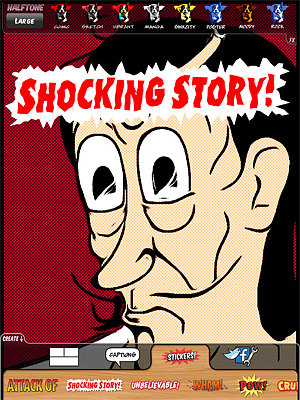
To create your comic, you choose one among the available template pages and either import images stored in your device or use the built-in camera. Templates can be found in the Create menu, at the bottom of the screen. You can move, rotate, enlarge and shrink the images to adjust them to the template’s panels. On top of each panel, you will find the FX menu, containing the various effects you can apply to the imported images. There are nine different styles, some slightly customizable, ranging from sketch to black and white and Warhol-ish pop art. Halftone (small, medium, large size) can also be added.

From the same Create menu where you go to pick the template, you can also select Captions and Stickers. Captions include both speech bubbles and proper captions. Stickers represent sound effects and various other graphics to spice up your comics. By tapping on the item of your choice, you will have it appear on your comic’s page. Tapping once on the chosen item to make it active, you can move it around and affect other features: for captions and speech, you can input a text and set a font face, color and size, while you can only rotate and resize Stickers. By double-tapping, you can delete the item.
In the Create menu, you will also find the Utilities section, from which you will be able to save, upload, email or print your comics, other than read the in-app guide and access ComicBook!’s settings.
The UI of ComicBook! feels somewhat cluttered and not highly manageable; for this reason, getting things right in your creation is not as easy as it should be. Manoeuvring elements is not enough intuitive and trying to fit them in your panels can be really frustrating. The customization for text is very limited and size and colors available for fonts are few. In some instances, after you have performed an action, it’s not easy to make changes promptly.
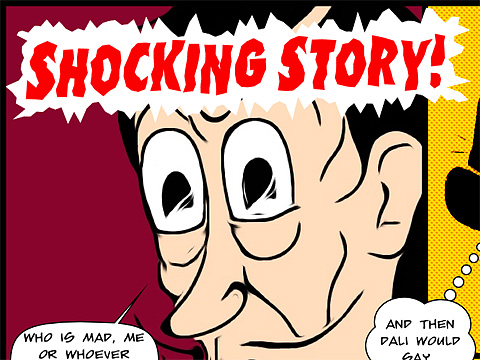
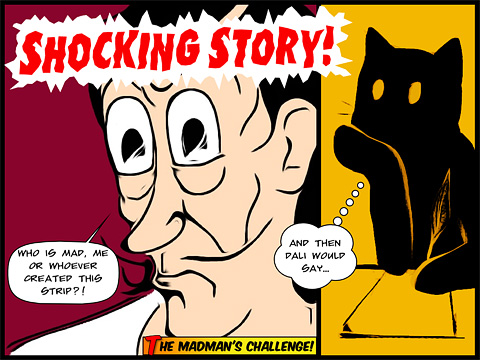
Another serious problem concerns the very disappointing saving resolution allowed in ComicBook!. Resolution is not the only limitation, anyway. I found it impossible to send, upload or save properly comics from templates in landscape orientation, as the only thing the app seems to be able to save in this case is the leftmost portion of the page. The issue can be solved by choosing portrait oriented templates or changing your device’s orientation — crazy, I know. Colors in saved comics appear to be somewhat different compared with the ones of your original photos, so beware.
Although the idea is OK, some elements in this app are definitely too similar to Halftone‘s. Hopefully, the developers submitted to the App Store just a rushed version of their ComicBook! and they will fix bugs in the coming versions and allow higher resolution saving.
EDIT – After ComicBook!’s update to 1.0.1, the issue with saving orientation is fixed. Thus we also update our overall score.
Overall
Name: ComicBook!
Developer: 3DTOPO inc.
Compatibility: iPhone, iPod Touch, iPad. iOS 4.0.2 or later.
Price: £1.49||$1.99||€1.59
Vote: 3/5

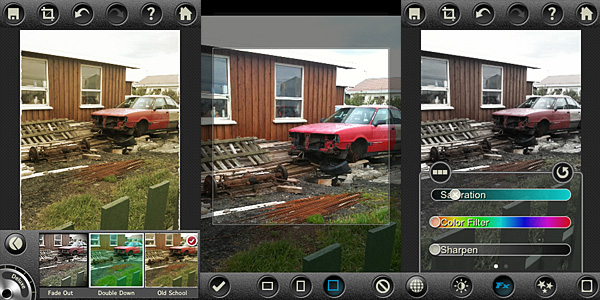
 Additionally, a wide selection of effects is also available, ranging from black and white to artistic filters and from frames to textures. The effects are grouped into eight different categories (Art, Vintage, Grunge, BW, etc.). For each, you can set the strength with a slider and choose to apply it on the whole photo or only selectively with a mask.
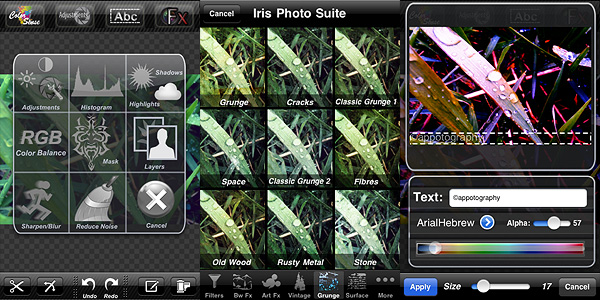 Even though the app is quite user-friendly (most actions are performed simply by dragging the sliders’ knobs and you always have a clear preview of what’s going on), some features are not easy to figure out from the very beginning. Layers management and masking can be hard to get used to at first, not for the actual difficulty in controlling them, but rather for learning how they exactly work.
 Iris Photo Suite is one of the most complete apps for photographic enhancement and editing available in the App Store. Although recently some competitors (
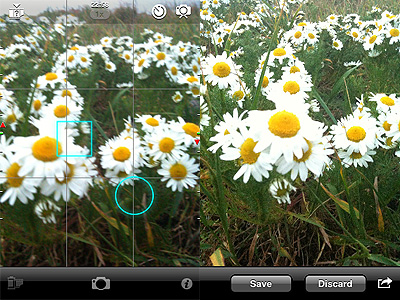 To set focus and exposure, you can either double tap to enable both cursors at the same time or you can tap and hold once for focus and tap and hold twice for exposure. By dragging the cursors around the screen area, you determine each parameter’s value.

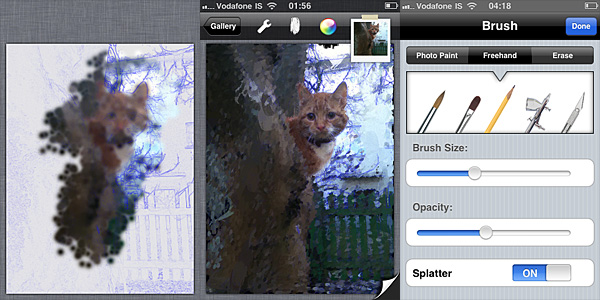 As soon as you load your photo in Artist’s Touch, you are given a blank canvas with your photo’s contours highlighted as a guideline, like in a sort of blueprint. You can enable and disable the blueprint feature in any moment. To accurately apply a painterly effect to suit your taste and need, you can set brush opacity and size. By brushing with your finger over the image, you define the areas where the given effect must be applied. For better results, you start with a larger brush and gradually diminish size to bring out the details. In case of mistakes, you can activate the eraser, but there is no undo. When you are finished, you can save to your device, send with email or share on Twitter.
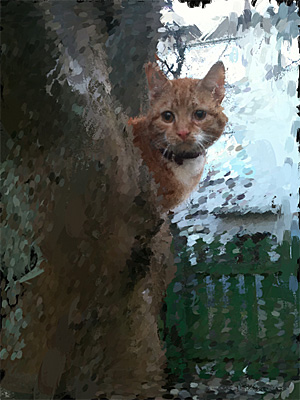 As an artistic filter, Artist’s Touch remains on a rather average level: the effects are not bad, but they’re not particularly good either. The best aspect of this Artist’s Touch, which is something more than a few other apps in the same genre lack, is that you can accurately define areas of your image with higher detail. An app like
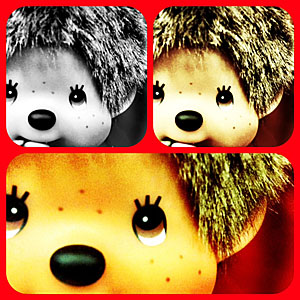
 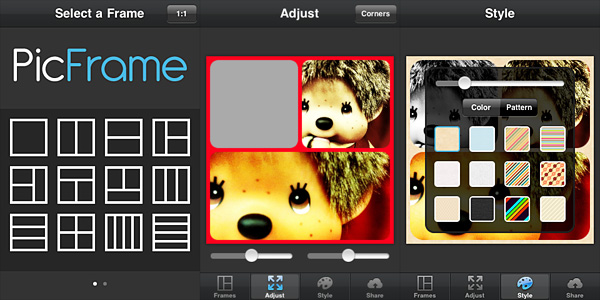 To add photos to the frame panels, you simply tap on the desired panel and choose one of the photos from your device. You can adjust the photos individually to fit better by moving them around (sliders are also provided to expand and contract each panel’s area), by pinching to enlarge and shrink them, by tapping and holding to activate mirror and rotate functions.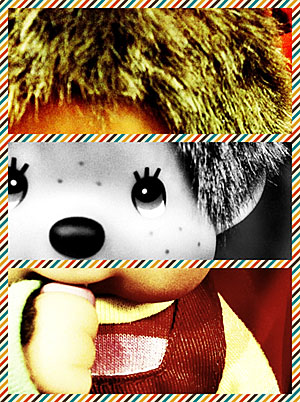
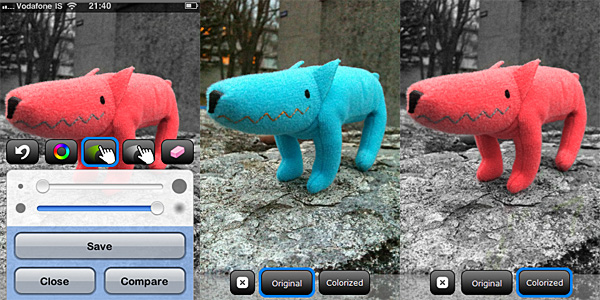
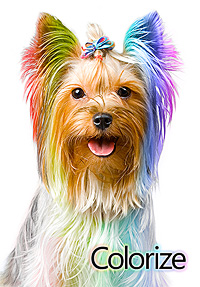 In Colorize you can both selectively recolor and desaturate your images. The process to achieve the desired result is simple. You load a photo from your device or take one with the built-in camera; after that you are introduced to the app’s Main Panel. At the bottom of the Main Panel there is a set of tools: the recolor and desaturate brushes, the eraser and the color picker. For better control, the tools panel can be hidden when not required and it can be brought back again by dragging it with the finger.