360 Panorama Review

Occipital recently released 360 Panorama in the App Store. As the name suggests, the app is a 360° panoramic photo creator, one of the many already available for iPhone. The app also runs on iPad 2 and iPod Touch 4th generation.

Main Features

  • Fully automated panorama creation process;
  • Reference grid;
  • Light indicator;
  • View panoramas in 360° or stereographic mode;
  • Retina display support;
  • Send via email or share on Twitter and Facebook (requires 360 Verse account).

Appotography Opinion

As soon as you start the 360 Panorama, you are immediately introduced to the main screen, whose most noticeable feature is a curved grid that will help you in taking straight shots to assemble your panorama. By tapping on the shutter button, you set the starting point of the panorama creation. While panning around, the app automatically takes consecutive shots to be merged at a later stage. As soon as you have enough shots, you tap again on the shutter button and let the app do the rest.
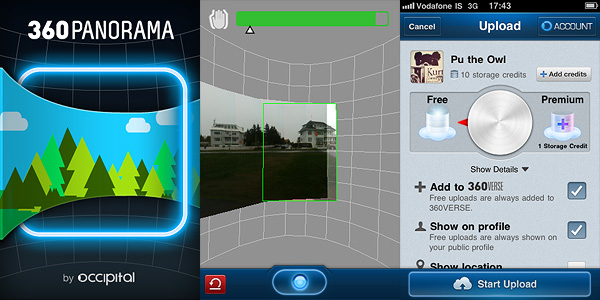
360 Panorama app by Occipital for iPhone

After the panorama is assembled, you can decide to save it to your camera roll, to send it as a flat image with email or to share it as a 360° view. To take advantage of the latter, you must create an account to 360 Verse — the portal connected to 360 Panorama — through in-app registration. The free account has only limited features and storage capacity, but if you want you can upgrade to a Pro account by purchasing credits from within 360 Panorama. Note to developers: adding an extensive and clear in-app guide to the whole ordeal would help more than a few users, I am sure.

360 Panorama has very basic options: you cannot do much to enhance your panoramic image, apart from trying to be careful when you pan. Using the automated capture feature can be all right in some instances, but most of the times it’s definitely too problematic to handle in order to take accurate shots, especially in absence of a tripod: being able to adjust angle and perspective before the shot is automatically taken is impossible sometimes. After a few unsuccessful tries, the task can become frustrating. iPhone photography should be fun, but making 360 Panorama do its work properly most of the times is not.

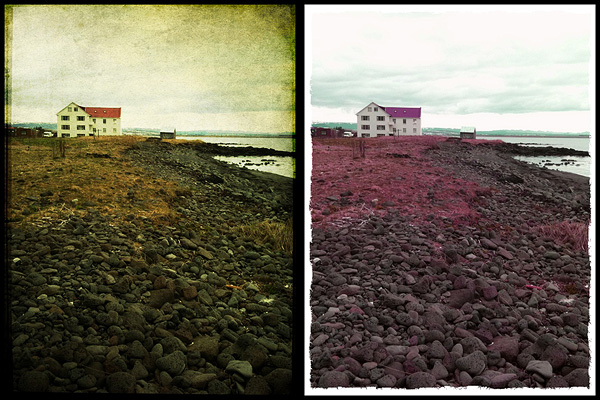
Especially in difficult lighting conditions (indoors, overcast weather, etc.), the app seems unable to correctly figure out proper settings on its own and therefore it messes up. The stitching is also intense in most cases (as in image below), making composites useless if not as a momentary curiosity.

Panoramic image created with 360 Panorama. Click for larger view.

As I see it, 360 Panorama is not the best choice in the App Store if you want a solid and reliable application focused on panoramic images creation. I haven’t tested 360 Panorama on iPad 2, but I assume it must be even more complicated than using it with an iPhone, given the tablet’s size and weight. Unless you intend to use a tripod, creating a decent looking panoramic image in 360 Panorama will be a task requiring too much time and patience to be fully enjoyable.

PS: As a launch promotion, you can buy 360 Panorama with a -50% discount.

Overall

Name: 360 Panorama
Developer: Occipital
Compatibility: iPhone (3GS, 4), iPod Touch (4th), iPad. iOS 4.0 or later.
Price: £1.19||$1.99||€1.59
Vote: 3/5

360 Panorama - Occipital

WordFoto Review

A photo is worth a thousand words and it’s up to you, using a camera, to express something. Like photography, typography is an art on its own. Text alone can create visually appealing images, but mastering it is not the easiest of tasks. Using text in combination with photos can be a good point to start.

WordFoto by bitCycle lets you play with photos and text to create fancy typographic works on your iDevice.

Main Features

  • Full resolution available;
  • Use custom text;
  • Create custom styles;
  • 15+ fonts available;
  • 8 preset styles;
  • Zoom in/out;
  • Crop;
  • Send via email or share on Facebook.

Appotography Opinion

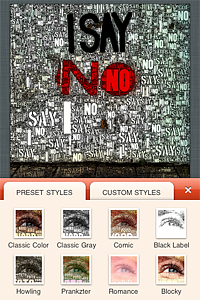
You can start both with photos from your camera roll or you can take one with the built-in camera. After that, you can proceed to alter your original image. You can start by cropping it — you can edit cropping at any moment, if you are not satisfied. Then you can choose text to be merged with your original photo. You use your custom word set by inputting single words that will be combined together or you can pick one among the many preset messages included —  you can also delete them, if you want to. After you have decided on the text, you can set your style.

WordFoto by bitCyble AB for iPhone

There are eight presets that come with the app, but you can create your very own by playing with foreground and background parameters, adjusting for each values such as blur amount, saturation, contrast, padding, and so on. Obviously, you can also change the font. The font selection is perhaps not that great and varied, but at least you can use more than a font in a single image. To finish up, you can fine-tune by changing values for edge width and threshold and color tolerance of your text. You can also render multiple times to try different randomly generated final effects. Finally you can save, email or share your photo on Facebook.

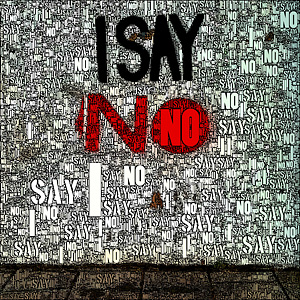
WordFoto by bitCyble AB for iPhone

One of the aspects I found more unnerving when using WordFoto is the absence of an undo feature — at least, I couldn’t find any undo feature. If you want simply to go back to a previous setting, you cannot do it by undoing, you have to manually re-set parameters. Not a big deal most of the times, but still quite annoying and time-consuming.

As I see it, WordFoto is definitely not a memorable app, one you cannot do without after you try it, mainly because the effects you can achieve are very limited and not particularly original. They are OK, but they can get quite stale after a few times. Nevertheless, WordFoto is still a curious app that can still have some use in a few instances, especially if used creatively.

Overall

Name: WordFoto
Developer: bitCycle AB
Compatibility: iPhone (3GS, 4), iPod Touch (3rd, 4th), iPad. iOS 4.0 or later.
Price: £1.19||$1.99||€1.59
Vote: 3/5
WordFoto - bitCycle AB

AutoPainter II Review

AutoPainter II “The Illustrators” is the second instalment in the AutoPainter app series. The effects included in Autopainter II are themed after classic illustration techniques, differently from AutoPainter that was more focused on painting styles inspired by famous artists – Cezanne, Van Gogh, etc.

Main Features

  • 1280 x 960 pixels resolution (3GS);
  • Portrait masking for enhanced detail;
  • 4 artistic filters.

Appotography Opinion

AutoPainter II “The Illustrators” features four more artistic filters for processing your photos. Although they are sold as a separate app, the new filters (Chalk, Book, Felt Tip, Water Ink) basically represent an expansion to the first AutoPainter. Reason why I feel it would have been more convenient for the user to be able to access them from within a single app. For example, it would have made more sense to sell the new filters as an additional pack, available through in-app purchase.

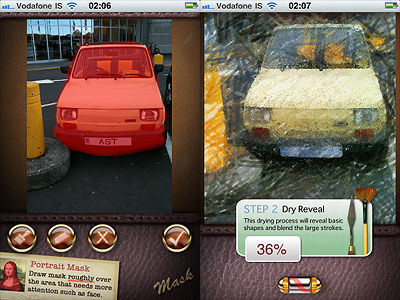
AutoPainter II The Illustrators by Mediachance for iPhone

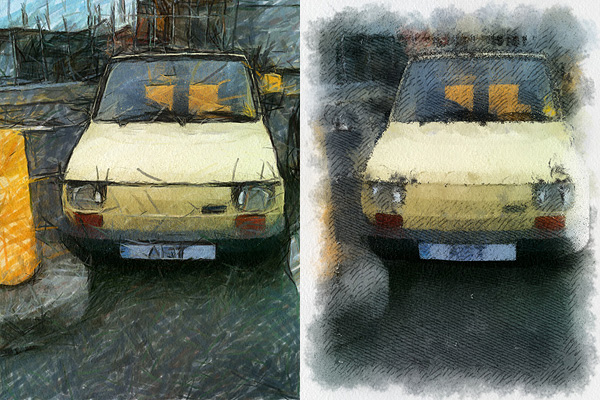
The UI of AutoPainter II is exactly the same as AutoPainter, the only difference with the first instalment being, as I mentioned, the available styles you can choose from. Applying filters is a cinch. Rendering times are fair and you can watch the engine as it processes your photo for fun. You can pick the photo to process from your camera roll or take one with the built-in camera; then all you have to do is selecting a filter among those available and tap on the start button. For better results, especially on portraits, developers added the portrait mask feature, allowing to finger-paint a mask over areas of your image where you’d expect details to be better defined.

AutoPainter II The Illustrators by Mediachance for iPhone
Felt Tip and Book filters.

As with the previous AutoPainter app, one cannot deny the quality of the filters. Too bad for the final resolution. Too bad that the filters, however pretty, don’t work that well on most photos, too.  It took me some time to find a photo that wouldn’t lose significant detail after processing. The masking feature doesn’t dramatically enhance the final result: the render engine is still unable to catch relevant elements in most photos. That’s why I think overall AutoPainter works better on landscape photography, which most of the times looks all right even when only its essential elements are caught, or on extreme close-ups.

Overall

Name: AutoPainter II
Developer: Mediachance
Compatibility: iPhone, iPod Touch, iPad. iOS 4.0 or later.
Price: £0.59||$0.99||€0.79
Vote: 3/5

AutoPainter II - Mediachance

PhotoForge2 Review

PhotoForge2 is a universal app that comes as an upgrade to the previous PhotoForge editing and painting application for iPhone and iPod Touch. PhotoForge was already a very comprehensive app, allowing sophisticated photo editing before other apps also added similar tools. For instance, working with curves was a rarity at first, therefore PhotoForge was regarded by many users as the ideal replacement of famous desktop editing software on iPhone.

The new PhotoForge2 contains most of the elements that were already included in its predecessor, adding at the same time much more.

Main Features

  • Full resolution available;
  • Crop and resize;
  • 25 adjustable filters (more available with in-app purchase);
  • Add borders and textures;
  • Shadows & Highlights, Brightness & Contrast, Exposure Adjustment;
  • HSL, White Balance, Vibrance;
  • Curves, Levels, Channel Mixer;
  • Sharpen, Unsharp Mask;
  • Noise Reduction;
  • Undo;
  • Zoom in/out;
  • Layers support;
  • Edit GPS and IPTC metadata;
  • Send via email or share with Twitter, Flickr, Facebook, Drop Box, Picasa, Tumblr, FTP.

Appotography Opinion

In PhotoForge2, you can start a project either with a shot taken with the built-in camera or with any image from your iDevice. All your projects are stored in the project list and you can go back to any of them at any moment. Projects you are working on are automatically saved.

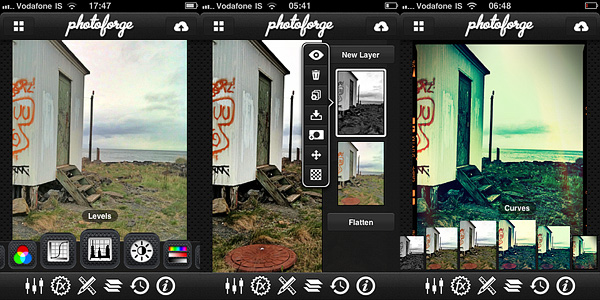
You can edit your photos using Adjustments, FX, Tools and Layers. The visual history feature will let you undo unnecessary edits. While editing, you can zoom and pan as it pleases you by finger-pinching on the photo or you can examine the photo at its full resolution by double tapping.

PhotoForge2 universal app by GhostBirdAdjustments includes a series of instruments that affect your photo at its core: Curves, Channel Mixer, Levels, Brightness/Contrast, Exposure, White Balance, Noise Reduction, Sharpen, etc. These are the tools you will be using the most if you’re used to work with full-fledged photo editing software.

Tools let you resize your photos, crop them (different aspect ratio and free cropping are both available), and add frames and textures. You have more than ten textures and eight borders that come with your initial purchase, but you can expand your collection by purchasing the Pop! Cam expansion.

Pop! Cam is available through the FX section (the in-app purchase is $1.99). As the name clearly states, FX contains a collection of various ready-to-use effects, much simpler to handle than editing using Adjustments. With a simple tap, you can turn your photo into black and white, add a 3D effect, add blur to the image, and so on. Pop! Cam contains additional effects (film simulation, different lenses, etc.), other than more borders and textures. It also contains a randomizer function, for randomly applying styles to your pictures. Before you buy, you are allowed to see Pop! Cam in action and try all its features.

Layers permits fully functional enhancement of your photos using layers: you can import multiple photos from your device, add masks, change blending modes, and more. Layer support is definitely one of the most interesting features in PhotoForge2 and one of the things that, alone, is worth the app’s purchase.

Among the aspects I find more interesting is that once your photo has effects added to it, you can filter it over. This means, for example, that if you add a border to your photo at first and the border doesn’t quite mix with the feel of the filtered image, you can re-filter both as a flattened image and have them blend beautifully. In other apps either you cannot filter over a border because it always remains on a separate layer — unless you save and re-open the image — or, if you can, you get a so-so looking image.

PhotoForge2 universal app by GhostBird
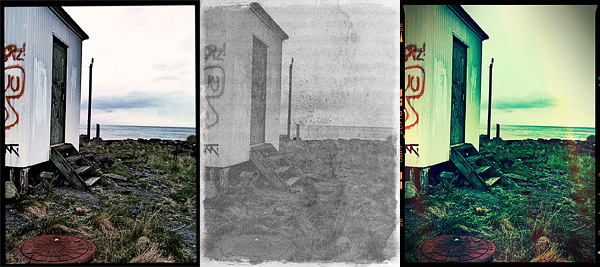
Different results obtained with PhotoForge 2 on iPhone.

Rendering times in PhotoForge2 are perhaps not that great on older iPhone models. Even to simply adjust brightness and contrast takes more than it does with other apps, where rendering is immediate.

What struck me as an atypical choice, to say the least, is the total absence of camera features. Editing a photo can be OK in most cases, but starting your work with a better image helps, too. PhotoForge2 is not exclusively a post-processing app: as a matter of fact, it allows taking photos; yet, developers did not spend time improving the built-in camera. The former PhotoForge was the same, but it definitely was a less complete application. Anyway, this is just a consideration and it won’t affect the general opinion I have of PhotoForge2, in case you’re wondering.

If you are looking for the closest thing to a complete editing photo app currently available for your iDevice, PhotoForge2 is a must-have: the number of features is impressive, making it a very comprehensive app, especially for iPhone — there are just a few others options, especially on iPad/iPad 2. It must be said though that the price of PhotoForge2, in-app expansions excluded, will be a turnoff for more than a few users, I am sure.

PhotoForge2 is on sale: you can get it now at the special price of $2.99.

Overall

Name: PhotoForge2
Developer: GhostBird Software
Compatibility: iPhone, iPod Touch, iPad. iOS 4.2 or later.
Price: £2.99||$4.99||€3.99
Vote: 5/5

PhotoForge2 - GhostBird Software

Lumière 1.2: Update Review

Lumière was updated to version 1.2.

First of all, I want to commend the developer for the attention paid to user feedback. I hope the willingness demonstrated up to this point will help the app getting better and better.

I also want to notify that previously observed aliasing issues concerning a few of the borders have now been fixed. Previous memory issues, especially those occurring when sharing photos via email from the in-app gallery, were also fixed in the new release.

Lumière for iPhone by nebulus design

But here is what’s new in Lumière 1.2 in detail:

  • Improved resolution: Lumière now supports full resolution saving;
  • Switch between High Quality (HQ) and Speed Quality (SQ);
  • Added three new filters: Orange Crush, Negative Colour and Negative BW;
  • Settings autosave: your settings are automatically saved upon exiting Lumière;
  • Improved startup times;
  • Bug fixes.

Some of the filters in this app are quite charming;  up to the previous release, especially due to resolution limitations, one couldn’t actually make use of them outside of iDevices. The enabled full resolution feature will very likely please more than a few users.

Lumière for iPhone by nebulus design
New filters: Negative BW and Orange Crush.

If you’re into real-time processing in combination with vintage photo effects, Lumière is, also for the customer service provided, among the best options available in the App Store right now.

Name: Lumière
Developer: nebulus design
Compatibility: iPhone 3GS & 4, iPod Touch 4th, iPad 2. iOS 4.2 or later.
Price: £1.19||$1.99||€1.59
Vote: 4/5

Lumiere - nebulus design

SuperPopCam Review

SuperPopCam by Art & Mobile — creators, among other things, of TiltShift Generatorcombines the charm of toy cams with real-time processing on the iPhone.

Main Features

  • Real-time effect up to 640 x 480 (3GS), 960 x 720 (4) pixels;
  • Full resolution on saved images available;
  • Grid on/off;
  • 9 filters;
  • Adjustable vignetting and border;
  • Send via email or share on Twitter and Facebook.

Appotography Opinion

SuperPopCam is mainly about real-time processing, but not only. Differently from other apps making use of the real-time factor, SuperPopCam allows to alter also previously taken shots.

The real-time feature enables a preview of how each effect is going to affect the scene you are going to shoot. By finger-swiping, you switch from one filter to the other.  You don’t get a preview for vignetting and borders; however, if you enable the grid from the in-app settings, an outline will show where the border will be in the final image. This way you will be able to frame the picture correctly. In SuperPopCam there are five levels of intensity for vignetting, from none to heavy. The included white borders come in two versions: regular and gritty. Each border is available in thin and thick version. It’s also possible to enable the 1:1 format to take square photos.

SuperPopCam works very smoothly, I have not encountered any issue while using it. The UI is also very clear and functional, like other Art & Mobile’s photo apps.

SuperPopCam - Swipe to Effect by Art & Mobile for iPhone

Although features are not many, the effects in Super PopCam are quite remarkable. Especially for users who don’t like intense processing and would rather rely on a subtle analog toycamera lomo-ish feel, SuperPopCam offers a decent replacement to more complex apps. Like in Cross Process, the filters are just an embellishment and they do not conceal with overdone post-processing the final images. The difference with Banana Camera’s app is, of course, the real time preview, a feature that in any case doesn’t add anything to the overall photographic value of SuperPopCam. At least, that’s how I see it.

SuperPopCam - Swipe to Effect by Art & Mobile for iPhone
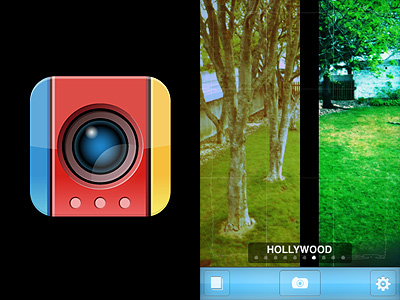
Hollywood and CrossProcess effects with thin border on.

The most annoying aspect in SuperpopCam is the huge difference between output resolution of photos taken from within the app and that of previously taken shots, both processed using the app’s filters. In the first case, the resolution is very small, even on iPhone 4, which definitely lowers the app’s value. On the other hand, processing photos previously taken with other apps, which includes those taken with iPhone’s native camera app, doesn’t affect their resolution at all. For example, loading a 2048 pixels image for post-processing into SuperPopCam will not result in a scaled down image after saving. This makes me wonder about the actual usefulness of the real-time feature, a handicap rather than an addition.

Overall

Name: SuperPopCam
Developer: Art & Mobile
Compatibility: iPhone, iPod Touch, iPad. iOS 4.0 or later.
Price: £1.19||$1.99||€1.59
Vote: 3/5
SuperPopCam - Swipe to Effect - Art & Mobile

Qbro Review

Apps whose fame is not sign of actual value? qbro app for iPhone by JellyBus is definitely one of them. Especially in South Korea, this app appears to be very popular. However, I have tested the app and I was very disappointed. Both for ease of use and in the image quality department, qbro failed to convince me that its popularity is actually deserved. I’m going to explain why in detail.

Main Features

  • Full resolution available;
  • Big shutter button on/off;
  • Timer;
  • Grid on/off;
  • Front camera reverse on/off;
  • Square format;
  • 50+ filters (+12 available with in-app purchase);
  • 25 borders;
  • Hall of Fame;
  • Send via email or share on Twitter, Facebook, Flickr, Tumblr, Cyworld, me2day.

Appotography Opinion

qbro allows users to take photos with built-in camera or to edit previously taken pictures. The camera has a few tools to help taking better shots, like a big shutter button, reference grid and timer.

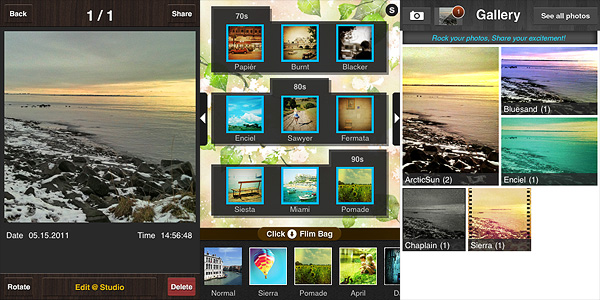
To process the image, there are about fifty filters coming with the initial purchase, but it’s possible to add a dozen more (each pack is $0.99 and contains three filters). It’s possible to select filters from the bottom scrolling menu bar. By tapping on the Film Bag button, you access the whole filter library. You can drag filters to add or remove them from the bottom bar, thus creating a selection of your favorite filters which you can access instantly. Tapping on the top slider icon, you enable the filter intensity adjustment and you also have access to the borders library. Tapping on your image will show you the original at all times for comparison. After you are done adding your effect of choice, you can save the image to qbro’s gallery or you can share it. From the gallery, you can access saved images and edit them again. Photos are arranged in stacks according to filters used, but you can also browse them individually.

Commands and interface in qbro are somewhat confusing for the beginner. Some examples: in the Camera Film Bag you have a preview of combined filters and borders as if they were presets ready to be used, but when you add filters to the bottom bar, borders are not included with them: you have to add borders separately. If by mistake you add a border and you want to get rid of it, the process is not simple. The original language of the app is Korean: some messages do not appear to be translated. Although this is not a great issue, it’s still annoying.

The developer lists in the app description page some features as “unique”, but they’re actually not. I’m not sure what the developer considers as meaning of the term Unique, but according to the English dictionary:

Unique
adjective
1. existing as the only one or as the sole example; single; solitary in type or characteristics.
2. having no like or equal; unparalleled; incomparable.
3. limited in occurrence to a given class, situation, or area.
4. limited to a single outcome or result; without alternative possibilities.
5. not typical; unusual.

As I see it, none of these can fit the developer’s notion of unique. In fact, seeing edited photos in real time is a pretty common feature in many photography apps and so is selecting and equipping only your favorite filters for easier use. The same goes for many other features labeled as such in qbro. The only unusual feature I have seen in this app — but correct me if I am wrong: some other apps may have it as well — is the front camera reverse, which may be original but it is also kinda pointless, in my opinion. Promoting an app with such nonsensical pretension of uniqueness is quite irritating.

qbro app for iPhone by JellyBus
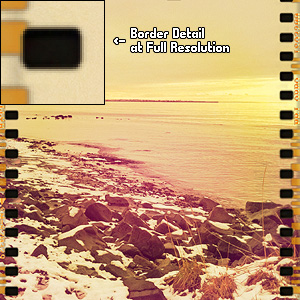
Blurry borders clearly visible at higher resolutions.

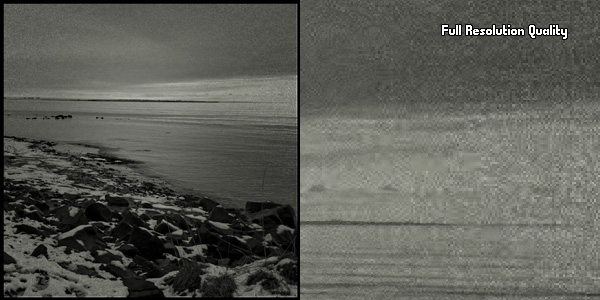
Last but not least: the output quality of the images. The filters can actually utterly ruin your original photos: especially at higher resolution the quality is dreadful for some effects and borders. At smaller resolutions the quality still holds, somehow, but issues are definitely noticeable on larger images. For this same reason, the additional filters are not worth purchasing.

qbro app for iPhone by JellyBus
Serious quality issues on large images.

I wouldn’t recommend to get this app in its current version. Hopefully improvements to image quality will be made with upcoming releases.

Overall

Name: qbro
Developer: JellyBus Inc.
Compatibility: iPhone, iPod Touch (4th), iPad 2. iOS 4.1 or later.
Price: £0.59||$0.99||€0.79
Vote: 1/5

qbro - JellyBus Inc.

Halftone Review

It would be nice once in a while to have characters in your photos talk like in comic strips, or if you could easily add captions to display date and time in a groovy style. Process your photos with Halftone by Juicy Bits to make them look as if they were single-panel comics.

Halftone is a graphic technique that uses the optical illusion produced by a series of dots varying in density, color and size, to suggest infinite range of tones. Halftone app for iPhone simulates effects produced by the halftone technique on your photos.

Main Features

  • Full resolution available;
  • 20+ aged and grungy paper styles;
  • 9 layouts;
  • Six speech balloon styles;
  • Adjustable dot size, strength and gain;
  • Small, medium or large font size;
  • 100+ fonts;
  • 20+ stickers (customizable color, size, rotation);
  • Send via email or print.

Appotography Opinion

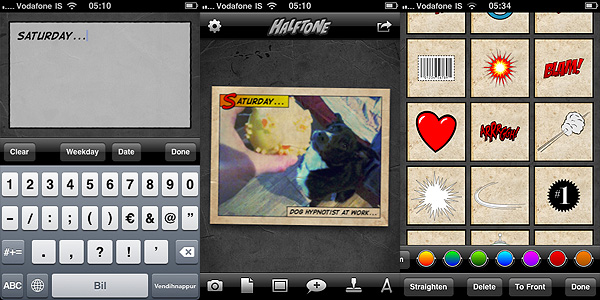
After launching Halftone, you decide to take a photo with the built-in camera or you load one from your iDevice. To process your image, you have a series of options. You can add a stressed, aged feel with paper textures. Then you can pick a layout among those available, to add one or more captions. Captions can be custom or you can simply let the app add date and credits. The next thing you can do is adding speech balloons, choosing one of the available styles (classic, square and round borders, thought, scream) and stickers. Both balloons and stickers can be customized a little: it’s possible to enlarge or shrink and to rotate them by finger pinching.

Halftone app by Juicy Bits for iPhoneControls are not as smooth and responsive as with other apps and personally I was frustrated at some point, because if you you are not careful you might end up having to deal with multiple useless stickers instead of just one, when all you wanted to do was rotating the first slightly.
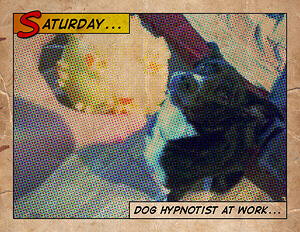
When you are done, you can send the image via email, print it, share on Twitter and Facebook, or you can simply save it to your Camera Roll.

Halftone app by Juicy Bits for iPhoneThe effects, if applied wisely to photos that lend themselves to be turned into comics, can result in a few hours of amusement. Nevertheless, the overall lack of flexibility and variety remains a problem: you have partly customizable stickers, fonts, textures and more, but results are not diverse enough to grant Halftone  great longevity. Although I am fully aware that talking about longevity when it’s about something that an iPhone user can get for $0.99 perhaps doesn’t make much sense.
Overall

Name: Halftone
Developer: Juicy Bits
Compatibility: iPhone, iPod Touch, iPad. iOS 3.2 or later.
Price: £0.59||$0.99||€0.79
Vote: 3/5

Halftone - Juicy Bits

Magic Hour Review

Magic hour, better known in photography as golden hour, is a term used by cinematographers to describe the first and last hour of sunlight of the day. The magic resides in the fact during these hours the quality of light is  warm and diffuse and shadows are longer but less harsh, thus producing the best photographic effects. The term is used loosely to indicate a precise hour, so it would be more correct to consider it as a variable period of time in which the light acquires its special quality. In fact, changing seasons and latitudes, the golden hour can extend its magical properties to up to several hours daily. In places like Iceland, for instance, it’s possible to experience some of the longest and most extraordinary golden hours possible.

Magic Hour is now also a photo app by Kiwiple: take photos, create and add custom effects, share them with the world.

Main Features

  • Up to 640 x 640 pixels resolution;
  • Full screen shutter button;
  • Exposure control;
  • Square format;
  • 40+ filter presets;
  • Adjust curves, saturation, brightness, contrast;
  • 8 vignetting styles;
  • 20+ textures;
  • 12 frames;
  • Save and share custom filters;
  • Share via Dropbox and on Facebook, Twitter, Flickr, Tumblr, Foursquare, Cyworld, me2day.

Appotography Opinion

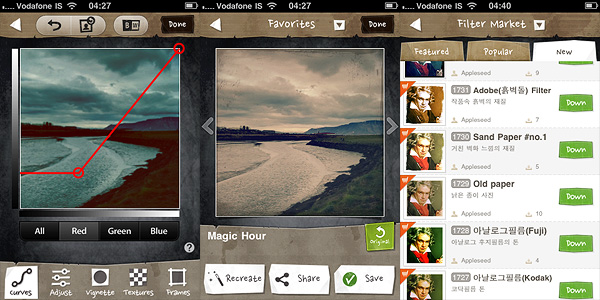
Magic Hour combines the features of a camera and those of a simple but effective filter making utility. You can take your photos and edit them right away using one of the presets coming with the app. If you’re a little more adventurous, you can create your own filter by playing with various settings as brightness, contrast, curves and by adding vignetting, textures and borders. After your filter creation is complete, you can add name and description to it and share it on the Filter Market.

Magic Hour app for iPhone by Kiwiple

The Filter Market is definitely the most interesting feature in Magic Hour. You can browse through filters created by other users and download them for free to expand your collection. Filter exchange is something many other apps could offer — but as a matter of fact, they don’t or, if they do, the process to acquire new effects is extremely convoluted or, at any rate, not very user friendly. Magic Hour makes filter sharing incredibly easy and fun.

Magic Hour app for iPhone by Kiwiple

The rich presets collection would probably be enough to justify the purchase, but the developer added the possibility to create customized filters by retouching curves, saturation, brightness and contrast and by adding vignetting, textures and frames; if these were not enough, there is the Filter Market to spice  things up. Magic Hour makes taking and editing photos fun and accessible for all photo enthusiasts, including newbies.

Examples of presets applied to the same photo in Magic Hour for iPhone.

The only serious problem with Magic Hour is the output resolution: too small with its mere 640×640 pixels. I was seriously disappointed when I saw the final resolution of the saved images. Unlike other users, I am not bothered by apps using exclusively the square format and the resolution issue is the only drawback to a better rating. Give us higher resolution and we will give you a full score.

Overall

Name: Magic Hour
Developer: Kiwiple
Compatibility: iPhone (3GS, 4), iPod Touch (4th), iPad 2. iOS 4.0 or later.
Price: £1.19||$1.99||€1.59
Vote: 4/5

Magic Hour - Camera & Unlimited Filter - Kiwiple

Camera Genius Review

There are many options in the App Store to replace iPhone’s native camera, but how many among them are actually do-it-all? One app is excellent for taking photos, but it doesn’t take videos; another takes both but you cannot apply processing; a third allows processing but it doesn’t allow sharing. And so on and so forth.

Camera Genius by CodeGoo is one of these multi-purpose cameras meant to effectively replace the native app, throwing in more features in order to let users take, edit and share their photos and videos, all by opening a single app.

Main Features

  • Full resolution available;
  • Take both photos and videos (on supported devices);
  • Up to 6x digital zoom;
  • Exposure control;
  • Full-screen shutter button;
  • Timer and sound capture;
  • Stabilizer and burst mode shooting;
  • Grid on/off;
  • Crop photos;
  • 40+ filters;
  • 14 borders;
  • In-app manual;
  • Share via email, Facebook, Twitter, Flickr, Picasa, Mobileme, Tumblr.

Appotography Opinion

The developers conceived Camera Genius as a multi-purpose camera able to give iPhone photographers all sorts of features, commonly available only to those using several different apps at the same time. The intention is commendable: who wouldn’t love to have things made as easy as they could get?

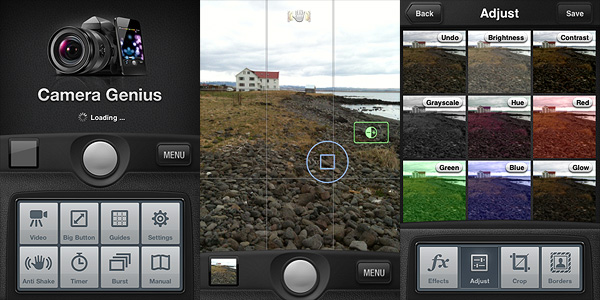
Camera Genius, which comes with two different skins — the default light grey and a greenish alternative one — allows video and photo taking, a rarity among photographic apps. It also allows processing and sharing of previously taken shots.

Camera Genius by CodeGoo for iPhone

The camera is optimized to help you take the best photos with the littlest effort. The UI is clear, uncluttered and it works quite smoothly — although the app did crash on me a few times when I was playing with exposure controls. Among the features of Camera Genius, you have anti-shake, timer, full-screen shutter button, burst mode. The in-app manual will help you getting the hang of it quite easily.

The effects are all right. I am very much against the idea of having ready-to-use filter/border combinations; thankfully not all effects merge the two together: there are borders and filters you can use independently. I said effects are just all right. In fact, there are more than a few apps out there whose same effects — black and white, 70’s, sepia, lomo, etc. — are by far more convincing and better looking. The selection is OK: it’s the quality and the customization that doesn’t really stand out. Not to forget, you cannot process videos, at least for the present moment.

Camera Genius by CodeGoo for iPhone

Is Camera Genius a good substitute for the native camera app? Yes, it is. It takes photos and videos and it has some extra features, like stabilizer, burst mode and exposure control, that are definitely an upgrade from iPhone’s native app. Taking photos can sometimes be a hassle for iDevice aficionados: Camera Genius, with its many tools, greatly improves the overall experience.

Will Camera Genius replace all my photo apps, so that I can only use one? This, I think, depends on what kind of use you intend to make of your photos: if you just take a few sparse snapshots or if you’re just into sharing your instant memories with your friends on Facebook, Twitter and so on, Camera Genius has good chances to become your ultimate app. However, if you’re more creative and you like to experiment or if you intend to convey feelings and atmospheres with your photography, I highly doubt Camera Genius is the app for you. Even in this case, a bunch of CodeGoo’s app features will perhaps come in handy now and then, but as far as editing and post processing are concerned, what Camera Genius offers is just a little above mediocrity.

Overall

Name: Camera Genius
Developer: CodeGoo
Compatibility: iPhone, iPod Touch (4th), iPad 2. iOS 4.0 or later.
Price: £0.59||$0.99||€0.79
Vote: 4/5

Camera Genius - CodeGoo