ToonPAINT 2.0: Fully Revamped With New Features and UI

Some interesting news for ToonPAINT fans: version  2.0 of the popular photo-to-cartoon app introduces new features and enhancements.

We reviewedToonPAINT in the past and, although we liked it, there were more than a few issues that prevented us from fully enjoying this app. The new release solves most of the known issues we pointed out at the time of our first evaluation, especially the problem concerning full resolution saving.

What’s new:

  • New UI and workflow;
  • Full resolution output;
  • Improved painting system;
  • Infinite undo on paint;
  • Speed optimizations on Inklines for iPhone 3GS and iPhone 4;
  • Upload your photos to Hall of Fame and vote for others’ creations;
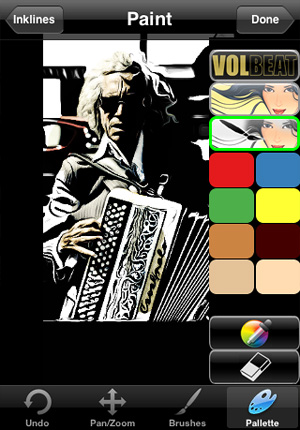
  • New Auto Color, Alpha Brush (available with in-app purchase) and Volbeat Me coloring modes;
  • Fixes to all known crash issues.

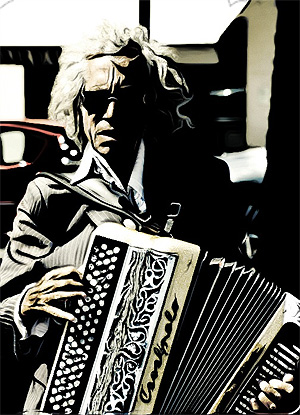
A big change in the ToonPAINT 2.0 concerns the new UI, much cleaner and better organized. The tracing features are the same, but the way each step in the processing is now improved makes using ToonPAINT easier. In ToonPAINT 2.0 you can still paint with default brush and colors, but you can also use the new painting modes, available via in-app purchase for $0.99 — £0.59 or €0.79 — each. The new painting features especially give cool results in the bat of an eye even to those that are not experienced with digital painting or to those who simply do not want to spend too much time playing with brushes and colors.

ToonPAINT by Toon-FX for iPhone

Auto Color, as the name suggests, automatically fills your picture with color; Alpha Brush uses alpha opacity to let you paint over your cartoon using your original image as source. Both features heavily rely on your original images, but while Auto Color retains more of a stylized cartoony look, Alpha Brush adds realistic tints to your creations. A third painting mode was added as an extra: Volbeat. Inspired by the visual style of the Danish rock band going by the same name, this feature basically adds a monochrome golden layer over your outline.

ToonPAINT by Toon-FX for iPhone
With Alpha Brush applied.

I have mixed feelings towards this update. The full resolution is a great improvement and the new interface is also a point in favor, but paying for each add-on separately may not be that appealing and taking away the function for smoothing lines — which was very useful but also very likely one of the main reasons that prevented an upgrade to full resolution — is another irritating change in version 2.0. The thing that I don’t really like though is that Volbeat extra. Not for the effect per se, but for its implications. When I use a photo app, I don’t like the notion of being involved in a promotional campaign, even when it’s about something I like. And I assume I’m not the only one.

Bleach Bypass: Simulating Skip Bleach Process on iPhone

Fotosyn recently released their Bleach Bypass for iPhone, an app exclusively focused on simulating skip bleach processed photography.

Bleach bypass is an incorrect color processing that consists in skipping the bleaching function in the developing of a color film. The skipping can be total or only partial. The result is an image characterized by desaturated tones, stronger dark areas, increased contrast and extreme grain. Bleach bypass is also known as skip bleach or silver retention, because the silver is retained in the emulsion along with color. Although renown and appreciated for artistic purposes — very famous is the case of Spielberg’s Saving Private Ryan, which makes use of this processing extensively — this technique is particularly costly due to equipment requirements needed to achieve it. It is however very easy to imitate digitally, so its popularity has greatly increased in the last years.

Main Features

  • Full resolution available;
  • 7 effects;
  • 3 border styles;
  • Vignette on/off;
  • Auto-save on/off;
  • Share via email.

Appotography Opinion

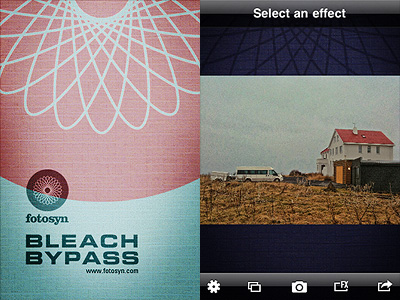
In Bleach Bypass, you can either load one of the photos in your Camera Roll or take shots  with the built-in camera. After you have your picture to process, you can apply one of the seven filters available in combination with one of the three borders included. There are three standard effects — Cinematic, Extreme, Monohint — and four tint effects — Blush, Breeze, Verve, Nostalgia. You can pick your desired filter from the FX screen which you can access by tapping on the FX button, but you have to enable vignetting or choose a border from the settings panel, which is kind of nonsense in my opinion — since there are not many variables, I think it would be easier and less time-consuming to have all of them accessible from the FX screen. Once you have the right combination, you can save or send via email.

Bleach Bypass by Fotosyn for iPhone

The processing takes place right away after you choose your effect, unlike other apps that first let you have a preview of the result and then actually process the image when you save it. This means it takes some time to switch to one effect to the other, but it also means saving the image is immediate.

Bleach Bypass by Fotosyn for iPhone
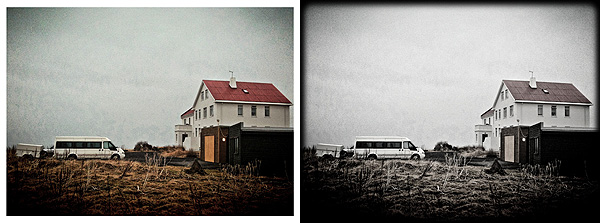
Two different combinations effect/border in Bleach Bypass app for iPhone.

The effects are very nicely done, but definitely not outstanding: on the iPhone, I’ve seen many times convincing bleach bypass-like processing; there are several apps with similar filters that aren’t labeled as bleach bypass, for instance. A few of this app’s effects look almost identical, with just very slight differences in hues and contrast. Which is kind of disappointing, since there are very few choices to begin with. All in all, it feels like the effects in Bleach Bypass could have been a single filter with adjustable parameters instead of seven individual filters which you cannot adjust at all.

Overall

Name: Bleach Bypass
Developer: Fotosyn
Compatibility: iPhone, iPod Touch, iPad. iOS 4.2 or later.
Price: £0.59||$0.99||€0.79
Vote: 3/5

Bleach Bypass - Fotosyn

iCamera HDR Review

The folks at Everimaging have brought to iOS devices their expertise in HDR photo editing. iCamera HDR may be a fairly recent addition to the App Store, but it’s definitely an app you shouldn’t overlook.

Following the great popularity of HDR photography, processing apps focused on this set of techniques are being frequently released on all iOS platforms. Not all of them are actual HDR processing software, and even when they are, some are not up to expectations.

For completeness, I must add the very first thing that made a strong impression on me before I had even tried iCamera HDR, was reading its App Store’s description. In the app’s page, developers state that other HDR apps “are all fake HDRs”. I’m not sure how they could come up with such a statement because, as far as I know, most HDR apps in the App Store use actual bracketing to process and produce their HDR composites, exactly just like iCamera HDR; this means that as a matter of fact they’re not fakes. On the other hand, apps like Dynamic Light, which we reviewed recently, produce fake HDR simply because they don’t process multiple shots with different exposure settings: they just alter one single shot to create HDR-like photographic effects. There is nothing wrong with it of course, but that is not HDR. However, as I said already, not all HDR apps work in this manner. iCamera HDR developers make it sound like they are the ultimate purists of HDR on the iPhone, which is sort of annoying and also not very accurate. Despite this attitude, which was a huge turnoff at the beginning, I tried iCamera HDR. And I was pleased by the results.

Main Features

  • Full resolution available;
  • Stabilizer;
  • Continuous LED flashlight (on supported devices only);
  • Save originals on/off;
  • Automatic, Manual and Single (fake HDR) modes;
  • Single photo HDR (fake HDR);
  • Three different tone mapping engines;
  • Adjustable brightness, contrast, saturation, shadows/highlights, b/w point, white balance, blur/sharpening;
  • Lens correction;
  • 27 photo effects;
  • Flip and rotate;
  • Share via email, Facebook and Flickr.

Appotography Opinion

With iCamera HDR, you can either use previously taken shots or the built-in camera. In both cases, you have the possibility to go for a proper HDR or for a fake HDR (single image processing). If you take the photos with the built-in camera, you can select among Automatic mode, in which the software determines on its own the lighting conditions, or Manual, which allows you to move around the square cursors to indicate light and dark areas of your image. In absence of tripod or other stable surfaces, the Stabilizer feature, with its three levels of intensity, can help you in taking sharper photos, resulting in more accurate HDR composites. You can take more sets of photos which you can save before getting to the post-processing stage; if you want, you can edit them when it suits you instead of doing it right away. This is particularly useful if you are not sure about some of the shots you have taken and you choose to take more for better results.

After you pick the images you want to work with, you have an extensive assortment of adjustable settings and tools to make the final outcome as good as it is possible. From the three available tone mapping engines — allowing you to try different solutions to get the most out of your shots by enhancing details and tones — to an array of other instruments which include white balancing, contrast and brightness adjusting, lens correcting and many more, you have at your disposal an exhaustive post-processing lab, especially tailored for HDR photography. Before saving, you can also apply one of the many photo effects included  in the app  to your image — colored filters, mainly.
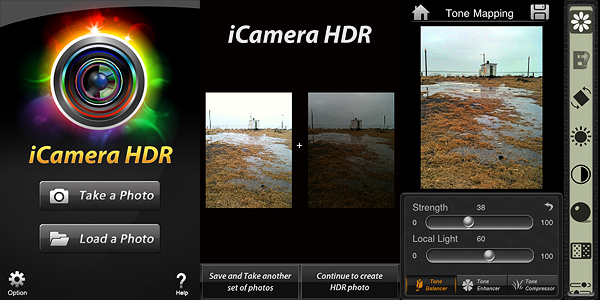
iCamera HDR by Everimaging for iPhone

iCamera HDR is a very sophisticated software that, unlike other more basic HDR apps, gives the user access to a very rich and advanced set of photographic tools for fully controlling the HDR process from the moment of shooting up to its finalization. The results obtained with iCamera HDR are excellent, also thanks to the fact the degree of flexibility and control you are given is impressive, especially for an iPhone application. The app by Everimaging is able to reduce issues that others, however good and effective, cannot correct. One of these issues is halation — that annoying bright spreading area on a photographic image, very frequently found in HDR images that make only use of two exposures instead of more, that is sometimes very hard to get rid of even for professional photographers. Comparing results obtained using the same bracketed photos — both if taken with the built-in camera and with a third party app like Bracket Mode — in some instances I noticed significant differences.
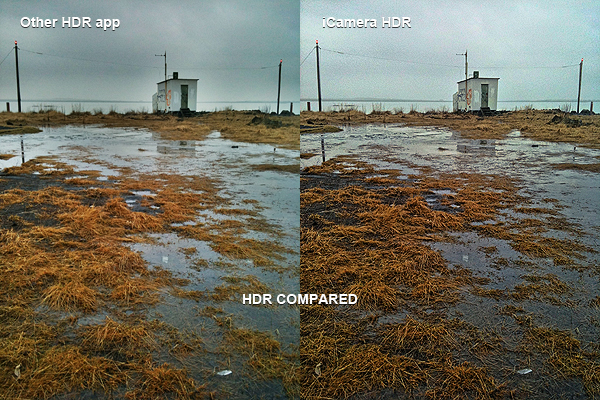
iCamera HDR by Everimaging for iPhone

Of course, on the other hand, using iCamera HDR is more time-consuming and it requires more effort than average iPhone HDR apps: the UI is clean and using the sliders to make adjustments is quite easy, but parameters are many, maybe too many for a newbie or for anybody just wanting to get the job done in a click or two. More settings mean more flexibility, but also more time to use them at their full potential. Let’s not forget speed and straightforwardness are still important aspects in iPhone photography, especially in the eyes of more casual users. On the long run, more control over your photography is definitely rewarding, but if you’re not so dedicated, then iCamera HDR is probably not the right choice.

The developers seem to be updating their product very frequently, which is always a point in favor, at least as I see it. The app is iPhone 3GS/4 and iPod Touch 4 only for now, but it was said iPad version is also in the making, so stay tuned for more to come.

Overall

Name: iCamera HDR
Developer: Everimaging
Compatibility: iPhone 3GS & 4, iPod Touch 4th. iOS 4.0 or later.
Price: £1.19||$1.99||€1.59
Vote: 5/5


iCamera HDR: All-in-One - Everimaging Ltd

Cameramatic 1.2: It Keeps on Getting Better and Better!

With the update to version 1.2.0, Cameramatic — one of our favorite apps — added some neat extras that will undoubtedly please its fans. I finally got around to testing the updated version. First of all, two Standard filters were added together with two B&W filters and a Standard border.

Cameramatic for iPhone

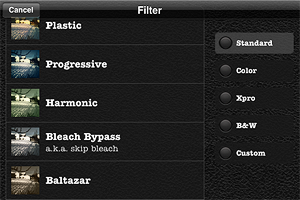
Also, now you have a thumbnail preview of all the available effects. You had a preview of the borders before, but you had to recognize the filters by name and description. Given the richness of Cameramatic’s filter collection, this new feature  is particularly useful.

Cameramatic for iPhone
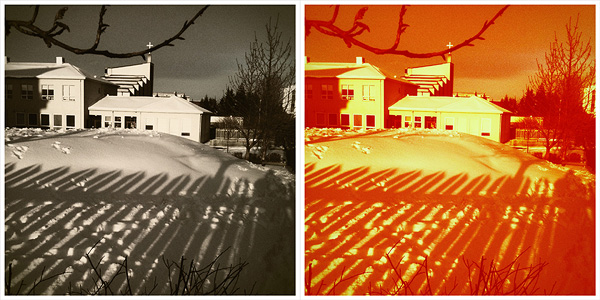
New Standard filters Baltazar & Firebird with White 005 border
Cameramatic for iPhone
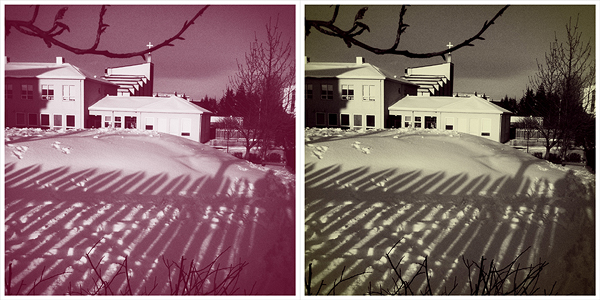
New B&W filters Berrychrome & Retrochrome with White 005 border

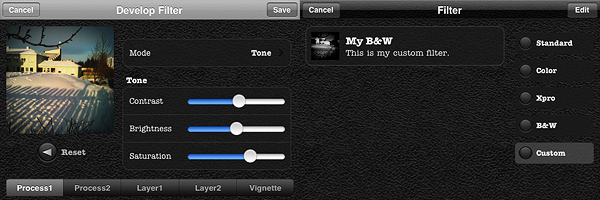
However, the most interesting new feature in Cameramatic is the custom filter development tool, which is really fantastic and gives you a lot of space for creating highly customized effects. As the name clearly states, this new feature allows you to create your own filters and save them.

You can either start by editing one of the presets or develop your filter from scratch. You have access to 2 separate levels of processing and to 2 additional layers for adding further effects; you can also set vignetting color and intensity separately. You can enable each level of processing individually, depending on your personal requirements. Among parameters, you will be able to set blending mode, brightness and contrast, adjust color channels and alpha opacity. Through the preview, you can make corrections knowing how they will affect your photos. When you are done, you save the desired filter, choose a name and a description for it. You can access your filter at any moment together with the others under the “Custom” category. Thanks to the filter development feature, you can use your newly created filters over and over again to add a unique touch to your photography.

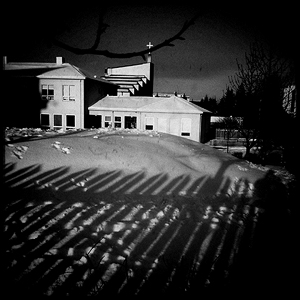
My custom filter.

I have already rated Cameramatic 5 out of 5 in my previous review, so it would be pointless to add a new rating. But rating considerations aside, I truly believe Cameramatic has made tremendous improvements from its first release. From a relatively undistinguished start, it has now become one of the most impressive photography apps you will be able to find in the App Store.  Not only the developer was very responsive to users’ feedback, but he also seriously took into account the most useful suggestions in order to actually make the app better and better.

If you haven’t done so yet, go get Cameramatic now! And have fun with it!

Bracket Mode: A Fast Companion For Better HDR Results

Bracketing is a technique that allows the photographer to take a series of photos of the same subject often with slightly different parameters. For example, it is possible to take several shots of the same scene with adjusted exposure to make up for bad lighting conditions. In post-processing, this allows to obtain a well-exposed single image by merging more exposures together. Today, the bracketing technique is mainly used in HDR photography, where you need a minimum of two exposures in order to generate the final HDR composite.

HDR on the iPhone is particularly popular because it’s easy and fun, but many HDR apps are very slow at taking bracketed photos. When there is no tripod available, this is particularly inconvenient and deeply affects the final outcome. Not everybody’s hands are as steady as it would be required to take separate exposures that perfectly overlap, so coming up with a good HDR image sometimes is particularly hard. How many occasions have you wasted already just because of this reason?

Bracket Mode by Cogitap Software is a tool specifically designed for the purpose of easily taking bracketed exposures to be effectively used to generate HDR composites within third party HDR apps.

Main Features

  • Full resolution available;
  • Automatic or Manual mode;
  • Auto-saving;
  • Self-timer.

Appotography Opinion

As the name suggests, Bracket Mode helps you to obtain bracketed photos in the most simple and straightforward possible way. The app itself is very basic and to the point.

Bracket Mode by Cogitap for iPhone

You can choose among two modes: Automatic and Manual. The difference between the two simply consists in the fact Manual lets you indicate dark and light areas by tapping on screen, while in Automatic you have to do nothing besides tapping on the shutter button while the software gathers all the necessary information on its own. After that, with Auto-saving feature enabled your bracketed images will be stored right away in your camera roll. Disabling Auto-saving, you have a preview of both images before saving: if the result is satisfactory you can save, otherwise you can start over. Bracket Mode IS NOT ABLE to make HDR composites; it only allows to take bracketed shots.


Bracket Mode by Cogitap for iPhone
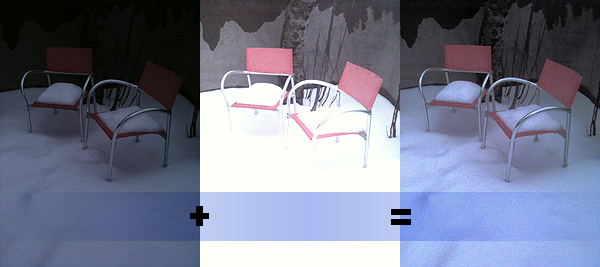
Under-exposed + Over-exposed = HDR

The main problem with this app is that, differently from what you are able to do with bracketing on a full-fledged camera, you cannot choose to adjust exposure settings or take more than two shots to make up for possible imperfections. Even in Manual mode, you can only define dark or light areas at the moment of shooting: this definitely doesn’t really give you full control over the final HDR image. Unless lighting conditions aren’t particularly good, with just two exposures in many cases you’ll have to struggle against halation issues. It must be said though that in any case HDR apps won’t let you merge together more than two exposures — but with a greater number of exposures and thus more available choices perhaps you’d still have a little more control.

Why picking Bracket Mode AND another app to merge the photos instead of directly picking an HDR app without the hassle of paying for, downloading and using two apps? As I said from the very beginning, because Bracket Mode is faster. This may look like a secondary aspect, but it can make a great difference in some instances.

In the case you have arms of steel or a tripod of some sorts, you probably won’t need to resort to using a tool like Bracket Mode for your iPhone HDR; in other cases, it all depends on what your priorities are. But if you use HDR extensively on your iPhone, Bracket Mode will make everything much easier.

Overall

Name: Bracket Mode
Developer: Cogitap Software
Compatibility: iPhone 3GS & 4, iPod Touch 4th, iPad 2. iOS 4.2 or later.
Price: £1.19||$1.99||€1.59
Vote: 4/5

Bracket Mode - Cogitap Software

Pocketbooth Review

With Pocketbooth, once again modern technology found a way to bring back a popular phenomenon from the past. Photo booths, even if in a totally new form, are enjoying right now a moment of revival and are contributing in establishing new photography trends.

If I have to be totally honest: I’ve always hated photo booths. Every time I had to use one to take photos for ID or other documents, I felt like hyperventilating and fainting. I’ve always found photo booth shots of myself in special way very embarrassing and ugly. Mainly because I am not in the least photogenic and when I know I am being photographed I unconsciously switch to awkward face mode. It’s nice though that this is an idiosyncrasy and not a sentiment shared by a wider number of people. Otherwise developers of apps like Pocketbooth, which we are going to talk about in this review, would be very sad indeed.

Pocketbooth imitates 1950’s-era Auto-Photo Model 11 photo booths. Easy recognizable for its rounded ends design, Model 11 was initially developed in the late 50’s for government and military use. Differently from other similar machines manufactured in the same period, Auto-Photo Model 11 allowed development of more photo strips at a time — it could handle up to seven strips! It was operated by a second person that pressed an external button while the subject was inside.

Main Features

  • Up to 489×2608 pixels (4 poses) or 652×1956 pixels (3 poses);
  • 4 color effects (color, b&w, antique, sepia);
  • 2 types of paper (glossy, matte);
  • Black or white border;
  • Set time interval between shots;
  • AirPrint compatible;
  • Share on Twitter, Facebook, or send via email.

Appotography Opinion

Pocketbooth allows the user to take a series of shots in the photo booth fashion and to save, print or share them. On enabled devices, both flash and front camera can be used, while on other devices, it’s still possible to use rear camera only. As with original photo booths, taking photos doesn’t require much effort, especially if you are able to make use of the front camera. Before shooting, it’s possible adjust various settings: color and paper effects, number of poses (you can choose among 3 or 4), color of border, interval between shots. Unlike other apps, you cannot choose to manually take each shot separately. This makes perfect sense, as it is part of the analog photo booth simulation to grant a certain degree of spontaneity in the subject.

Pocketbooth by Project Box for iPhone

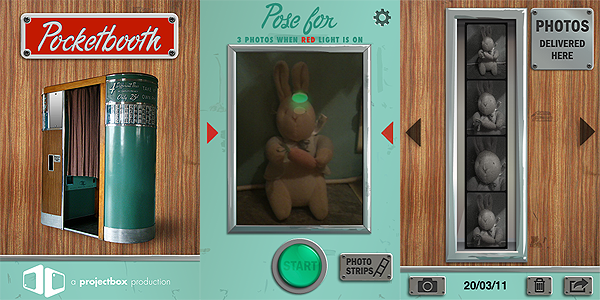
From the viewfinder, you have a preview. The light indicator will be red during the shooting session and green at other times, so that you always know when you have to put on your clever face and when you can just relax and take it easy. After you have your strip of photos, which is stored in the app’s gallery, you can save, print or share it as you prefer.

Pocketbooth by Project Box for iPhoneAlthough I must admit I have never used a Model 11 photo booth, the effects delivered by Pocketbooth look to me quite authentic and none of them is overdone; the output quality appears good as well, also for printing purposes. The UI, well-balanced and stylishly designed, works flawlessly: getting the job done is very easy even if you are using the rear camera instead of the front one.

Pocketbooth by Project Box will be able to bring instants of amusement to those intrigued by analog photo booths. Of course there’s no need for me to say — but I will say it in any case — that you can just ignore the original app’s purpose and employ Pocketbooth as any other action camera to take a series of shots in a given time interval. With a little creativity, Pocketbooth lends itself to many unforeseen uses. It’s up to you to find them out.

Overall

Name: Pocketbooth
Developer: Project Box
Compatibility: iPhone, iPod Touch, iPad 2. iOS 4.0 or later.
Price: £0.59||$0.99||€0.79
Vote: 4/5

Pocketbooth - Project Box

Lumière: Vintage Photo Processing In Real Time

With Lumière, a newly released photography app whose aim is to recreate the magic of the most diverse toycams on Apple portable devices, nebulus design pay a tribute to two of the initiators of cinematography.

You have probably heard at some point of Auguste and Louis Lumière, French brothers celebrated by most as pioneers and fathers of cinema. There still is a lot of debate concerning the status of Lumière brothers as actual fathers of cinematography.

In 1895 the Lumière Bros, who had inherited a photographic business from their father Antoine, patented the cinématographe, a film camera and a projector all rolled into one, cleverly making use of a series of inventions which included Edison’s Kinetoscope and Reynaud’s film perforations. The name of their creation itself was a reprise from Bouly’s cinèmatographe.

Whoever rightly deserves to be considered the actual inventor of cinematography, it is certain though that the public screening of footage shot with Lumière’s cinematograph on December 28, 1895 at the Grand Café in Paris represents one of the single greatest and most memorable moments in the history of this art form.

However, the question of fatherhood of cinema is much more complex than this and it would at least take a whole post on its own to discuss it in more detail.

Main Features

  • Up to 1440 x 960 pixels;
  • Real-time processing;
  • 9 filters;
  • 9 borders;
  • In-app instructions;
  • Share via email, Facebook, Twitter, Tumblr.

Appotography Opinion

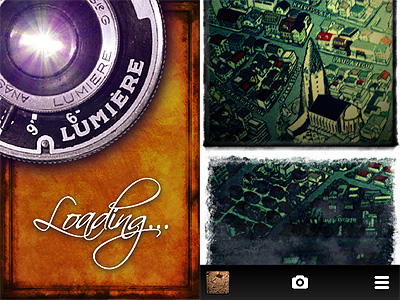
Don’t get fooled by the name of this app: Lumière takes photos, not videos. Since it works in real time, you cannot use it with photos previously taken and stored in the camera roll. You point the camera to your subject, you slide your finger on the screen to scroll among color filters (horizontally) and borders (vertically) and, in case you have no preference or you want to go for an unexpected effect, by shaking the device you trigger the randomizing feature. When you find a combination that suits your taste, you press the shutter button. From the gallery, you can save the photo or share it.

Lumière by nebulus design for iPhone

The real-time feature for handling the photo processing is more gimmicky than actually useful. If this were a video recording app — as I thought at the beginning, given the evocative name “Lumière” — real-time processing would make sense, but since the app only takes photos, it’s nothing more than a choice motivated by style. Scrolling among the effects can be cute at first, but it’s definitely not the best option if you want quickness and handiness. Retrieving the right filter/border combination for instance can be a pain in certain circumstances. The choices are kind of limited though, so it’s still possible to manage.

Lumière by nebulus design for iPhone

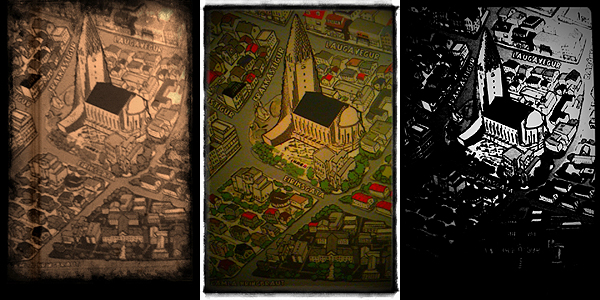
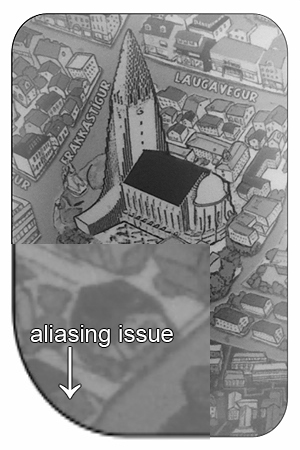
The filters, including Chromatic Distortion, 70’s, Super Saturated, Black and White, etc., are able to deliver a believable retro feel typical of lo-fi toy cameras. However, the final resolution of the saved images, with its 1440 x 960 pixels, is nothing great, especially if you value your photos enough to want to make use of them a little more productively than as mere disposable images. Also, some borders at the highest available resolution look shabby and present aliasing issues — on 3GS at least.

Overall, I’d say Lumière needs to be improved. Updates on maximum resolution and quality of some elements will definitely help bringing the app on another level thus making it fully usable also outside iPhone/iPod Touch/iPad limitations. Still, Lumière is a curious little app that, most of all thanks to its fancy real-time feature, will especially please those who enjoy something slightly out of the ordinary in photographic processing.

Overall

Name: Lumière
Developer: nebulus design
Compatibility: iPhone 3GS & 4, iPod Touch 4th, iPad 2. iOS 4.2 or later.
Price: £1.19||$1.99||€1.59
Vote: 3/5

Lumiere - nebulus design

Dynamic Light: When The Best HDR Is Fake

Who said the best HDR is the real one? That’s a rhetorical question some digital photographers who tend to opt for an all-done-in-post-processing approach often like to pose. The question itself may sound blasphemous to purists of HDR photography, but reflecting on it, in some cases the best HDR can indeed be the fake one. This is for different reasons: when you don’t have a tripod or other means of support, taking bracketed photos can be a problem; also, some HDR pictures present issues like halation, which can be a pain to remove. And this is just to mention two of the most common problems connected to HDR photography.

After years of expertise in multimedia development, Canadian Mediachance now brings to Apple portable devices their proprietary DPHDR (Dynamic Photo HDR) processing. The result is Dynamic Light, an optimized tool for generating HDR-like effect on iPhone, iPod Touch and iPad that will  make things easier for many fans of the HDR style.

Main Features

  • Full resolution available;
  • 12 filters;
  • Adjustable radius, surface smoothness and color boost;
  • Retina display support.

Appotography Opinion

Dynamic Light works both with built-in camera and with photos stored in your camera roll. What the app does, basically, is to simulate HDR using a single image instead of using several exposures as in real HDR.

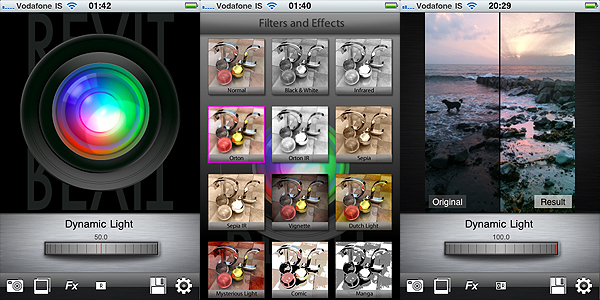
The Dynamic Light proprietary filter is chosen by default as soon as you start the app, but you have eleven more filters available to choose from. Among the most interesting ones, you will find Orton and Orton Infrared, another filter based on a very popular effect among digital photographers, which consists in processing the photo in order to create a unique mix of areas characterized by sharp detail and others with extreme out of focus. All you have to do once you choose the filter is to adjusts its intensity using the on-screen wheel. From low to high values, depending on the filter, outcomes can change a lot. In the app’s settings you can also adjust individual parameters — Radius, Surface Smoothness and Color Boost — to determine how filters will affect your images.

Dynamic Light by Mediachance for iPhone

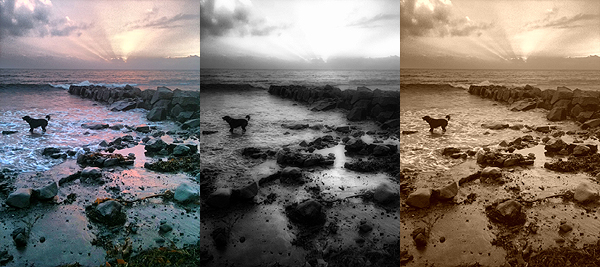
Obtaining decent looking fake HDR using a single exposure is not as easy as one might think. To achieve it, many apps simply apply heavy sharpening and over-saturation that brings out unrealistic hues. In these cases the results are usually abominable. Dynamic Light succeeds in actually improving the look of the initial photo, enriching it with details that were lost in darkness and emphasizing the original colors without making them look strident and cheap. Some of the additional effects besides the default are also very well-done, like the aforementioned Orton and the Sepia, also in their Infrared variations. The only filters I cannot bring myself to like and use are Comic and Manga — but I have yet to see an all-around great comic filter.

Dynamic Light by Mediachance for iPhone

For better results, developers suggest to use Dynamic Light HDR on outdoors and landscape photos with rich textures, unless you’re looking for very particular results. I must say that I have tried the app also with photos that definitely couldn’t be considered ideal, and I was pleased.

Dynamic Light is much easier to handle than real HDR and results you can obtain are terrific. For its quality and at the given price, Mediachance’s is an app I feel like recommending without hesitation.

Overall

Name: Dynamic Light
Developer: Mediachance
Compatibility: iPhone, iPod Touch, iPad. iOS 4.0 or later.
Price: £0.59||$0.99||€0.79
Vote: 4/5

Dynamic Light - Mediachance

iSupr8: Second Round With Perfect Score!

We pretty much explained in our previous review all the great aspects about iSupr8 and how our rating had been mainly influenced by deficiencies in the app’s framing accuracy. With the latest updates we verified that the aforementioned issue has been fixed by MEA Mobile, developer of iSupr8. Also, more interesting features were added.

Main Features

  • Tru8™Processing;
  • Unlimited HD record time;
  • Re-develop videos;
  • 3 levels of filter intensity (low, medium, high);
  • Record 360p / 480p / 720p
  • Large Viewscreen mode;
  • Import videos from camera roll;
  • Spotlight enabled for iPhone 4;
  • Share still Frames on Snapr;
  • Share via email and Facebook.

Appotography Opinion

Here we are, for iSupr8 part 2. As I said, we liked the app in its original form, but it had issues that made it difficult to fully enjoy it. This is why I am more than happy to have the chance to re-review the updated and improved version.

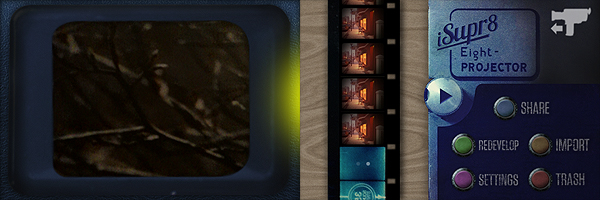
iSupr8 iPhone by MEA Mobile

iSupr8’s UI, which I liked, thankfully has not undergone drastic changes; it has been improved to go along with the new options now offered by the app. The large viewer, for instance, permits better and more accurate control over footage recording. You can bring it on by double tapping on the regular viewer and you can conceal it by double tapping on it again at any time. Another of the newly introduced features allows users to process videos stored in their camera roll, instead of only being able to process material recorded from within the app. As a result, iSupr8 is now fully iPad/iPad 2 compatible. And this is not all: you can conveniently process the same video again and again, so every time you can make changes to parameters and settings. In fact, more than a processing option was included with the updates. You can adjust the intensity of the applied filter, from low to high. This will please both those who prefer a heavily dated look for their videos and also those who just want the vintage flavor without much scratching and dust applied. Among the other features not included in the first release — the one we reviewed — you will find the possibility to share stills from your videos on Snapr, a web service for posting geo-tagged images.

Developers of iSupr8 encourage users to send suggestions and feedback to make their app even better. Appotography praises MEA Mobile for being attentive to users’ requests and needs and for promptly improving their product.

iSupr8 was already remarkable for the quality of its processing and for the authenticity of its 8 mm simulation. All that we liked in the first release is still intact, and all that we were unsure of was readily corrected. As of now, iSupr8 is our favorite 8 mm simulation app and one of the video processing apps we like more. Well done!

Overall

Name: iSupr8
Developer: MEA Mobile
Compatibility: iPhone (3GS, 4), iPod Touch. iOS 4.1 or later.
Price: £1.19||$1.99||€1.59
Vote: 5/5
iSupr8 - MEA Mobile

iLabeler: Start Labelling Now!

Guess what? There is a brand new app for you photo-labelling geeks out there. It’s called iLabeler and it’s brought to you by misskiwi, developer specialized  in trying to recreate analog film camera feel on iPhone, iPod Touch and iPad and already known to Apple users for other apps like ClassicTOY, ClassicSAMP, ClassicINSTA, and more.

Main Features

  • Full resolution available;
  • 8 styles;
  • 10 ready-to-use backgrounds (640 x 960 pixels only);
  • Rotate labels in any direction;
  • Share with email and Facebook.

Appotography Opinion

With iLabeler you have a pocket digital label printer which is both really cool in appearance and excellent in the results it provides.

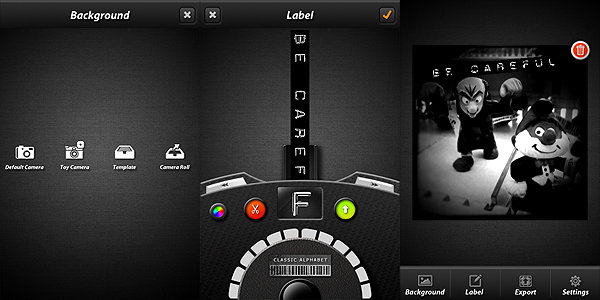
You can start with a photo taken either with plain or toy camera, you can use a photo from your camera roll, or you can use one among the blank ready-to-use backgrounds that come with the app. You do not have to worry about the background at first, because you can change it at any moment, also after you have created your label.  There are eight different fonts to choose from. The styles, although some may argue are basically very similar, cover a variety of possibilities, ranging from classic to vintage to icons; with the color picker feature you can also change the background color of your labels — you cannot change font color though. You scroll right and left to pick characters and confirm each of them to input your text. You can delete characters if you make mistakes.

iLabeler by misskiwi for iPhone

iLabeler works impeccably. However, the intricate scrolling method to pick letters to compose the text of the labels is something that I’m sure will make many users uncomfortable. In fact, you have to manually scroll back and forth to pick single characters, which greatly affects the rapidity of the labelling process. The wheel has arrows that allow jumping from a position to another in the alphabet, but even this doesn’t improve much the overall usability of iLabeler. Especially at first, writing even the shortest label can be kind of troubling. A simple and straightforward keyboard to input the text would probably please most users, even if it would take away part of the cuteness of this app. Could this be an optional feature to be added in the future perhaps?

iLabeler by misskiwi for iPhone

In spite of the sketchy letter-picking, which anyway won’t be that bad if you give the app some time for you to get used to it, iLabeler remains a very effective tool for its purpose. The app by misskiwi succeeds where other apps in the same genre failed. If you want a stylish, first-class labelling accessory to write fancy messages or to use as a complement to other apps, go for it. And enjoy!

Overall

Name: iLabeler
Developer: misskiwi
Compatibility: iPhone, iPod Touch, iPad. iOS 4.1 or later.
Price: £0.59||$0.99||€0.79
Vote: 4/5

iLabeler - misskiwi